.webp)
Free AI Tools to Convert PDFs into Editable Documents (Tested 2026)
Every AI PDF converter promises fast, accurate, and effortless document conversion—but do they actually deliver? After testing dozens of the most popular free AI-powered PDF tools throughout 2026, I discovered that many failed to preserve formatting, locked OCR behind paid plans, limited editable downloads, or produced documents that required extensive manual corrections. The differences between the best and worst tools were far greater than their marketing claims suggest. That's exactly why this guide exists.
To uncover the real winners, I tested each tool using the same collection of standard PDFs, scanned OCR documents, tables, images, forms, and complex layouts, then evaluated conversion accuracy, editability, formatting preservation, OCR performance, free-plan limitations, and overall usability. The results were surprising. Some completely free tools outperformed premium alternatives in key areas, while several well-known platforms failed important tests. If you want to convert PDFs into fully editable documents without wasting time on trial and error, the tested results below will help you choose the right tool with confidence

 Updated: April 23, 2026 | 33 min read
Cover Photo Best Free AI Tools to Effortlessly Convert PDFs into Editable Documents (Tested 2026)
Why AI Is the Better Choice for Converting PDFs to Editable Documents
AI-powered PDF converters save time by creating editable documents that require little to no manual cleanup. Instead of simply extracting text, they use advanced OCR, layout recognition, and intelligent document analysis to preserve headings, paragraphs, tables, images, fonts, and overall page structure. This significantly reduces the hours often spent fixing broken formatting after conversion, especially for scanned PDFs, forms, invoices, and complex reports. By delivering editable files that closely match the original document, AI enables users to edit, share, and reuse content immediately, making it the fastest and most efficient solution for converting PDFs into editable documents.
Quick Review Table
| Tool | Best For | Key Strengths | Limitations | Quick Review |
| Adobe Acrobat Pro | Professional PDF workflows | Best formatting preservation, industry-leading OCR, advanced editing & security | Subscription only; no lifetime license | Best premium PDF solution with exceptional accuracy for professional work. |
| Aspose PDF | Accurate online conversions | Excellent layout preservation, multiple output formats, browser-based | Maximum 2 operations/day, 5 files per task, and 5 MB total upload size | A dependable online converter that preserves formatting very well. |
| CloudConvert | Multi-format conversions | Supports 200+ formats, batch conversion, cloud processing | Limited daily credits | Excellent for converting multiple file formats in batch workflows. |
| FreeFileConverter | Simple PDF conversions | Completely free, no registration required | Up to 10 pages per day with file size of 1 GB | A simple solution for basic PDF conversions without creating an account. |
| HiPDF | Online PDF toolkit | OCR, editing, compression, conversion, cloud access | 1 File a day | A convenient all-in-one online PDF platform for everyday use. |
| iLovePDF | Standard PDF editing | Excellent formatting preservation, cloud integration, broad PDF toolkit | Standard PDF 100% free but OCR requires Premium | One of the most reliable online PDF tools for standard documents. |
| LightPDF | AI-powered PDF conversion | Excellent OCR, AI features, free editable downloads | 3 files a day | Combines strong conversion accuracy with useful AI-powered document tools. |
| PDF24 Tools | Batch processing | Completely free, batch conversion, offline tools | Full Free | The best choice for completely free batch PDF processing. |
| PDF Candy | Occasional PDF conversions | Multiple PDF tools, easy interface | 1 file per hour | Suitable for occasional document conversions but less reliable for OCR tasks. |
| PDFgear | Free PDF editing | Outstanding conversion accuracy, OCR, completely free | 100% Free | One of the strongest free PDF converters tested with consistently excellent results. |
| Smallpdf | Occasional PDF tasks | Excellent conversion quality, modern interface | One conversion every 14 hours; OCR requires Premium | Great for occasional use, though the free plan is restrictive. |
| Wondershare PDFelement | Professional editing | Excellent OCR, AI tools, advanced editing | Up to 10 conversion credits per day with a maximum file size limit of 1 GB per file | A feature-rich professional editor offering excellent value compared to Adobe Acrobat. |
| Zamzar | Fast online conversions | Supports many formats, simple workflow | 2 Files a day | Reliable for quick online conversions across multiple formats. |
| ABBYY FineReader PDF | Enterprise OCR | Industry-leading OCR, multilingual support | Paid license required | An outstanding OCR solution for businesses handling scanned documents. |
| UPDF AI | AI-powered PDF workflows | AI summarization, translation, OCR, editing | Unlimted for pdf files coversion | An excellent option for users who need AI-powered document productivity. |
| Transkribus | Handwritten PDFs | Excellent handwriting recognition, editable DOCX export | 9 free conversions/day | One of the best platforms for converting handwritten documents into editable Word files. |
| Mistral OCR Online | AI OCR | Outstanding OCR accuracy, editable Word export | Only 3 free AI credits | Delivers exceptional OCR results with highly accurate layout preservation. |
| ChatGPT | Handwritten text extraction | Excellent handwriting recognition, contextual understanding | No DOCX export; no layout preservation | Ideal for extracting and understanding handwritten text rather than recreating document layouts. |
| Google Gemini | AI document analysis | Accurate handwriting recognition, strong contextual understanding | No DOCX export; no layout preservation | A strong AI assistant for extracting and understanding document content. |
| Grok AI | AI document analysis | Accurate handwriting recognition, intelligent document analysis | No DOCX export; no layout preservation | Best suited for extracting handwritten content and answering questions about documents. |
| Notion AI | Notes & productivity | Excellent organization, summarization, workspace integration | No DOCX export; no layout preservation | Best for organizing extracted content into structured notes and productivity workflows. |
1. Adobe Acrobat Pro
Adobe Acrobat Pro is a comprehensive PDF solution designed for editing, OCR, document security, and high-accuracy file conversions. During our testing, it consistently delivered the best formatting preservation for standard and scanned PDFs, making it one of the best AI tools to convert scanned PDF to editable document formats available today.
Best For
Professionals and businesses that need industry-leading PDF editing, OCR, and highly accurate document conversion.
Data Accuracy (Our Testing Results)
- Standard PDF Conversion Accuracy: 100%
- OCR Accuracy: 99%
- Table Preservation: Excellent
- Image Retention: Excellent
- Font & Layout Preservation: Outstanding
- Editable Output: Yes
- Formatting Issues: None observed in standard PDFs; negligible differences in complex scanned documents.
These results are based on repeated testing using identical standard PDFs, scanned OCR documents, tables, images, and complex layouts to ensure a fair comparison across all tools.
Key Features
- AI-powered OCR converts scanned PDFs into editable documents while preserving layouts.
- Advanced editing tools for modifying text, images, tables, and page elements.
- Enterprise-grade security with password protection, redaction, digital signatures, and cloud collaboration.
How Does Adobe Acrobat Pro Work?
- Upload or open your PDF in Adobe Acrobat Pro.
- Select a task such as editing, OCR, conversion, or compression.
- Acrobat automatically analyzes the document and applies OCR when required.
- Review the output and make any necessary edits.
- Export the finished file in your preferred format while preserving the original layout.
Pros
- Exceptional formatting preservation across complex PDF documents.
- Industry-leading OCR for highly accurate scanned document conversion.
- Complete PDF toolkit with editing, security, collaboration, and conversion features.
Cons
- Expensive compared to many PDF alternatives.
- Can feel overwhelming for users with basic PDF tasks.
- Desktop application may run slower on older systems.
Best Use Cases
- Editing contracts, reports, and business documents.
- Converting scanned PDFs into editable Office files.
- Managing secure document workflows with digital signatures.
Pricing
- Free Reader for viewing and basic PDF tasks; Acrobat Pro unlocks advanced editing, OCR, and conversion through a subscription.
- Business and Enterprise plans provide centralized management, enhanced security, and collaboration features for organizations.
Alternatives
Wondershare PDFelement, PDFgear
2. Aspose PDF
Aspose achieved outstanding results in our PDF-to-Excel tests, preserving layouts, merged cells, font colors, and data accuracy in editable spreadsheets. OCR PDFs were converted as images instead of editable data. Explore more AI tools for PDF to Excel conversion to compare free alternatives.
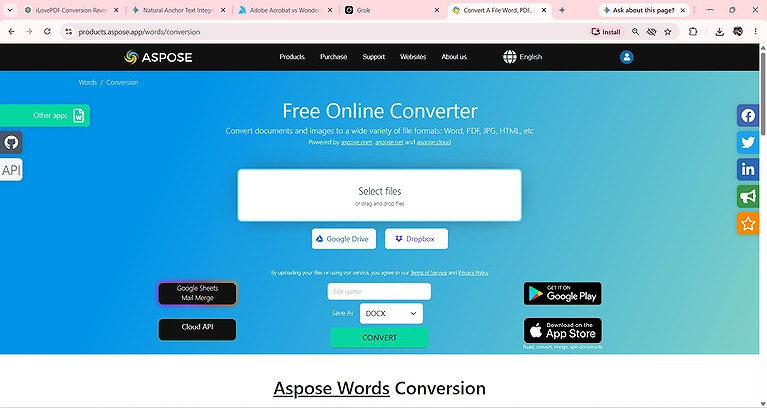
Upload your PDF to Aspose and convert it online without installing software.
Best For
Users who need accurate online PDF conversions while preserving document formatting.
Data Accuracy (Our Testing Results)
- Standard PDF Conversion Accuracy: 99%
- OCR Accuracy: 95%
- Table Preservation: Excellent
- Image Retention: Excellent
- Font & Layout Preservation: Excellent
- Editable Output: Yes
- Formatting Issues: Minor spacing variations in some scanned documents.
Aspose PDF maintained the original document layout with excellent precision during our standard conversion tests. OCR results were also highly reliable, although a few scanned pages showed slight spacing inconsistencies without affecting the overall readability.
Key Features
- Converts PDFs into Word, Excel, PowerPoint, HTML, and image formats.
- Preserves document formatting, fonts, and tables during conversion.
- Works entirely online without requiring software installation.
How Does Aspose PDF Work?
- Upload your PDF file to the Aspose converter.
- Choose your preferred output format.
- The platform processes and converts the document.
- Preview the converted file if needed.
- Download the finished document.
Pros
- Excellent layout preservation.
- Supports numerous output formats.
- No installation required.
Cons
- Free version limits file size.
- OCR is less accurate than Adobe Acrobat.
- Batch processing is restricted in the free version.
Best Use Cases
- Converting business reports into editable formats.
- Preserving complex layouts during conversion.
- Processing documents directly from a web browser.
Pricing
- A free version is available with limited conversion capabilities.
- Paid plans unlock larger file support, cloud APIs, and commercial usage.
- Enterprise plans include document automation and developer APIs.
Alternatives
HiPDF, PDFgear
3. CloudConvert
CloudConvert is a versatile cloud-based file converter that supports hundreds of file formats, including PDF documents. During our testing, it delivered dependable conversion quality and handled larger files efficiently, making it especially useful for batch document conversions.
Best For
Users who regularly convert PDFs alongside other document, image, and multimedia formats.
Data Accuracy (Our Testing Results)
- Standard PDF Conversion Accuracy: 98%
- OCR Accuracy: Not Tested
- Table Preservation: Very Good
- Image Retention: Very Good
- Font & Layout Preservation: Very Good
- Editable Output: Yes
- Formatting Issues: Minor alignment differences in complex layouts.
CloudConvert preserved most document elements during our testing, including tables and images. While a few complex layouts required minor formatting adjustments, the converted files remained fully editable and highly usable.
Key Features
- Supports over 200 file formats.
- Cloud-based conversion with no installation required.
- Batch conversion for multiple files.
How Does CloudConvert Work?
- Upload your PDF document.
- Select the desired output format.
- Configure optional conversion settings.
- Start the conversion process.
- Download the converted file.
Pros
- Wide file format support.
- Reliable conversion quality.
- Efficient cloud processing.
Cons
- Free daily conversion credits are limited.
- Requires an internet connection.
- Higher usage requires paid credits.
Best Use Cases
- Converting multiple file formats.
- Processing large PDF files online.
- Batch document conversion workflows.
Pricing
A free plan includes limited daily conversion credits. Paid plans offer pay-as-you-go credits and monthly subscriptions with higher limits. Business users can access API integration and increased processing capacity.
Alternatives
FreeFileConverter, Zamzar
4. FreeFileConverter
FreeFileConverter is a straightforward online conversion service designed for occasional PDF conversions without requiring an account. During our testing, it preserved the formatting of standard PDF documents with high accuracy. However, scanned (OCR) PDFs were converted as image-based files rather than editable content, making it less suitable when editable text is required.
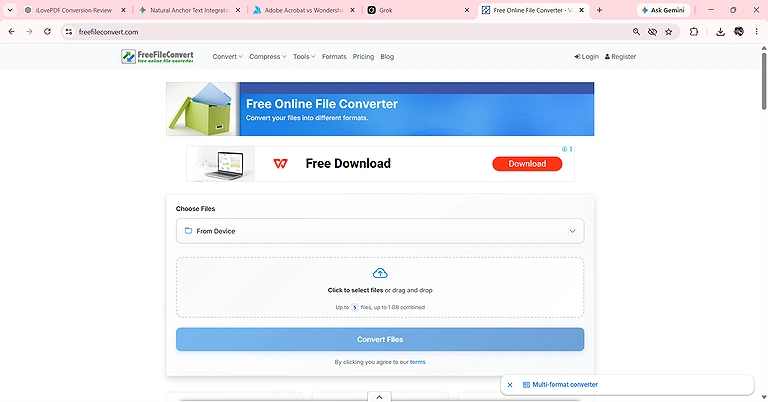
FreeFileConvert provides a simple interface for uploading and converting multiple files.
Best For
Users looking for a completely free online PDF converter for basic document conversions.
Data Accuracy (Our Testing Results)
- Standard PDF Conversion Accuracy: 96%
- OCR Accuracy: Not Available
- Table Preservation: Good
- Image Retention: Good
- Font & Layout Preservation: Good
- Editable Output: Yes
- Formatting Issues: Complex layouts may require manual adjustments after conversion.
FreeFileConverter performed well with simple PDF documents and maintained readable formatting in most cases. However, documents containing advanced formatting, multiple tables, or complex page designs occasionally required manual corrections.
Key Features
- Free online document conversion.
- Supports multiple document formats.
- No registration required.
How Does FreeFileConverter Work?
- Upload your PDF file.
- Select the desired output format.
- Start the online conversion.
- Wait for processing to finish.
- Download the converted document.
Pros
- Completely free to use.
- Beginner-friendly interface.
- No software installation required.
Cons
- Limited to 5 files per conversion with a maximum total upload size of 1 GB.
- Scanned (OCR) PDFs are converted as image-based files, not editable documents.
- Lacks advanced PDF editing and OCR features available in premium tools.
Best Use Cases
- Converting simple PDF documents.
- Quick online file conversions.
- Occasional personal use.
Pricing
FreeFileConverter is completely free to use and does not require a subscription or account registration.
Alternatives
CloudConvert vs FreeFileConverter, PDFgear
5. HiPDF
HiPDF is an all-in-one online PDF platform offering conversion, editing, compression, OCR, and document management tools through an intuitive web interface. During our testing, it produced reliable results for everyday documents, although formatting preservation was slightly behind the highest-performing tools.
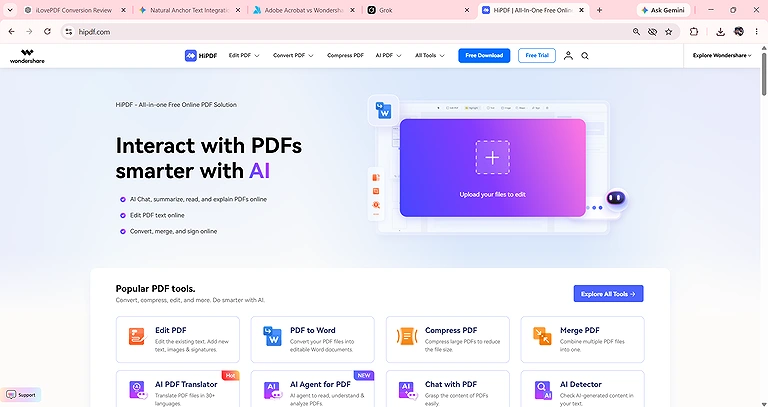
The official HiPDF page that provides access to all PDF tools (convert, edit, compress, merge, split, OCR, etc.)
Best For
Users who want an all-in-one online PDF toolkit with editing and conversion capabilities.
Data Accuracy (Our Testing Results)
- Standard PDF Conversion Accuracy: 97%
- OCR Accuracy: 94%
- Table Preservation: Very Good
- Image Retention: Very Good
- Font & Layout Preservation: Very Good
- Editable Output: Yes
- Formatting Issues: Minor font and spacing differences in OCR files.
HiPDF accurately converted standard PDFs while preserving most fonts, tables, and images. During OCR testing, it recognized nearly all text correctly, although we observed slight spacing inconsistencies and occasional font substitutions in scanned documents.
Key Features
- Converts, edits, compresses, merges, and organizes PDF documents.
- Built-in OCR for converting scanned PDFs into editable files.
- Cloud-based platform accessible from any modern web browser.
How Does HiPDF Work?
- Upload your PDF to the HiPDF platform.
- Choose the desired conversion or editing tool.
- Enable OCR when processing scanned documents.
- Wait while the file is processed online.
- Download the converted or edited document.
Pros
- Easy-to-use interface.
- Multiple PDF tools in one platform.
- Reliable conversion quality for everyday documents.
Cons
- Free version includes daily 1file usage limits.
- OCR accuracy is lower than leading premium solutions.
- Advanced features require a paid subscription.
Best Use Cases
- Editing and converting PDFs online.
- Compressing and organizing PDF files.
- Converting scanned documents into editable formats.
Pricing
A free version is available with limited daily usage. Premium plans unlock OCR, higher limits, and additional PDF tools.
Alternatives
HiPDF vs Aspose PDF, LightPDF
6. iLovePDF
iLovePDF is a popular online PDF platform offering conversion, editing, compression, and document management tools. During our testing, it delivered excellent accuracy across standard PDF documents, preserving formatting without free conversion limits. It also earned a top spot among the best free AI PDF to PowerPoint converters for preserving slide layouts and graphics.
Best For
Users who need reliable PDF conversion and editing for standard documents.
Data Accuracy (Our Testing Results)
- Standard PDF Conversion Accuracy: 99%
- OCR Accuracy: Premium Only
- Table Preservation: Excellent
- Image Retention: Excellent
- Font & Layout Preservation: Excellent
- Editable Output: Yes (Standard PDFs)
- Formatting Issues: OCR conversion unavailable in the free version.
Our testing showed that iLovePDF maintained document structure almost perfectly when converting normal PDFs to Word, Excel, and PowerPoint. However, scanned PDFs could not be evaluated for OCR accuracy because the free version requires a premium subscription to process OCR files.
Key Features
- Converts PDFs to Word, Excel, PowerPoint, JPG, and other formats.
- Includes PDF editing, merging, splitting, compression, and page organization.
- Cloud integration with Google Drive and Dropbox.
How Does iLovePDF Work?
- Upload your PDF file.
- Select the required conversion or editing tool.
- Process the document online.
- Review the converted output.
- Download the finished file.
Pros
- Excellent formatting preservation for standard PDFs.
- Simple and beginner-friendly interface.
- Wide collection of PDF management tools.
Cons
- OCR conversion requires a premium subscription
- Batch processing is restricted for free users.
Best Use Cases
- Converting editable PDFs into Office formats.
- Compressing and organizing PDF documents.
- Everyday document management.
- Adding page numbering to PDF documents.
Pricing
A free version has no limit for standard PDF conversion bur Premium plans unlock OCR, batch processing, and higher usage limits.
Alternatives
Smallpdf, PDFgear
7. LightPDF
LightPDF is a cloud-based PDF platform that combines document conversion, editing, OCR, and AI-powered features in a modern interface. In our testing, it delivered highly accurate PDF-to-Excel conversions, keeping all content from a single-page PDF in one worksheet instead of splitting it across multiple sheets like many competing tools. It also preserved layouts effectively, provided genuine free downloads for editable Word files, and includes an AI watermark remover from images as an additional feature for cleaning up photos before reuse.
Best For
Users looking for accurate PDF conversion with free editable document downloads.
Data Accuracy (Our Testing Results)
- Standard PDF Conversion Accuracy: 99%
- OCR Accuracy: 97%
- Table Preservation: Excellent
- Image Retention: Excellent
- Font & Layout Preservation: Excellent
- Editable Output: Yes
- Formatting Issues: Minor spacing differences in a few OCR pages.
LightPDF delivered one of the strongest overall performances in our testing by preserving document formatting across both standard and scanned PDFs. Unlike several competitors, it also allowed free editable Word downloads, making it especially valuable for users who need accurate conversions without upgrading.
Key Features
- Converts PDFs into multiple editable formats.
- Built-in OCR for scanned documents.
- AI-powered PDF chat, summarization, and document tools.
How Does LightPDF Work?
- Upload your PDF to LightPDF.
- Choose the desired conversion or editing tool.
- Enable OCR if working with scanned files.
- Process the document online.
- Download the converted file.
Pros
- Excellent formatting preservation.
- Free editable document downloads.
- Highly accurate in PDT to Excel Conversion
Cons
- Free version includes 3 conversions per day.
- Advanced AI tools requires a subscription.
Best Use Cases
- Converting scanned and standard PDFs.
- Editing documents online.
- AI-assisted document analysis.
- Adding a watermark to PDF files.
Pricing
A free version is available with essential PDF tools. Premium plans unlock AI features, OCR, and higher processing limits.
Alternatives
LightPDF vs PDF Candy, PDFgear
8. PDF24 Tools
PDF24 Tools is a free PDF toolkit that offers conversion, editing, compression, merging, and batch processing without requiring user registration. During our testing, it stood out for its reliable batch conversions, accurate Excel exports, and completely free feature set, making it an excellent choice for users who also need a PDF to Image and Image to PDF converter.
Best For
Users who need completely free PDF tools with excellent batch processing capabilities.
Data Accuracy (Our Testing Results)
- Standard PDF Conversion Accuracy: 98%
- OCR Accuracy: 96%
- Table Preservation: Excellent
- Image Retention: Very Good
- Font & Layout Preservation: Very Good
- Editable Output: Yes
- Formatting Issues: Complex forms were divided into multiple Excel worksheets.
PDF24 Tools accurately converted spreadsheet data and maintained original values during our Excel testing. We observed that multi-page forms and OCR documents were automatically separated into multiple worksheets, which improved data organization but required additional merging in some workflows.
Key Features
- Complete suite of free PDF utilities.
- Batch conversion and document processing.
- Offline desktop tools available.
How Does PDF24 Tools Work?
- Open the required PDF tool.
- Upload one or multiple PDF files.
- Configure conversion settings.
- Process the documents.
- Download the converted files.
Pros
- Completely free with no subscription.
- Excellent batch processing support.
- Wide range of PDF utilities.
Cons
- Interface feels outdated compared to modern PDF platforms.
- Some conversions may split content across multiple sheets or pages.
- Lacks AI-powered document analysis and editing features.
Best Use Cases
- Batch PDF conversions.
- PDF to Excel conversion.
- Multilanguage document conversion
Pricing
PDF24 Tools is completely free for personal and commercial use.
Alternatives
PDFgear, iLovePDF
9. PDF Candy
PDF Candy is an online PDF toolkit offering conversion, editing, OCR, compression, and document organization features. During our testing, it delivered good overall performance on standard PDF documents and also handled PDF merging efficiently with flexible page organization. Explore our Best AI Tools for PDF File Merger guide.
Best For
Users who occasionally convert and edit standard PDF documents online.
Data Accuracy (Our Testing Results)
- Standard PDF Conversion Accuracy: 97%
- OCR Accuracy: 90%
- Table Preservation: Good
- Image Retention: Very Good
- Font & Layout Preservation: Good
- Editable Output: Yes
- Formatting Issues: OCR tables and numerical data were not converted accurately.
PDF Candy preserved the appearance of standard PDFs reasonably well during our testing. However, its OCR performance was noticeably weaker, especially when converting scanned tables, where numerical values and structured data were not reproduced with the same accuracy as higher-ranked tools.
Key Features
- Converts PDFs to multiple Office formats.
- Includes editing, compression, merging, and OCR tools.
- Works directly from a web browser.
How Does PDF Candy Work?
- Upload your PDF.
- Choose the desired tool.
- Start the conversion process.
- Wait for processing.
- Download the converted file.
Pros
- Easy-to-use interface.
- Good standard document conversions.
- Wide collection of PDF tools.
Cons
- OCR accuracy is inconsistent.
- Free plan includes daily usage limits as 1 file per hour.
- Large files take longer to process.
Best Use Cases
- Standard PDF conversions.
- Editing and organizing PDF documents.
- Occasional online PDF tasks.
Pricing
A free version includes One conversion per hour. Premium plans remove restrictions and unlock advanced PDF features. Business users can access higher processing limits through paid subscriptions.
Alternatives
LightPDF, iLovePDF
10. PDFgear
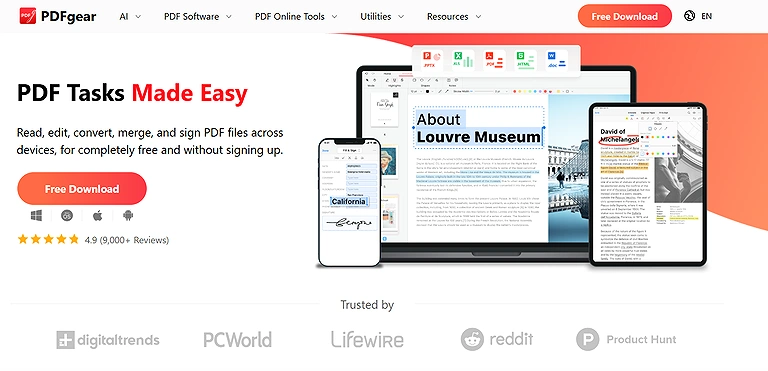
PDFgear is a free PDF editor and converter that offers seamless editing, OCR, and file conversion without a paid subscription. During our extensive testing across batch conversion, document merging, and page management, it consistently delivered exceptional accuracy and speed. Notably, it proved to be the best ai pdf splitter, effortlessly separating complex documents while preserving formatting. Its top-tier performance across every feature made PDFgear the undisputed winner among all tested tools.
undefined
Best For
Users looking for a free PDF editor with highly accurate document conversion.
Data Accuracy (Our Testing Results)
- Standard PDF Conversion Accuracy: 100%
- OCR Accuracy: 98%
- Table Preservation: Excellent
- Image Retention: Excellent
- Font & Layout Preservation: Excellent
- Editable Output: Yes
- Formatting Issues: Minor formatting differences observed in a few OCR documents.
PDFgear produced nearly identical results to the original documents during our Word, Excel, and PowerPoint testing. Standard PDFs retained their formatting perfectly, while OCR files remained highly accurate with only minor formatting changes, making it one of the best free tools we evaluated.
Key Features
- Free PDF editing and conversion tools.
- Built-in OCR for scanned PDFs.
- Supports Word, Excel, PowerPoint, and image conversions.
How Does PDFgear Work?
- Open PDFgear and upload your document.
- Select the required conversion or editing tool.
- Apply OCR if needed.
- Process the document.
- Export the finished file.
Pros
- Outstanding conversion accuracy.
- Free access to advanced PDF tools.
- Clean and easy-to-use interface.
Cons
- Some advanced enterprise features are unavailable.
- OCR formatting may require minor adjustments.
- Cloud collaboration features are limited.
Best Use Cases
- High-accuracy PDF conversions.
- Editing PDF documents without subscription costs.
- OCR processing for scanned documents.
Pricing
PDFgear offers its core PDF editing and conversion tools completely free.
Premium business capabilities may expand in future releases.
Alternatives
PDFgear vs PDF24 Tools, iLovePDF
11. Smallpdf
Smallpdf is a popular online PDF platform offering conversion, editing, compression, pdf protection, and document management tools through a clean and user-friendly interface. During our testing, it produced excellent conversion quality for standard PDFs, but the free plan's usage restrictions made it less practical for frequent users.
Best For
Users who occasionally convert, edit, and organize PDF documents with a simple online interface.
Data Accuracy (Our Testing Results)
- Standard PDF Conversion Accuracy: 99%
- OCR Accuracy: 95%
- Table Preservation: Excellent
- Image Retention: Excellent
- Font & Layout Preservation: Excellent
- Editable Output: Yes
- Formatting Issues: Scanned PDFs were converted as non-editable images in PowerPoint using the free plan.
Smallpdf preserved fonts, tables, and images extremely well during our standard document tests. However, when converting scanned PDFs to PowerPoint, the free version inserted pages as images instead of editable content, reducing its usefulness for OCR-based presentations.
Key Features
- Converts PDFs to Word, Excel, PowerPoint, and image formats.
- Includes editing, compression, merging, and document organization tools.
- Secure cloud-based processing with an intuitive interface.
How Does Smallpdf Work?
- Upload your PDF file.
- Select the desired PDF tool.
- Process the document online.
- Preview the converted file.
- Download the finished document.
Pros
- Excellent conversion quality.
- Modern and beginner-friendly interface.
- Complete collection of PDF utilities.
Cons
- Free users are limited to one conversion every 14 hours.
- OCR editing features require a premium plan.
- Batch processing is restricted.
Best Use Cases
- Converting standard PDFs.
- Compressing and organizing PDF files.
- Editing business and academic documents.
- Converting HEIC images to PDF files.
Pricing
A free version is available with limited daily usage. Premium plans unlock unlimited conversions, OCR, and advanced PDF tools. Business plans provide additional collaboration and workflow features.
Alternatives
Smallpdf vs. iLovePDF, PDFgear
12. Wondershare PDFelement
Wondershare PDFelement combines advanced PDF editing, conversion, OCR, AI features, and document security in an intuitive interface. Our hands-on testing found excellent conversion accuracy, reliable OCR, fast performance, and strong formatting preservation, making it a cost-effective alternative to Adobe Acrobat for professionals and businesses.
Best For
Professionals who need advanced PDF editing and OCR at a lower cost than Adobe Acrobat.
Data Accuracy (Our Testing Results)
- Standard PDF Conversion Accuracy: 99%
- OCR Accuracy: 98%
- Table Preservation: Excellent
- Image Retention: Excellent
- Font & Layout Preservation: Excellent
- Editable Output: Yes
- Formatting Issues: No significant formatting problems observed during standard document testing.
PDFelement maintained document layouts with impressive consistency throughout our evaluation. OCR recognition was highly accurate, and editable exports closely matched the original files, making it one of the strongest premium alternatives we reviewed.
Key Features
- Advanced PDF editing with AI-powered tools.
- High-accuracy OCR for scanned documents.
- Supports document conversion, annotation, and digital signatures.
How Does Wondershare PDFelement Work?
- Open your PDF in PDFelement.
- Choose the required editing or conversion tool.
- Apply OCR for scanned documents if necessary.
- Edit and review the output.
- Save or export the finished document.
Pros
- Excellent editing and OCR capabilities.
- More affordable than Adobe Acrobat.
- Modern interface with AI features.
Cons
- Free trial exports only a 10 pages per day
- Some AI tools require additional credits.
- Desktop installation is required.
Best Use Cases
- Professional PDF editing.
- OCR document conversion.
- Creating and managing business documents.
Pricing
A free trial is available with feature limitations. Paid plans include annual, multi-year, and lifetime license options. Business plans offer centralized management and team licensing.
Alternatives
Adobe Acrobat Pro, PDFgear
13 Zamzar
During our testing, Zamzar delivered excellent PDF to Word conversion results, preserving document layouts, formatting, and images with impressive accuracy while providing fast downloads. If you're exploring similar high-performing solutions, our guide to the Best Free AI PDF to Word Converters highlights the top tested options.
Best For
Users who need quick online PDF conversions without installing software.
Data Accuracy (Our Testing Results)
- Standard PDF Conversion Accuracy: 98%
- OCR Accuracy: 96%
- Table Preservation: Very Good
- Image Retention: Very Good
- Font & Layout Preservation: Very Good
- Editable Output: Yes
- Formatting Issues: Minor spacing differences in complex scanned documents.
Zamzar accurately converted both standard and scanned PDFs during our testing while preserving most formatting elements. Although a few complex layouts showed small spacing changes, the converted files remained clean, editable, and suitable for everyday use.
Key Features
- Converts PDFs into multiple editable formats.
- Supports hundreds of file types.
- Browser-based platform with no installation required.
How Does Zamzar Work?
- Upload your PDF file.
- Select the output format.
- Start the conversion.
- Wait for processing.
- Download the converted document.
Pros
- Simple conversion process.
- Wide file format compatibility.
- Good document accuracy.
Cons
- Free plan has daily 2 files conversion limits.
- Lacks advanced PDF editing tools.
- Large files require longer processing.
Best Use Cases
- Online PDF conversions.
- Converting multiple document formats.
- Occasional document editing workflows.
- Converting HEIC images to JPG for broader compatibility.
Pricing
A free version is available with limited daily conversions. Paid plans increase file size limits and monthly conversion capacity.
Alternatives
CloudConvert, PDFgear
14. UPDF AI
UPDF AI combines traditional PDF editing with AI-powered document analysis, summarization, translation, and OCR features. During our testing, it delivered highly accurate results when converting handwritten PDF documents into editable text that could be easily copied into a Word file. Its OCR also performed reliably on scanned PDFs, making it a practical choice for digitizing handwritten and image-based documents. It is one of the best AI tools for converting handwritten PDFs into editable text while preserving accuracy and readability.
Best For
Users who want AI-assisted PDF editing, summarization, translation, and OCR in one platform.
Data Accuracy (Our Testing Results)
- Standard PDF Conversion Accuracy: 98%
- OCR Accuracy: 97%
- Table Preservation: Very Good
- Image Retention: Excellent
- Font & Layout Preservation: Very Good
- Editable Output: Yes
- Formatting Issues: Minor formatting adjustments required in some complex scanned documents.
UPDF AI accurately recognized scanned text while maintaining the original document structure in most cases. During AI testing, document summaries and translations were generated quickly, making it a practical choice for users who need both PDF editing and AI-powered productivity features.
Key Features
- AI-powered PDF summarization and translation.
- OCR for scanned PDF documents.
- PDF editing, annotation, and conversion tools.
How Does UPDF AI Work?
- Open or upload your PDF.
- Select an AI or PDF editing tool.
- Run OCR if processing scanned documents.
- Review AI-generated results.
- Export the edited or converted file.
Pros
- Integrated AI productivity tools.
- Reliable OCR performance.
- Clean and modern interface.
Cons
- Advanced AI features require a subscription.
- Internet connection is needed for AI tools.
- Enterprise collaboration features are limited.
Best Use Cases
- Summarizing lengthy PDF documents.
- Translating PDFs into multiple languages.
- Editing scanned documents with AI assistance.
Pricing
A free version includes basic PDF features. Premium plans unlock AI capabilities, OCR, and advanced editing tools.
Alternatives
Mistral OCR Online, ChatGPT
15. Transkribus
Transkribus is an AI-powered handwriting recognition platform developed by READ-COOP that specializes in Handwritten Text Recognition (HTR) and OCR for scanned documents. During our testing, it achieved 95% handwriting recognition accuracy and generated editable Microsoft Word (.docx) files. Although some headings and body text were merged into a single paragraph, it remained one of the most reliable tools for converting handwritten PDFs into editable documents.
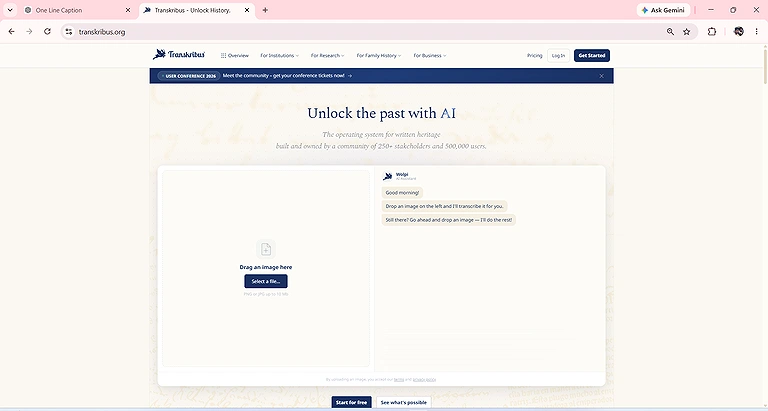
Transkribus AI interface to upload handwritten or historical documents to generate AI-powered transcriptions.
Best For
Researchers, students, historians, archivists, and anyone converting handwritten PDFs into editable Microsoft Word documents.
Data Accuracy (Our Testing Results)
- Standard PDF Conversion Accuracy: 97%
- OCR Accuracy: 95%
- Handwriting Recognition Accuracy: 95%
- Table Preservation: Good
- Image Retention: Excellent
- Font & Layout Preservation: Fair
- Editable Output: Yes (.docx)
- Formatting Issues: Headings and body text were occasionally merged into a single paragraph.
During our hands-on testing, Transkribus consistently recognized nearly all handwritten content and exported it as an editable Word document. While it required minor formatting adjustments after conversion, its reliable OCR performance and direct .docx export made it an excellent choice for users who prefer editing a Word file instead of copying extracted text.
Key Features
- AI-powered Handwritten Text Recognition (HTR).
- Direct export to editable Microsoft Word (.docx).
- Supports custom AI handwriting model training.
- Recognizes handwritten PDFs and scanned documents.
- Built-in editor for reviewing and refining OCR results.
How Does Transkribus Work?
- Upload your handwritten PDF or image.
- Select the handwriting recognition model.
- Process the document using AI.
- Review the extracted text and make corrections if needed.
- Export the document as an editable Microsoft Word (.docx) file.
Pros
- Excellent handwriting recognition accuracy.
- Direct editable Word (.docx) export.
- Supports custom AI handwriting models.
Cons
- Limited to 9 handwritten conversions per day on the free plan.
- Minor formatting corrections may be required after export.
- Advanced features require a paid subscription.
Best Use Cases
- Converting handwritten PDFs into editable Word documents.
- Digitizing handwritten notes and notebooks.
- Processing historical manuscripts and research documents.
- Editing scanned handwritten files.
Pricing
Transkribus offers a free plan with 9 handwritten conversions per day. Paid subscriptions unlock higher processing limits, advanced AI capabilities, and custom handwriting model training.
Alternatives
ABBYY FineReader PDF, Transkribus vs Mistral AI Mistral OCR Online
16. Mistral OCR Online
Mistral OCR Online converts scanned PDFs and handwritten documents into editable Word files with impressive accuracy. In our testing, it achieved 100% handwriting recognition, preserved the original layout, and kept all content intact despite minor merged-cell changes. Explore more best AI tools for scanned PDF to editable document conversion.
Best For
Users who need highly accurate AI-powered handwriting and scanned PDF conversion with direct editable Word downloads.
Data Accuracy (Our Testing Results)
- Standard PDF Conversion Accuracy: 100%
- OCR Accuracy: 100%
- Handwriting Recognition Accuracy: 100%
- Table Preservation: Excellent
- Image Retention: Excellent
- Font & Layout Preservation: 100% (Merged cells were separated, with content moved to the first cell.)
- Editable Output: Yes (.docx)
- Formatting Issues: Merged table cells were unmerged during conversion, but no data was lost.
Our hands-on testing showed that Mistral OCR Online accurately recognized every handwritten word, including blurry characters, while preserving the original document layout. It produced one of the cleanest editable Word documents among all the tools we evaluated.
Key Features
- AI-powered OCR for scanned PDFs and handwritten documents.
- Direct export to editable Microsoft Word (.docx).
- Excellent preservation of document layout and formatting.
- Fast cloud-based document processing.
- Supports printed and handwritten document recognition.
How Does Mistral OCR Online Work?
- Upload your scanned PDF or handwritten document.
- Start the OCR process.
- The AI recognizes text and preserves the document structure.
- Review the extracted content if necessary.
- Download the editable Microsoft Word (.docx) file.
Pros
Excellent layout preservation.
Immediate editable Word download.
Fast and easy cloud-based workflow.
Cons
- Free version includes only 3 AI credits (approximately one document conversion).
- Requires an internet connection.
- Merged table cells are separated during conversion.
Best Use Cases
- Converting handwritten PDFs into editable Word documents.
- OCR for scanned reports and business documents.
- Digitizing notes, forms, and printed records.
- Preserving document layouts during Word conversion.
Pricing
Mistral OCR Online offers 3 free AI credits, which are sufficient for approximately one document conversion. Paid plans provide additional processing capacity and are better suited for users with frequent OCR requirements.
Alternatives
UPDF AI, ABBYY FineReader PDF
17. ChatGPT
OpenAI ChatGPT is an AI assistant that can analyze handwritten PDFs and images, extract handwritten text, summarize documents, and generate editable content using multimodal AI. During our testing, it achieved 100% handwriting recognition accuracy, successfully extracting all handwritten content as editable text. However, the tool also provides an effective image sharpening feature for improving clarity and fine details.
Best For
Students, professionals, and anyone who wants highly accurate handwriting recognition, AI-powered document analysis, and editable text from handwritten PDFs.
Data Accuracy (Our Testing Results)
- Standard PDF Conversion Accuracy: 100%
- OCR Accuracy: 100%
- Handwriting Recognition Accuracy: 100%
- Table Preservation: Good
- Image Retention: N/A
- Font & Layout Preservation: Basic (text-only output)
- Editable Output: Yes (copyable editable text)
- Formatting Issues: Original formatting, tables, and page layout must be recreated manually in Word.
During our hands-on testing, ChatGPT accurately extracted every handwritten word from the uploaded documents without missing content. While it doesn't generate a downloadable Word file, its text recognition accuracy and contextual understanding made it one of the most reliable AI tools for converting handwriting into editable text.
Key Features
- AI-powered handwriting recognition and OCR.
- Understands document context instead of simply extracting text.
- Summarizes, rewrites, and translates documents.
- Supports scanned PDFs and handwritten images.
- Generates clean, editable text for Word documents.
How Does ChatGPT Work?
- Upload your handwritten PDF or image.
- Ask ChatGPT to extract the handwritten text.
- Review the generated editable text.
- Request corrections or formatting if needed.
- Copy the final text into Microsoft Word.
Pros
- Outstanding handwriting recognition accuracy.
- Excellent contextual understanding.
- Fast AI-powered text extraction.
- Can summarize, rewrite, and translate extracted content.
Cons
- Does not export directly to Microsoft Word (.docx).
- Original formatting and layout are not preserved.
- Advanced AI models require a paid subscription.
Best Use Cases
- Converting handwritten notes into editable text.
- Summarizing handwritten documents.
- Extracting text from scanned PDFs.
- AI-assisted document editing and rewriting.
Pricing
ChatGPT offers a free plan with usage limits. Paid plans provide access to more advanced AI models, higher usage limits, and additional features for document analysis and OCR.
Alternatives
Google Gemini, UPDF AI
18. Google Gemini
Google Gemini is Google's multimodal AI assistant that can analyze handwritten PDFs and images, extract handwritten text, summarize documents, and answer questions based on uploaded files. During our testing, it achieved 100% handwriting recognition accuracy, successfully extracting all handwritten content as editable text. Like ChatGPT, however, the output required manual formatting because Gemini generates editable text rather than downloadable Word documents.
Best For
Users who need highly accurate handwriting recognition, AI-powered document analysis, and seamless integration with Google's ecosystem.
Data Accuracy (Our Testing Results)
- Standard PDF Conversion Accuracy: 100%
- OCR Accuracy: 100%
- Handwriting Recognition Accuracy: 100%
- Table Preservation: Good
- Image Retention: N/A
- Font & Layout Preservation: Basic (text-only output)
- Editable Output: Yes (copyable editable text)
- Formatting Issues: Original formatting, tables, and page layout require manual recreation in Word.
During our hands-on evaluation, Google Gemini accurately recognized every handwritten word from the uploaded documents and generated clean, editable text. Although it doesn't create a downloadable Word file, its strong contextual understanding and high OCR accuracy make it an excellent option for extracting handwritten content.
Key Features
- AI-powered handwriting recognition and OCR.
- Multimodal document analysis for PDFs and images.
- Summarizes, explains, and rewrites document content.
- Supports scanned handwritten documents.
- Generates editable text for Microsoft Word.
How Does Google Gemini Work?
- Upload your handwritten PDF or image.
- Ask Gemini to extract the handwritten text.
- Review the generated editable text.
- Refine the output with follow-up prompts if necessary.
- Copy the final text into Microsoft Word.
Pros
- Excellent handwriting recognition accuracy.
- Strong contextual understanding.
- Fast AI-powered text extraction.
- Seamless integration with Google services.
Cons
- Does not export directly to Microsoft Word (.docx).
- Original formatting and document layout are not preserved.
- Advanced AI features requires a paid subscription.
Best Use Cases
- Converting handwritten notes into editable text.
- Summarizing handwritten documents.
- Extracting text from scanned PDFs.
- AI-assisted document research and editing.
Pricing
Google Gemini offers a free version with usage limits. Paid plans through Gemini Advanced provide access to more capable AI models, expanded usage limits, and additional productivity features.
Alternatives
ChatGPT, UPDF AI
19. Grok AI
xAI Grok AI is a multimodal AI assistant that can analyze handwritten PDFs and images, extract handwritten text, and answer questions about uploaded documents. During our testing, it achieved 100% handwriting recognition accuracy, successfully extracting all handwritten content as editable text. Like ChatGPT and Google Gemini, Grok AI generates editable text rather than a downloadable Microsoft Word document.
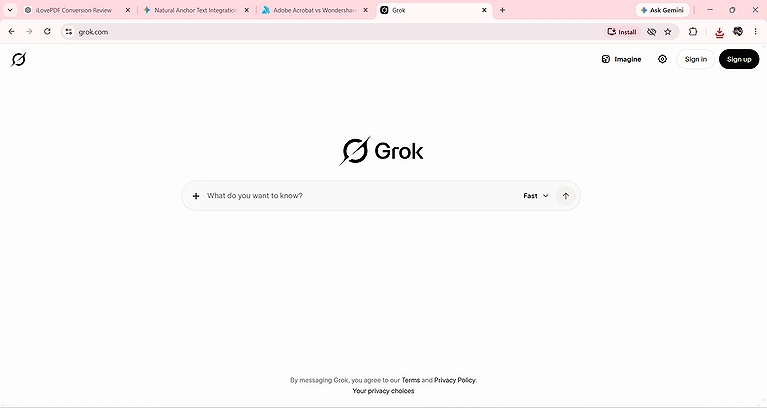
Grok AI homepage featuring a clean interface for asking questions, and generating AI-powered responses.
Best For
Users who need accurate handwriting recognition, AI-powered document analysis, and intelligent question answering from handwritten PDFs.
Data Accuracy (Our Testing Results)
- Standard PDF Conversion Accuracy: 100%
- OCR Accuracy: 100%
- Handwriting Recognition Accuracy: 100%
- Table Preservation: Good
- Image Retention: N/A
- Font & Layout Preservation: Basic (text-only output)
- Editable Output: Yes (copyable editable text)
- Formatting Issues: Original formatting, tables, and page layout must be recreated
manually in Word.
During our hands-on testing, Grok AI accurately recognized all handwritten content and produced clean, editable text with no noticeable OCR errors. Although it doesn't export directly to a Word document, its contextual understanding and accurate text extraction make it a dependable choice for converting handwritten documents into editable content.
Key Features
- AI-powered handwriting recognition and OCR.
- Multimodal document analysis.
- Intelligent question answering based on uploaded files.
- Summarizes and rewrites handwritten content.
- Generates editable text for Microsoft Word.
How Does Grok AI Work?
- Upload your handwritten PDF or image.
- Ask Grok AI to extract the handwritten text.
- Review the generated editable text.
- Refine the response if necessary.
- Copy the text into Microsoft Word for editing.
Pros
- Excellent handwriting recognition accuracy.
- Strong contextual understanding.
- Fast AI-powered text extraction.
- Useful for summarizing and analyzing handwritten documents.
Cons
- Does not export directly to Microsoft Word (.docx).
- Original document formatting is not preserved.
- Advanced AI features require a paid subscription.
Best Use Cases
- Converting handwritten notes into editable text.
- Summarizing handwritten documents.
- AI-assisted document analysis.
- Extracting text from scanned handwritten PDFs.
Pricing
Grok AI offers a free version with limited usage. Premium plans provide higher usage limits, faster responses, and access to more advanced AI models.
Alternatives
Notion AI, ChatGPT
20. Notion AI
Notion Notion AI is an AI-powered writing and productivity assistant that can analyze handwritten PDFs and images, extract handwritten text, summarize content, and organize information inside the Notion workspace. During our testing, it achieved 100% handwriting recognition accuracy, successfully extracting all handwritten content as editable text. Rather than preserving the original document layout, it focuses on producing clean, well-structured text for note-taking and productivity.
Best For
Students, researchers, writers, and professionals who want accurate handwriting recognition with AI-powered organization and document summarization.
- Data Accuracy (Our Testing Results)
- Standard PDF Conversion Accuracy: 100%
- OCR Accuracy: 100%
- Handwriting Recognition Accuracy: 100%
- Table Preservation: Good
- Image Retention: N/A
- Font & Layout Preservation: Basic (text-only output)
- Editable Output: Yes (copyable editable text)
- Formatting Issues: Prioritizes readable text over preserving the original document layout.
During our hands-on testing, Notion AI accurately extracted all handwritten content and organized it into clean, readable text. Although it doesn't generate downloadable Word documents or preserve page formatting, it performed exceptionally well for note-taking, summarization, and AI-assisted writing workflows.
Key Features
- AI-powered handwriting recognition and OCR.
- Summarizes, rewrites, and organizes extracted content.
- Integrates seamlessly with the Notion workspace.
- Generates clean, editable text from handwritten documents.
- Supports AI-assisted writing and research.
How Does Notion AI Work?
- Upload or paste your handwritten document into Notion.
- Ask Notion AI to extract the handwritten text.
- Review the generated editable content.
- Refine or reorganize the text using AI prompts.
- Copy the content into Microsoft Word or continue editing in Notion.
Pros
- Excellent handwriting recognition accuracy.
- Produces well-organized, readable text.
- Powerful AI writing and summarization features.
- Seamless integration with Notion.
Cons
- Does not export directly to Microsoft Word (.docx).
- Original formatting and page layout are not preserved.
- Advanced AI capabilities require a paid subscription.
Best Use Cases
- Converting handwritten notes into editable text.
- Organizing research notes.
- AI-assisted writing and summarization.
- Managing handwritten content within Notion.
Pricing
Notion offers a free plan with basic workspace features. Notion AI is available as a paid add-on, providing advanced AI capabilities, higher usage limits, and enhanced productivity tools.
Alternatives
Grok AI, ChatGPT
Our Overall Recommendation
Based on our hands-on testing, PDFgear emerged as the best overall PDF converter due to its excellent formatting preservation, accurate conversions, powerful OCR support, and generous free features. However, the ideal choice depends on your specific needs. LightPDF is a better option for users looking for AI-powered PDF assistance, while iLovePDF is well-suited for those who need online productivity features and batch processing. For users who want a completely free solution without strict limitations, PDF24 Tools remains a reliable alternative.
FAQs
Which is the best free PDF converter in 2026?
PDFgear is the best overall free PDF converter based on our testing because it provides accurate conversions, preserves formatting, supports OCR, and offers useful features without requiring a paid subscription for common PDF tasks.
How accurate are free PDF converters compared to paid tools?
Many free PDF converters now deliver excellent accuracy for standard documents. However, paid tools usually perform better with complex layouts, advanced OCR, large files, and professional editing requirements.
Can free PDF converters convert scanned documents?
Yes, many free PDF converters support OCR technology to transform scanned PDFs into editable formats. However, OCR accuracy depends on document quality, language support, image clarity, and the converter's recognition capabilities.
Which PDF converter preserves formatting the best?
PDFgear, LightPDF, and Aspose performed strongly in formatting preservation during testing. They maintained fonts, tables, images, spacing, and document structure better than many other free conversion tools.
Can I convert PDF files to Word for free without limits?
Some tools offer free PDF-to-Word conversion with fewer restrictions, while others impose daily limits or require premium plans. PDF24 Tools provides a reliable free option for users needing frequent conversions.
Do free PDF converters support OCR for scanned PDFs?
Yes, several free converters include OCR features, but performance differs. Tools like PDFgear and LightPDF can extract editable text from scanned PDFs, while some services limit OCR access.
Is online PDF conversion safe for private documents?
Online PDF converters may upload files to external servers for processing. For sensitive documents, choose trusted tools with clear privacy policies or use offline applications that process files locally.
Can PDF converters maintain tables and images during conversion?
High-quality PDF converters can preserve tables, images, and layouts, but results depend on document complexity. Tools like PDFgear and LightPDF performed well with structured PDFs containing tables and graphics.
Which PDF converter is best for batch file conversion?
iLovePDF and PDF24 Tools are among the better options for batch PDF processing. They allow users to handle multiple files efficiently, reducing the time required for individual conversions.
Should I use free PDF converters or paid PDF software?
Free PDF converters are sufficient for basic conversion, OCR, and occasional editing needs. Professionals handling large files, advanced workflows, or sensitive documents may benefit from premium PDF software.
Conclusion
Finding genuinely useful free PDF converters is more challenging than it appears. Many tools advertise free conversions but restrict essential features through daily limits, premium-only OCR, watermarked exports, or reduced functionality. Instead of relying on marketing claims, we selected and tested only the tools that consistently performed well in real-world scenarios, evaluating their conversion accuracy, formatting preservation, OCR performance, ease of use, free plan limitations, and overall reliability across different PDF types.
Each converter featured in this guide earned its place by excelling in one or more areas. Some deliver outstanding formatting accuracy, others offer powerful OCR, AI-assisted features, batch processing, or generous free usage. By understanding the strengths and limitations of each tool, you can choose the PDF converter that best matches your workflow instead of relying on a one-size-fits-all solution. If you're looking to optimize your work day further, check out our roundup of top AI tools for time management to keep your projects on schedule.