.webp)
How to Add Page Numbers to a PDF Free: Tested Tools & Methods
Long PDFs are much easier to read when every page is clearly numbered. But adding page numbers isn’t always as simple as it sounds especially when you need a specific starting number, placement, format, or want to number only selected pages without disturbing the original layout.
To find out which tools actually handle these tasks well, I tested several PDF page-numbering tools using a 522-page PDF. I checked everything from numbering accuracy and customization to processing speed, layout preservation, free-use limits, and privacy.
If you’re looking for a quick and reliable way to add page numbers to a PDF, the results below can help you choose the right tool without testing them all yourself.

 Updated: August 12, 2026 | 18 min read
Cover Photo How to Add Page Numbers to a PDF Free: Tested Tools & Methods
Quick Review: Best PDF Page Numbering Tools
| Tool | Numbering Options | Page Placement | Page Selection | Customization | Preview | Free Limitation |
| PDF24 | Custom pattern, e.g. 7/100 | 9 positions | Yes | Font, size, color, bold, italic, font type | ❌ No | Up to 1 GB per task |
| PDF Candy | Page N, Page N of M, simple numbers | 9 positions | Limited | ❌ None | ✅ Yes | 1 file at a time |
| iLovePDF | Page N, Page N of M, custom numbering | 9 positions | Yes | Font, size, color, bold, italic, underline, 10 fonts | ✅ Yes | 1 file at a time |
| Smallpdf | Simple numbers only | 6 positions | ❌ No | 3 margin options: Narrow, Default, Wide | ❌ No | 1 file at a time |
Who Should Read This Guide?
- Students: Add page numbers to assignments, projects, theses, and study materials.
- Researchers: Organize research papers, reports, and lengthy academic documents.
- Office Professionals: Number business reports, proposals, manuals, and presentations.
- Businesses: Prepare professional documents for clients, teams, and internal use.
- Content Creators: Organize ebooks, guides, and downloadable PDF resources.
- PDF Users: Quickly compare tools before choosing one for adding page numbers.
What to Look for in AI Tools for Page Numbering
Numbering Formats: Look for tools that support simple numbers, page counts, custom patterns, prefixes, and suffixes.
Page Placement: Check whether numbers can be positioned at the top, center, or bottom of each page.
Page Selection: Choose tools that let you number specific pages, ranges, or exclude selected pages when needed.
Customization: Look for controls for font style, size, color, bold, italic, and underline to match the document design.
Starting Number: The tool should allow you to choose where numbering starts and define the number assigned to the first selected page.
Preview Option: A preview helps verify the number position, appearance, and formatting before processing the entire PDF.
Layout Preservation: Page numbering should not shift text, images, tables, margins, or other elements in the original document.
Processing Speed: Fast processing is important when working with large or lengthy PDF files.
Free Limits: Check file-size restrictions, daily limits, number of files, and whether important numbering features are available for free.
Privacy: Prefer tools that clearly explain how uploaded files are handled and when processed documents are automatically deleted.
How I Tested AI Tools for Page Numbering
A 522-page PDF was used as the test file to evaluate how effectively each tool handled page numbering in a large document. The testing covered numbering formats, page placement, starting numbers, page selection, customization, preview options, and layout preservation. Each processed file was checked to ensure that text, images, spacing, and page structure remained unchanged. Processing speed, free usage limits, download availability, and file-deletion policies were also recorded to provide a practical comparison of overall performance and usability.
Best AI Tools for Page Numbering
The best page-numbering tools depend on how much control you need over numbering format, page placement, customization, page selection, and document handling. Based on the testing, each tool offers a different balance of flexibility and ease of use. For more PDF-related solutions, explore these AI tools for PDF.
PDF24 Tools
PDF24 Tools offers a highly flexible way to add page numbers to PDFs, with custom numbering patterns, 9 placement positions, page selection, font controls, and support for large files without changing the original document layout.
How to Use PDF24 Tools for Page Numbering
- Upload the PDF: Open the page numbering feature and upload the PDF file you want to number.
- Enter the Pattern: Add a custom pattern such as
{NUM}/{CTN}to display the current page and total page count. - Choose Placement: Select one of the 9 available positions for displaying the page number.
- Set Numbering Range: Choose the starting number, starting page, and ending page according to your requirements.
- Customize Appearance: Adjust the font style, size, color, bold, or italic settings.
- Process the File: Apply the selected settings and wait for the tool to generate the numbered PDF.
- Download the Result: Download the completed PDF and check the final numbering and document layout.
My Findings after adding Page Numbers
A 522-page PDF was used to test the page numbering feature under realistic conditions. The processed document retained its original structure and formatting, with no text or lines shifting between pages. Processing was also very quick during testing.
Numbering Pattern
PDF24 Tools supports custom numbering patterns using placeholders. {NUM} represents the current page number, while {CTN} represents the total number of pages. For example, page 7 of a 100-page PDF can display as 7/100.
Page Placement
The tool provides 9 different positions for placing page numbers, covering the top, center, and bottom areas of the document. Users can select top right, top center, top left, center right, center, center left, bottom right, bottom center, or bottom left.
Starting Number
Users can control where the numbering begins instead of automatically numbering every page from 1. The starting page number can be selected along with the document page where numbering should begin, giving better control over custom numbering requirements.
Page Selection
PDF24 Tools allows users to apply page numbers only to selected pages. This means specific pages can be excluded from numbering instead of forcing numbers onto the entire document, which is useful for covers, introductory pages, or other unnumbered sections.
Number Customization
The tool provides several controls for changing the appearance of page numbers. Users can adjust the font style, font size, font color, bold formatting, and italic formatting to make the numbering match the overall appearance of the PDF.
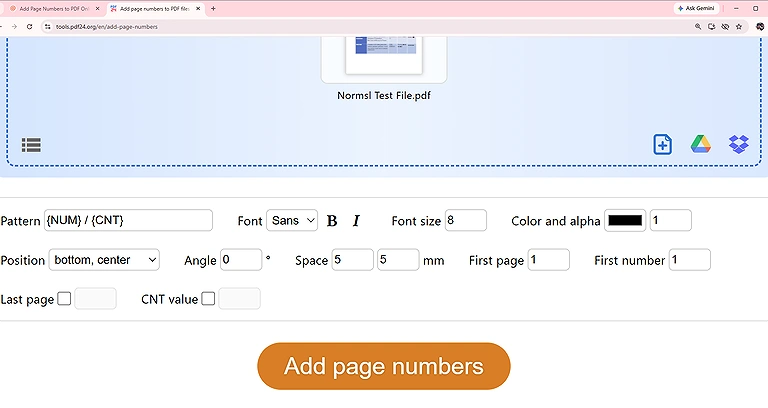
PDF24 page-numbering interface showing custom pattern, font, position, size, color, and page-range controls.
Font Format
PDF24 Tools includes 3 basic font categories: Sans, Serif, and Mono. These options provide a simple way to change the visual character of page numbers while keeping the numbering readable and consistent with different document styles.
Layout Preservation
A 522-page PDF was processed to check whether adding page numbers affected the existing document layout. The original pages remained intact, with no lines moving onto different pages or noticeable changes to the existing content structure.
Preview Option
PDF24 Tools does not provide a preview before processing the document. Users must select their numbering settings and process the PDF before they can see the final appearance of the page numbers in the completed file.
Free Limitations
No daily file-processing limit was found during testing, which makes the tool useful for repeated page-numbering tasks. However, the maximum file size is 1 GB per task, so extremely large files must remain within this limit.
Processing Speed
Processing was very quick during the test, even with the 522-page document. The tool completed the numbering task without a noticeable delay, making it practical when page numbers need to be added to lengthy PDFs.
Download & Privacy
The processed PDF can be downloaded after completing the task. PDF24 uses SSL-encrypted file transfers, and uploaded files and generated results are automatically deleted from its processing servers within 1 hour. Processing servers are located within the EU, and files aren't stored or evaluated for other purposes.
PDF Candy
PDF Candy provides a straightforward page numbering feature with 3 preset numbering patterns, 9 placement positions, and a preview option. However, its customization and page-selection controls are more limited than some alternatives.
How to Use PDF Candy for Page Numbering
- Upload the PDF: Open the page numbering feature and upload the PDF you want to number.
- Choose a Pattern: Select from Page N, Page N of M, or simple sequential numbers.
- Select Placement: Choose the desired position from the 9 available placement circles.
- Set Page Options: Select whether to include the first and last pages or exclude them from numbering.
- Preview the Result: Use the preview to check how the selected numbering position will appear.
- Process the PDF: Apply the settings and let the tool generate the numbered document.
- Download the File: Download the processed PDF and verify the numbering and document layout.
My Findings after adding Page Numbers
PDF Candy Test & Result
A 522-page PDF was processed to evaluate numbering performance, placement, preview functionality, and layout preservation. The resulting document maintained its original structure without shifting text or changing page layouts. Processing was also very quick during the test.
Numbering Pattern
PDF Candy provides 3 predefined numbering patterns: Page N, Page N of M, and simple sequential numbers such as 1, 2, and 3. Unlike tools with custom pattern fields, these formats cannot be manually modified.
Page Placement
The tool provides 9 page-number placement positions arranged as selectable circles. Users simply click the circle representing the desired location, making the positioning process straightforward without requiring manual coordinate adjustments.
Numbering Format
PDF Candy relies on predefined numbering formats rather than allowing users to create their own numbering patterns. The available choices cover common formats, but there are no manual controls for adding custom prefixes, suffixes, or other numbering structures.
Starting Number
The numbering begins automatically according to the selected format. Depending on the option chosen, numbering starts from 1, Page 1, or Page 1 of {Total Pages}. There is no separate control for manually defining a custom starting number.
Page Selection
Page selection is limited compared with more flexible numbering tools. During testing, PDF Candy allowed users to exclude the first page, last page, or both, but it did not provide a general page-range selection system.
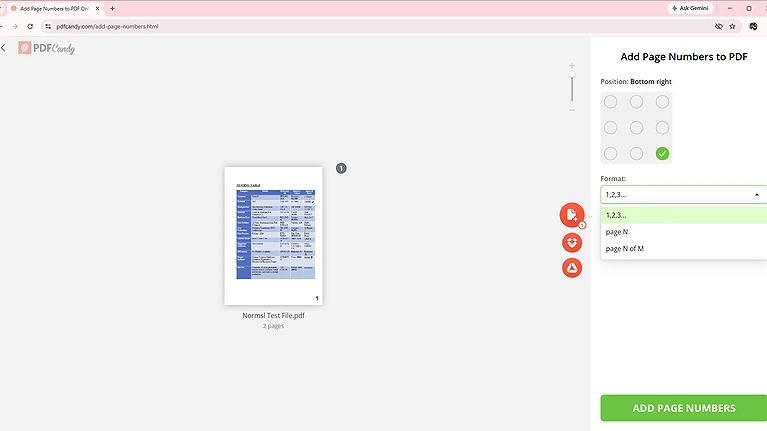
PDF Candy’s page-numbering interface showing 9 placement options and 3 predefined numbering formats.
Customization
PDF Candy does not provide dedicated controls for changing the font, font size, font color, or font style of the page numbers. Users are therefore limited to the appearance provided by the tool's built-in numbering options.
Layout Preservation
The 522-page test PDF was checked after numbering to determine whether the process affected the original document. The page layouts remained unchanged, and no text lines shifted onto other pages during processing.
Preview Option
PDF Candy provides a preview option before processing the complete document. The preview displays the first page as a sample, allowing users to check the selected page-number position before generating the final PDF.
Free Limitations
During testing, PDF Candy allowed only 1 file at a time, but no daily file-processing limit was found. This means users can process files individually without a stated daily restriction in the tested workflow.
Processing Speed
PDF Candy processed the 522-page PDF very quickly during testing. The numbering operation completed without a noticeable delay, making it suitable for users who need to number lengthy documents without waiting through extended processing times.
Download & Privacy
The processed PDF can be downloaded after completing the task. PDF Candy uses HTTPS with TLS/SSL encryption for file transfers and 256-bit AES encryption for uploaded documents. Files are automatically deleted from its servers within 2 hours, and users can also request earlier removal.
iLovePDF
iLovePDF provides extensive page-numbering controls, including 3 numbering patterns, 9 placement positions, custom starting ranges, font customization, and single or mirror-page numbering options for greater flexibility.
How to Use iLovePDF for Page Numbering
- Upload the PDF: Open the page numbering feature and upload the document you want to number.
- Choose Numbering Format: Select Page {n}, Page {n} of {p}, or the custom page-number option.
- Select Placement: Choose one of the 9 available positions displayed in boxes around the page.
- Set Page Range: Select the starting and ending pages where numbering should be applied.
- Customize the Number: Adjust the font size, color, style, and other available formatting options.
- Choose Page Mode: Select single-page numbering or use the mirror-page option when appropriate.
- Process the PDF: Apply the settings and generate the numbered document.
- Download the Result: Download the processed PDF and check the final numbering and layout.
My Findings after adding Page Numbers
A 522-page PDF was tested to evaluate numbering flexibility, page placement, customization, page selection, and layout preservation. The processed file maintained its original structure without shifting text or moving lines between pages. Processing was also very quick.
Numbering Pattern
iLovePDF provides 3 numbering options: Page {n}, Page {n} of {p}, and a custom page-number option. These formats cover common numbering requirements while providing flexibility for different document types.
Page Placement
The tool provides 9 placement positions displayed as selectable boxes around the document preview. Users can choose the desired location across the top, center, or bottom areas, with left, center, and right alignment options.
Numbering Format
iLovePDF offers extensive controls for changing the appearance of page numbers. Users can adjust font size, font color, bold, italic, and underline, providing greater formatting control compared with tools that rely on fixed numbering styles.
Font Style
The tool provides 10 font options, including Arial, Impact, Arial Unicode MS, Verdana, Courier, Comic, Times New Roman, Lohit Marathi, and Lohit Devanagari. These options allow users to select a suitable appearance for different document styles.
Starting Number
Users can choose the starting page number and specify the ending page for the numbering sequence. This provides control over where numbering begins and prevents the tool from automatically numbering every page from the beginning.
Page Selection
iLovePDF supports page-range selection for numbering. Users can define which pages should receive numbers, allowing covers, introductory pages, or other selected sections to remain without page numbers.
Customization
The tool provides several customization controls for page numbers, including font size, color, bold, italic, underline, and font family. These options make it easier to match the page-number appearance with the overall document design.
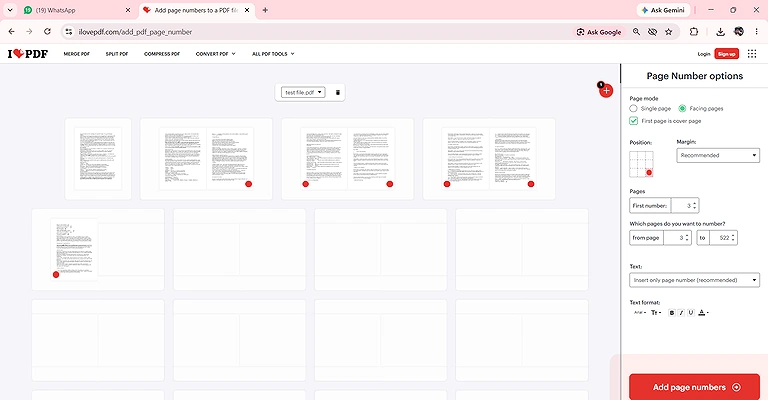
iLovePDF interface showing page mode, placement, margins, numbering range, and text formatting options.
Layout Preservation
The 522-page test file retained its original layout after page numbers were added. No lines shifted onto another page, and the existing document structure remained unchanged throughout the testing process.
Preview Option
iLovePDF provides a preview before processing, allowing users to check the numbering placement and appearance across multiple pages. This makes it easier to adjust settings before generating the final numbered PDF.
Free Limitations
During testing, iLovePDF allowed 1 file at a time, while no daily file-processing limit was found. The tested workflow therefore supported individual PDF processing without a stated daily restriction.
Processing Speed
The 522-page PDF was processed very quickly during testing. The tool completed the numbering task without a noticeable delay, making it practical for users working with lengthy PDF documents.
Download & Privacy
The processed PDF can be downloaded after completing the task. Files are encrypted during transfer and automatically deleted from iLovePDF’s servers within 2 hours. Users can also manually delete the processed file immediately after downloading.
Single & Mirror Page Numbering
iLovePDF includes an additional single-page and mirror-page numbering option. In single-page mode, each page receives a number, while mirror mode can apply one number across two pages and allows the first page to be treated as a cover.
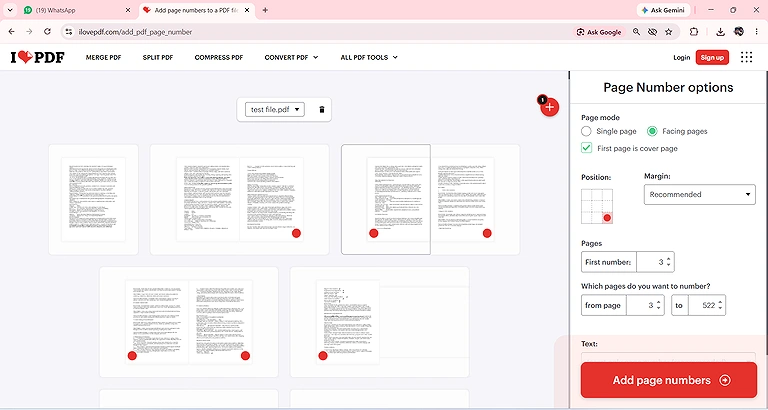
iLovePDF’s single-page and mirror-page numbering options, including the first-page cover setting.
Smallpdf
Smallpdf offers a simple page-numbering feature focused on basic sequential numbering. It provides 6 placement positions, starting-number control, and 3 margin settings, but lacks advanced page selection and customization options.
How to Use Smallpdf for Page Numbering
- Upload the PDF: Open the page numbering tool and upload the PDF file.
- Choose Numbering: Smallpdf uses simple sequential numbers such as 1, 2, and 3.
- Select Placement: Choose from 6 available positions, with 3 options at the top and 3 at the bottom.
- Set Starting Number: Choose which number should appear on the first page, after which the sequence continues automatically.
- Adjust Margins: Select Narrow, Default, or Wide margins to control the spacing of the page numbers.
- Process the PDF: Apply the selected settings and generate the numbered file.
- Download the Result: Download the completed PDF and check the numbering and original layout.
My Findings after adding Page Numbers
Smallpdf Test & Result
A 522-page PDF was processed to evaluate numbering, placement, starting-number control, layout preservation, processing speed, and free usage. The document retained its original structure, with no lines shifting to other pages. Processing was also very quick during testing.
Numbering Pattern
Smallpdf provides only simple sequential numbering in numeric form, such as 1, 2, 3, and so on. There are no options for custom patterns, total-page formats, prefixes, or suffixes.
Page Placement
Smallpdf provides 6 placement options for page numbers, including 3 positions at the top and 3 positions at the bottom of the page. This provides basic control over where the numbers appear.
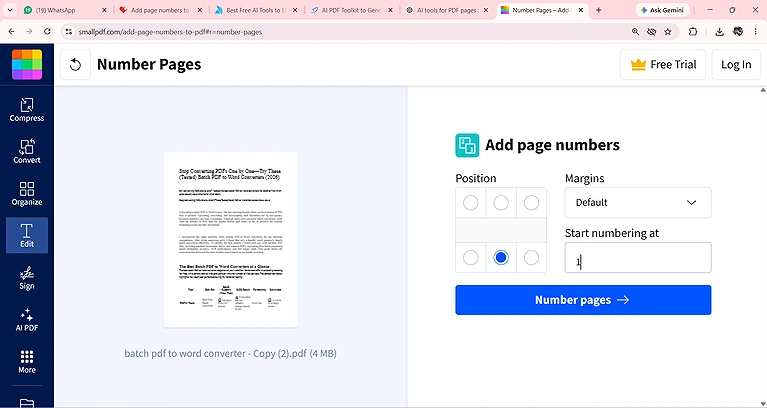
Smallpdf’s page-numbering interface showing position, margin, and starting-number controls.
Numbering Format
The numbering format is predefined and cannot be manually customized. It provides only numeric values like, 1 2 3….
Starting Number
Smallpdf allows users to choose which page number should appear on the first page of the uploaded document. The following pages then continue automatically from that selected starting number.
Page Selection
Smallpdf does not provide page-range selection for numbering. The numbering starts from the first page of the uploaded PDF, so users cannot select individual pages or exclude specific pages from the numbering process.
Customization
Customization is limited compared with more advanced tools. Smallpdf does not provide controls for font size, font color, font style, or other text formatting. Instead, users can choose from 3 margin settings: Narrow, Default, and Wide.
Layout Preservation
The 522-page PDF was checked after page numbers were added to determine whether the original layout changed. The document remained intact, with no lines shifting onto other pages or changes to the existing page structure.
Preview Option
Smallpdf does not provide a preview option before processing. Users must apply the selected settings and generate the numbered PDF before they can check the final appearance and placement of the page numbers.
Free Limitations
During testing, Smallpdf allowed 1 file at a time, while no daily file-processing limit was found. The tool therefore supports individual PDF processing but does not provide batch numbering within the tested workflow.
Processing Speed
Smallpdf processed the 522-page PDF very quickly during testing. The numbering task completed without a noticeable delay, making it suitable for users who need basic page numbering without extensive configuration.
Download & Privacy
The processed PDF can be downloaded after completing the task. Smallpdf protects file transfers with TLS encryption and automatically deletes files from its servers after 1 hour for most free tools.
Who Should Use Free and Paid Tools?
Free Tools
- Students: Ideal for assignments, projects, research papers, and occasional PDF numbering tasks.
- Casual Users: Suitable for adding numbers to a few documents without advanced formatting requirements.
- Small Projects: Useful when basic numbering, standard placement, and quick processing are enough.
- Budget-Conscious Users: A good choice when premium customization and advanced features aren't necessary.
Paid Tools
- Businesses: Better for regular document processing, professional reports, proposals, and client documents using AI Tools to Manage Your Business
- Professionals: Useful when advanced customization, precise page selection, and greater formatting control are required.
- Frequent Users: Worth considering when page numbering is part of a regular PDF workflow.
- Large Projects: Better suited to demanding workflows that require more features, higher limits, or batch processing.
FAQs
Can I add page numbers to a PDF for free?
Yes, several PDF tools offer free page-numbering features. However, free versions may limit file size, the number of files processed, customization options, page selection, or available numbering formats.
Can I add page numbers to specific pages only?
Yes, some tools allow you to select specific pages or define a page range for numbering. Others automatically number the entire document or provide only limited options for excluding the first or last page.
Can I use a format like 1/100 for PDF page numbers?
Yes, tools that support custom numbering patterns can display the current page number together with the total number of pages. For example, page 7 of a 100-page PDF can appear as 7/100.
Will adding page numbers change my PDF layout?
A properly functioning page-numbering tool should preserve the original document layout. During testing, the 522-page test PDF retained its structure without text lines shifting onto different pages.
Can I change the font and color of PDF page numbers?
It depends on the tool. Some provide controls for font size, color, style, bold, italic, and underline, while others offer only basic placement or margin settings without detailed formatting controls.
Can I choose where page numbers appear?
Yes, many page-numbering tools provide multiple placement options. Common positions include the top, center, and bottom areas, with left, center, and right alignment options.
Can I start page numbering from a specific number?
Yes, some tools allow you to select the starting number independently from the document's first page. This is useful when numbering needs to continue from another document or section.
Can I exclude the first page from PDF numbering?
Some tools allow specific pages to be excluded, while others provide limited controls for excluding the first or last page. The available selection options vary significantly between tools.
Can I preview page numbers before processing the PDF?
Some tools provide a preview so you can check the position and appearance before processing. Others don't offer a preview, requiring you to generate the PDF before checking the final result.
Are online PDF page-numbering tools safe to use?
Online tools typically upload the PDF to their servers for processing, so privacy policies and file-deletion practices should be checked before uploading sensitive documents. Prefer services that clearly state how long uploaded files are retained.
Conclusion
The testing focused on the key factors that determine how effectively a PDF page-numbering tool performs, including numbering formats, placement options, page selection, customization, starting numbers, previews, layout preservation, processing speed, free limitations, and privacy. A 522-page PDF was used to check whether page numbering could be added without disturbing the original document structure.
PDF24 Tools offered the most flexible controls with custom patterns, 9 positions, page selection, and extensive customization. PDF Candy provided basic numbering with 9 positions and a preview but limited customization. iLovePDF delivered the widest customization options, 9 positions, page selection, and single or mirror-page numbering. Smallpdf focused on simple numbering with 6 positions, starting-number control, and 3 margin options. All 4 tools preserved the tested PDF layout and processed the file quickly. If you more explore about the AI Tools which converts pdf into editable documents checkout our detail guide.