.webp)
How to Convert PDF to JPG/PNG and JPG/PNG to PDF Quickly Without Losing Quality (2026 Tested Guide)
Converting a PDF to images or combining multiple images into a PDF sounds easy until image quality, file size, batch processing, and formatting start to matter. Some tools noticeably reduce quality, while others offer better results but lock useful features behind paid plans.
So instead of relying on feature lists and online recommendations, I decided to test the popular free PDF and image converters myself.
For this guide, I tested PDFgear, PDF24 Tools, LightPDF, PDF Candy, and iLovePDF using the same standard documents, multi-page PDFs, and image batches.I compared output quality, format preservation, speed, batch conversion, customization, and free-version limits to see which tools actually deliver the best results. The differences were more noticeable than I expectedand the results may help you choose the right converter without wasting time testing them all yourself.

 Updated: August 06, 2026 | 18 min read
Cover Photo How to Convert PDF to Image and Image to PDF Quickly Without Losing Quality (2026 Tested)
Quick Review: Best PDF to Image & Image to PDF Converters
| Tool | Batch Support | Output Controls | Processing Speed | Best For |
| PDFgear | Multiple pages in one PDF only | JPG, PNG | Fastest | Lightning-fast conversions with excellent format preservation |
| PDF24 Tools | Multiple PDF files and images | JPG, PNG, DPI, Quality, Color/Grayscale | Faster | High-quality output with advanced customization and true batch processing |
| LightPDF | 1 PDF file at a time | JPG, PNG | Medium | High-quality image conversion for individual files |
| PDF Candy | 1 PDF file at a time | JPG, PNG, Low/Medium/High Quality | Medium | Simple conversions with adjustable image quality |
| iLovePDF | Up to 3 PDF files per task | JPG, PNG, Normal/High Quality | Very Fast | Small batch conversions with an intuitive interface |
Who Should Read This Guide?
Photographers & Graphic Designers – Convert high-resolution PDFs into JPG or PNG files for editing, sharing, or publishing, and combine multiple images into professional PDF portfolios without compromising visual quality.
Office Professionals & Executives – Extract charts, presentations, and document pages as images or merge scanned documents into organized PDF files for reporting, collaboration, and record keeping.
Students & Researchers – Save lecture slides, textbook pages, and research diagrams as images for presentations, or combine notes and screenshots into a single PDF for easier study and sharing.
Legal & Compliance Officers – Convert contracts, signed documents, and evidence between PDF and image formats while preserving formatting and document integrity for archiving and review.
Accountants & Bookkeepers – Merge invoices, receipts, and financial records stored as images into a single PDF, or extract individual pages from PDF statements for audits and documentation.
Web Developers & Content Managers – Extract high-quality images from PDFs for websites, blogs, and marketing materials, or package design assets and screenshots into shareable PDF documents.
What to Look for in a PDF & Image Converter
Two-Way Conversion Support – Choose a tool that converts PDFs into high-quality JPG or PNG images and also combines multiple images into a single PDF without losing quality.
Image Quality & Resolution – The best converters preserve the original layout, colors, and sharpness. Extra controls such as DPI and output quality are useful when you need high-resolution images.
Batch Conversion Capability – If you regularly work with multiple PDFs or large image collections, select a tool that supports batch processing to save significant time.
Output Format Options – At a minimum, a reliable converter should support both JPG and PNG output, allowing you to choose the format best suited for your workflow.
Processing Speed – Fast conversion becomes especially important when handling large PDFs or dozens of images. Efficient tools reduce waiting time while maintaining output quality.
Privacy & File Security – Prefer converters that process files securely, either locally in your browser or through encrypted connections with automatic file deletion after processing.
How I Tested the AI Converters
PDF to Image Testing
I tested each converter using the multi-page PDF containing text, tables, images, and colored graphics. Every tool was evaluated for format preservation, color accuracy, image sharpness at different zoom levels, available output formats (JPG/PNG), ZIP file organization, processing speed, batch conversion capabilities, and any free-version limitations.
Image to PDF Testing
I tested each converter by uploading large collections of images and screenshots to create a single PDF. The evaluation focused on conversion speed, page order accuracy, batch image support, final PDF quality, file organization, and whether the generated PDF preserved the correct number and sequence of pages under the free version.
Best Tools to Convert PDF to Image and Image to PDF
Choosing the best tools to convert PDF to Image and Image to PDF depends on whether you prioritize speed, image quality, batch processing, or advanced output controls. The tools in this guide were tested using identical files to help you select the most suitable option for your workflow and conversion needs. If you also need editable documents, explore our guide to the Best Free PDF to Editable Document Converters for hands-on comparisons of the top OCR and document conversion tools.
1. PDFgear
How to Convert PDF to Image & Image to PDF Using PDFgear
- Open PDFgear and select PDF to Image or Image to PDF.
- For PDF to Image, choose the output format (JPG or PNG) before uploading your PDF file.
- Upload your PDF file, or drag and drop one or more images for Image to PDF conversion.
- For Image to PDF, arrange the uploaded images in the desired page order if needed, then click Convert.
- Wait for the conversion to complete.
- Download the converted file. PDF to Image results are downloaded as a ZIP folder containing one image per page, while Image to PDF generates a single PDF file containing all uploaded images.
PDFgear Test & Results
During testing, PDFgear delivered the fastest overall conversion experience. It preserved the original document layout and colors when converting PDFs into images and quickly merged multiple images into a single PDF. The interface was simple to use, and no conversion limits were encountered throughout the testing process.
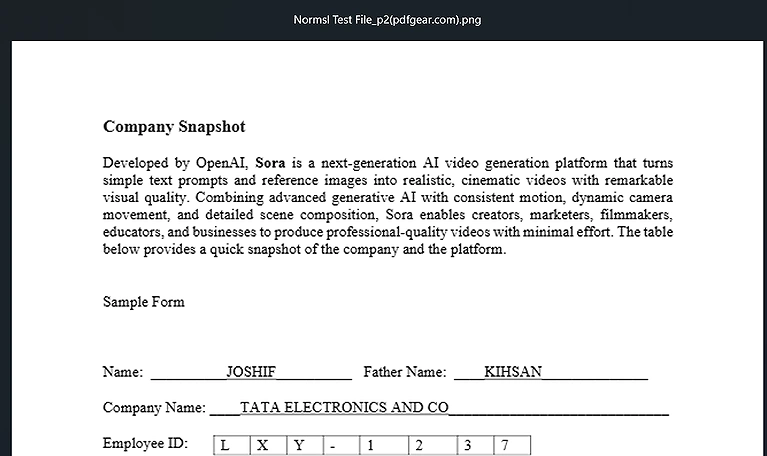
PDFgear converted the normal PDF to PNG with excellent clarity, remaining sharp up to 2× zoom
Conversion Quality & Format Preservation:
PDFgear accurately preserved the original layout, colors, and overall appearance of the document. The converted images looked sharp during normal viewing but became slightly blurry when zoomed beyond approximately 2X, as the free version does not provide DPI or output quality controls.
Batch Processing & Multi-Page Support:
Multi-page PDFs were converted successfully, with each page exported as a separate image. However, the free version does not support converting multiple PDF files in a single task. For Image-to-PDF conversion, multiple images can be merged into one PDF in a single operation.
Supported Output Formats:
PDFgear supports JPG and PNG for PDF-to-image conversion. Unlike some other tools, you must select the desired output format before uploading your PDF file. For Image-to-PDF conversion, it combines multiple images into a standard PDF document.
Processing Speed & Performance:
PDFgear was the fastest performer in our testing, converting both PDF-to-image and Image-to-PDF files almost instantly, even when processing large multi-page documents.
Download & File Organization:
Converted PDF pages are downloaded as a ZIP folder containing individually named images, such as P1, P2, and P3, making multi-page documents easy to organize and identify.
Free Version Limitations:
The free version does not offer DPI or image quality adjustment options, and it cannot process multiple PDF files in a single conversion task.
Key Testing Observation:
PDFgear combined exceptional speed, excellent format preservation, and well-organized downloads without imposing conversion limits, making it one of the strongest choices for everyday PDF and image conversion tasks.
2. PDF24 Tools
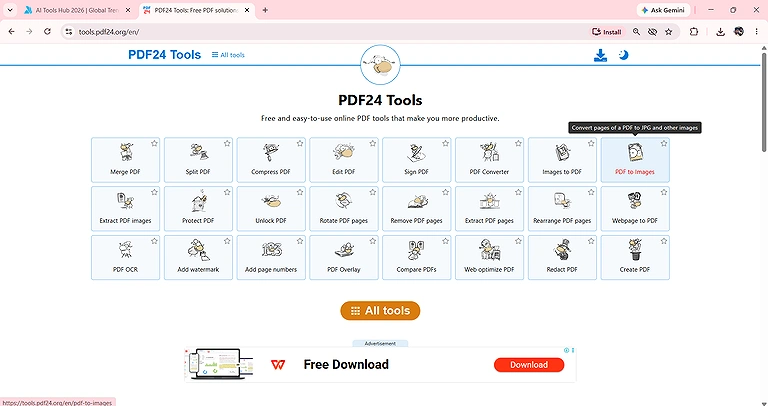
PDF24 Tools home page showing to choose PDF to Images or Images to PDF before starting the conversion
How to Convert PDF to Image & Image to PDF Using PDF24 Tools
- For PDF to Image, upload your PDF file. After the upload is complete, choose the output format (JPG or PNG), select Color or Grayscale, adjust the DPI, and set the image quality (0–100%).
- Click Convert and wait for the conversion to complete.
- Download the converted images as a ZIP folder containing one image for each PDF page.
- For Image to PDF, open the Images to PDF tool, upload or drag and drop one or more images, arrange them in the desired order if needed, and click Create PDF.
- Download the generated PDF containing all uploaded images.
PDF24 Tools Test & Results
During testing, PDF24 Tools delivered excellent conversion quality and offered more output customization than any other tool in this comparison. Unlike most converters, it displays all output settings after uploading the PDF, allowing you to configure the conversion before processing. It also handled both PDF-to-image and Image-to-PDF tasks efficiently, even with very large batches.
Conversion Quality & Format Preservation
PDF24 Tools preserved the original layout, fonts, colors, and document structure with excellent accuracy. During testing, I selected the maximum DPI setting, and the converted images remained exceptionally sharp. Even after zooming into a single table cell on a full laptop screen, the content stayed clear, only becoming blurry when zooming far enough to inspect an individual letter.
Batch Processing & Multi-File Support
PDF24 Tools fully supports batch conversion. During testing, it successfully converted 70+ PDF files in a single task and also combined 80+ images into a single PDF, making it the strongest performer for high-volume workloads.
Supported Output Formats & Conversion Settings
PDF24 Tools supports JPG and PNG output formats. After uploading the PDF file in the browser, it provides options to choose the output format, Color or Grayscale mode, adjust the DPI, and set the image quality from 0–100% before starting the conversion.
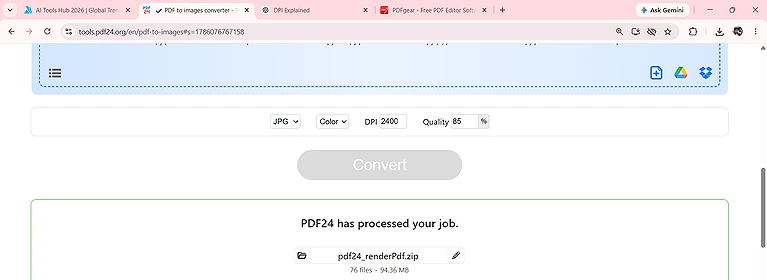
Select the output format, color mode, DPI, and image quality (0–100%) after uploading the PDF in PDF24
Processing Speed & Performance
Conversion was fast for both PDF-to-image and Image-to-PDF tasks. Although it was slightly slower than PDFgear when processing large batches, it handled all files reliably without affecting output quality.
Download & File Organization
Converted pages are downloaded as a ZIP folder with each page saved as a separate image using sequential page names, while Image-to-PDF generates a single PDF containing all uploaded images in the correct order.
Free Version Limitations
No conversion or batch limits were encountered during testing. All output settings, including DPI and image quality controls, are available in the free version.
Key Testing Observation
PDF24 Tools was the only converter I tested that let me configure output format, color mode, DPI, and image quality after uploading the PDF and before conversion, providing the highest level of control while maintaining excellent image quality.
3. PDF Candy
- How to Convert PDF to Image & Image to PDF Using PDF Candy
- Open PDF Candy and select PDF to JPG or Image to PDF.
- For PDF to Image, upload your PDF file, then choose the output format (JPG or PNG) and select the image quality (Low, Medium, or High).
- Click Convert and wait for the conversion to complete.
- Download the converted images as a ZIP folder containing one image for each PDF page.
- For Image to PDF, open the Image to PDF tool, upload or drag and drop one or more images, arrange them in the desired order if needed, and click Convert.
- Download the generated PDF containing all uploaded images.
PDF Candy Test & Results
During testing, PDF Candy produced excellent conversion quality and preserved the original document layout and colors. The interface was simple to use and included image quality settings before conversion. While the free version is limited to one PDF file per task, it handled multi-page PDFs and Image-to-PDF conversions accurately.
Conversion Quality & Format Preservation
PDF Candy preserved the original formatting, colors, and document structure with excellent accuracy. The converted images were sharp and retained the same visual appearance as the source PDF.
Batch Processing & Multi-File Support
During testing, I selected 6 PDF files, but PDF Candy accepted and converted only the first file. The selected PDF contained 14 pages, and the tool successfully converted all 14 pages into separate images. For Image-to-PDF, it accurately merged 16 images into a single 16-page PDF.
Supported Output Formats & Conversion Settings
PDF Candy supports JPG and PNG output formats. Before converting the PDF, it allows you to choose the image quality as Low, Medium, or High, but it does not provide DPI adjustment.
Processing Speed & Performance
Processing speed was excellent for a single PDF file. However, because the free version processes only one PDF at a time, converting multiple files requires repeating the process.
Download & File Organization
The converted PDF pages were downloaded as a ZIP folder containing one image for each page. In testing, the 14-page PDF produced a ZIP archive with 14 high-resolution images.
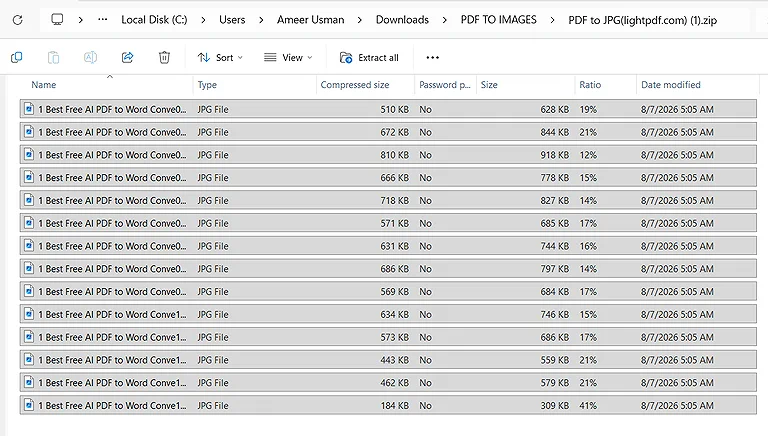
PDF Candy converted the 14-page PDF into 14 high-quality images while preserving the original layout
4 iLovePDF
- How to Convert PDF to Image & Image to PDF Using iLovePDF
- Open iLovePDF and select PDF to JPG or JPG to PDF.
- For PDF to Image, upload your PDF file, then choose the output format (JPG or PNG) and select the image quality (Normal or High).
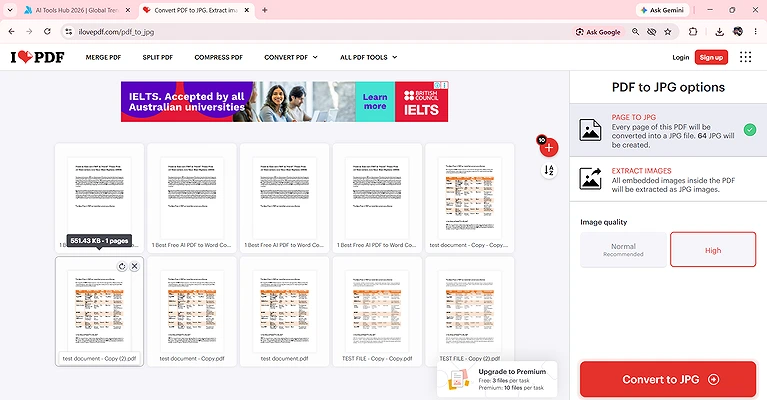
3 PDF files per task in the free (10 in Premium) and choose Normal or High image quality before conversion.
4 Click Convert and wait for the conversion to complete.
5 Download the converted images as a ZIP folder containing one image for each PDF page.
6 For Image to PDF, open the JPG to PDF tool, upload or drag and drop one or more images, arrange them in the desired order if needed, and click Convert to PDF.
7 Download the generated PDF containing all uploaded images.
iLovePDF Test & Results
During testing, iLovePDF delivered excellent conversion quality with an easy-to-use interface and fast processing. It preserved the original formatting and colors while supporting limited batch processing in the free version. Unlike most tools tested, it allowed multiple PDF files to be converted in a single task, although the free version imposed a limit.
Conversion Quality & Format Preservation
iLovePDF accurately preserved the original layout, colors, fonts, and document structure. The converted images maintained excellent visual quality without noticeable formatting changes.
Batch Processing & Multi-File Support
During testing, I uploaded 12 PDF files, but the free version processed only the first 3 files, which contained a total of 64 pages. All 64 pages were successfully converted into separate images. For Image-to-PDF conversion, the tool accurately merged 16 images into a single 16-page PDF.
Supported Output Formats & Conversion Settings
iLovePDF supports JPG and PNG output formats. Before starting the conversion, it allows you to choose between Normal and High image quality, but it does not provide DPI adjustment.
Processing Speed & Performance
Processing speed was very fast. The tool displays the conversion progress as a percentage until completion, making it easy to monitor larger conversion tasks.
Download & File Organization
Converted PDF pages are downloaded as a ZIP folder containing one image for each page, while Image-to-PDF generates a single PDF with all uploaded images arranged in the correct order.
Free Version Limitations
The free version supports up to 3 PDF files per task, while the premium version increases this limit to 10 files per task. No page limit was encountered during testing.
Key Testing Observation
iLovePDF was the only tool besides PDF24 Tools that supported multi-file PDF-to-image conversion in the free version, making it a strong choice for users who regularly convert small batches of PDF files.
5. LightPDF
How to Convert PDF to Image & Image to PDF Using LightPDF
- Open LightPDF and select PDF to Image or Image to PDF.
- For PDF to Image, choose the output format (JPG or PNG) before uploading your PDF file.
- Upload your PDF file, or drag and drop one or more images for Image to PDF conversion.
- For Image to PDF, arrange the uploaded images in the desired order if needed, then click Convert.
- Wait for the conversion to complete.
- Download the converted images as a ZIP folder containing one image for each PDF page or save the generated PDF containing all uploaded images.
LightPDF Test & Results
During testing, LightPDF delivered excellent conversion quality with outstanding image clarity and accurate format preservation. It processed both PDF-to-image and Image-to-PDF conversions quickly for individual files. Although the free version only allows one PDF file per task, it handled multi-page documents without any issues.
Conversion Quality & Format Preservation
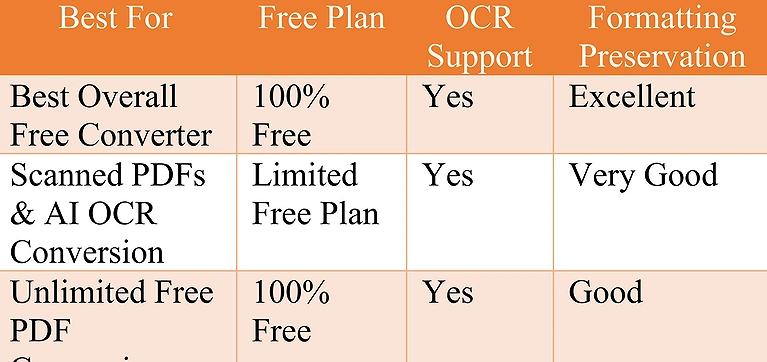
LightPDF preserved the original layout, fonts, colors, and document structure with excellent accuracy. During testing, the converted images remained sharp even after 4× zoom, only becoming slightly blurry beyond that level.
Batch Processing & Multi-File Support
LightPDF successfully converted multi-page PDFs, creating one image for each page. However, the free version supports only one PDF file per conversion task. For Image-to-PDF conversion, it accurately merged 40 images into a single 40-page PDF.
Supported Output Formats & Conversion Settings
LightPDF supports JPG and PNG output formats. The desired format must be selected before uploading the PDF file. Unlike PDF24 Tools, it does not provide options to adjust DPI or output image quality.
Processing Speed & Performance
Processing speed was excellent for single-file conversions. However, users with multiple PDF files must convert each file separately, increasing the total processing time.
Download & File Organization
Converted PDF pages are downloaded as a ZIP folder containing individually named images, making it easy to manage multi-page documents. Image-to-PDF generates a single PDF with all uploaded images in the correct order.
Free Version Limitations
No conversion limit was encountered for individual files, but the free version processes only 1 PDF file at a time. Multiple PDF files require separate conversion tasks.
Key Testing Observation
LightPDF produced some of the sharpest images in our testing, remaining clear even at 4X zoom, making it an excellent choice for users who prioritize image quality over batch processing.
undefined
Should You Choose Free or Paid Tools?
| Tool | Choose the Free Version When... | Choose the Paid Version When... |
| PDFgear | You need fast PDF-to-image or Image-to-PDF conversion with no conversion limits and don't require DPI or image quality controls. | A paid version isn't necessary for most users, as the free version covers nearly all everyday conversion needs. |
| PDF24 Tools | You want unlimited conversions, batch processing, and full control over DPI, image quality, and color settings at no cost. | The free version already includes all major conversion features, so upgrading isn't necessary for most users. |
| LightPDF | You only need to convert 1 PDF file per task and want excellent image quality with fast processing. | Upgrade if you need to convert multiple PDF files in a single task or require additional premium features. |
| PDF Candy | You only need to convert 1 PDF file per task and want Low, Medium, or High image quality options. | Upgrade if you regularly convert multiple PDF files per task and need batch processing. |
| iLovePDF | You usually convert up to 3 PDF files per task and need quick, reliable conversions. | Upgrade if you regularly convert more than 3 PDF files per task, as the premium version increases the limit to 10 PDF files per task. |
Who Should Use the Free Version?
Students & Researchers – Convert lecture slides, scanned notes, assignments, and study materials between PDF and image formats without paying for premium features.
Casual Users – Ideal for occasional PDF-to-image or Image-to-PDF conversions, such as sharing documents, screenshots, receipts, or personal files.
Freelancers & Small Business Owners – Organize invoices, receipts, product photos, and business documents into a single PDF or extract pages as images for presentations and reports.
Content Creators & Bloggers – Convert PDF guides into images for websites or combine screenshots into a PDF for tutorials and documentation.
Who Should Use the Paid Version?
High-Volume Users – If you frequently convert multiple PDF files every day, a paid plan can save time with larger batch limits and workflow automation.
Business & Office Teams – Teams that regularly process large document collections benefit from higher batch limits, faster workflows, and collaboration features available in premium plans.
Professionals Requiring Advanced Features – Upgrade if you need features such as larger batch processing, higher task limits, advanced editing, cloud integrations, or other premium productivity tools beyond basic conversion.
Organizations with Heavy Document Workflows – Companies handling large archives, client files, or project documentation can improve efficiency with paid plans that support higher-volume processing.
FAQs
Which is the best free PDF to image converter?
The best converter depends on your needs. PDFgear is the fastest, PDF24 Tools offers the most customization with DPI and quality controls, LightPDF delivers excellent image clarity, while iLovePDF and PDF Candy are ideal for simple, reliable conversions.
Can I convert multiple images into a single PDF for free?
Yes. All the tested tools allow you to combine multiple images into a single PDF. However, batch limitations vary. PDF24 Tools supports large image batches, while other tools may restrict the number of files processed per task.
Does converting a PDF to an image reduce quality?
Not necessarily. High-quality converters preserve the original layout and colors. Tools with DPI and image quality controls, such as PDF24 Tools, produce sharper images, especially when zooming or printing large documents.
Which image format should I choose: JPG or PNG?
Choose JPG for smaller file sizes and easy sharing. Select PNG when you need better image quality, sharper text, or lossless compression for graphics, diagrams, screenshots, and documents containing fine details.
Can I convert a multi-page PDF into separate images?
Yes. All the tools tested convert each PDF page into an individual image. The converted pages are typically downloaded as a ZIP archive, making it easier to organize and access every page separately.
Is there a limit on the number of files I can convert?
It depends on the tool. PDF24 Tools showed no conversion limits during testing, while LightPDF and PDF Candy process one PDF file per task. iLovePDF allows up to three PDF files per task in its free version.
Which converter is best for batch PDF conversions?
Based on testing, PDF24 Tools is the best choice for batch conversions. It successfully processed more than 70 PDF files in one task and also combined over 80 images into a single PDF without issues.
Can I adjust the image quality before converting a PDF?
Some tools allow this. PDF24 Tools offers DPI, quality, and color controls, while PDF Candy and iLovePDF provide quality settings. PDFgear and LightPDF use default image quality without manual adjustment in the free version.
Are online PDF converters safe to use?
Most reputable converters use secure connections and automatically remove uploaded files after processing. For confidential documents, always review the provider's privacy policy or choose a tool that offers local processing when available.
Which free tool performed best in your testing?
Each tool excelled in different areas. PDFgear was the fastest, PDF24 Tools offered the most advanced output controls and batch processing, LightPDF produced exceptionally sharp images, and iLovePDF and PDF Candy delivered reliable everyday performance.
Conclusion
Finding a free converter that performs well in both PDF to Image and Image to PDF tasks isn't as straightforward as it seems. Many tools advertise similar features, but their output quality, processing speed, batch support, and customization options vary significantly in real-world use. To identify the most reliable options, I tested each converter using the same multi-page PDFs and large image collections, evaluating image quality, format preservation, processing speed, output settings, batch capabilities, and free-version limitations to provide practical, unbiased results.
The testing showed that every tool has its own strengths. PDFgear delivered the fastest conversions with excellent format preservation, PDF24 Tools offered the most advanced controls through adjustable DPI, image quality, and unlimited batch processing, LightPDF produced exceptionally sharp images for single-file conversions, while PDF Candy and iLovePDF provided reliable results with simple workflows and useful