.webp)
My Honest findings about PDF to PowerPoint Converters (2026)
Ever converted a PDF to PowerPoint and thought, What happened to my presentation What looked perfect in the PDF can come back as scattered text boxes, broken tables, stretched images, and slides that aren't even properly editable. PDF to PowerPoint converters promise to save you from hours of work, but some somehow manage to create even more of it.
I ran into the same problem while testing conversion tools for my previous comparisons. So this time, I put many AI PDF to PowerPoint converters through the same test and narrowed them down to six. I used identical standard and scanned PDFs to check layout preservation, editable slides, OCR accuracy, tables, conversion speed, and free limits.
The results surprised me one converter handled the job almost effortlessly, while another made me wonder if rebuilding the slides manually would've been faster. Let's see which six actually earned a place on this list.

 Updated: July 24, 2026 | 18 min read
 The Best PDF to PowerPoint Converters at a Glance
The best AI PDF to PowerPoint converter depends on your editing needs, document complexity, and free plan limitations. The comparison table below highlights how the six shortlisted tools performed during my hands-on testing for editable slides, layout preservation, OCR accuracy, and overall conversion quality.
| Tool | Conversion & Editability (Your Test) | OCR Result | Forms & Layout Handling | Free Plan Limits | Download |
| Smallpdf | Excellent; generated editable slides with accurate text, tables, and formatting | Scanned PDFs converted as non-editable images | Preserved text boxes, tables, and overall slide layout | 1 conversion every 14 hours | Yes (within free limit) |
| Adobe Acrobat AI | Outstanding; highest accuracy for complex layouts and formatting | PAID VERSION COVERTS OCR FILE IN EDITABLE | Best preservation of forms, graphics, and document structure | 1 file can be converted in free. | Yes (Paid) |
| iLovePDF | Excellent; editable text with consistent layout preservation | Scanned PDFs inserted as non-editable images | Preserved form fields, text boxes, and slide structure | No restrictive usage limit observed during testing | Yes |
| PDFgear | Excellent; produced fully editable slides with minimal formatting changes | Scanned PDFs converted as non-editable images | Maintained text boxes, forms, and original document structure | No conversion limit observed during testing | Yes |
| LightPDF | Excellent; editable multi-layer text with accurate formatting | Scanned PDFs inserted as non-editable images | Preserved text and layout; form boxes remained fixed | Successfully processed 39 files during testing | Yes |
| Aspose PDF | Excellent for standard PDFs with strong layout preservation | Scanned PDFs converted as non-editable images | Form elements required minor manual adjustment after conversion | 2 operations/day, 5 files per operation, 5 MB file limit | Yes (within limits) |
PDF to PowerPoint Converters Cover Image
Who Should Read This Guide?
If manually rebuilding PowerPoint slides from PDFs is slowing down your workflow, the right AI PDF to PowerPoint converter can save hours of repetitive editing. Whether you're converting reports, research papers, business documents, or scanned files, these tools help transform PDFs into editable presentations while preserving layouts, tables, images, and formatting. This guide is ideal for:
Business Professionals & Consultants: Convert business reports, financial statements, project proposals, and executive summaries into presentation-ready slides without rebuilding charts, tables, or layouts.
Educators, Trainers & Course Creators: Turn lecture notes, training manuals, research papers, and educational resources into editable PowerPoint presentations for classrooms, workshops, and online courses.
Sales & Marketing Teams: Repurpose product catalogs, white papers, case studies, and client proposals into polished pitch decks while maintaining professional branding and formatting.
HR & Administrative Teams: Transform employee handbooks, onboarding documents, company policies, and operational guides into engaging training presentations with minimal manual work.
Students & Researchers: Convert dissertations, journal articles, study materials, and academic reports into organized PowerPoint slides for seminars, presentations, and collaborative projects.
What to Look for in a PDF to PowerPoint Converter
A PDF to PowerPoint converter should do more than simply place each PDF page onto a slide. The best tools create fully editable presentations while preserving the original layout, allowing you to update content instead of rebuilding it. During my testing, these were the most important factors that separated the best converters from the rest:
Editable Text & Tables: The converter should transform PDF text into editable PowerPoint text boxes and preserve tables as editable objects instead of flattening them into images.
Layout & Slide Accuracy: Every PDF page should become a separate PowerPoint slide while maintaining headings, fonts, images, charts, spacing, and the overall document structure.
Forms & Object Preservation: Documents containing forms, text boxes, diagrams, SmartArt, or grouped elements should retain their structure so individual components remain editable after conversion.
OCR Performance: If you work with scanned or image-based PDFs, check how the converter handles OCR. During my testing, none of the free tools generated editable PowerPoint content from scanned PDFs—they inserted the scanned pages as images instead.
Free Plan Limitations: Before choosing a tool, review its file size limits, daily conversions, batch support, download restrictions, and premium-only features to avoid unexpected interruptions during important presentation projects.
How I Tested These PDF to PowerPoint Converters
To compare each PDF to PowerPoint converter fairly, I tested every tool using the same two PDF test files instead of relying on feature lists or marketing claims. The objective was to identify which converters produced the most editable PowerPoint presentations while preserving the original document structure under real-world conditions. The two test files used throughout this guide are shown below.
Test File 1 – Standard PDF: A text-based PDF containing headings, paragraphs, tables, images, and form elements. It was used to evaluate each converter's ability to produce editable PowerPoint slides while preserving layout, formatting, visual structure, and overall conversion accuracy.
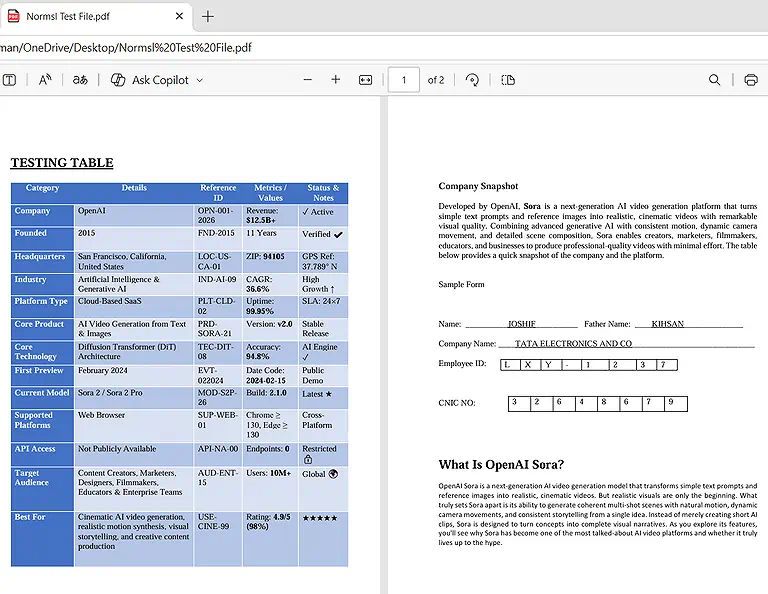
The given image is about a text-based PDF containing headings, paragraphs, tables, images, and form elements
Test File 2 – Scanned (OCR) PDF: An image-based PDF used to evaluate each converter's OCR capabilities, editable text extraction, and ability to preserve layout, formatting, and document structure when converting scanned documents into editable PowerPoint slides.
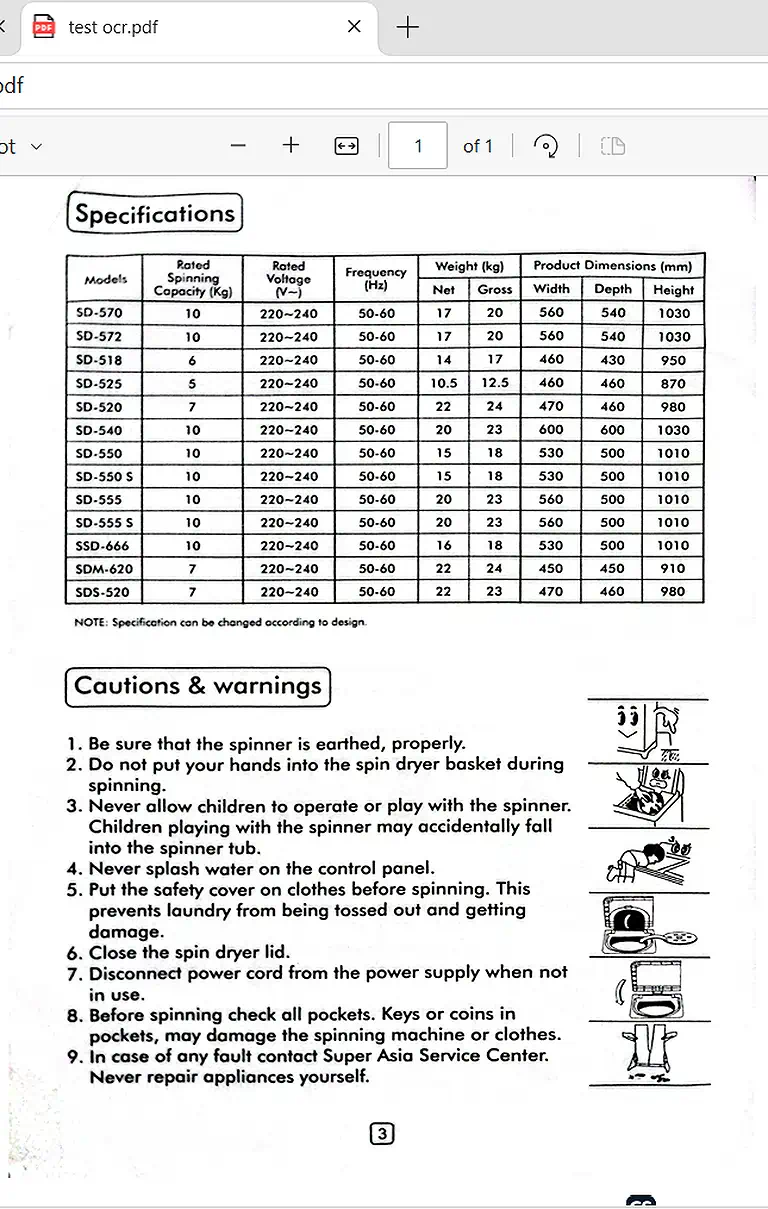
An image-based PDF used to evaluate each converter's OCR capabilities,
Recommended Tools for PDF to PPT Conversion
Creating editable PowerPoint presentations from PDF documents requires software that preserves slide layouts, text formatting, tables, and visual elements accurately. Choosing the right converter minimizes manual editing and speeds up presentation creation—especially when combined with then best AI tools for PDF conversion.
Smallpdf
Among the PDF to PowerPoint converters I tested, Smallpdf delivered one of the most accurate results for standard PDF documents. It preserved text, tables, headings, and overall slide layouts exceptionally well while generating fully editable PowerPoint presentations.
How to use Smallpdf for Converting PDF to Power Point ?
- Go to Smallpdf PDF to PPT.
- Click Choose Files and upload your PDF.
- Wait for Smallpdf to process the file.
- Click Convert to convert the PDF into PowerPoint.
- Once the conversion is complete, click Download.
- Open the downloaded .pptx file in Microsoft PowerPoint and check the formatting.
My Findings After Conversion
PDF to PowerPoint
Smallpdf converted the standard PDF with excellent accuracy, preserving text, tables, multi-level headings, images, and numerical values without introducing noticeable formatting issues. The converted presentation remained fully editable, allowing every text box and table element to be modified directly in Microsoft PowerPoint.
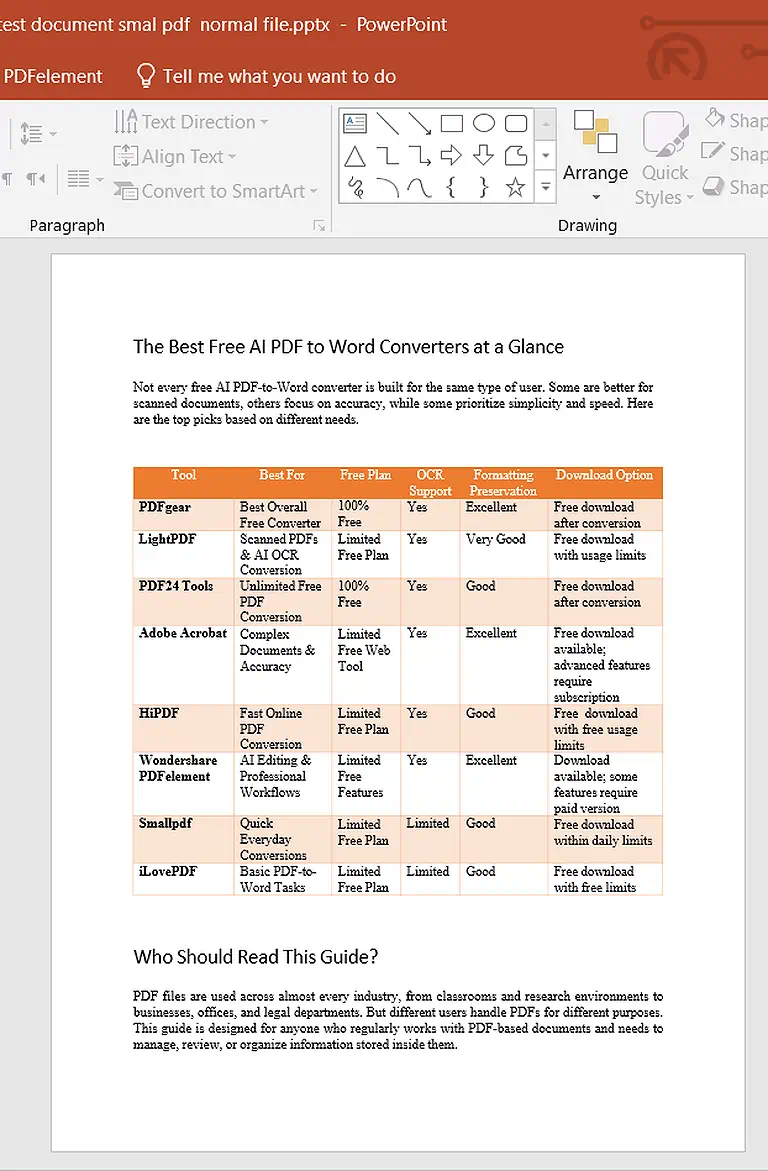
Smallpdf converted a standard PDF into editable PowerPoint slides while preserving tables, formatting
Formatting Preservation
The original document formatting was retained exceptionally well throughout the presentation. Tables, fonts, headings, spacing, alignment, and visual hierarchy remained consistent, producing slides that required virtually no manual cleanup before use.
Slide Handling
Each PDF page was converted into a separate PowerPoint slide, maintaining a 1-page-to-1-slide structure. Since all content remained editable, elements could easily be moved, resized, or copied between slides without affecting the overall layout.
OCR Performance
When tested with a scanned (OCR) PDF, the free version did not generate editable PowerPoint content. Instead, scanned pages could only be processed through the paid OCR feature, while the free version did not convert image-based text into editable slide elements.
Processing Time
Standard PDF documents converted within a few seconds during testing. Actual processing time may vary depending on file size, internet connection, server load, and device performance.
Security & Privacy
According to Smallpdf's official privacy policy, uploaded files are transmitted through encrypted SSL connections and automatically deleted from their servers after processing. This helps protect sensitive documents during online conversion.
Free Usage & Limitations
The free plan allows only one PDF-to-PowerPoint conversion every 14 hours, while unlimited conversions, batch processing, and editable OCR functionality are available only with a paid subscription.
Adobe Acrobat AI
Among all the PDF to PowerPoint converters I tested, Adobe Acrobat AI delivered the most accurate and professional results. It handled complex layouts, merged tables, multi-level headings, and document formatting with exceptional precision.
How to use Adobe Acrobat AI for Converting PDF to PowerPoint?
- Open Adobe Acrobat and upload your PDF.
- Select Export a PDF from the available tools.
- Choose Microsoft PowerPoint (.pptx) as the output format.
- Click Convert to PPTX.
- Wait for the conversion to finish.
- Download the converted PowerPoint file and open it in PowerPoint.
My Findings After Conversion
PDF to PowerPoint
Adobe Acrobat AI converted both standard and complex PDF documents with outstanding accuracy. Multi-layer headings, merged table cells, charts, and text formatting transferred seamlessly into editable PowerPoint slides without disrupting the original document structure. During testing, it produced the cleanest presentation output of all the tools evaluated.
Formatting Preservation
Formatting preservation was exceptional throughout my testing. Fonts, spacing, headings, tables, merged cells, and visual alignment remained intact, producing presentation slides that required virtually no post-conversion editing.
Slide Handling
Adobe Acrobat AI maintained a precise 1-page-to-1-slide conversion structure. Every PDF page was mapped directly to an individual PowerPoint slide while preserving the original layout, allowing all converted text and objects to remain editable.
OCR Performance
Adobe Acrobat AI fully supports OCR-based PDF to PowerPoint conversion, but this feature is available only with a paid subscription.
Processing Time
Adobe Acrobat AI completed every conversion within a few seconds during testing. Actual processing time depends on document size, internet connection, system performance, and server load.
Security & Privacy
According to Adobe's official privacy documentation, uploaded files are transferred through encrypted connections and processed using Adobe's secure cloud infrastructure.
Free Usage & Limitations
Adobe Acrobat AI delivered the highest conversion quality during testing, but its functionality is almost entirely restricted to paid users only one file can be converted in free version then you have to buy he paid version.
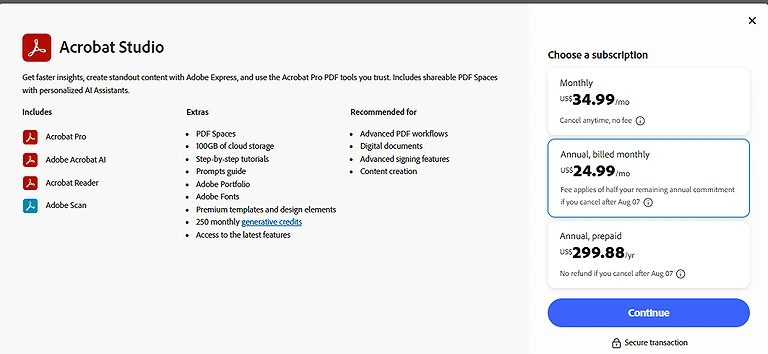
Adobe Acrobat Pricing Plan
Aspose PDF
Among the PDF to PowerPoint converters I tested, Aspose PDF delivered excellent results for standard PDF documents while accurately preserving text, tables, and overall layouts. However, its free plan comes with strict file size and daily conversion limits.
How to use Aspose PDF for Converting PDF to PowerPoint?
- Open Aspose PDF to PowerPoint Converter.
- Click Choose File and upload your PDF.
- Wait for the file to upload and process.
- Click Convert to start the conversion.
- Once the conversion is complete, click Download.
- Open the downloaded PowerPoint file to check the result.
My Findings After Conversion
PDF to PowerPoint
Aspose PDF converted standard PDF documents with excellent accuracy, preserving text, tables, multi-level headings, and numerical values without noticeable formatting changes. The converted PowerPoint presentation remained editable, although documents containing form boxes required minor adjustments to make all content fully accessible.
Formatting Preservation
Aspose PDF maintained the original document layout with impressive accuracy. Fonts, tables, spacing, headings, and overall slide formatting were preserved throughout the presentation. However, text contained inside form boxes remained editable only after removing the surrounding box frame.
Slide Handling
The converter maintained a consistent 1-page-to-1-slide structure, ensuring every PDF page was placed on a separate PowerPoint slide while preserving the original page sequence and layout.
OCR Performance
When tested with scanned PDF documents, Aspose PDF converted each page into a non-editable image rather than editable PowerPoint content.
Processing Time
All test documents converted within a few seconds during testing. Processing speed may vary depending on file size, internet connection, server load, and your device's performance.
Security & Privacy
According to Aspose's official documentation, uploaded files are transferred using secure encrypted connections and are automatically removed from the server after processing to help protect user privacy.
Free Usage & Limitations
During testing, the service was limited to two conversion operations per day, a maximum of five files per operation, and a combined upload size of 5 MB per operation.
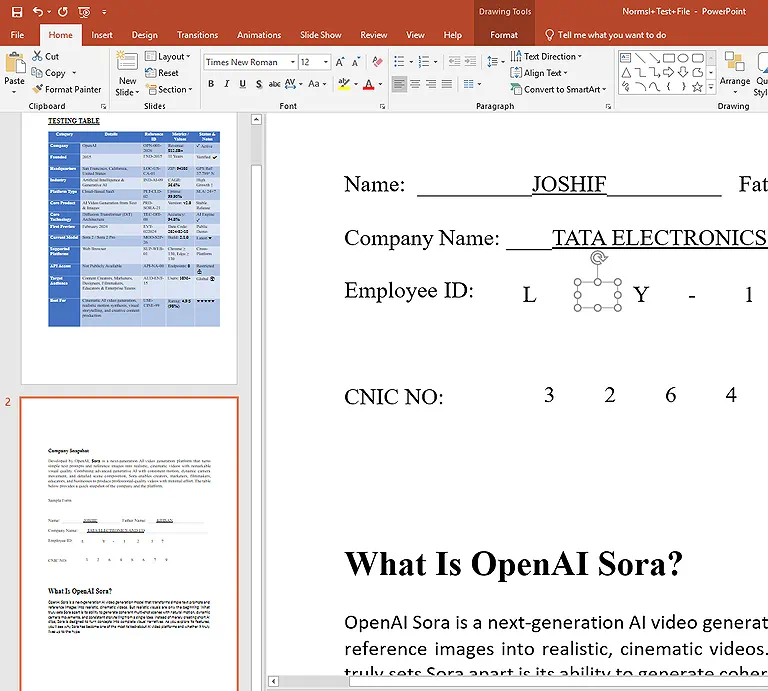
Aspose converted form containing boxes but only editable when boxes removed
PDFgear
Among the PDF to PowerPoint converters I tested, PDFgear stood out as the best free option for creating editable PowerPoint presentations. It accurately preserved text, tables, multi-level headings, and form boxes while generating fully editable slides. Its generous free access and reliable downloads make it an excellent choice for users who regularly convert standard PDF documents.
How to use PDFgear for Converting PDF to PowerPoint?
- Open PDFgear and select the PDF to PPT tool.
- Upload the PDF you want to convert.
- Select the PowerPoint/PPTX output option if required.
- Start the conversion process.
- Wait for PDFgear to finish processing the file.
- Download the converted PowerPoint presentation.
My Findings After Conversion
PDF to PowerPoint
PDFgear converted the standard PDF with excellent accuracy, preserving multi-layer headings, tables, text, images, and form boxes without altering the original document structure and give editable text and tables.
Formatting Preservation
PDFgear retained the original formatting exceptionally well throughout the presentation. Tables, numerical values, fonts, headings, spacing, and form box structures remained intact, producing presentation slides that required little to no manual editing after conversion.
Slide Handling
The converter maintained a precise 1-page-to-1-slide mapping throughout testing. For example, a two-page PDF was converted into a two-slide PowerPoint presentation while preserving the original page order and editable document structure.
OCR Performance
When tested with scanned PDF documents, PDFgear successfully processed the files but converted each page into a non-editable image in the free version.
Proc
Security & Privacy
According to PDFgear's official documentation, many of its online PDF tools process files locally within the browser whenever supported. Files requiring cloud processing are transmitted through encrypted connections to help protect user data during conversion.
Free Usage & Limitations
PDFgear delivered one of the best free PDF-to-PowerPoint experiences during testing. No file count restrictions, watermarks, or mandatory sign-ups were observed for standard PDF conversions. However, scanned PDFs remained non-editable image slides in the free version.
LightPDF
Among the PDF to PowerPoint converters I tested, LightPDF delivered highly accurate results for standard PDF documents while handling large conversion volumes exceptionally well. It preserved text, tables, and headings in editable slides, making it an excellent choice for bulk conversions.
How to use LightPDF for Converting PDF to PowerPoint?
- Open LightPDF PDF to PPT Converter.
- Click Choose File or Upload File.
- Select the PDF you want to convert.
- Let LightPDF upload and process your document.
- Click Convert to start the conversion.
- Download the resulting PowerPoint file once the conversion is finished.
My Findings After Conversion
PDF to PowerPoint
LightPDF converted the standard PDF with excellent accuracy, preserving text, tables, multi-level headings, and overall document structure. The converted PowerPoint presentation remained fully editable, although form box content behaved differently from the surrounding document elements.
The converter maintained standard table structures, numerical values, fonts, and heading hierarchy with excellent accuracy. Text inside form boxes remained editable after conversion, but the outer box containers themselves could not be modified, requiring minor adjustments in presentations containing interactive forms.
Slide Handling
LightPDF maintained a consistent 1-page-to-1-slide conversion structure throughout testing.
OCR Performance
When tested with scanned PDF documents, LightPDF successfully converted the files into PowerPoint presentations. However, the free version inserted each scanned page as a non-editable image, preventing users from editing the extracted text or document elements.
Processing Time
All test documents converted within a few seconds during testing. Processing speed may vary depending on document size, internet connection, server load, and your device's performance.
Security & Privacy
According to LightPDF's official privacy policy, uploaded files are transferred using encrypted connections and are automatically removed from its servers after processing, helping protect user documents during online conversion.
Free Usage & Limitations
LightPDF delivered one of the strongest free experiences during testing, successfully converting 39 PDF files in a single operation without encountering file count restrictions or throttling. Downloads were completed successfully without watermarks.
iLovePDF
Among the PDF to PowerPoint converters I tested, iLovePDF delivered one of the most complete conversion experiences for standard PDF documents. It accurately preserved tables, multi-level headings, and interactive form boxes, keeping both the box shapes and the text inside them fully editable.
My Findings After Conversion
PDF to PowerPoint
iLovePDF converted the standard PDF with excellent accuracy, preserving text, tables, multi-level headings, images, and interactive form boxes without altering the original document structure. Both the form box outlines and the text they contained remained fully editable in PowerPoint, making post-conversion editing straightforward.
Formatting Preservation
The original document layout was preserved exceptionally well throughout the presentation. Tables, numerical values, headings, spacing, fonts, and structured form boxes remained intact, producing slides that required little to no manual editing after conversion.
Slide Handling
iLovePDF maintained a precise 1-page-to-1-slide conversion structure. During testing, a two-page PDF was converted into a two-slide PowerPoint presentation while preserving the original page order, formatting, and editable content.
OCR Performance
When tested with scanned PDF documents, iLovePDF successfully converted the files into PowerPoint presentations. However, the free version inserted each scanned page as a static, non-editable image rather than converting the text into editable PowerPoint elements.
Processing Time
All test documents converted within a few seconds during testing. Actual processing time may vary depending on document size, internet connection, server load, and your device's performance.
Security & Privacy
According to iLovePDF's official privacy policy, uploaded files are transferred through encrypted HTTPS connections and automatically deleted from its servers after a defined retention period, helping ensure document security during online conversion.
Free Usage & Limitations
iLovePDF provided an excellent free conversion experience with no explicit daily conversion or file volume limits observed during standard PDF testing. Downloads completed successfully without hidden paywalls for regular files.
Do You Really Need a Paid Converter?
For most users, a free PDF to PowerPoint converter is enough. My testing showed that several free tools preserved editable slides, layouts, and tables accurately. Upgrade only if you need editable OCR, batch processing, or advanced presentation features.
| Tool | Stay with the Free Version If... | Upgrade If... |
| Smallpdf | You only convert occasional standard PDFs and can work within the free plan's 1 PDF every 14 hours limit. | You need unlimited conversions, batch processing, or editable OCR for scanned PDF presentations. |
| Adobe Acrobat AI | You're only evaluating the converter through the free trial or have a one-time conversion requirement. | You need the best layout preservation, editable OCR for scanned PDFs, AI-powered document tools, and professional PDF editing. |
| iLovePDF | You mainly convert standard PDFs and don't need OCR, since the free version produces fully editable PowerPoint slides from text-based PDFs. | You regularly convert scanned PDFs, need editable OCR output, batch processing, or higher file limits. |
| PDFgear | You want unlimited free conversions with excellent preservation of text, headings, tables, images, and form boxes in standard PDFs. | You need editable OCR for scanned PDFs or advanced PDF editing features beyond conversion. |
| LightPDF | You convert standard PDFs regularly and want accurate formatting without requiring editable OCR output. | You need editable OCR for scanned PDFs, advanced document editing, or additional AI-powered PDF tools. |
| Aspose PDF | Your files are small (under 5 MB) and you only perform occasional conversions within the free usage limits. | You convert larger PDFs, exceed the free limits, or require editable OCR and enterprise-level document processing. |
When Is a Free Converter Enough?
Free PDF to PowerPoint converters are a practical choice when you need quick conversions, occasional presentations, or basic document transformation. They work best with standard digital PDFs that contain selectable text, simple layouts, and fewer design elements where minor formatting adjustments after conversion are acceptable.
- Students & Educators: Free converters are suitable for transforming lecture notes, research papers, study materials, and textbook excerpts into presentation drafts.
- Freelancers & Small Businesses: Users handling regular but less complex tasks, such as converting proposals, reports, invoices, or client documents, can rely on free tools like iLovePDF and PDFgear.
- Personal & Occasional Users: If you only need to convert a few non-sensitive PDFs into PowerPoint files, free converters provide a convenient solution.
When Should You Choose a Paid Converter?
Paid PDF to PowerPoint converters are designed for users who need higher accuracy, advanced conversion features, stronger security, and better handling of complex documents. They are especially valuable when presentations must maintain the original PDF structure without extensive manual corrections.
- Corporate & Enterprise Teams: Businesses working with confidential reports, financial documents, legal files, and internal presentations should consider paid solutions such as Adobe Acrobat AI.
- Professionals Handling Scanned Documents: This allows scanned documents to be converted into fully editable PowerPoint slides instead of simple images placed on slides.
- High-Volume Document Workflows: Organizations converting large numbers of PDFs benefit from paid features such as batch conversion, faster processing, improved accuracy, and dedicated support.
- Final Recommendation: Free PDF to PowerPoint converters are enough for simple digital PDFs, educational materials, and occasional conversions. However, most free tools cannot convert scanned OCR-based PDFs into fully editable PowerPoint files because they lack advanced OCR and layout reconstruction features.
Common Mistakes to Avoid in PDF to PPT Conversions
- Expecting Scanned PDFs to Become Editable Automatically: Scanned PDFs require OCR to recognize text. Without OCR, most free converters create image-based slides instead of editable PowerPoint content.
- Assuming Every Element Will Be Editable: Text, tables, images, and form boxes may be grouped or placed inside containers, requiring ungrouping or manual adjustments before editing.
- Uploading Sensitive PDFs Without Checking Privacy Policies: Online converters process files on cloud servers. Review their encryption, file retention, and automatic deletion policies before uploading confidential documents.
- Expecting Perfect Formatting Every Time: Complex layouts, custom fonts, tables, charts, and multi-column designs may shift during conversion. Always review the PowerPoint before presenting or sharing it.
- Choosing Free Tools for Advanced Requirements: Free converters work well for standard PDFs but often limit OCR, batch processing, file size, and formatting accuracy. Paid tools are better suited for professional presentations and complex documents.
FAQ
Can free PDF to PPT converters convert scanned PDFs into editable slides?
Most free PDF to PPT converters cannot convert scanned PDFs into fully editable PowerPoint files. Scanned documents require advanced OCR technology, and many free tools only insert scanned pages as images instead of editable text elements.
Why does my PowerPoint file lose formatting after PDF conversion?
Formatting issues occur because PDF files store content differently from PowerPoint slides. Complex layouts, custom fonts, tables, and graphics may not translate perfectly, causing alignment problems, missing elements, or incorrect spacing after conversion.
Is OCR required for converting scanned PDF files to PowerPoint?
Yes, OCR is necessary for scanned PDFs because they contain image-based text. OCR analyzes the images, recognizes characters, and converts them into editable text boxes that can be modified within PowerPoint presentations.
Are online PDF to PPT converters safe for confidential files?
Online converters may upload your documents to cloud servers for processing. For confidential files containing financial data, business information, or private records, offline desktop software with stronger security controls is usually a safer option.
Can PDF to PPT converters preserve tables and charts accurately?
Advanced converters can preserve tables and charts more effectively, but accuracy depends on the original PDF structure. Simple tables usually convert well, while complex charts and merged cells may require manual editing after conversion.
What is the difference between free and paid PDF to PPT converters?
Free converters are suitable for basic PDF files and occasional use, while paid tools offer advanced OCR, better formatting preservation, batch conversion, security features, and improved accuracy for professional or business documents.
Can I convert multiple PDF files into PowerPoint at once?
Some PDF to PPT converters support batch conversion, allowing multiple files to be processed together. However, this feature is often limited in free versions and commonly included in paid plans designed for high-volume workflows.
How can I choose the right PDF to PPT converter?
Choose a converter based on your requirements, including formatting accuracy, OCR support, file security, conversion limits, and editing quality. Users handling complex or scanned PDFs should prioritize tools with advanced OCR and layout preservation features.
Conclusion
After testing all six PDF-to-PowerPoint converters with both standard and scanned PDFs, one result was consistent: free tools handled standard PDFs well but struggled with scanned files because editable OCR and advanced formatting features were usually limited to paid plans. The best converter depends on your document type, required editing accuracy, usage limits, and security requirements.
Among the tested tools, PDFgear provided the best overall free experience, while iLovePDF generated highly editable PowerPoint files for standard PDFs. Adobe Acrobat AI delivered the most accurate OCR and layout preservation for professional use. LightPDF preserved formatting well, Smallpdf suited occasional conversions, and Aspose PDF worked reliably for smaller files. Together, these tools cover both everyday and professional PDF-to-PowerPoint conversion needs.