.webp)
How to Merge PDF Files Quickly Without Losing Formatting (2026 Tested Guide)
Ever merged PDFs only to find pages out of order, images shifted, or formatting unexpectedly changed? A good PDF merger should do more than combine files—it should preserve the original fonts, tables, images, hyperlinks, and layouts without creating extra cleanup work.
In this tested 2026 guide, I put popular PDF merge tools through real-world tests to see which ones actually deliver. I compared page order, formatting preservation, image quality, processing speed, and reliability, while also checking free-use limits. The results revealed some clear differences—and one tool stood out as the overall winner.

 Updated: August 03, 2026 | 21 min read
Cover Photo How to Merge PDF Files Quickly Without Losing Formatting (2026 Tested Guide)
Quick Review Table
| Tool | Page Order | OCR Merge | Format Preservation | Speed | Free Limitations |
| PDFgear | ✅ Fully customizable (drag & drop any page) | ✅ | 100% | Fastest | None found |
| PDF24 Tools | ✅ Fully customizable (manual page selection) | ✅ | 100% | Very Fast | No limits, but custom page ordering is time-consuming |
| PDF Candy | ✅ Fully customizable (drag & drop with continuous page numbering) | ✅ | 100% | Fast | None found |
| iLovePDF | ⚠️ Limited (only file order can be changed, not individual pages) | ✅ | 100% | Slower than PDFgear & PDF24 Tools | No merge limit |
| LightPDF | ❌ Not supported (pages remain in upload order) | ✅ | 100% | Slowest | No merge limit |
| Smallpdf | 🔒 Paid feature (page ordering requires a premium plan) | ✅ | 100% | Good | Free merging available, but page ordering is premium only |
Who Should Read This Guide?
Students – Merge assignments, lecture notes, and research PDFs into a single document.
Office Professionals – Combine reports, contracts, invoices, and business documents without losing formatting.
Teachers & Educators – Organize worksheets, exams, and study materials into one PDF.
Freelancers – Merge project files, proposals, and client documents before sharing.
Legal Professionals – Combine agreements, case files, and supporting documents while preserving page quality.
Accountants – Merge financial statements, receipts, and tax records into organized PDFs.
Researchers – Compile journal articles, references, and study materials for easier review.
Job Seekers – Combine resumes, cover letters, certificates, and portfolios into a single PDF.
Business Owners – Organize company documents, presentations, and records for streamlined sharing.
Anyone Managing PDFs – Save time by merging multiple PDF files into one well-organized document.
What to Look for in a PDF Merge Tool
Page Ordering Flexibility – Choose a tool that lets you rearrange individual pages before merging, especially if you need a custom document structure.
OCR File Support – Make sure the tool can merge scanned (OCR) PDFs alongside standard PDFs without errors.
Format Preservation – The merged PDF should retain the original tables, images, headings, fonts, spacing, and overall layout.
Mixed PDF Compatibility – A good merger should handle both standard and OCR PDFs together in the same output file.
Processing Speed – If you regularly merge large documents or multiple files, look for a tool that processes them quickly without long waiting times.
Large File Handling – Check whether the free version can merge dozens of files or hundreds of pages without upload or processing restrictions.
Easy Page Management – Features like drag-and-drop page sorting, page thumbnails, or continuous page numbering make reorganizing documents much faster.
Free Download Availability – Ensure you can download the merged PDF without watermarks, hidden fees, or mandatory registration.
No Free-Version Restrictions – Prefer tools that don't impose limits on the number of files, pages, or daily merge operations if you merge PDFs frequently.
Simple and Intuitive Interface – A clean, user-friendly layout helps you merge documents efficiently, even when working with large or complex PDF files.
How I Tested the AI Tools to Merge PDF Files
To evaluate each PDF merge tool under real-world conditions, i created three different test PDF files. The first was a 10-page standard PDF, the second was a 14-page standard PDF, and the third was a 2-page scanned (OCR) PDF. The standard PDFs contained a mix of headings, paragraphs, tables, images, lists, and formatted text, while the OCR file consisted of scanned pages to verify whether each tool could accurately merge image-based documents alongside regular PDFs.
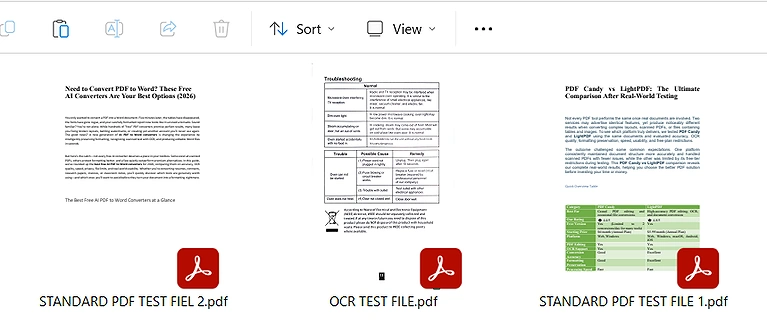
Three testing files including one Scanned (OCR) file for each AI tool observation in PDF merging
For every PDF merge tool, i checked the following things:
- Merging of standard PDF files.
- Merging of scanned (OCR) PDF files.
- Merging of standard and OCR PDFs together.
- Ability to rearrange individual pages before merging.
- Support for changing the page order according to our preferred sequence.
- Preservation of headings, tables, images, text, and overall formatting after merging.
- Processing speed while merging the test files.
- Whether the merged PDF was available for free download.
- Any free-version limitations, such as restrictions on page ordering, file count, or merge features.
- Overall ease of use and workflow during the merging process.
Best AI Tools to Merge PDF Files
The following AI PDF merge tools were tested using identical standard and OCR PDF files to evaluate their merging accuracy, page ordering flexibility, format preservation, processing speed, and free-version features. Explore our more AI PDF tools for additional PDF solutions.
PDFgear
PDFgear delivered the most complete PDF merging experience during our real-world testing. It successfully merged standard and OCR PDFs, offered flexible page management, preserved formatting perfectly, processed large files quickly, and showed no noticeable free-version limitations, making it our top-performing PDF merge tool.
How to Merge PDF Files Using PDFgear
- Open the PDF Merge tool in PDFgear.
- Upload the PDF files you want to combine.
- Turn on Show Pages if you want to rearrange individual pages.
- Drag and drop pages into your preferred order.
- Click Export to merge the PDFs.
- Download the merged PDF to your device.
My Findings after Merging the files
PDF Merge Files
PDFgear made the merging process simple by allowing us to upload both test PDF files instantly. A useful toggle button switched between file view and page view, making it easy to preview documents before merging and export the combined PDF without unnecessary steps.
Page Order
PDFgear provided complete control over page arrangement. After enabling the page view, every page from both PDFs appeared as individual thumbnails connected with plus signs. We freely rearranged pages using drag-and-drop while the remaining pages automatically stayed in their original sequence.
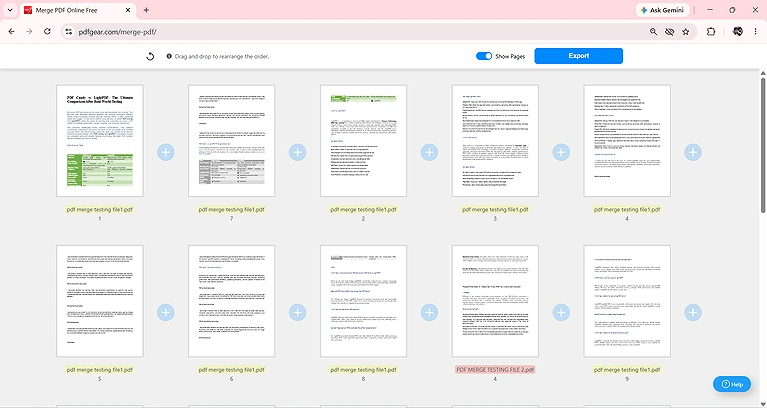
Pages from both PDF files are color-coded and together, easy to rearrange them into your preferred order
Format Preservation
Our test PDFs contained headings, paragraphs, tables, images, lists, and formatted text. After merging, PDFgear preserved every element exactly as it appeared in the original files. We found no layout changes, missing content, formatting issues, or image quality loss throughout the document.
OCR Merging
PDFgear successfully merged scanned OCR PDFs without affecting document quality. It also handled mixed merging between standard and OCR PDFs without errors. The final merged file retained the original page appearance and structure, showing excellent compatibility with scanned documents during testing.
Processing Time
To evaluate performance, i merged more than 20 PDF files containing a total of 76 pages. PDFgear completed the process almost instantly, making it the fastest tool i tested. Even large merging tasks finished smoothly without noticeable delays or performance issues.
Download Option
Once the merging process finished, PDFgear generated the final PDF immediately and allowed us to download it for free. The download required no additional steps, waiting time, account registration, or hidden restrictions, making the entire workflow quick and convenient.
Limitation
During our testing, i did not encounter any practical limitations while using PDFgear for PDF merging. It successfully handled more than 50 uploaded files and produced a merged document containing 76 pages without restricting features, file count, or download access.
Key Observation
The standout feature was PDFgear's intelligent page management interface. Individual page thumbnails remained connected in sequence, allowing us to move only the required pages while keeping all remaining pages in their original order, making custom page arrangement significantly faster and easier.
PDF24 Tools
PDF24 Tools is a reliable PDF merger that offers flexible page organization without requiring a paid subscription. During our testing, it accurately merged standard and OCR PDFs, preserved formatting, processed files quickly, and provided complete control over custom page arrangements through its visual interface.
How to Merge PDF Files Using PDF24 Tools
- Open the Merge PDF tool in PDF24 Tools.
- Upload the PDF files you want to merge.
- Enable Show Pages to customize the page order.
- Select pages to build your preferred final sequence.
- Click Merge to generate the combined PDF.
- Download the merged file for free.
My Findings after Merging the files
PDF Merge Files
PDF24 Tools made the merging process straightforward by allowing us to upload both test PDFs into the same workspace. It also included a page preview toggle, enabling us to switch between file view and page view before exporting the final merged document.
Page Order
PDF24 Tools offered excellent page-order customization through a four-section interface. When page preview was enabled, it displayed pages from each uploaded file separately while creating a third section that showed the final page sequence before downloading the merged PDF.
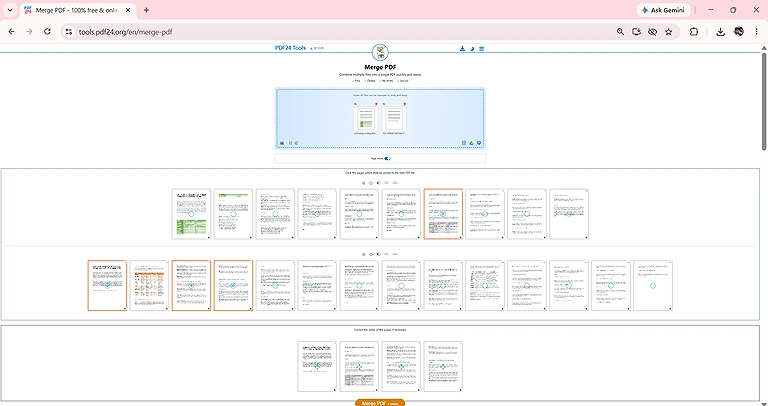
PDF24 Tools, four-section interface for uploaded pages and the final merged page order for easy organization.
Format Preservation
Our test files included headings, paragraphs, tables, images, lists, and formatted text. After merging, PDF24 Tools preserved every document element accurately. The final PDF maintained the original formatting, layout, image quality, and text placement without introducing noticeable differences.
OCR Merging
PDF24 Tools successfully merged scanned OCR PDFs while maintaining their original appearance. It also handled mixed merging between standard and OCR PDF files without issues, producing a final document that preserved the structure and readability of every page.
Processing Time
Using the same test files, PDF24 Tools completed the merging process quickly and efficiently. Even when working with multiple PDF files, i experienced no noticeable delays, making its performance comparable to the fastest tools included in this comparison.
Download Option
After completing the merge, PDF24 Tools allowed us to download the combined PDF immediately without registration or additional requirements. The download process was free, quick, and produced a ready-to-use PDF with no watermarks or hidden restrictions.
Limitation
Although PDF24 Tools provides excellent page-order flexibility, creating a custom page sequence requires selecting every page individually. Even if only two pages need repositioning, you must manually rebuild the complete page order before exporting the final document.
Key Observation
The most impressive feature was its visual page-order interface. Instead of simply rearranging files, PDF24 Tools displayed the original pages separately while simultaneously building the final merged sequence, making it easy to review the document before downloading.
PDF Candy
PDF Candy offers a straightforward PDF merging experience with excellent page management capabilities. During our testing, it accurately merged standard and OCR PDFs, preserved the original formatting, and stood out by displaying continuous page numbering, making custom page arrangement faster and more convenient.
How to Merge PDF Files Using PDF Candy
- Open the Merge PDF tool in PDF Candy.
- Upload all PDF files you want to combine.
- Rearrange the pages by dragging them into your preferred order.
- Review the page sequence before merging.
- Click Merge PDF to process the files.
- Download the completed merged PDF.
My Findings after Merging the files
PDF Merge Files
PDF Candy allowed us to upload the test PDF files and merge them without difficulty. After selecting the files, the tool immediately displayed all pages, enabling us to review the complete document before exporting the final merged PDF.
Page Order
One of PDF Candy's strongest features was its page-order interface. Instead of restarting page numbers for each file, it numbered every page continuously from 1 to 76, allowing us to drag and drop any page into our preferred position with ease.
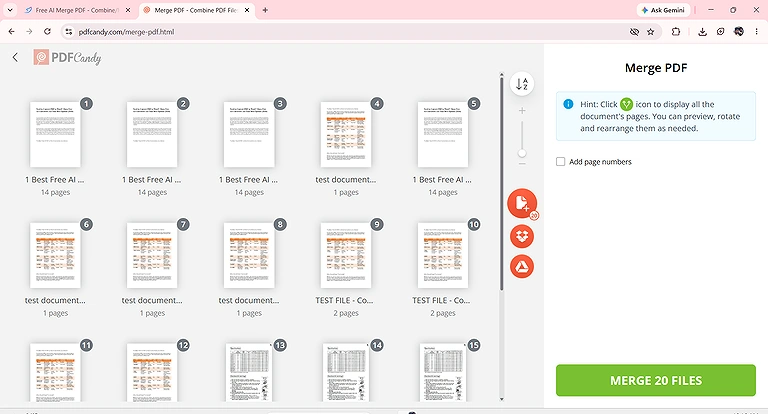
PDF Candy continuous page numbering from 1 to 76, easy to drag and drop any page into your order.
Format Preservation
Our test PDFs contained headings, paragraphs, tables, images, lists, and formatted text. After merging, PDF Candy preserved every element accurately. The final document matched the original files without changes to formatting, page layout, image quality, or text placement.
OCR Merging
PDF Candy successfully merged our scanned OCR PDF while maintaining the original page sequence and document quality. The merged output remained consistent with the source file, demonstrating reliable compatibility with scanned PDF documents during our testing.
Processing Time
Using the same test files, PDF Candy completed the merging process smoothly without noticeable delays. The tool handled both standard and OCR PDFs efficiently, providing a reliable performance throughout our real-world testing.
Download Option
After the merge was complete, PDF Candy allowed us to download the final PDF for free. The download process was quick and straightforward, enabling immediate access to the merged document without unnecessary complications.
Limitation
During our testing, i did not encounter any file-merging restrictions in the free version. PDF Candy successfully merged our test documents without limiting the number of files or restricting access to the downloaded PDF.
Key Observation
The continuous page numbering from 1 to 76 was the most useful feature i observed. Combined with unrestricted drag-and-drop page movement, it made locating, rearranging, and organizing pages significantly easier than tools that restarted page numbering for every uploaded file.
LightPDF
LightPDF provides a simple PDF merging experience for users who only need to combine documents without changing their structure. During our testing, it accurately merged standard and OCR PDFs, preserved formatting, and produced reliable results, although it offered limited control over page organization.
How to Merge PDFs with LightPDF
- Open LightPDF's Merge PDF tool.
- Click Choose File and upload the PDF files you want to combine.
- Arrange the files in your preferred order if needed.
- Click Merge to combine the PDFs.
- Wait for LightPDF to process the files.
- Click Download to save the merged PDF.
- Open the final PDF and check that the page order and formatting are preserved.
My Findings after Merging the files
PDF Merge Files
LightPDF allowed us to upload our test PDF files and merge them with minimal effort. The process was straightforward, making it suitable for users who simply want to combine multiple PDF documents into a single file quickly.
Page Order
Unlike PDFgear, PDF24 Tools, and PDF Candy, LightPDF did not provide options to rearrange pages or change the order of uploaded files. The merged PDF always followed the same sequence in which the files were uploaded.
Format Preservation
Our test PDFs contained headings, paragraphs, tables, images, lists, and formatted text. After merging, LightPDF preserved the original layout accurately. We found no missing content, formatting changes, image distortion, or document quality issues in the merged PDF.
OCR Merging
LightPDF successfully merged scanned OCR PDFs and also combined standard PDFs with OCR documents without affecting their appearance. The merged output maintained the original structure and formatting, demonstrating reliable compatibility with both document types.
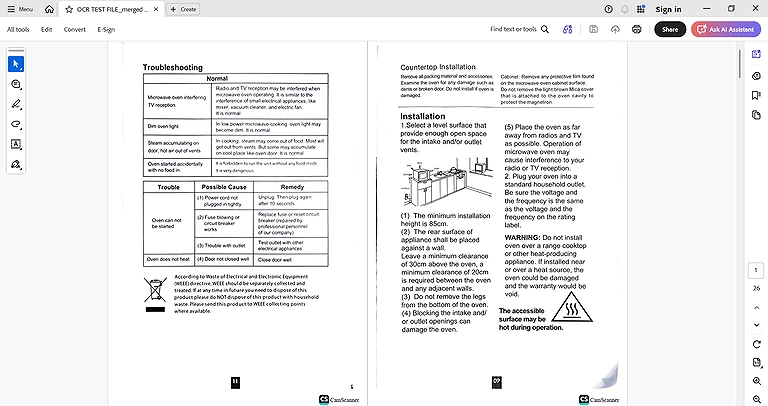
OCR Merged file by LightPDF with same format as the original was
Processing Time
Compared with the other tools in our testing, LightPDF required slightly more time to complete the merging process. Although it was slower than PDFgear, PDF24 Tools, and iLovePDF, the overall processing speed remained acceptable for everyday PDF merging tasks.
Download Option
After the merging process finished, LightPDF allowed us to download the final merged PDF for free. The download was completed without unnecessary delays, making it easy to save and use the combined document immediately.
Limitation
The main limitation i observed was the lack of page management features. LightPDF did not allow us to change either the page order or the uploaded file order, so documents were always merged in their original upload sequence.
Key Observation
LightPDF focused on simplicity rather than customization. While it delivered accurate merging and preserved document quality, the inability to rearrange pages or files made it better suited for users who only need basic PDF merging without editing the document order.
iLovePDF
iLovePDF offers a fast and beginner-friendly way to merge PDF files while maintaining document quality. During our testing, it accurately merged standard and OCR PDFs, preserved formatting, and provided simple file reordering, although individual page customization was not available.
How to Merge PDF Files Using iLovePDF
- Open the Merge PDF tool in iLovePDF.
- Upload the PDF files you want to merge.
- Rearrange the file order if needed using drag and drop.
- Click Merge PDF to combine the files.
- Wait for the processing to complete.
- Download the merged PDF.
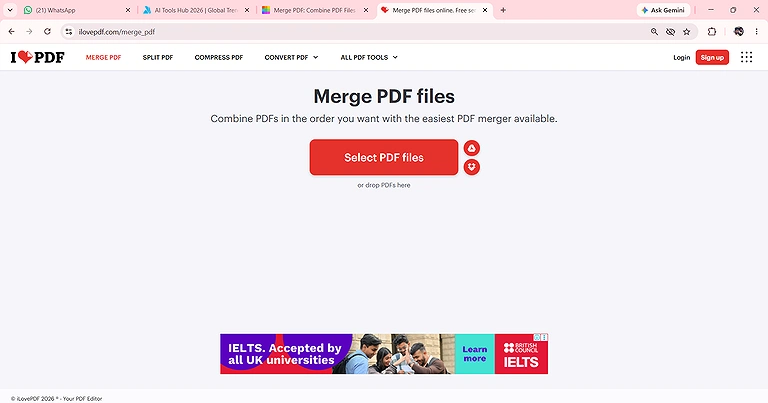
Selecting a PDF file to merge on iLovePDF
My Findings after Merging the files
PDF Merge Files
iLovePDF made the merging process quick and straightforward. After uploading our test PDF files, i could merge them immediately without additional configuration, making it a convenient option for users who only need to combine PDF documents.
Page Order
iLovePDF allowed us to change the order of the uploaded PDF files by using drag-and-drop. However, it did not allow us to move or rearrange individual pages across different files, limiting customization compared with PDFgear, PDF24 Tools, and PDF Candy.
Format Preservation
Our test PDFs contained headings, paragraphs, tables, images, lists, and formatted text. After merging, iLovePDF preserved every document element accurately. The final PDF maintained the original layout, formatting, spacing, and image quality without noticeable differences.
OCR Merging
Although our previous conversion testing showed that OCR conversion requires a premium plan, iLovePDF successfully merged scanned OCR PDFs for free. It also combined OCR documents with standard PDFs without affecting the original formatting or document quality.
Processing Time
Using the same test files, iLovePDF completed the merging process reliably but required slightly more time than PDFgear and PDF24 Tools. Despite being slower than those tools, the overall processing speed remained suitable for normal PDF merging tasks.
Download Option
Once the merge was complete, iLovePDF allowed us to download the final PDF for free. The download process was simple and quick, providing immediate access to the merged document without unnecessary waiting or additional requirements.
Limitation
The primary limitation i observed was the lack of individual page management. While iLovePDF lets you rearrange the order of entire PDF files, it does not support moving or shuffling individual pages before merging.
Key Observation
The most notable finding was that iLovePDF merged scanned OCR PDFs successfully in its free version, despite OCR conversion being a premium feature. This makes its PDF merger more capable than users might expect from its free conversion limitations.
Smallpdf
Smallpdf provides a simple and reliable way to merge PDF files while preserving document quality. During our testing, it accurately merged standard and OCR PDFs, maintained the original formatting, and offered free PDF merging, although advanced page ordering required a premium subscription.
How to Merge PDF Files Using Smallpdf
- Open the Merge PDF tool in Smallpdf.
- Upload the PDF files you want to combine.
- Arrange the files if necessary (page reordering requires a paid plan).
- Click Merge to create the combined PDF.
- Allow the tool to process the files.
- Download the merged PDF to your device.
My Findings after Merging the files
PDF Merge Files
Smallpdf allowed us to upload our test PDF files and merge them into a single document without difficulty. The overall process was straightforward, making it suitable for users who only need to combine PDF files quickly and efficiently.
Page Order
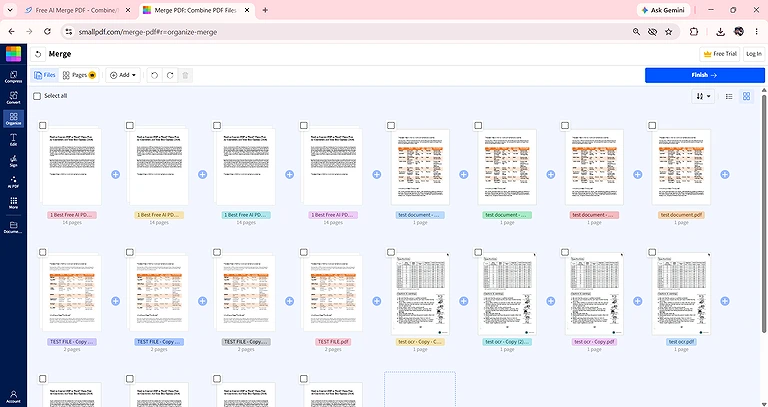
Smallpdf allowed free PDF merging but restricted page reordering in the free version. During our testing, changing the page order required a paid subscription, meaning free users could only merge files without customizing the final page sequence.
Format Preservation
Our test PDFs contained headings, paragraphs, tables, images, lists, and formatted text. After merging, Smallpdf preserved every document element accurately. The merged PDF maintained the original layout, formatting, image quality, and text placement without introducing noticeable changes.
OCR Merging
Smallpdf successfully merged scanned OCR PDFs while preserving their original appearance and page order. The tool also handled OCR documents without affecting document quality, producing a merged PDF that remained consistent with the source files.
Processing Time
Using the same test files, Smallpdf completed the merging process within a reasonable time. Although it was not among the fastest tools i tested, the overall performance was smooth and suitable for everyday PDF merging tasks.
Download Option
After completing the merge, Smallpdf allowed us to download the final PDF for free. The download process was quick and straightforward, providing immediate access to the merged document without unnecessary delays or additional steps.
Limitation
The main limitation i observed was the restriction on page ordering. While PDF merging is available in the free version, rearranging or shuffling pages before merging requires upgrading to a paid subscription.
undefined
Key Observation
The most important finding was that Smallpdf delivers accurate PDF merging and excellent format preservation for free, but users who need custom page arrangements must upgrade to the premium version to unlock that functionality.
Should You Choose Free or Paid PDF Merge Tools?
If your needs are limited to basic PDF merging, a free tool is usually enough. However, if you frequently work with large documents or require advanced page management and productivity features, a paid solution may provide better value.
| Tool | Free Version Good Enough? | When You Should Choose the Paid Version |
| PDFgear | ✅ Yes | No need to upgrade if you only want to merge PDFs with full page-order customization. |
| PDF24 Tools | ✅ Yes | The free version is sufficient for PDF merging, including custom page arrangements. |
| PDF Candy | ✅ Yes | Upgrade only if you need advanced PDF editing and other premium PDF tools. |
| iLovePDF | ✅ Yes (Basic Merging) | Upgrade if you need individual page reordering, OCR conversion, PDF editing, or additional premium features. |
| LightPDF | ✅ Yes (Basic Merging) | Choose the paid version for AI features, advanced PDF editing, and enhanced document management tools. |
| Smallpdf | ⚠️ Depends on Your Needs | Upgrade if you need custom page ordering or access to premium PDF editing and productivity features. |
Who Should Use the Free Version?
- Students – Merge assignments, notes, research papers, and study materials without paying for premium features.
- Office Workers – Combine reports, invoices, presentations, and everyday business documents quickly.
- Teachers – Merge worksheets, exams, and classroom resources into a single PDF for easy sharing.
- Job Seekers – Combine resumes, cover letters, certificates, and portfolios before submitting applications.
- Freelancers – Merge proposals, contracts, and project files for clients without additional software costs.
- Researchers – Organize journal articles, references, and supporting documents into one PDF for convenient review.
- Small Business Owners – Combine invoices, quotations, receipts, and company records while keeping expenses low.
- Personal Users – Merge bank statements, utility bills, travel documents, and other personal files whenever needed.
- Occasional PDF Users – Ideal for anyone who only needs to merge PDF files from time to time without advanced editing features.
- Budget-Conscious Users – Perfect for users looking for a reliable PDF merging solution without paying for a subscription.
Who Should Use the Paid Version?
- Business Professionals – Manage large volumes of PDF documents with advanced editing, organization, and productivity features.
- Legal Professionals – Handle contracts, case files, and confidential documents that require precise page management and additional PDF tools.
- Accountants – Organize financial reports, tax documents, invoices, and records while benefiting from premium PDF features.
- Project Managers – Merge, edit, organize, and share complex project documentation more efficiently.
- Designers & Marketers – Work with presentation files, portfolios, and branded documents that require advanced PDF editing capabilities.
- Administrative Teams – Process multiple PDF files daily using premium features such as batch processing and enhanced document management.
- Power Users – Ideal for users who frequently merge, edit, convert, compress, and organize PDFs as part of their daily workflow.
- Remote Teams – Benefit from cloud storage integration, collaboration features, and seamless document sharing available in many paid PDF platforms.
- Businesses with High PDF Workloads – A paid plan is worthwhile for organizations that handle hundreds of PDF documents regularly and need maximum efficiency.
- Users Requiring Premium Features – Best for anyone who needs advanced editing, OCR conversion, page organization, e-signatures, or other professional PDF tools beyond basic merging.
FAQs
Which is the best free AI tool to merge PDF files?
Based on our testing, PDFgear delivered the best overall experience by combining accurate PDF merging, flexible page reordering, OCR compatibility, fast processing, and no noticeable free-version restrictions. PDF24 Tools and PDF Candy also performed exceptionally well.
Can I merge PDF files without losing formatting?
Yes. The best PDF merge tools preserve headings, tables, images, fonts, spacing, and page layouts during the merging process. In our testing, every tool maintained the original formatting without introducing noticeable changes to the merged documents.
Can I rearrange PDF pages before merging?
Yes, but support varies by tool. PDFgear, PDF24 Tools, and PDF Candy allow custom page ordering, while iLovePDF only changes file order. Smallpdf requires a paid plan, and LightPDF does not support page rearrangement.
Do free PDF merge tools support scanned OCR PDFs?
Many free PDF merge tools can merge scanned OCR PDFs successfully. During our testing, all evaluated tools combined OCR documents without affecting their appearance, making them suitable for merging both scanned and standard PDF files.
Is there a limit on the number of PDF files I can merge?
It depends on the tool. PDFgear, PDF24 Tools, PDF Candy, and iLovePDF showed no noticeable file-merging restrictions during our testing, while limitations for other tools may vary depending on their free-plan policies.
Which PDF merge tool offers the best page management?
PDFgear provided the most flexible page management by allowing drag-and-drop page reordering. PDF24 Tools also supported custom page arrangements, while PDF Candy simplified organization with continuous page numbering across the merged document.
Are online PDF merge tools safe to use?
Most reputable PDF merge tools use secure file transfers and automatically remove uploaded documents after processing. For confidential or sensitive files, always review the provider's privacy policy before uploading your PDF documents.
Do I need a paid plan to merge PDF files?
No. Most users can merge PDF files using free versions of tools like PDFgear, PDF24 Tools, PDF Candy, iLovePDF, LightPDF, and Smallpdf. Paid plans are mainly useful for advanced editing and premium productivity features.
Which PDF merge tool is the fastest?
During our testing, PDFgear delivered the fastest merging performance, closely followed by PDF24 Tools. Both processed multiple PDF files quickly while maintaining accurate formatting and document quality throughout the entire merging process.
What should I consider before choosing a PDF merge tool?
Look for accurate format preservation, OCR support, custom page ordering, fast processing, free download availability, intuitive page management, and minimal usage restrictions. These features have the greatest impact on creating organized, high-quality merged PDF documents.
Conclusion
To identify the best AI tools to merge PDF files, i tested every platform using the same methodology and identical test documents. Our evaluation included standard PDFs, scanned OCR PDFs, mixed-document merging, custom page ordering, format preservation, processing speed, download availability, and free-version limitations. This hands-on approach allowed us to compare each tool under identical conditions and highlight the differences that matter most in real-world PDF merging.
Based on our testing, PDFgear delivered the best overall performance by combining fast processing, accurate format preservation, OCR compatibility, and complete page-order flexibility without noticeable free-version restrictions. PDF24 Tools ranked as a strong alternative with its advanced page arrangement interface, while PDF Candy impressed us with continuous page numbering and easy page organization. iLovePDF, LightPDF, and Smallpdf also produced reliable merged PDFs, making them suitable choices depending on whether you prioritize simplicity, basic merging, or premium page-order features. Similary there is another way to splitter the pdf pages you can also explore if you are interested.