.webp)
Best Free AI PDF Splitter Tools Tested in 2026
PDF splitting is useful when you need to share, edit, archive, or organize only part of a document. A reliable PDF splitter can extract pages, divide files by ranges, and preserve text, images, formatting, and quality. It’s especially useful for reports, contracts, invoices, and academic documents.
To find the most reliable options, I tested HiPDF, PDF24 Tools, PDFgear, PDF Candy, iLovePDF, and LightPDF using the same requirements. I evaluated page selection, custom ranges, batch processing, previews, downloads, file limits, and output quality. All tools maintained quality, but their features and free-version limits varied considerably.

 Updated: August 08, 2026 | 18 min read
Cover Photo Best Free AI PDF Splitter Tools Tested in 2026
Quick Review of the Best AI PDF Splitters
| Tool | Page Selection Modes | Batch Support (Free) | Key Strengths & Unique Features | Free Version Limitations | Best For |
| PDF24 Tools | Pages per PDF, Even/Odd, Custom Range, Halve | Yes | Interactive scissor cuts, pair-splitting toggle, and separate controls for each file | No file limitation found | Batch splitting and unlimited PDF processing |
| PDFgear | Scissor cuts, Fixed page count | No | Visual page selection with scissor controls; supports splitting by a selected number of pages | No file limitation found | Quick visual PDF splitting |
| PDF Candy | Single Page, Custom Selection, Delete Selected Pages | No | Flexible page selection, including ranges such as 1, 2–4, 8–12; can delete or merge selected pages | No file limitation found | Non-sequential page extraction and flexible splitting |
| iLovePDF | Custom Pages, Fixed Pages, Single Pages, Split by Size | No | Supports splitting by target file size; also offers page merging and deletion | No file limitation found | Splitting PDFs by page range or file size |
| HiPDF | Fixed Range, Custom Range | No | Thumbnail previews, equal-page splitting, and custom page ranges | 1 file per day in the free version | Occasional single-file PDF splitting |
| LightPDF | Page Selection, Page Count, Merge/Delete Selected Pages | No | Visual page selection with thumbnail previews and multiple page-handling options | No file limitation found | Simple visual splitting and page management |
Who Should Read This Guide?
Legal & Compliance Teams: Extract contracts, evidence exhibits, compliance records, or specific clauses from lengthy documents while preserving the original layout and formatting.
Students & Academics: Extract individual chapters, assignments, research papers, or selected textbook pages from large PDFs for easier study, sharing, and digital note-taking.
Business Executives & Administrative Staff: Separate financial reports, invoices, presentations, and departmental documents into smaller files for organized distribution and easier management.
HR Professionals: Split employee onboarding documents, application packages, resumes, and other personnel records into separate files for streamlined organization and sharing—an essential feature offered by the ai tools for recruitment.
Real Estate Agents & Brokers: Extract contracts, disclosures, inspection reports, and closing documents from large property files to share only the relevant pages with clients and stakeholders.
What to Look for in a PDF Splitter
Flexible Page Selection: A reliable PDF splitter should provide multiple ways to divide documents, including fixed page counts, custom ranges, single-page extraction, even/odd separation, or visual page selection.
Format Preservation & No Quality Loss: Splitting should retain the original document’s text, images, fonts, layout, and formatting without unnecessary compression or degradation.
Thumbnail Page Previews: Visual page thumbnails make it easier to identify and select the correct pages before splitting, reducing the risk of extracting the wrong content.
Batch Processing: Users handling multiple documents should look for batch support, which allows several PDFs to be split in one workflow instead of processing each file individually.
Advanced Splitting Options: Additional features can make a splitter more versatile, such as deleting selected pages, merging extracted pages, splitting by file size, or using interactive cut points between pages.
Free-Version Limits: Check daily file limits, file-size restrictions, conversion caps, and download limitations before choosing a free PDF splitter, especially for frequent or high-volume use.
How I Tested the PDF Splitters
To make the comparison consistent and practical, I tested every PDF splitter using the same 14-page PDF document and followed a standardized evaluation process. Rather than relying solely on advertised features, I focused on the functions users actually need when splitting documents, including page selection flexibility, output quality, previews, batch processing, downloading, and free-version restrictions.
Evaluation Criteria
Splitting Accuracy & Output Quality: I verified whether each tool successfully separated the PDF into the requested files while maintaining the original text, images, formatting, page layout, and overall visual quality. Every tested tool generated split files without noticeable quality loss.
Page Selection Flexibility: I tested the available splitting methods, including fixed page counts, custom ranges, individual page selection, visual cut points, even/odd separation, and file-size-based splitting where supported. This showed how much control each tool provides over the final output.
Batch Processing Support: I checked whether each tool could split multiple PDF files in a single workflow using its free version. This was particularly important for distinguishing tools designed for occasional use from those suitable for high-volume document processing.
Page Preview & Download Experience: I evaluated whether thumbnail previews were available before splitting, making page selection easier and more accurate. I also confirmed whether split files downloaded successfully and noted any restrictions on downloading output files.
Free-Version Restrictions: I recorded important limitations affecting free users, including daily file quotas, batch-processing restrictions, and other usage limitations. These factors were considered when determining which tools offer the most practical free PDF-splitting experience.
Best AI Tools to Split PDF Files
I tested leading AI PDF splitter tools for page selection, splitting flexibility, output quality, previews, batch processing, and free-version limits. If you also need to make PDFs editable, explore these AI tools for PDF to editable document converter.
1. PDF24 Tools
How to Split PDFs Using PDF24 Tools
1 Open PDF24 Tools and select the Split PDF tool.
2 Upload the PDF file or drag and drop it into the workspace.
3 Choose a splitting method: Pages per PDF, Even/Odd Pages, Custom Range, or Halve Pages
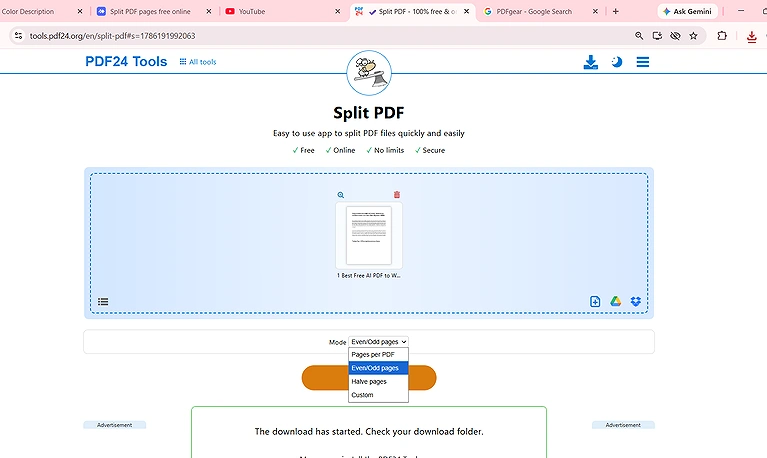
Choose a splitting method: Pages per PDF, Even/Odd Pages, Custom Range, or Halve Pages
4 For Custom Range, review the page thumbnails and click the scissor icon between pages to define where the document should be separated.
5 Enable Cut in Pairs if you want to divide the document according to paired cut points.
6 Review the selected split points and click Split to generate the separate PDF files.
7 Download the resulting files after processing.
PDF24 Tools Test & Results
PDF24 combines several splitting methods with visual page previews, interactive cut points, and batch processing, making it suitable for both individual documents and larger PDF-splitting tasks.
Splitting Accuracy: The 14-page test PDF was divided successfully according to the selected settings, with the resulting files maintaining the original document structure.
Format Preservation: Excellent. The split files retained the original text, images, formatting, and page layout without noticeable quality loss.
Page Selection: PDF24 Tools offers four useful methods: Pages per PDF, Even/Odd Pages, Custom Range, and Halve Pages. The Custom Range option provides additional control through interactive scissor markers between page thumbnails.
Batch Processing: Supported. Multiple PDF files can be processed in the same workflow, with the available splitting options applied separately to each file.
Page Preview: Thumbnail previews make it easier to identify pages and place split points accurately before processing.
Download: The split files were generated and downloaded successfully during testing. In the free version, the resulting files can be downloaded individually.
Free-Version Limitations: No file limitation was found during testing. PDF24 Tools also provided batch processing without requiring a paid upgrade.
Key Takeaway
PDF24 Tools is the best overall choice in this test for flexible and high-volume PDF splitting. Its combination of batch support, multiple splitting modes, interactive cut points, and reliable output quality gives it a significant advantage for users who regularly handle multiple PDF files.
2. PDF Candy
How to Split PDFs Using PDF Candy
- Open PDF Candy and select the Split PDF tool.
- Upload your PDF file.
- Choose from the available page-selection options:
- Single Page: Split individual pages into separate files.
- Custom Selection: Select specific pages or ranges.
- Delete Selected Pages: Remove selected pages from the document.
- For Custom Selection, enter the required pages or ranges. For example, you can enter 1, 2-4, 8-12, 9 to select individual pages and ranges together.
- Start the splitting process and download the generated files.enerated files.
PDF CANDY TEST & RESULT
PDF Candy provided full PDF splitting support and offered several useful ways to control which pages were included in the output files.
Page Selection: It provides three main options: Single Page, Custom Selection, and Delete Selected Pages.
Custom Selection: This was one of the most flexible options tested. You can enter individual pages and ranges together, such as 1, 2-4, 8-12, 9, making it suitable for extracting non-sequential pages.
Delete Selected Pages: PDF Candy also allows selected pages to be removed directly from the PDF, providing an additional way to customize the final document.
Merge Selected Pages: The tool can also merge selected pages into a single file, adding more flexibility to the splitting workflow.
Format Preservation: The generated files were accurate, with no noticeable quality loss. The split documents retained their original quality.
Preview Pages: Thumbnail previews were available before splitting, making it easier to review and select the required pages.
Batch Processing: Not supported. Each PDF must be processed individually.
Download: I tested the Custom Selection option by dividing the 14-page PDF into five separate outputs: page 1, pages 2–5, page 6, page 8, and pages 9–14. PDF Candy successfully generated all five selected PDF files, which were downloaded successfully.
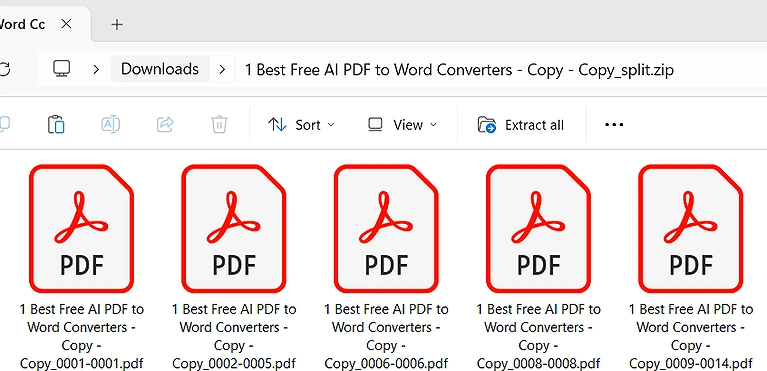
PDF Candy successfully split the 14-page PDF into five custom files: **page 1, pages 2–5, page 6, page 8, and pages 9–14**.
3. LightPDF
How to Split PDFs Using LightPDF
- Open LightPDF and select the Split PDF tool.
- Upload your PDF file to the workspace.
- Review the uploaded document using the available page thumbnails.
- Select the pages or page groups you want to separate from the original PDF.
- Start the splitting process and wait for LightPDF to generate the separate PDF files.
- Download the resulting files after the process is completed.
Test Results & Performance Assessment
LightPDF successfully split the test PDF and generated the required output files while preserving the original document quality. During testing, the tool provided a straightforward workflow for selecting pages and separating them into individual PDF files. The available visual controls and page previews also made it easier to identify the required pages before starting the split process.
Splitting Accuracy: LightPDF successfully divided the test PDF according to the selected pages and generated the expected separate files. The splitting process was completed without errors, and the resulting documents opened normally after downloading.
Format Preservation: Excellent. The generated PDF files retained the original document quality after splitting. Text, images, formatting, and page appearance remained intact, with no noticeable quality degradation between the original document and the separated files.
Page Selection: LightPDF provides a visual page-selection interface that allows users to choose the pages they want to separate. This approach makes the process more intuitive because users can select the required pages directly rather than relying only on manual page-number input.
Preview Pages: Thumbnail previews are available before splitting, allowing users to review the pages visually and identify the correct content before creating separate files. This is particularly useful when working with documents containing many pages or similar-looking sections.
Batch Processing: Not supported in the free version. Each PDF needs to be processed separately, so users working with multiple documents must repeat the splitting process for each file.
Download: The split files were generated successfully and downloaded without problems during testing. The output files remained usable after download and retained the quality of the original PDF.
Free-Version Limitation: The free version allows 3 files per day, which is sufficient for occasional PDF-splitting requirements but can become restrictive for users who regularly need to process larger numbers of documents.
Key Takeaway
LightPDF is a practical option for users who need simple PDF splitting with reliable output quality. Its visual page selection and thumbnail previews make page management straightforward, although the 3-files-per-day free limit restricts frequent use.
4. HiPDF
How to Split PDFs Using HiPDF
1 Open HiPDF and select the Split PDF tool.
2 Upload your PDF document to the workspace.
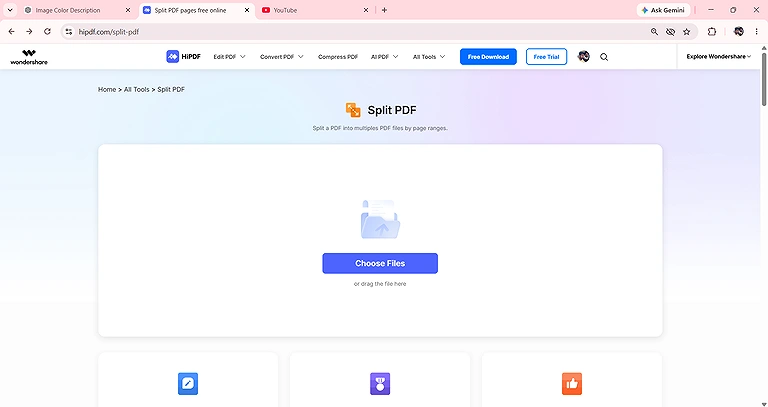
Upload your PDF document to the workspace of HiPDF
Choose between the two available splitting modes: Fixed Range or Custom Range.
Select Fixed Range when you want the PDF divided into equal sections based on the number of pages you specify.
Select Custom Range when you want to define a specific starting and ending page for each split.
Click Split to process the document.
Download the generated PDF files after the splitting process is completed.
HiPDF TEST & RESULT
HiPDF successfully split the test PDF and provided two straightforward ways to divide the document. The Fixed Range option is useful when you want equal-sized sections, while Custom Range provides more control when specific page boundaries are required.
Splitting Accuracy: The file was successfully split according to the selected settings. During testing, a 14-page PDF was divided into two separate files of 7 pages each when pages 1–7 were selected using the Fixed Range option.
Format Preservation: Excellent. The resulting PDF files retained the original document quality, with no noticeable changes to the text, images, formatting, or overall page appearance.
Page Selection: HiPDF provides Fixed Range and Custom Range options. Fixed Range divides the document according to the selected number of pages, while Custom Range allows users to specify the required starting and ending pages.
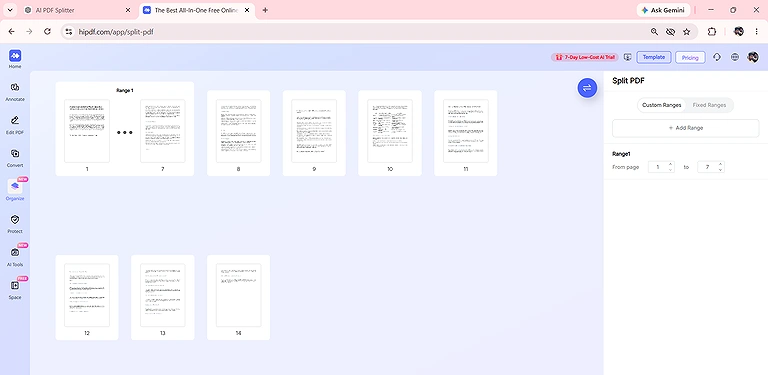
HiPDF offers Fixed Range for equal page division and Custom Range for selecting specific start to end pages.
Preview Pages: Thumbnail previews are available before splitting, making it easier to review the document and select the required pages.
Batch Processing: Not supported in the free version. Only one PDF can be processed at a time.
Download: The split files were generated and downloaded successfully during testing. The output files were created according to the selected page ranges.
Free-Version Limitation: The free version is limited to 1 file per day, making HiPDF more suitable for occasional PDF-splitting tasks than frequent or high-volume processing.
Key Takeaway
HiPDF is a simple option for occasional PDF splitting. Its Fixed Range mode works well for dividing documents into equal sections, while Custom Range provides basic control over specific page boundaries. However, the 1-file-per-day free limit makes it less suitable for regular use.
5. iLovePDF
How to Split PDFs Using iLovePDF
- Open iLovePDF and select the Split PDF tool.
- Upload the PDF you want to divide.
- Choose Split by Range to access the available range-based splitting options.
- Select Custom Pages when you want to specify particular pages or choose Fixed Pages when you want to divide the document according to a defined page count.
- Use the special prompt-based option when you want to provide splitting instructions through the available prompt field.
- Choose Single Pages if you want every page to become a separate PDF.
- Select Split by Size when you want to divide the document according to a specific file-size requirement.
- Use the available options to merge or delete selected pages when further page organization is required.
- Start the splitting process and download the generated PDF files.
iLovePDF Test & Result
iLovePDF performed well during testing and provided one of the widest selections
of splitting methods among the tested tools. In addition to standard page-range splitting, it supports single-page extraction and file-size-based splitting, giving users greater control over how the final PDF files are created.
Splitting Accuracy: iLovePDF successfully split the test PDF according to the selected splitting method. The resulting files were generated correctly, with the selected pages separated according to the chosen settings.
Format Preservation: Excellent. The generated PDF files retained the original quality after splitting. Text, images, formatting, and overall page appearance remained intact without noticeable quality loss.
Page Selection: iLovePDF offers several page-selection methods through its Split by Range feature. Users can choose Custom Pages to select specific pages, Fixed Pages to divide the document according to a selected page count, or use the special prompt-based option for guided splitting instructions. The Single Pages option can also separate every page into an individual PDF.
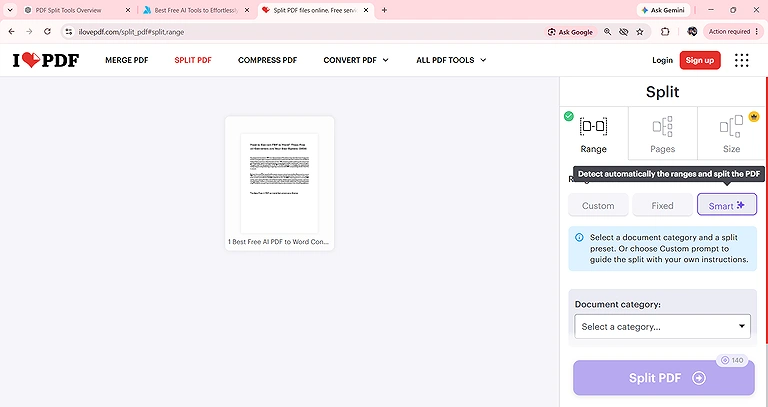
iLovePDF Custom Pages, Fixed Pages, prompt-based splitting, and Single Pages for flexible page selection.
Split by Size: iLovePDF provides a distinctive Split by Size option that allows users to divide a PDF based on a target file size rather than only using page numbers. This can be useful when the resulting files need to stay within a particular size requirement.
Merge & Delete Options: The tool also provides additional page-management controls, allowing users to merge selected pages or delete unwanted pages as part of the splitting workflow. These options provide greater flexibility when preparing the final PDF files.
Preview Pages: Thumbnail previews are available before splitting, allowing users to visually inspect the document and identify the pages they want to include or separate. This makes page selection easier, especially when working with longer documents.
Batch Processing: Not supported in the free version. Each PDF needs to be processed separately, so users handling multiple documents must repeat the workflow for each file.
Download: The split files were generated and downloaded successfully during testing. The resulting PDFs retained the selected pages and maintained their original quality.
Free-Version Limitation: No specific file-splitting limit was found during testing. However, batch processing is unavailable in the free version, which limits its convenience for users working with multiple PDF files.
Key Takeaway
iLovePDF is a versatile choice for users who need more than basic page-range splitting. Its custom and fixed page options, single-page extraction, split-by-size capability, and additional merge and delete controls make it one of the more flexible tools tested.
6. PDFgear
How to Split PDFs Using PDFgear
- Open PDFgear and select the Split PDF tool.
- Upload your PDF file to the workspace.
- Review the uploaded document using the page thumbnails.
- Click the scissor icon between pages to select where you want the PDF to be divided.
- Alternatively, select the required number of pages to divide the document into files containing that number of pages.
- Review the selected split points and start the splitting process.
- Download the generated PDF files after processing.
Test Results & Performance Assessment
PDFgear provided a simple and visual approach to PDF splitting. Its scissor-based interface makes it easy to identify where a document should be divided, while the page-count option provides a faster way to create multiple files from a longer PDF.
Splitting Accuracy: PDFgear successfully split the test document according to the selected cut points and page count. For example, when a 14-page PDF was divided using a 5-page setting, the resulting files contained 5, 5, and 4 pages.
Format Preservation: Excellent. The split files retained the original PDF quality without noticeable changes to the text, images, formatting, or overall page appearance.
Page Selection: PDFgear provides two practical splitting methods. You can click the scissor icon between any two page thumbnails to manually define an exact cut point, giving you direct control over where the document breaks. Alternatively, you can specify the number of pages per file, allowing PDFgear to automatically divide the document into multiple files based on that page count.
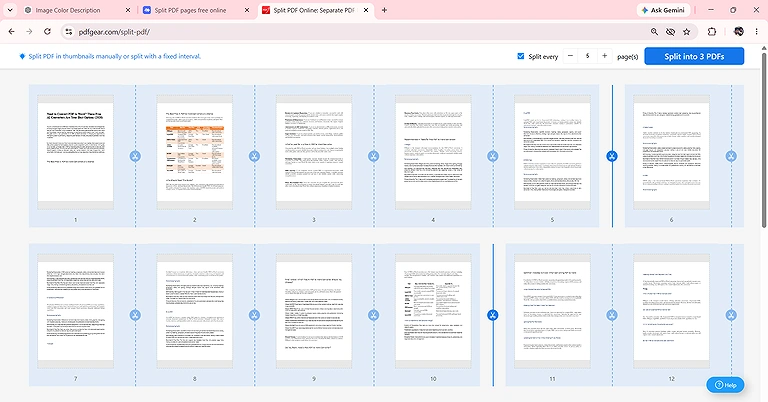
PDFgear scissor-based cut points and page-count splitting, with thumbnail previews for visual page selection.
Visual Page Selection: The scissor-based interface provides direct visual control over the document. Users can see the page thumbnails and select the exact points where the PDF should be separated.
Preview Pages: Thumbnail previews are available before splitting, making it easier to review the document and identify the appropriate pages and cut points.
Batch Processing: Not supported. PDFgear does not provide batch splitting in the tested version, so PDFs must be processed individually.
Download: The split files were generated and downloaded successfully during testing. The resulting PDFs maintained the selected page divisions and original quality.
Free-Version Limitation: No specific file limitation was found during testing. However, batch processing is unavailable, so users working with multiple PDFs need to process each document separately.
Key Takeaway
PDFgear is a strong choice for quick, visual PDF splitting. Its scissor-based page controls make it particularly convenient when you want to see the document structure and manually choose exactly where each split should occur.
FAQs
What is a PDF splitter?
A PDF splitter is a tool that divides a large PDF into smaller files based on selected pages, ranges, file sizes, or other rules. It helps organize, share, and manage specific document sections.
Can I split a PDF without losing quality?
Yes. A good PDF splitter separates existing pages without re-compressing their content. During testing, PDF24 Tools, PDFgear, PDF Candy, iLovePDF, HiPDF, and LightPDF produced split files without noticeable quality loss.
Which PDF splitter is best for batch processing?
PDF24 Tools is the strongest choice for batch processing among the tested tools. Its free version supports multiple PDF files, while PDFgear, PDF Candy, iLovePDF, HiPDF, and LightPDF require individual processing.
Can I split a PDF into equal page sections?
Yes. Tools such as PDF24 Tools, PDFgear, and HiPDF support page-count-based splitting. For example, a 14-page PDF can be divided into sections according to a selected number of pages.
Can I extract specific pages from a PDF?
Yes. Custom page selection allows you to extract specific pages or ranges. PDF Candy supports combinations such as 1, 2-4, 8-12, and 9, making it useful for non-sequential page extraction.
Can I split a PDF into individual pages?
Yes. iLovePDF provides a Single Pages option that separates each page into an individual PDF file. This is useful when every page needs to be distributed, saved, or managed separately.
Can I split a PDF by file size?
Yes. iLovePDF offers a Split by Size option, allowing users to divide a PDF according to a target file size rather than relying exclusively on page numbers or ranges.
Which PDF splitter offers the most page-selection options?
iLovePDF provides one of the broadest selections tested, including custom pages, fixed pages, single pages, and file-size splitting. PDF24 Tools also offers several methods, including even/odd, custom range, and page-count splitting.
Are free PDF splitters limited?
Some free PDF splitters have usage restrictions, while others don't. HiPDF was limited to one file per day, LightPDF to three files per day, while no specific file limit was found for several other tested tools.
Can I preview PDF pages before splitting?
Yes. Thumbnail previews were available in the tested tools, including PDF24 Tools, PDFgear, PDF Candy, HiPDF, and LightPDF. These previews make it easier to identify pages and select accurate splitting points.
Conclusion
After testing the selected PDF splitters with the same 14-page document, the results showed that all tested tools successfully divided PDFs without noticeable quality loss. The main differences appeared in page-selection flexibility, batch processing, previews, download handling, and free-version restrictions. PDF24 Tools stood out for batch support and multiple splitting methods, while the other tools offered different strengths for specific page-extraction requirements.
The tested tools included PDF24 Tools, PDFgear, PDF Candy, iLovePDF, HiPDF, and LightPDF. PDF24 Tools provided pages-per-PDF, even/odd, custom-range, and halve options with batch support. PDFgear offered visual scissor cuts and page-count splitting. PDF Candy excelled at custom non-sequential selections and page deletion. iLovePDF added single-page, fixed/custom range, and file-size splitting. HiPDF provided fixed and custom ranges, while LightPDF offered visual page selection with thumbnail previews and reliable output quality