.webp)
How to Protect PDF Files: Complete 2026 Guide with Tested Security Methods
PDF files often contain sensitive information—from financial records and contracts to business data and personal documents. Password protection adds an important security layer by preventing unauthorized access and controlling actions such as editing, copying, and printing.
To see how well popular tools actually perform, I tested several PDF protection tools using the same test documents. I compared their password protection, encryption, editing and copying restrictions, printing controls, ease of use, and free-version limitations. The results revealed some clear differences that may help you choose the right tool for protecting your PDFs.

 Updated: August 10, 2026 | 20 min read
Cover Photo How to Protect PDF Files: Complete 2026 Guide with Tested Security Methods
Quick Review of PDF Protection Tools
| Tool | Password Setup | Security Controls | Batch Protection | Free Limitation |
| iLovePDF | Password entered twice; requires a strong password | Password protection | Up to 2 files/task | 2 files/task; no daily limit found |
| PDF24 Tools | Single password; no strict password rules | Advanced protection settings | Yes | No clear file limit found |
| LightPDF | Password entered twice | Basic protection | No | 1 file/task; 3 files/day |
| PDF Candy | Password entered twice; strength indicator | Basic protection | No | 1 file/task; no daily limit found |
| HiPDF | Single password entry | Basic protection | No | 1 file/task; 1 free file |
| Smallpdf | Password entered twice; strength indicator | Basic protection | No | 1 file/hour |
Who Should Read This Guide?
This guide is designed for anyone who needs a simple and reliable way to secure PDF documents without investing in expensive software. It’s particularly useful for:
Students and educators: who need to protect assignments, certificates, research papers, and course materials.
Businesses and professionals: handling contracts, invoices, reports, proposals, and confidential documents.
Legal and HR teams: working with sensitive records that require restricted access or editing.
Freelancers and small businesses: sharing client documents that shouldn't be modified or accessed by unauthorized users.
Users managing multiple PDFs: who need batch password protection instead of securing files individually.
Privacy-conscious users: who want to compare password requirements, encryption controls, editing restrictions, and free usage limits.
Anyone comparing free PDF security tools: and looking for the best balance of protection, ease of use, and processing limits.
What to Look for in AI Tools for PDF Protection
Password Protection Requirements
A reliable PDF protection tool should let users set a password required to open the document. Check whether it requires password confirmation, enforces strong passwords, or provides a strength indicator during the protection process.
Password Strength Controls
Look for tools that encourage strong passwords through minimum length requirements, uppercase and lowercase combinations, numbers, or special characters. Password-strength indicators can also help users create safer passwords without requiring technical security knowledge.
Encryption and Security Settings
Check whether the tool provides encryption and customizable security settings beyond simply adding a password. Stronger controls give users greater ability to protect confidential PDFs and determine how securely the document can be accessed.
Editing and Modification Restrictions
A good PDF protection tool should provide options for restricting unauthorized changes. Check whether users can prevent recipients from editing, modifying, annotating, or otherwise changing the protected document.
Copying and Printing Restrictions
Look for controls that limit how recipients can use protected PDF content. Useful options may include preventing text or image copying and restricting printing, especially when documents contain confidential or copyrighted information.
Permission and Protection Controls
The best tools provide more than basic password protection. Check whether security settings allow users to control specific permissions, such as editing, copying, printing, and other actions recipients can perform.
Batch PDF Protection
Batch processing is important when protecting multiple documents. Check how many PDFs can be secured simultaneously and whether batch protection is available in the free version or requires a paid subscription.
Free Usage Limits
Compare the restrictions imposed on free users, including files per task, daily limits, hourly limits, and access to batch protection. These limits can significantly affect whether a tool is practical for regular PDF security.
Ease of Protection
The protection process should be simple enough for users without technical expertise. Check how many steps are required, whether password confirmation is available, and whether security settings are clearly organized and easy to understand.
Protected PDF Reliability
After applying protection, verify that the resulting PDF opens correctly and actually requires the assigned password. Testing the protected file is essential because successful processing doesn't always guarantee that security settings were applied correctly.
How I Tested These Tools
Each PDF protection tool was tested using the same 14-page PDF to ensure a consistent and fair comparison. The file was protected using each tool’s available security options, then the resulting PDF was opened to verify whether the password worked correctly. Batch capabilities, security controls, ease of use, processing limits, and free-version restrictions were also evaluated.
Evaluation Criteria
- Password Protection: Whether the tool requires a password to open the protected PDF.
- Password Strength: Whether it enforces strong passwords or provides a password-strength indicator.
- Security Controls: Whether users can customize available PDF protection and permission settings.
- Batch Protection: How many PDF files can be protected simultaneously.
- Free Limitations: Restrictions on files per task, daily usage, or processing frequency.
- Protection Reliability: Whether the protected PDF successfully requires the assigned password when opened.
- Ease of Use: How simple and straightforward the protection process is.
Best AI Tools for PDF Protection
Protecting PDFs requires more than simply adding a password. The tools tested in this guide were compared for password security, protection controls, batch processing, ease of use, and free limitations. For broader PDF tasks, explore these best AI tools for PDF.
PDF24 Tools
PDF24 Tools is a versatile PDF security solution that combines password protection with detailed permission settings. During testing, it stood out for batch processing, successfully protecting 20 files while maintaining password requirements across the resulting documents.
How to Use PDF24 Tools for PDF Protection
- Open the PDF24 Tools PDF protection tool.
- Upload the PDF you want to protect.
- Enter a password for the document.
- Open the settings to configure additional protection and permission options.
- Choose the restrictions you want to apply, such as editing, copying, or printing.
- Start the protection process.
- Download the protected PDF.
- Open the downloaded file and enter the password to verify that protection was applied correctly.
My Findings After PDF Protection
Password Protection
PDF24 Tools lets you set a password for the protected PDF without enforcing strict password requirements. Unlike some competing tools, it doesn't require password confirmation or minimum password length, keeping the protection process quick and straightforward.
Encryption and Security Settings
PDF24 Tools provides additional control through its security settings. After entering a password, users can configure protection options to determine what recipients can do with the PDF, providing greater flexibility than basic password-only protection.
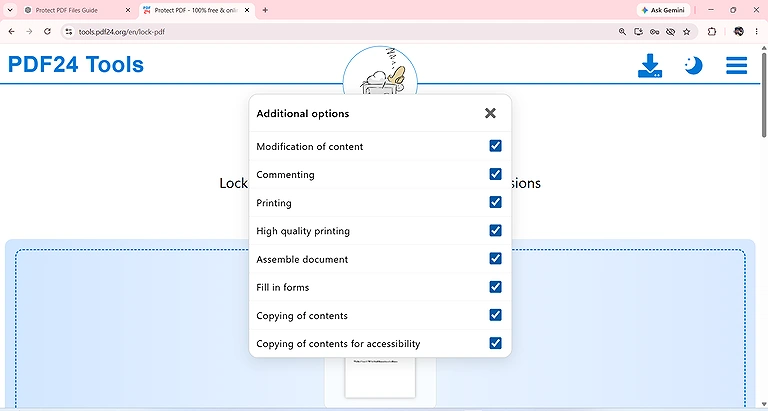
PDF24 Encryption and Security Settings
Editing and Modification Restrictions
The available protection settings allow users to control actions that can be performed on the secured PDF. This is useful when preventing unauthorized modifications is as important as restricting access to the document itself.
Copying and Printing Restrictions
PDF24 Tools provides permission controls for restricting actions such as copying and printing. These options are useful for confidential documents where simply requiring an opening password isn't sufficient to control how recipients use the content.
Permission and Protection Controls
One of PDF24 Tools' strongest features is its range of protection controls. Instead of applying only a basic password, users can configure different permissions according to how recipients should be allowed to interact with the protected document.
Batch PDF Protection
PDF24 Tools performed particularly well during batch testing. I processed 20 PDF files at once, and all files were successfully encrypted. When opened, each protected file correctly required the assigned password.
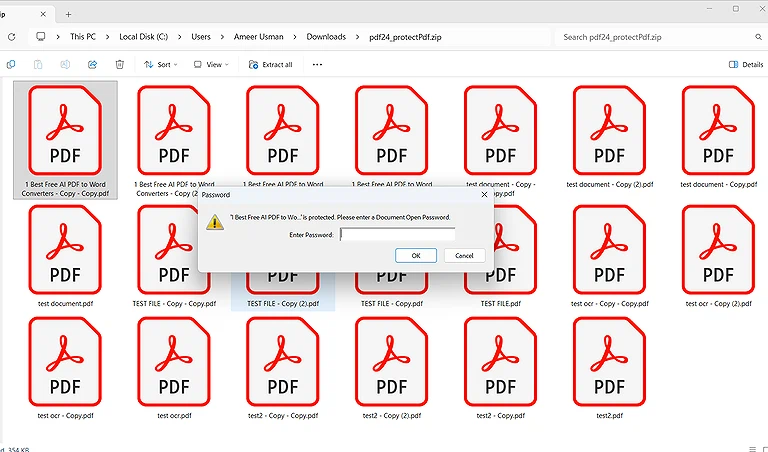
20 files encrypted PDF24 at once and when i tried to open it required password to it.
Free Usage Limits
PDF24 Tools didn't show a specific file limit during testing. Batch protection was also available, allowing multiple PDFs to be secured together rather than requiring users to protect every document individually.
Ease of Protection
The protection workflow is straightforward. Users enter a password and can then open the settings to configure additional permissions. This makes PDF24 Tools suitable for both quick protection and more controlled document security.
Protected PDF Reliability
The protected files were successfully encrypted during testing. Opening the resulting PDFs triggered a password requirement, confirming that the protection was applied correctly and remained active after processing.
Smallpdf
Smallpdf is a user-friendly PDF protection tool designed for quick password security. During testing, it provided password confirmation and a strength indicator, but its free version limited protection to one file at a time with hourly usage restrictions.
How to Use Smallpdf for PDF Protection
1. Open Smallpdf and select its PDF protection tool.
2. Upload your PDF file.
3. Enter your desired password.
4. Re-enter the password for confirmation.
5. Check the password-strength indicator.
6. Apply the protection.
7. Download the protected PDF.
8. Open the file and enter the password to confirm that it works.
My Findings After PDF Protection
Password Protection
Smallpdf allows users to enter the password twice before protecting the PDF. This confirmation step helps prevent accidental password errors, while the password-strength indicator provides feedback about the security of the chosen password.
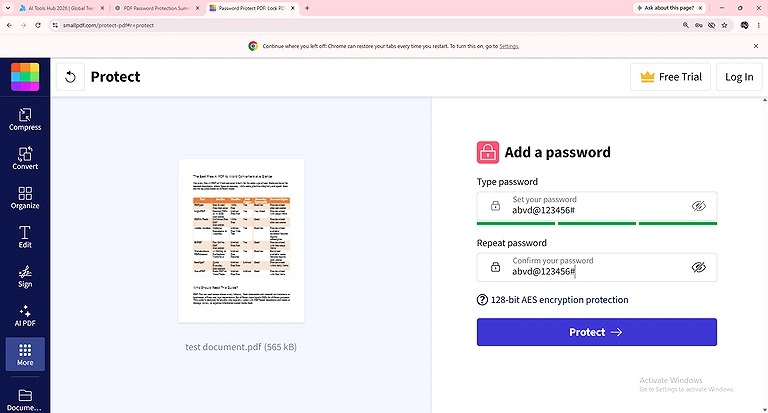
Smallpdf Password Protection
Encryption and Security Settings
Smallpdf focuses primarily on straightforward password protection rather than offering extensive security configuration. The protection process is designed for users who want to secure a PDF quickly without navigating complex security settings.
Editing and Modification Restrictions
Smallpdf's tested protection workflow primarily focused on securing the PDF with a password. Users should therefore consider whether basic password protection is sufficient when they need more detailed controls over document modification.
Copying and Printing Restrictions
The tested workflow didn't provide the same level of detailed permission control found in PDF24 Tools. Users requiring specific restrictions for copying or printing should therefore examine the available protection settings before choosing Smallpdf.
Permission and Protection Controls
Smallpdf keeps its protection workflow simple, making it suitable for users who don't need extensive permission management. Its main focus is password-based access protection rather than configuring multiple document-use permissions.
Batch PDF Protection
Batch protection wasn't available in the free version during testing. The tool allowed only one file at a time, making it less suitable for users who regularly need to secure multiple PDF documents simultaneously.
Free Usage Limits
The free version limits users to one file every hour. This restriction can become inconvenient when protecting several documents, particularly compared with tools that provide broader batch-processing capabilities.
Ease of Protection
Smallpdf provides a simple and beginner-friendly workflow. Users enter and confirm their password, check the password-strength indicator, and protect the PDF without needing to navigate complicated configuration menus.
Protected PDF Reliability
The protection process successfully secured the tested PDF. After processing, the resulting document required the assigned password when opened, confirming that password protection was correctly applied.
iLovePDF
iLovePDF is a straightforward PDF protection tool that combines password security with basic batch processing. During testing, it required password confirmation, enforced stronger password requirements, and allowed up to two PDFs to be protected in one task.
How to Use iLovePDF for PDF Protection
1. Open iLovePDF and select its PDF protection option.
2. Upload your PDF.
3. Enter a password in the password field.
4. Re-enter the same password for confirmation.
5. Make sure the password meets the required security rules.
6. Check the password-strength indicator.
7. Apply the password protection.
8. Download and open the protected PDF to verify the password.
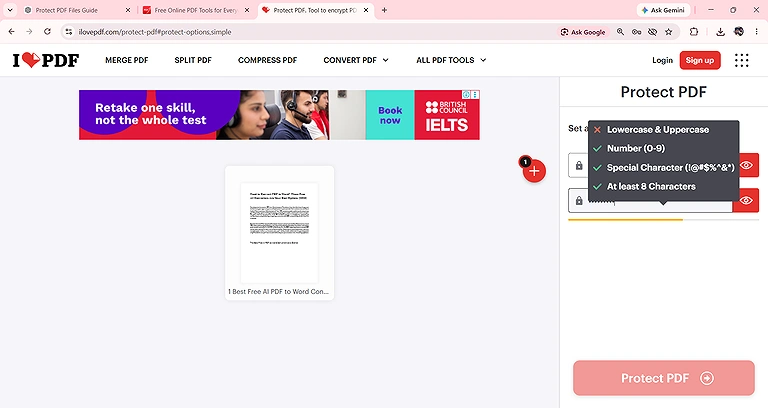
iLovePDF protection screen
My Findings After PDF Protection
Password Protection
iLovePDF requires users to enter the password twice before protecting the PDF. This confirmation helps prevent password-entry mistakes and ensures users remember the exact password required to open the protected document.
Password Strength Controls
iLovePDF applies stricter password requirements than several tested tools. It requires at least 8 characters, including a combination of uppercase and lowercase letters and special characters, while also displaying a password-strength indicator.
Encryption and Security Settings
iLovePDF focuses on password-based PDF protection with a straightforward workflow. The tool is suitable for users who want stronger password requirements without navigating complicated security settings.
Editing and Modification Restrictions
The tested workflow primarily focused on password protection rather than detailed editing permissions. Users should consider this limitation when they need to control specific actions recipients can perform after opening the protected PDF.
Copying and Printing Restrictions
iLovePDF's tested protection process didn't emphasize detailed copying and printing controls. For documents requiring granular permissions, users may need a tool that provides more extensive control over how protected PDFs can be used.
Batch PDF Protection
iLovePDF supports limited batch protection in its free workflow. During testing, it allowed 2 PDF files per task, making it more convenient than tools restricted to protecting only one document at a time.
Free Usage Limits
The main limitation observed was the 2-file-per-task restriction. No specific daily file limit was found during testing, allowing users to process additional files through separate tasks.
Ease of Protection
The protection workflow is simple, with users entering and confirming a password before processing. Its password-strength indicator and clear requirements make it easier to create a stronger password without additional security knowledge.
Protected PDF Reliability
The protected PDF was successfully secured during testing. After processing, the resulting document required the assigned password when opened, confirming that iLovePDF correctly applied password protection.
LightPDF
LightPDF offers a simple PDF protection workflow focused on password security. During testing, it required password confirmation, while its free version supported one file at a time and limited users to three protected files per day.
How to Use LightPDF for PDF Protection
1. Open LightPDF and access its PDF protection tool.
2. Upload the PDF you want to secure.
3. Enter your password.
4. Re-enter the password to confirm it.
5. Start the protection process.
6. Download the protected PDF.
7. Open the downloaded file and enter the password to verify the protection.
My Findings After PDF Protection
Password Protection
LightPDF requires users to enter the password twice before protecting the PDF. This confirmation step reduces the risk of accidental password-entry mistakes and helps ensure the correct password is retained for future document access.
Password Strength Controls
LightPDF's tested workflow focused on password confirmation rather than strict password requirements or a visible strength indicator. This keeps the process simple but provides less guidance when creating a stronger password.
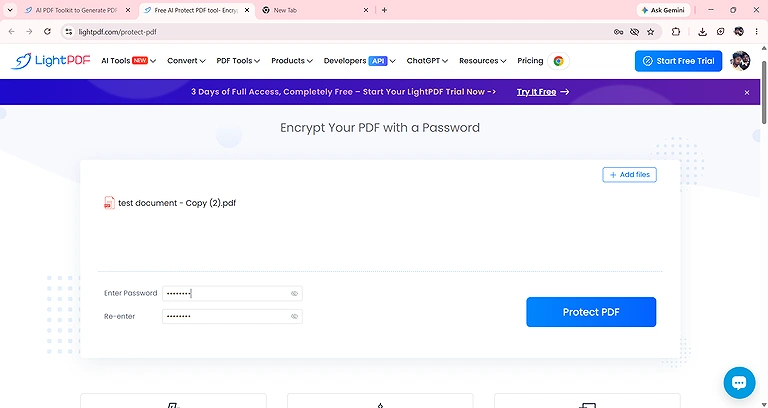
LightPDF Password Strength Controls
Encryption and Security Settings
LightPDF provides straightforward password-based protection without making the process complicated. Its approach is suitable for users who need basic PDF security but don't require extensive customization of encryption or document permissions.
Editing and Modification Restrictions
The tested protection workflow primarily focused on securing the PDF with a password. It doesn't provide the same level of detailed permission controls as tools designed for more advanced document security requirements.
Copying and Printing Restrictions
LightPDF's tested workflow didn't emphasize separate restrictions for copying or printing. Users requiring granular control over these permissions should consider a PDF protection tool with more detailed security settings.
Permission and Protection Controls
LightPDF keeps its protection process relatively simple, focusing on password-based access rather than extensive permission management. This makes it easier for occasional users but less flexible for advanced document protection needs.
Batch PDF Protection
Batch protection wasn't available for free users during testing. The free workflow allowed 1 file at a time, requiring users to process documents individually rather than securing multiple PDFs together.
Free Usage Limits
The free version allows users to process 3 files per day and 1 file per task. This limitation makes LightPDF suitable for occasional PDF protection but less practical for users who regularly secure larger numbers of documents.
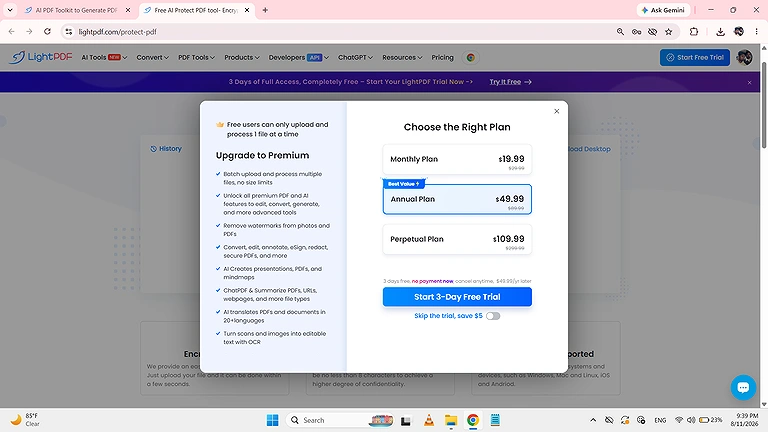
LightPDF allows 3 files per day and 1 file per task in its free version.
Ease of Protection
LightPDF provides a simple protection workflow. Users enter the password, confirm it, and process the PDF without navigating complicated settings, making it accessible for users who need basic protection.
Protected PDF Reliability
The protected PDF was successfully secured during testing. When the resulting file was opened, it required the assigned password, confirming that LightPDF correctly applied password protection.
PDF Candy
PDF Candy is a simple PDF protection tool that combines password confirmation with a password-strength indicator. During testing, it supported one file per task in the free version, with no specific daily file limit found.
How to Use PDF Candy for PDF Protection
1. Open PDF Candy and select the PDF protection tool.
2. Upload your PDF file.
3. Enter your desired password.
4. Re-enter the password in the confirmation field.
5. Check the password-strength indicator.
6. Apply the protection.
7. Download the protected PDF.
8. Open the file and enter the password to make sure it was protected successfully.
My Findings After PDF Protection
Password Protection
PDF Candy requires users to enter the password twice before protecting the PDF. This confirmation helps prevent password-entry mistakes and ensures the correct password is used to access the protected document.
Password Strength Controls
PDF Candy provides a password-strength indicator that shows how strong the selected password is. This gives users immediate feedback while creating the password and encourages them to choose stronger credentials for PDF protection.
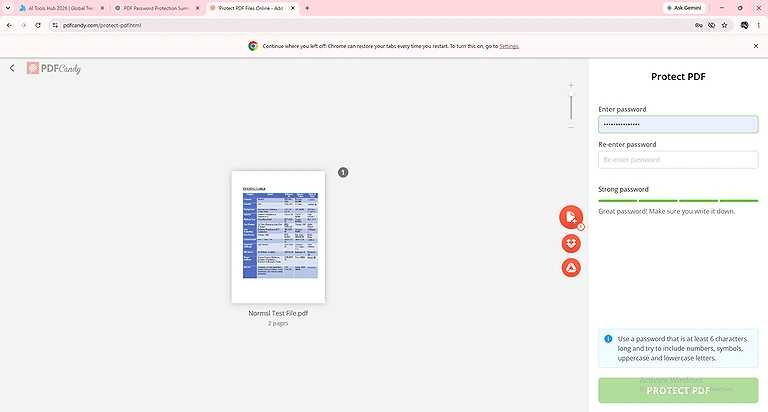
PDF Candy Password Strength Controls
Encryption and Security Settings
PDF Candy provides straightforward password-based protection without requiring users to configure complicated security settings. Its workflow is suitable for users who need basic protection without extensive encryption or permission customization.
Editing and Modification Restrictions
The tested protection workflow primarily focuses on password-based access. It doesn't provide the same level of detailed editing controls as tools with more extensive permission settings, making it better suited to basic PDF security.
Copying and Printing Restrictions
The tested workflow doesn't emphasize separate controls for copying and printing. Users who need to restrict these specific actions may prefer a tool offering more detailed PDF permission settings.
Permission and Protection Controls
PDF Candy focuses on simple password protection rather than extensive permission management. Its straightforward approach makes the tool easy to use for basic document security, although advanced users may require more granular controls.
Batch PDF Protection
Batch protection wasn't available in the free version during testing. Free users could protect 1 file per task, requiring multiple tasks when securing several PDF documents.
Free Usage Limits
The free version allows 1 file at a time, while no specific daily file limit was found during testing. This makes PDF Candy suitable for occasional protection but less convenient for batch requirements.
Ease of Protection
PDF Candy provides a simple workflow with password confirmation and a visible strength indicator. Users can create and confirm their password before processing without navigating complicated security options.
Protected PDF Reliability
The protected PDF was successfully secured during testing. When the resulting file was opened, it required the assigned password, confirming that PDF Candy correctly applied the protection.
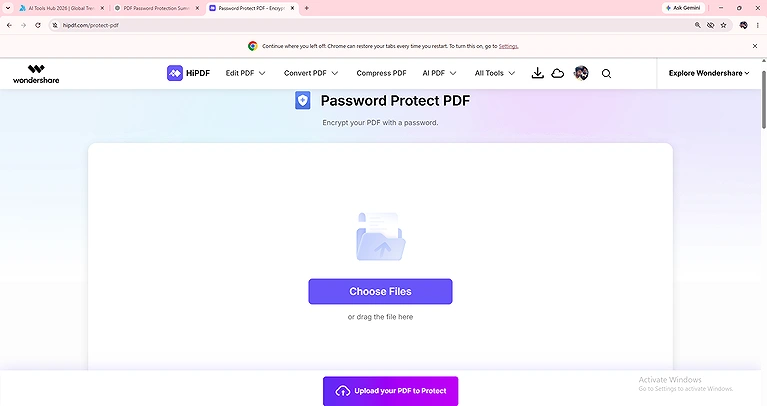
Open HiPDF and select its PDF protection tool, Upload the PDF you want to secure.
HiPDF
HiPDF provides a simple password-protection workflow for securing individual PDF files. During testing, it required only one password entry, while batch protection wasn't available in the free version and usage was limited to one free file.
How to Use HiPDF for PDF Protection
- Open the HiPDF Protect PDF tool.
- Click Choose File and upload your PDF.
- Enter a password to protect the document.
- Confirm the password if required.
- Click Encrypt or Protect PDF to start the process.
- Wait for HiPDF to finish processing the file.
- Download the protected PDF and test it by opening it with the password.
My Findings After PDF Protection
Password Protection
HiPDF uses a single password-entry field when protecting a PDF. This makes the process faster and simpler, although it doesn't provide the additional password confirmation used by several other tested tools.
Password Strength Controls
HiPDF's tested workflow didn't show strict password requirements or a password-strength indicator. Users can enter their preferred password directly, but the tool provides limited guidance for creating stronger credentials.
Encryption and Security Settings
HiPDF provides basic password-based PDF protection through a straightforward workflow. The tested process doesn't offer the same level of detailed security customization as PDF24 Tools, making it more suitable for basic document protection.
Editing and Modification Restrictions
The tested HiPDF protection workflow primarily focuses on password access rather than detailed editing restrictions. Users who need to prevent specific types of document modifications may require a tool with broader permission controls.
Copying and Printing Restrictions
HiPDF's tested protection process doesn't emphasize separate copying and printing restrictions. Users requiring granular control over these permissions should consider a PDF protection tool with more extensive security settings.
Permission and Protection Controls
HiPDF provides a simple protection approach centered on password security. It doesn't offer the same range of configurable permission controls observed in PDF24 Tools, making it better suited to straightforward PDF protection.
Batch PDF Protection
Batch protection wasn't available in the free version during testing. Users could protect 1 PDF per task, meaning multiple documents had to be processed separately.
Free Usage Limits
The free version allows 1 file per task and one free file based on the testing. This makes HiPDF more suitable for occasional single-document protection than regular multi-file processing.
Ease of Protection
HiPDF has a simple protection workflow because users only need to enter a password before processing. The single-entry approach reduces steps and makes the tool easy to use for basic PDF security.
Protected PDF Reliability
The protected PDF was successfully secured during testing. When the resulting document was opened, it required the assigned password, confirming that HiPDF correctly applied password protection.
Free or Paid Which Should You Choose?
| Tool | Choose the Free Version When... | Choose the Paid Version When... |
| PDF24 Tools | You need free password protection, detailed security controls, and batch processing. | You need features beyond its free PDF protection capabilities. |
| iLovePDF | You protect a few PDFs and need stronger password requirements with basic batch protection. | You regularly protect more than 2 files per task or need additional premium PDF features. |
| Smallpdf | You occasionally protect individual PDFs and can work within the 1-file-per-hour limit. | You need higher usage limits, batch workflows, or additional premium PDF features. |
| LightPDF | You protect up to 3 files per day and don't need batch protection. | You regularly protect multiple PDFs and need fewer usage restrictions. |
| PDF Candy | You protect 1 PDF at a time and don't need batch processing. | You need higher limits or additional premium PDF functionality. |
| HiPDF | You only need occasional protection for 1 PDF. | You need more frequent PDF protection or additional premium PDF tools. |
FAQs
Can I protect a PDF with a free tool?
Yes, several free tools can protect PDFs with passwords. PDF24 Tools, iLovePDF, Smallpdf, LightPDF, PDF Candy, and HiPDF offer free protection, although their processing limits and available security controls differ.
Which PDF protection tool performed best in testing?
PDF24 Tools performed best overall because it combined password protection, detailed security settings, and batch processing. During testing, 20 files were successfully encrypted, and each protected PDF required a password to open.
Which PDF protection tool offers batch processing?
PDF24 Tools offers the strongest batch protection capability among the tested tools. It successfully protected 20 files at once during testing, while iLovePDF supported 2 files per task and other tools had stricter limits.
Which tool has the strongest password requirements?
iLovePDF has the strictest password requirements among the tested tools. It requires at least 8 characters with uppercase and lowercase letters and special characters, while also displaying a password-strength indicator.
Do these tools require entering the password twice?
Not all tools require password confirmation. iLovePDF, Smallpdf, LightPDF, and PDF Candy require users to enter the password twice, while PDF24 Tools and HiPDF allow a single password entry.
Which PDF protection tool is best for occasional users?
Free versions are generally suitable for occasional users who only need basic password protection. PDF Candy, Smallpdf, LightPDF, and HiPDF can handle individual documents, while their free limits vary by tool.
Can PDF protection prevent editing and copying?
Some tools provide permission settings that can restrict editing, copying, and printing. PDF24 Tools offers the most detailed controls among the tested options, making it more suitable for documents requiring additional usage restrictions.
Is batch PDF protection available for free?
Batch protection availability depends on the tool. PDF24 Tools supported batch protection during testing, while iLovePDF allowed 2 files per task. Smallpdf, LightPDF, PDF Candy, and HiPDF restricted free users to individual files.
What are the main free limitations of PDF protection tools?
Free limitations include files per task, daily processing limits, hourly restrictions, and unavailable batch protection. Testing found limits ranging from 1 file per task to 3 files per day, depending on the tool.
Should I choose a free or paid PDF protection tool?
Choose a free tool for occasional password protection and basic security needs. A paid plan becomes more useful when you regularly protect multiple PDFs, need higher limits, batch workflows, or advanced PDF features.
Conclusion
To compare PDF protection capabilities fairly, the same 14-page PDF was tested across all 6 tools using their available free features. The evaluation focused on password protection, password-strength controls, security settings, batch processing, ease of use, and usage restrictions. PDF24 Tools delivered the strongest overall performance during testing.
Each tool offered different protection capabilities and free-version limits. PDF24 Tools provided detailed security controls and successful 20-file batch encryption, while iLovePDF enforced 8-character passwords with mixed-case letters and special characters. Smallpdf and PDF Candy included password-strength indicators, LightPDF allowed 3 files per day, and HiPDF provided 1 free file. If you want to explore more about the tools which convert the pdf into word see our guide.