.webp)
Stop Converting PDFs to Excel Manually Try These Tested AI Tools (2026)
Yet many converters create formatting issues instead. Tables break apart, columns shift, numbers become text, and scanned PDFs often produce inaccurate results. Although many AI-powered tools claim to preserve layouts and extract data accurately, their real-world performance differs considerably.
To identify the most reliable options, I tested six AI PDF-to-Excel converters using standard PDFs, scanned (OCR) documents, complex tables, forms, and multi-column layouts. Each tool was evaluated for conversion accuracy, OCR performance, layout preservation, worksheet organization, free-plan limitations, and overall spreadsheet quality. This guide shares the hands-on results to help you choose the converter that produces the cleanest, most editable Excel files with minimal manual corrections.

 Updated: July 23, 2026 | 16 min read
Cover Photo Stop Converting PDFs to Excel Manually—Try These Tested AI Tools (2026)
The Best AI PDF to Excel Converters at a Glance
| Tool | Best For | Normal PDF Conversion | OCR Conversion | Sheets Created During Testing | Download | Free Version Limitations |
| PDF24 Tools | Completely free PDF-to-Excel conversion | Preserved formatting with accurate data; formulas were converted to values only | Successfully converted the OCR document with minor formatting changes | 2 sheets for a 2-page PDF; 5 sheets for the test form; OCR file split into 3 sheets | ✅ Yes | No usage limits (100% free) |
| PDFgear | Accurate table extraction | 100% accurate data conversion, but content was divided into separate worksheets | OCR tables converted accurately, while text and images were moved to another sheet | Standard PDF split into 2 sheets; form converted into 3 sheets | ✅ Yes | Free to use; no major usage restrictions observed |
| PDF Candy | Quick conversion of simple PDFs | Accurate data conversion, although numbers were imported as text | OCR conversion failed, extracting only the scanner label instead of editable data | 1 sheet | ✅ Yes | Limited to 1 conversion per hour on the free plan |
| iLovePDF | Closest match to the original layout | Excellent formatting preservation with highly accurate spreadsheet output | OCR conversion was accurate but generated multiple worksheets | 2 sheets for a 2-page PDF; OCR form expanded into 5 sheets; test form used 2 sheets | ✅ Yes | Limited free conversions per task |
| LightPDF | Single-sheet Excel conversion | Highly accurate conversion with all content kept in one worksheet; merged cells were slightly altered | Excellent OCR accuracy; tables were preserved, text extracted well, and images omitted | 1 sheet for all three test files | ✅ Yes | Free version includes online usage restrictions |
| Aspose | Preserving layout and formatting | Excellent preservation of fonts, colors, merged cells, and layout | OCR output was inserted as a non-editable image | 1 sheet for the normal PDF, OCR file, and form | ✅ Yes | Maximum 2 operations/day, 5 files per task, and 5 MB total upload size |
Who Should Read This Guide?
If you frequently convert PDFs into editable Excel spreadsheets, selecting the right tool can save hours of manual work. Whether your files contain tables, forms, financial records, or scanned documents, a reliable PDF-to-Excel converter preserves data accuracy, minimizes formatting issues, and produces spreadsheets ready for editing and analysis.
- If you're a Financial Analyst or Accountant: Convert balance sheets, financial statements, invoices, tax records, and audit reports into editable Excel files while preserving table structure and numeric accuracy.
- If you work in Operations or Supply Chain: Extract inventory reports, purchase orders, shipping manifests, and product catalogs into organized spreadsheets for sorting, filtering, and reporting.
- If you're a Researcher or Data Analyst: Import tables from research papers, surveys, government publications, and statistical reports into Excel for data cleaning, visualization, and analysis.
- If you manage HR, Payroll, or Procurement: Convert employee records, payroll registers, attendance sheets, vendor quotations, and procurement documents into editable spreadsheets with minimal manual correction.
- If you're a Small Business Owner or Office Professional: Transform invoices, receipts, expense reports, customer records, and business forms into Excel to simplify bookkeeping, reporting, and daily operations.
What to Look for in an AI PDF to Excel Converter
Choosing the right AI PDF-to-Excel converter involves more than creating an Excel file. The best tools preserve data accuracy, maintain spreadsheet structure, process scanned PDFs reliably, and offer practical usage limits. Consider these key factors before deciding.
- Data Accuracy & Formula Handling: Ensure values are extracted correctly and formulas are retained whenever possible instead of being converted to static values.
- Worksheet Organization: Check whether the output remains in a single worksheet or is divided across multiple sheets.
- OCR Accuracy: For scanned PDFs, choose a tool that accurately extracts editable text and tables.
- Layout & Cell Preservation: Look for accurate table alignment, merged cells, rows, columns, fonts, colors, and borders to reduce manual editing.
- Processing Speed: Faster conversion is valuable for large documents and batch workloads without compromising accuracy.
- Security & Privacy: Select tools that provide secure uploads, encrypted processing, and automatic file deletion.
- Free Plan & Usage Limits: Compare file size limits, daily quotas, OCR availability, download options, and pricing before choosing a tool.
How I Tested These AI PDF to Excel Converters
For getting accurate results I tested every AI PDF-to-Excel converter using the same methodology and identical PDF files. Each tool was evaluated on data accuracy, worksheet organization, formatting preservation, merged-cell handling, OCR performance, and the amount of manual editing required after conversion, providing a consistent real-world comparison.
1 Standard PDF with Native Tables
The first benchmark used a digitally generated PDF containing structured tables, numerical data, headings, borders, and merged cells. This test measured how accurately each converter extracted values, preserved table structures, maintained cell formatting, retained fonts and colors, handled merged cells, and organized the output into Excel worksheets. Formula handling was also evaluated to determine whether formulas remained functional or were converted into static values.
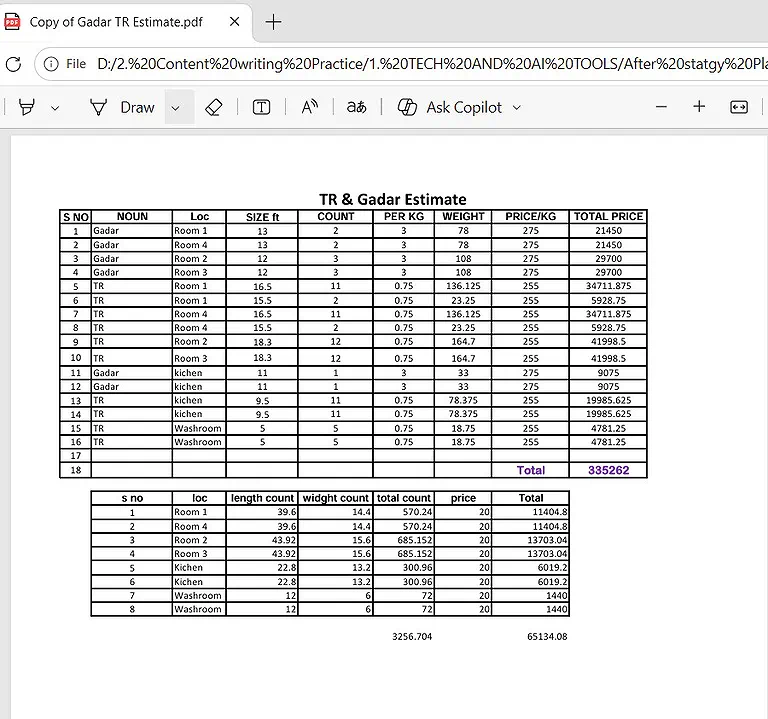
Normal PDF file for data accuracy, table reconstruction, formatting preservation, and worksheet organization
2. Complex PDF Form
The second benchmark consisted of a multi-section form containing merged cells, nested headers, bordered fields, and densely packed tabular data. Unlike simple tables, forms require converters to recognize complex layouts while preserving the original structure. This test evaluated layout retention, merged-cell accuracy, border preservation, field alignment, and whether the form remained intact on a single worksheet or was divided across multiple sheets.
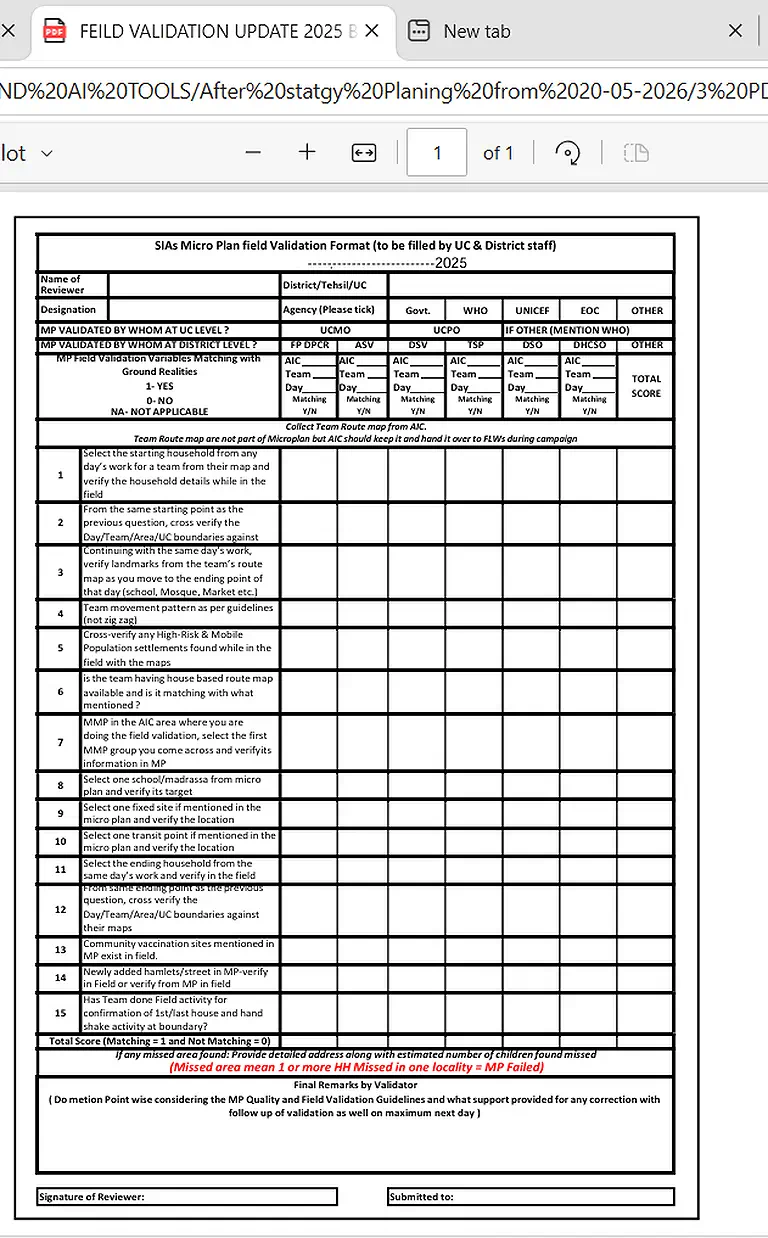
Evaluating merged-cell preservation, and worksheet organization for complex PDF forms.
3. Scanned OCR PDF Document
The final benchmark used an image-based scanned PDF containing printed text, structured tables, and embedded images. Because scanned documents cannot be copied directly, this test focused on each converter's OCR capabilities. I evaluated text recognition accuracy, table extraction quality, editable output, image handling, worksheet organization, and how much manual cleanup was required before the spreadsheet was ready for use.
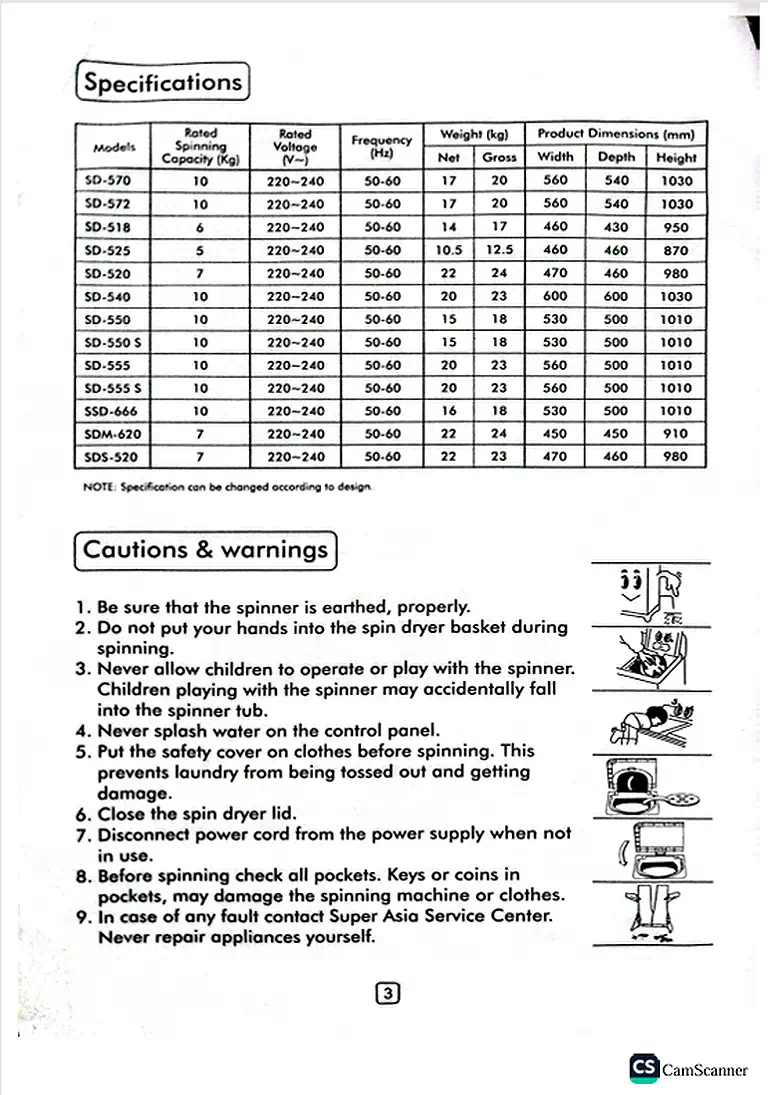
Measuring OCR accuracy, editable table extraction, and spreadsheet usability from scanned PDF
Evaluation Criteria
Each converter was scored using the same practical benchmarks to ensure a consistent comparison:
- Data Accuracy: Were all values extracted correctly without missing or altered data?
- Formatting Preservation: Were tables, borders, fonts, colors, and merged cells retained?
- Worksheet Organization: Did the tool keep content in a single worksheet or split it across multiple sheets?
- OCR Performance: How accurately did it convert scanned PDFs into editable Excel data?
- Formula Handling: Were spreadsheet formulas preserved or converted into static values?
- Post-Conversion Editing: How much manual cleanup was required before the spreadsheet was ready to use?
The Best AI PDF to Excel Converters (Tested & Reviewed)
Converting complex tables from documents requires software that preserves cell integrity and handles OCR efficiently. Selecting the right platform simplifies data extraction—especially when paired with the best AI tools for pdf converter.
PDF24 Tools
Among the tools I tested, PDF24 Tools impressed me with its excellent data accuracy and completely free access. It handled standard PDFs and OCR documents reliably, although complex forms were often divided across multiple worksheets, requiring additional editing.
What I found after testing
Data Accuracy & Worksheet Organization
The standard PDF converted with excellent accuracy, preserving table structure, fonts, borders, and numerical values. Formulas were exported as static values rather than editable Excel formulas, and the second PDF page was automatically placed on Sheet 2 while maintaining a clean workbook structure.
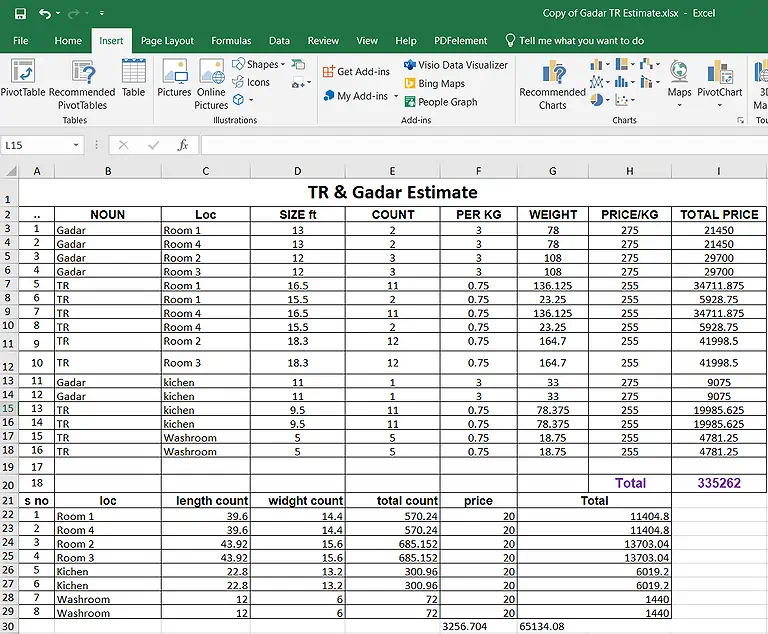
Standard PDF converted with PDF24 Tools, preserving tables, formatting, and worksheet
Form Conversion
The complex PDF form converted successfully, but the original layout was divided into five worksheets. Merged cells became fragmented, making the workbook require manual restructuring before practical use.
OCR Performance
The OCR document converted successfully with only minor formatting differences. Most data remained on the first worksheet, while a few rows continued onto the second and third sheets without affecting the extracted values.
Processing Time
All test files converted within seconds during testing. Processing speed may vary depending on file size, internet connection, server load, and your device performance.
Security & Privacy
PDF24 states that uploaded files are transferred using encrypted SSL connections and automatically deleted from its servers after processing. According to its official policy, files are typically removed within one hour.
Free Usage & Limitations
PDF24 Tools is completely free with no observed daily conversion limits. Its biggest limitation is splitting complex forms and OCR documents across multiple worksheets. For pdf splitter there is our another tested guide you can explore them easily if you are struggleing
PDFgear
PDFgear delivered one of the most accurate conversions during testing. It preserved table structures exceptionally well and extracted OCR tables with high accuracy, although content was frequently separated across different worksheets.
What I found after testing
Data Accuracy & Worksheet Organization
The standard PDF converted with 100% data accuracy, preserving tables and numerical values without noticeable formatting changes. Multi-page documents, however, were automatically separated into different worksheets instead of remaining on a single sheet.
Form Conversion
The complex form retained its data accurately but was divided into three worksheets. Although no information was lost, consolidating the workbook required some manual adjustments.
OCR Performance
PDFgear extracted scanned tables accurately into editable Excel cells. Images and surrounding text, however, were transferred to another worksheet and placed together inside a single cell instead of preserving their original positions.
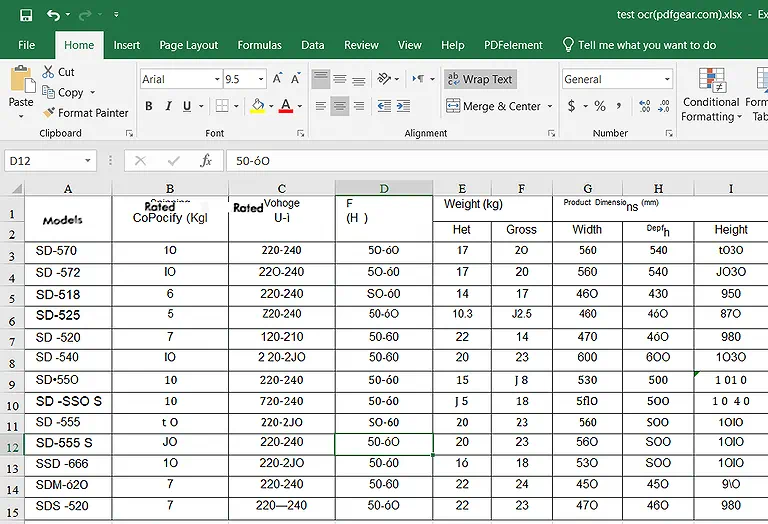
PDFgear successfully converted scanned tables while moving images and body text onto a separate worksheet
Processing Time
PDFgear completed every conversion within a few seconds. Actual processing time depends on document size, internet speed, and your computer's performance.
Security & Privacy
According to PDFgear's official documentation, many of its online PDF tools process files locally within the browser whenever supported. Files requiring cloud processing are transmitted securely using encrypted connections.
Free Usage & Limitations
PDFgear is free to use without significant conversion restrictions. The primary drawback is automatic worksheet separation for multi-page PDFs and complex forms.
PDF Candy
PDF Candy performed well with standard digital PDFs, preserving all data values accurately. However, its OCR performance was significantly weaker than most competing converters tested.
What I found after testing
Data Accuracy & Worksheet Organization
The standard PDF converted successfully, and all values remained accurate. The main issue was that many numeric values were imported as text, requiring manual formatting before calculations could be performed in Excel.
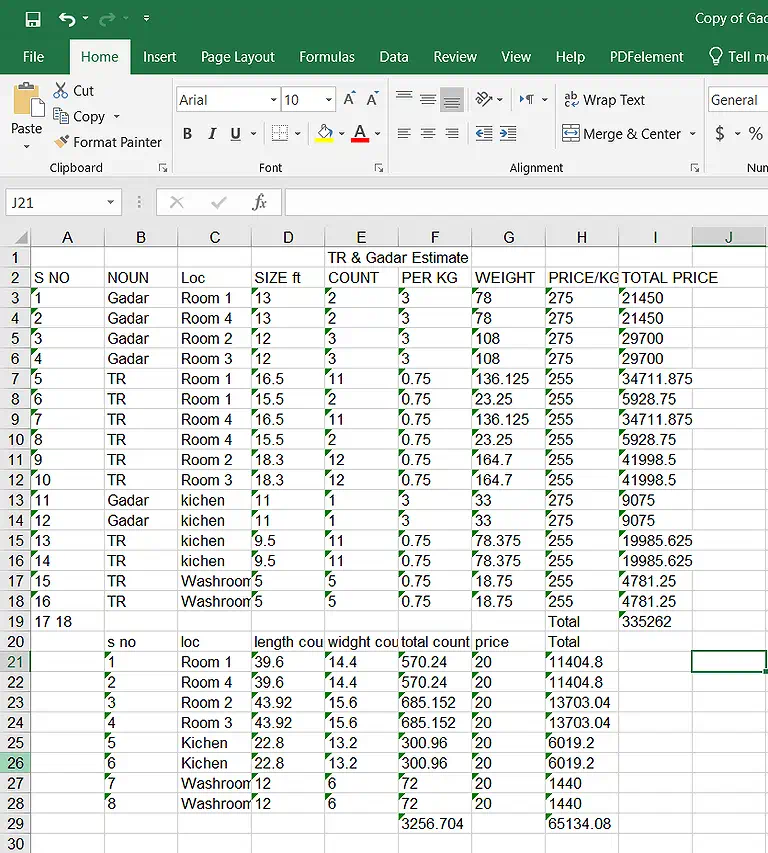
Normal PDF file converted with PDF Candy but numeric values become text
Form Conversion
The free version mainly handled standard PDFs well. Complex form testing was limited because of the hourly conversion restriction imposed on free users.
OCR Performance
OCR performance was disappointing during testing. Instead of extracting editable tables and text, the converted workbook contained only the CamScanner label while the remaining document content failed to appear.
Processing Time
Standard PDF conversions finished within seconds. Processing speed may vary depending on file size, internet connection, and system performance.
Security & Privacy
PDF Candy states that uploaded files are transferred over secure encrypted connections and automatically removed from its servers after a limited retention period in accordance with its official privacy policy.
Free Usage & Limitations
The free plan allows only one conversion per hour. Paid plans remove this restriction and provide unlimited document conversions.
iLovePDF
iLovePDF produced one of the best overall results in my testing. It closely preserved the original spreadsheet layout, maintained excellent data accuracy, and handled both standard PDFs and forms with minimal formatting changes. Its main drawback was generating unnecessary worksheets during OCR conversion.
What I found after testing
Data Accuracy & Worksheet Organization
The standard PDF converted almost identically to the original document. Tables, formatting, borders, and cell alignment remained highly accurate, while the second PDF page was automatically placed on Sheet 2, creating a clean and organized workbook.
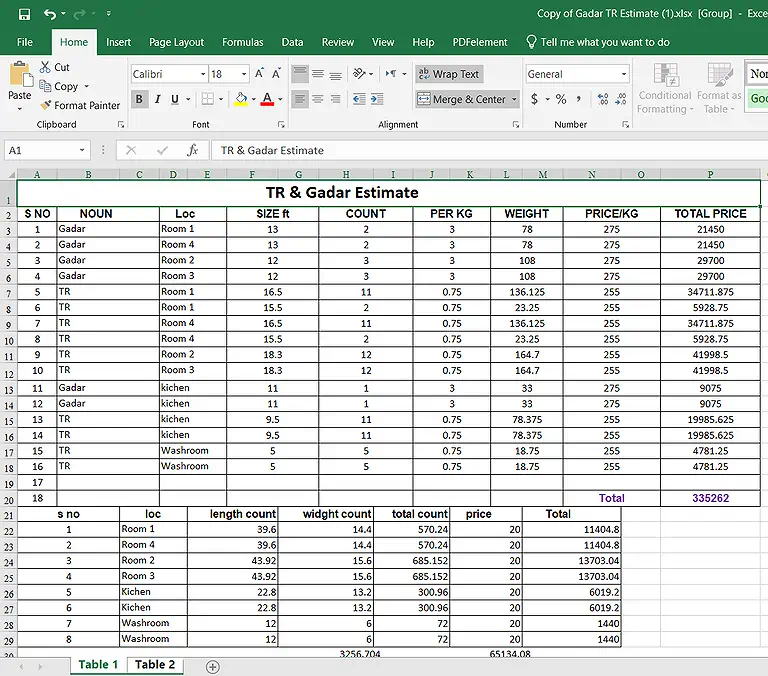
iLovePDF accurately preserved the original spreadsheet layout, formatting, while second PDF page on Sheet 2
Form Conversion
The complex form converted exceptionally well. Nearly the entire layout remained intact on a single worksheet, with only the final row shifting onto a second sheet during conversion.
OCR Performance
The OCR document was converted successfully with accurate table extraction and readable text. However, a single scanned page was expanded into five worksheets, making the workbook less organized despite the high extraction accuracy.
Processing Time
All benchmark files converted within a few seconds. Actual processing time depends on file size, internet speed, server load, and your device performance.
Security & Privacy
According to iLovePDF's official Security and Privacy documentation, files are transferred through encrypted HTTPS connections. The company is ISO/IEC 27001 certified and states that uploaded files are automatically deleted from its servers after a limited retention period, typically within two hours.
Free Usage & Limitations
The free version limits the number of files processed per task. Although conversion quality is excellent, OCR documents may be divided into multiple worksheets.
LightPDF
LightPDF delivered the most balanced performance among all the converters I tested. It consistently preserved data accuracy, maintained single-sheet organization, and produced highly accurate OCR results, making it one of the strongest overall performers.
What I found after testing
Data Accuracy & Worksheet Organization
The standard PDF converted with excellent accuracy while keeping the entire document on a single worksheet. Although merged cells became unmerged, all data remained correctly positioned without affecting spreadsheet usability.
Form Conversion
The complex form retained nearly its complete structure on one worksheet. Only the final row was slightly altered, where a single merged cell was divided into two separate cells.
OCR Performance
LightPDF produced outstanding OCR results. Tables remained highly accurate, scanned text was extracted line by line into editable cells, and every element stayed on a single worksheet. Embedded images were removed during conversion.
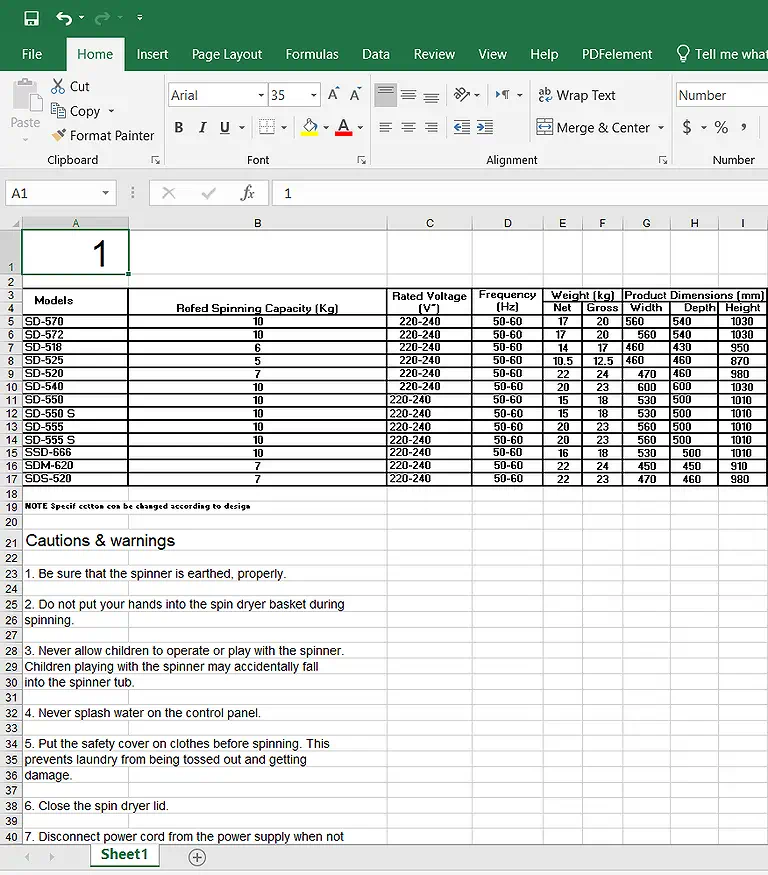
LightPDF accurately reconstructed scanned tables and text while preserving a clean single-sheet workbook
Processing Time
Conversions completed smoothly within seconds throughout testing. Processing speed may vary depending on document size, internet connection, and computer performance.
Security & Privacy
According to LightPDF's official Privacy Policy, uploaded documents are transmitted using encrypted connections. The company states that files are automatically removed from its servers after processing within its retention period to protect user privacy.
Free Usage & Limitations
The free version includes certain online processing restrictions, but conversion quality remains excellent for both standard PDFs and OCR documents.
Aspose
Aspose impressed me with its ability to preserve formatting, colors, merged cells, and worksheet structure when converting standard PDFs. However, its OCR capabilities were significantly weaker than the other converters tested.
What I found after testing
Data Accuracy & Worksheet Organization
The standard PDF converted with outstanding accuracy. Fonts, colors, merged cells, borders, and numerical values closely matched the original document, while all content remained organized on a single worksheet.
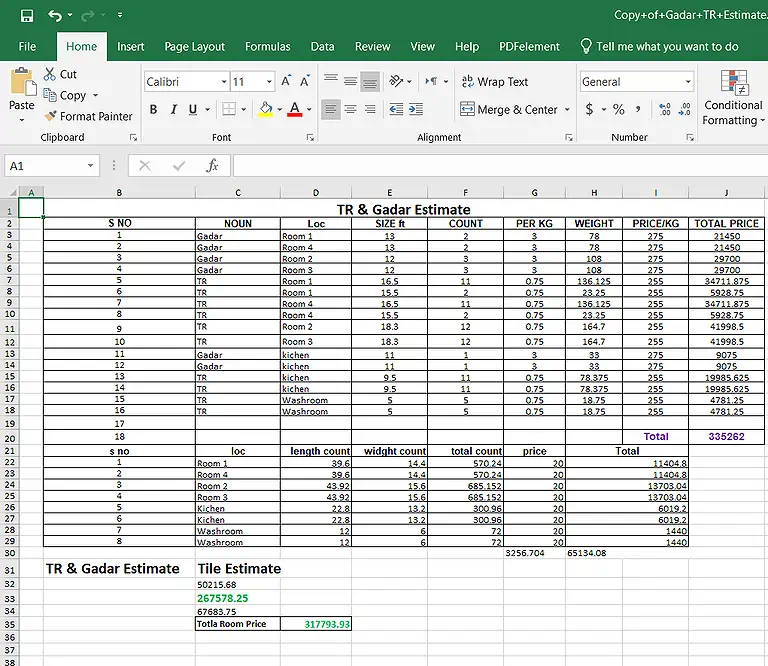
Aspose preserved fonts, colors, merged cells, and the original worksheet layout with excellent conversion
Form Conversion
The complex PDF form converted successfully onto a single worksheet while maintaining its original structure, making it one of the most accurate tools for preserving document layout.
OCR Performance
Unlike the other leading converters, Aspose did not generate editable spreadsheet data from the scanned PDF. Instead, the entire page was inserted into Excel as a static image on the first worksheet.
Processing Time
Aspose processed all benchmark files within a few seconds during testing. Actual conversion speed depends on file size, internet bandwidth, and your device performance.
Security & Privacy
According to Aspose's official Privacy Policy, uploaded files are transferred over secure encrypted connections and are automatically deleted from company servers after processing within the stated retention period.
Free Usage & Limitations
The free version is limited to 2 operations per day, 5 files per operation, and a maximum total upload size of 5 MB, making it less suitable for frequent conversions.
Do You Need a Paid Or Free AI Converter?
| Tool | Stay with the Free Version If... | Upgrade to the Paid Version If... |
| PDF24 Tools | You need unlimited PDF-to-Excel conversions with no usage restrictions and are comfortable reviewing multi-sheet outputs. | No upgrade is required. PDF24 Tools is completely free with no paid plan. |
| PDFgear | You want a free desktop solution for accurate table extraction and occasional PDF-to-Excel conversions. | No upgrade is required. PDFgear currently offers its core PDF-to-Excel features for free. |
| PDF Candy | You only convert a few PDFs occasionally and the one-conversion-per-hour limit meets your needs. | You convert PDFs regularly, need faster processing, higher limits, and access to advanced OCR features. |
| iLovePDF | You mainly convert standard PDFs one file at a time and don't need OCR for scanned documents frequently. | You need batch conversion, OCR for scanned PDFs, higher usage limits, and advanced productivity features. |
| LightPDF | You want accurate single-sheet Excel exports for occasional conversions and can work within the free plan's online limits. | You process documents frequently, need higher quotas, and require uninterrupted cloud-based PDF workflows. |
| Aspose | Your PDFs are under 5 MB, and you only need a few conversions each day within the free usage limits. | You work with larger files, exceed the daily limits, or require unrestricted document processing for regular use. |
Who Should Use Free AI PDF-to-Excel Tools?
- Students converting lecture notes, assignments, or research papers into editable spreadsheets.
- Freelancers handling occasional invoices, reports, or client documents.
- Small business owners processing a limited number of financial records or inventory lists.
- Home users who only need PDF-to-Excel conversion a few times each month.
- Researchers and analysts extracting tables from reports without investing in premium software.
- Anyone with basic conversion needs who can work within free plan limits or occasional formatting adjustments.
Who Should Upgrade to Paid AI PDF-to-Excel Tools?
- Accountants and finance teams converting large volumes of bank statements, invoices, and financial reports daily.
- Businesses with frequent document workflows that require unlimited conversions and faster processing.
- Users working with scanned PDFs who rely on advanced OCR accuracy for editable spreadsheets.
- Organizations needing batch conversion to process dozens or hundreds of files simultaneously.
- Teams handling confidential business documents that require enterprise-grade security, collaboration, and document management.
- Professionals who can't afford manual corrections and need consistent formatting, higher accuracy, and priority processing for mission-critical spreadsheets.
Common Mistakes to Avoid in PDF-to-Excel Conversions
Ignoring Numbers Imported as Text: Even when a conversion looks accurate, numeric values may be stored as text. This prevents Excel functions such as SUM, AVERAGE, FILTER, and SORT from working correctly until the cells are converted to numeric format.
Overlooking Multi-Sheet Outputs: Some AI converters split a single PDF into multiple worksheets, scattering related tables across separate tabs. Always check how your data is organized before starting analysis, reporting, or importing it into other systems.
Expecting Excel Formulas to Be Recreated: PDFs preserve the final displayed values—not the underlying spreadsheet logic. As a result, nearly all converters export static numbers instead of restoring formulas, calculations, or linked cell references.
Using a Non-OCR Converter for Scanned PDFs: Image-based PDFs require Optical Character Recognition (OCR) to extract editable content. Without OCR, you'll likely get blank worksheets, missing tables, or embedded images instead of usable spreadsheet data, leading to unnecessary manual work.
FAQ
What is the best free AI PDF to Excel converter for preserving table layouts?
LightPDF and Aspose provided the best single-sheet layout retention during testing, keeping tables consolidated without scattering data across multiple sheet tabs.
Can AI converters restore active Excel formulas from a PDF?
No. PDFs store text and numbers as visual coordinates rather than mathematical formulas. Converters extract the accurate calculated figures, but you must manually re-enter Excel formulas.
Why did my converted Excel file place numbers as text?
Some tools (like PDF Candy) export character data without applying numeric cell formatting. You can fix this in Excel by selecting the column and choosing Convert to Number.
Which tool handles scanned PDF forms best?
LightPDF produced the cleanest OCR output during testing, accurately mapping table rows and line text onto a single, editable Excel worksheet.
Why do some converters split a single PDF page into multiple sheet tabs?
When converters encounter complex merged cells, headers, or multi-region tables, their layout parser may create new worksheet tabs to prevent cell overlap.
Is it safe to upload financial PDF statements to online converters?
For sensitive financial, payroll, or legal data, offline desktop applications like PDFgear or PDF24 Desktop are safer because processing occurs locally on your machine.
What is the file size limit for free online PDF to Excel converters?
Free limits vary by platform: Aspose caps uploads at 5 MB (2 operations per day), while tools like PDF24 offer generous or unrestricted file sizes.
Why was my scanned PDF converted into an uneditable image in Excel?
This occurs when a tool lacks built-in OCR or reserves editable OCR for paid tiers (e.g., Aspose's free tier outputs non-editable image blocks for scans).
How do I fix unmerged cells after exporting to Excel?
Converters like LightPDF unmerge cells to preserve data alignment. You can re-merge cells in Excel using the Merge & Center tool on the Home ribbon.
Can I batch convert multiple PDF tables into a single Excel workbook?
Yes, tools like PDF24 Tools allow multi-file uploads, though worksheets may need simple post-conversion consolidation depending on document structure.
Conclusion
Our hands-on testing confirms that today's AI PDF-to-Excel converters can eliminate hours of manual data entry, but their performance varies depending on the document type. PDF24 Tools is the strongest choice for users who want completely free, unlimited conversions, while LightPDF produced the most organized single-sheet spreadsheets with excellent OCR performance. iLovePDF came closest to preserving the original Excel layout, PDFgear extracted tables with outstanding accuracy, PDF Candy proved reliable for occasional conversions despite its free-plan limits, and Aspose excelled at maintaining fonts, colors, merged cells, and overall document structure for smaller files.
Rather than choosing the tool with the longest feature list, choose the one that matches your workflow. Casual users can confidently rely on the free versions for everyday conversions, whereas professionals handling scanned PDFs, large datasets, or high-volume document processing will benefit from premium features such as batch conversion, advanced OCR, and higher processing limits. Based on our real-world testing, selecting the right converter for your specific document type will save more time, preserve more data, and require far fewer manual corrections than using a generic PDF-to-Excel tool. Similary if you need some help in PDF to Word conversation you can find out our another guie.