.webp)
After Testing, I Found the Best Free Watermark Remover Tools in 2026
Removing a watermark can look like a one-click job until you try it on a detailed image. Some AI tools remove simple marks cleanly, while others leave visible artifacts, distort the background, or struggle when text and logos overlap important details.
To see which tools actually deliver, I tested several free AI watermark removers using the different watermarked image (gettyimages,@watermark). I compared removal accuracy, AI inpainting, complex backgrounds, manual selection, image quality, batch processing, speed, free limits, formats, privacy, and download quality. The results revealed some clear winners and a few tools that didn’t perform as well as their feature lists suggested.
Note: I removed the watermarks from these (given below) images for educational and testing purposes only. You should remove a watermark only from images you own or have permission to modify.

 Updated: August 15, 2026 | 19 min read
Cover Photo After Testing, I Found the Best Free AI Watermark Removal Tools in 2026
Quick Review Table: Best Free AI Watermark Removers
| Tool | Removal Accuracy & Image Quality | AI Inpainting | Manual Selection | Batch Processing | Free Usage |
| LightPDF | Excellent | Excellent | No | No | 1 image |
| WatermarkRemover.io | Excellent | Excellent | Yes | No | 3 images/day + 3 credits after signup |
| Cleanup.pictures | Good on simple images | Good on simple images | Yes | No | Free below 720 × 401 px |
| DeWatermark | Excellent | Excellent | Yes | No | 3 images every 7.5 hours |
| Grok AI | Excellent | Excellent | No | Up to 3 images | 3 images/day |
| ChatGPT | Excellent | Excellent | No | Multiple uploads | Based on free usage limits |
Who Should Read This Guide?
- Content Creators: Clean images for videos, posts, and thumbnails.
- Bloggers: Prepare polished visuals for articles and websites.
- Graphic Designers: Remove unwanted logos, text, and marks.
- Photographers: Fix distracting elements while preserving image quality.
- Social Media Managers: Create cleaner visuals for social platforms.
- Digital Marketers: Improve promotional graphics and campaign images.
- E-commerce Sellers: Clean product images for online stores.
- Video Editors: Prepare images for thumbnails and video projects.
- Freelancers: Find free tools for client image-editing projects.
- Small Businesses: Improve marketing visuals without expensive software.
- Students & Teachers: Prepare cleaner images for projects and presentations.
- Everyday Users: Remove unwanted marks from personal images.
What to Look for in AI Watermark Removal Tools
Removal Accuracy: Check whether the tool completely removes the watermark without leaving shadows, blurred patches, visible edges, or other noticeable traces around the affected area.
AI Inpainting Quality: Good AI inpainting should naturally reconstruct the covered area by matching nearby textures, colors, lighting, and patterns without making the edited portion look artificial.
Text & Logo Detection: The tool should accurately identify different types of watermarks, including text and logos, while avoiding accidental changes to important objects or surrounding image details.
Complex Backgrounds: Test the tool on images containing people, plants, buildings, patterns, fences, and other detailed backgrounds to see whether it can reconstruct difficult areas naturally.
Manual Selection: A brush or selection feature gives users greater control over the exact watermark area, making it easier to remove small, misplaced, or partially transparent marks.
Image Quality: Check whether the processed image maintains its original resolution, sharpness, and details. Some tools may improve quality, while others can introduce blur or unwanted artifacts.
Batch Processing: Batch processing allows multiple images to be processed together, saving time for users who regularly need to remove watermarks from several images.
Processing Speed: Faster processing makes a tool more convenient, especially when removing watermarks from multiple images or working with high-resolution files.
Free Usage Limits: Check daily credits, image limits, resolution restrictions, waiting periods, and other conditions that may affect how much you can use the tool without paying.
Supported Formats: A good tool should support commonly used image formats such as JPG, PNG, and WEBP, allowing users to process images without unnecessary format conversion.
Privacy & File Deletion: Check how the service protects uploaded images and whether it clearly explains storage, encryption, data handling, and automatic file deletion after processing.
Download Quality: The final download should preserve the edited image's quality without excessive compression, blurring, distortion, or unexpected changes compared with the processed preview.
How I Tested These AI Watermark Removers
Honsestly saying, I used the only two 58 KB & 34.4KB watermarked images with every tool. The images contains a person and a detailed outdoor background with a white fence, trees, plants, blue water, and sky and person standing together as in group photo. I used these images to test watermark removal accuracy, AI inpainting, text and logo detection, performance on complex backgrounds, manual selection, processing speed, and final image quality. I also compared each downloaded result with the original image to check sharpness, clarity, visible artifacts, background distortion, and changes in file size.
Note:
I used these images with all tools all has the same results as we need for watermark removal so i mentioned each tested results with different perspectives and also i attached a few screen shorts to enhance the user experience.

The same 58 KB watermarked image was used as the input image for testing all watermark removal tools.

This is the second 34.4 KB watermarked image was used as the input image for testing all watermark removal tools.
Best AI Tools for Watermark Removal
The best AI watermark removal tools can quickly remove unwanted text and logos while naturally reconstructing covered areas. I tested these tools for removal accuracy, AI inpainting, complex backgrounds, image quality, processing speed, free limits, and overall usability to identify the strongest options.
LightPDF
LightPDF is an online image and document processing platform with an AI watermark removal feature. It automatically removes unwanted watermarks and reconstructs the covered area, making the process simple for users without advanced editing skills.
How to Use LightPDF for Watermark Removal
- Open the LightPDF watermark removal tool.
- Upload the image containing the watermark.
- Let the tool automatically process the image.
- Wait for the watermark removal to finish.
- Preview the processed image.
- Download the final image.
My Results After Testing Watermark Removal
Removal Accuracy
LightPDF removed the watermark quickly and automatically without noticeably disturbing the surrounding image. The downloaded result was free of the visible watermark.
AI Inpainting Quality
The AI inpainting quality was excellent. The removed area was reconstructed naturally, making it difficult to identify where the watermark had originally appeared.
Text & Logo Detection
Text and logo detection performed very well. The tool removed the unwanted watermark without noticeably affecting the surrounding background or important image details.
Manual Selection
LightPDF uses automatic watermark removal, so there is no manual brush or selection option for choosing a specific watermark area.
Batch Processing
Batch processing isn't available in the tested workflow. Only one image can be processed at a time.
Processing Speed
Processing was quick, and the watermark was removed without a noticeable waiting period.
Free Usage Limits
LightPDF allows one image to be processed for free. Further use requires selecting a paid plan.
Supported Formats
The tool supports common image formats, including JPG, PNG, and WEBP.
Privacy & File Deletion
LightPDF states that uploaded files are securely encrypted and automatically deleted within 24 hours after processing.
Download & Image Quality
The downloaded image showed excellent quality and appeared much clearer and sharper than the original. The original image was approximately 58 KB and blurry, while the processed image was about 2.3 MB with noticeably improved clarity.

undefined
WatermarkRemover.io
WatermarkRemover.io is an online AI-powered tool designed to remove unwanted watermarks, logos, and text from images. It provides manual control over the removal area, making it useful when users want to target specific parts of an image.
How to Use WatermarkRemover.io for Watermark Removal
- Open WatermarkRemover.io.
- Upload the image containing the watermark.
- Move the cursor over the watermark from right to left to remove it.
- Adjust the selected area as needed.
- Move the cursor from left to right to restore an area if necessary.
- Process the image and preview the result.
- Download the final image.
My Results After Testing Watermark Removal
Removal Accuracy
WatermarkRemover.io removed the watermark quickly and accurately. The selected watermark area was removed without noticeably disturbing the surrounding image.
AI Inpainting Quality
The AI inpainting quality was good. The tool reconstructed the area covered by the watermark naturally, making the removed section appear consistent with the surrounding image.
Text & Logo Detection
Text and logo removal worked accurately during testing. The tool removed the unwanted watermark while keeping the surrounding background largely undisturbed.
Manual Selection
Manual selection is one of the useful features of WatermarkRemover.io. Moving the cursor from right to left removes the selected watermark area, while moving it from left to right restores the area, giving users control over what is removed.
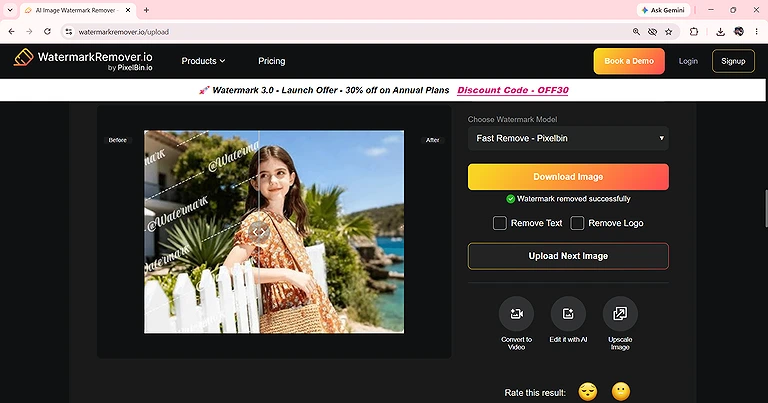
WatermarkRemover.io provides precise manual control for removing or restoring selected watermark areas.
Batch Processing
Batch processing isn't available. Only one image can be processed at a time.
Processing Speed
The images was processed quickly, with the watermark removed without a noticeable delay.
Free Usage Limits
You can process three images per day without signing in. After creating an account, three additional credits are available for processing.
Supported Formats
The tool supports common image formats, including JPG, PNG, and WEBP.
Privacy & File Deletion
WatermarkRemover.io uses security measures, including firewalls and transport layer security, to protect uploaded information. However, its privacy policy doesn't specify an exact timeframe for automatically deleting uploaded images.
Download & Image Quality
The downloaded image maintained good quality and appeared slightly clearer than the original. The first image was approximately 58 KB, while the processed download was about 115 KB. and the second image was in 34.4kb size become 150kb in size.

Here is the ouptput of getty watermarked image after removing the watermark
Cleanup.pictures
Cleanup.pictures is an AI-powered image editing tool that removes unwanted objects, text, and watermarks using a brush-based selection system. It provides adjustable brush controls, making it easy to target specific areas before applying the removal.
How to Use Cleanup.pictures for Watermark Removal
- Open Cleanup.pictures.
- Upload the image containing the watermark.
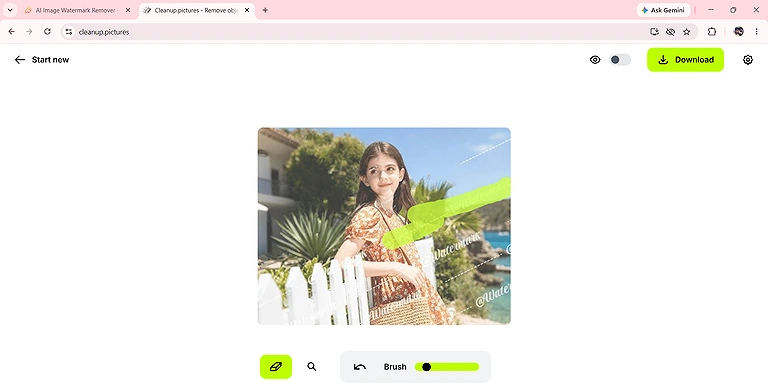
- Use the brush to paint over the watermark.
- Adjust the brush size to match the area being selected.
- Increase or decrease the image size for more precise selection.
- Let the tool process the selected area.
- Review the result and download the edited image.
My Results After Testing Watermark Removal
Removal Accuracy
Cleanup.pictures removed watermarks quickly using the brush selection. The results were accurate on simpler images, although more complicated areas could affect the final appearance.
AI Inpainting Quality
The inpainting quality was good for normal and less complicated images. However, when the watermark overlapped a person, the tool sometimes distorted or defaced parts of the subject.
Text & Logo Detection
The tool allows users to manually select text and logos using the brush. This provides control over exactly which unwanted elements are targeted for removal.
Manual Selection
Manual selection is a key feature. Users can paint directly over the watermark, adjust the brush size, and resize the image to make selecting smaller or detailed areas easier.
undefined
Batch Processing
Batch processing isn't available. Only one image can be processed at a time.
Processing Speed
The image was processed quickly after selecting the watermark area, with the removal appearing almost immediately during testing.
Free Usage Limits
Images with a resolution below 720 × 401 pixels can be processed without a free usage limit. Images above this resolution require a paid plan.
Supported Formats
The tool supports common image formats, including JPG, PNG, and WEBP.
Privacy & File Deletion
Cleanup.pictures provides a privacy policy, but its public support information doesn't specify an exact timeframe for automatically deleting uploaded images.
Download & Image Quality
Image quality remained good when removing watermarks from simpler images. However, results were less accurate on complex images and areas involving people. The original 58 KB image increased to approximately 128 KB after downloading. Similarly second image size become 34.4KB to 140KB.
DeWatermark
DeWatermark is an online AI watermark removal tool that combines automatic processing with manual cursor-based selection. It lets users target specific watermark areas while using AI to reconstruct the removed portions of the image.
How to Use DeWatermark for Watermark Removal
- Open DeWatermark.
- Upload the image containing the watermark.
- Move the cursor from right to left over the watermark to remove it.
- Adjust the selected area if needed.
- Move the cursor from left to right to restore an area.
- Process the image and review the result.
- Download the final image.
My Results After Testing Watermark Removal
Removal Accuracy
DeWatermark removed the watermark quickly and accurately during testing. The unwanted watermark was removed without noticeably disturbing the surrounding image.
AI Inpainting Quality
The AI inpainting quality was good. The tool reconstructed the removed area naturally, making the edited portion blend well with the surrounding image.
Text & Logo Detection
Text and logo detection performed well during testing. The tool removed unwanted watermarks while keeping the surrounding background largely intact.
Manual Selection
DeWatermark provides manual control through cursor-based selection. Moving the cursor from right to left removes the watermark, while moving from left to right restores the selected area.
Batch Processing
Batch processing isn't available. Only one image can be processed at a time.
Processing Speed
The image was processed quickly, and the watermark was removed without a noticeable waiting period.
Free Usage Limits
You can process three images within a 7-hour-and-30-minute period. After this period, another three images can be processed.
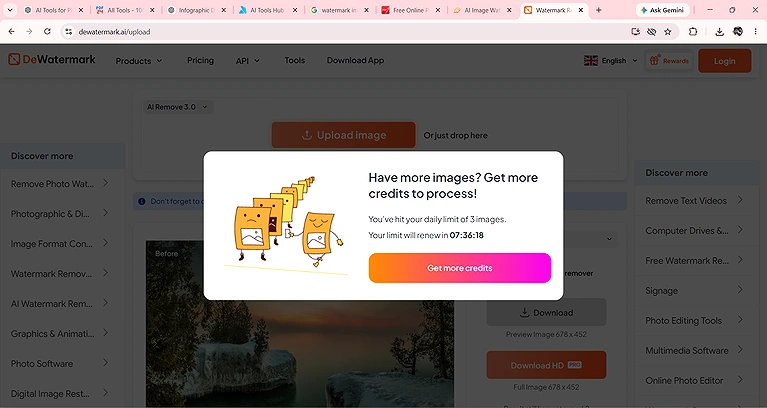
DeWatermark allows three free image removals every 7 hours and 30 minutes.
Supported Formats
The tool supports common image formats, including JPG, PNG, and WEBP.
Privacy & File Deletion
DeWatermark uses HTTPS encryption for file transfers, and uploaded images are deleted from its servers immediately after download.
Download & Image Quality
The downloaded image maintained good quality and appeared slightly clearer than the original. The original images was approximately (58 KB , 34.4KB ), while the processed image was about (112 KB , 130 KB ).
Grok AI
Grok AI is a generative AI tool that can remove unwanted watermarks through natural-language instructions. Instead of using a dedicated watermark removal interface, users upload an image and describe the changes they want.
How to Use Grok AI for Watermark Removal
- Open Grok AI.
- Upload the image containing the watermark.
- Enter a prompt asking Grok to remove the watermark.
- Submit the request and wait for processing.
- Review the generated image.
- Download the result if the watermark has been removed successfully.
My Results After Testing Watermark Removal
Removal Accuracy
Grok AI removed the watermark successfully during testing. After providing the removal instruction, it processed the image and produced a clean result without noticeably affecting the surrounding image.
AI Inpainting Quality
The AI inpainting quality was good. Grok reconstructed the area covered by the watermark naturally, producing a result where the removed watermark was difficult to notice.
Text & Logo Detection
Grok AI performed well when removing unwanted text and logos. The generated result preserved the surrounding visual details without noticeable interference with the background.
Manual Selection
There is no dedicated brush-based manual selection option in the tested workflow. Watermark removal was performed by uploading the image and providing a text prompt describing the required edit.
Batch Processing
Grok AI can process multiple uploaded images within its available usage limits. During testing, up to three images could be processed in a day, either individually or together in a prompt.
Processing Speed
The image was processed quickly after submitting the watermark removal request, with the final result generated without a long waiting period.
Free Usage Limits
The free usage limit tested was three images per day.
Supported Formats
Grok AI supports common image formats, including JPG, PNG, and WEBP.
Privacy & File Deletion
Grok allows users to delete uploaded files and chats. Deleted files are removed from xAI systems within 30 days, subject to legal, safety, or security retention requirements.
Download & Image Quality
The downloaded image was clear and accurate. Grok also improved the appearance of the original image, producing a sharper and cleaner result after watermark removal.
ChatGPT
ChatGPT can remove unwanted watermarks from images through its image-editing capabilities. Users can upload an image and provide a clear instruction describing the watermark they want removed, making the process simple without specialized editing software.
How to Use ChatGPT for Watermark Removal
- Open ChatGPT.
- Upload the image containing the watermark.
- Enter a prompt asking ChatGPT to remove the watermark.
- Specify the watermark location if necessary.
- Submit the request and wait for the image to be processed.
- Review the edited image.
- Download the final result.
My Results After Testing Watermark Removal
Removal Accuracy
ChatGPT removed the watermark successfully during testing. The generated image was clean, and the surrounding areas remained largely undisturbed after processing.
AI Inpainting Quality
The AI inpainting quality was good. ChatGPT naturally reconstructed the areas covered by the watermark, producing a result where the removed watermark wasn't easily noticeable.
Text & Logo Detection
ChatGPT performed well when removing unwanted text and logos. It identified the targeted watermark and preserved the surrounding image details without noticeable changes.
Manual Selection
There is no dedicated brush-based manual selection workflow in the tested process. Watermark removal was performed by uploading the image and giving ChatGPT a text instruction.
Batch Processing
ChatGPT can process multiple uploaded images. During testing, I uploaded 2 images at once and requested watermark removal for all of them. However, ChatGPT combined the results into a single image rather than providing 2 separate edited files.

ChatGPT processed 2 uploaded images together but combined the edited results into a single image.
Processing Speed
The image was processed quickly after submitting the request, without a noticeable delay during the test.
Free Usage Limits
The tested free usage limit was three images per day.
Supported Formats
ChatGPT supports common image formats, including JPG, PNG, and WEBP.
Privacy & File Deletion
ChatGPT stores uploaded files in the Library when available. Deleted files are scheduled for permanent deletion within 30 days, subject to legal and security exceptions.
Download & Image Quality
The downloaded image was clear and accurate. ChatGPT also improved the appearance of the original image, producing a sharper and cleaner result after watermark removal.
Common Mistakes to Avoid When Using Watermark Removers
Choosing a Poor-Quality Input: Low-resolution or heavily compressed images can make AI reconstruction less accurate and introduce visible artifacts.
Selecting Surrounding Areas: When using a brush, avoid selecting too much of the background because it can cause unnecessary changes beyond the watermark.
Ignoring Complex Subjects: Watermarks over faces, hands, objects, or detailed patterns can produce distorted results, so inspect these areas carefully.
Expecting Perfect Inpainting: AI may struggle when a watermark covers important details. Always check whether the reconstructed area looks natural.
Skipping the Before-and-After Check: Compare the original and processed images to identify leftover marks, blur, distortion, or unwanted changes.
Overlooking Image Quality: A watermark-free image isn't necessarily a good result. Check sharpness, clarity, resolution, compression, and file size after processing.
Ignoring Free Restrictions: Check image limits, credits, resolution restrictions, waiting periods, and other conditions before relying on a free tool.
Neglecting Privacy: Review how uploaded images are handled, stored, protected, and deleted, particularly when processing private or sensitive content.
Processing Only One Tool: Results vary between AI watermark removers. Testing alternatives can reveal better accuracy, inpainting, or image quality.
Forgetting Usage Rights: Only remove watermarks from images you own or have permission to edit. Removing a watermark doesn't grant rights to copyrighted content.
Who Should Use Free and Paid Watermark Removal Tools?
Free Tools
Free tools are best for users who remove watermarks occasionally and don't need advanced features. They work well for simple editing tasks, testing different AI tools, and processing a small number of images.
- Casual Users: Remove watermarks from occasional images.
- Students: Edit images for assignments and presentations.
- Bloggers: Clean a few images for articles and websites.
- Social Media Creators: Prepare occasional posts and thumbnails.
- Small Projects: Process a limited number of images without paying.
Paid Tools
Paid tools are more suitable for users who regularly process images and need higher limits, better controls, or faster workflows. They're especially useful for professional and commercial image-editing tasks.
- Professional Designers: Process images regularly with greater control.
- Photographers: Handle frequent image-editing work.
- Marketing Teams: Prepare large numbers of promotional visuals.
- E-commerce Businesses: Process multiple product images efficiently.
- Agencies & Freelancers: Manage recurring client projects.
- High-Volume Users: Benefit from higher limits and batch processing.
FAQs
What is an AI watermark remover?
An AI watermark remover uses artificial intelligence to detect unwanted text, logos, or marks and reconstruct the covered area. It can automate removal while preserving surrounding details and image quality.
Can I remove watermarks from images for free?
Yes, several AI watermark removal tools offer free processing. However, free plans may include restrictions such as daily image limits, lower resolutions, limited credits, or fewer editing features.
Which is the best free AI watermark remover?
The best tool depends on your requirements. Consider removal accuracy, inpainting quality, image clarity, manual selection, processing speed, supported formats, privacy, and free usage limits before choosing.
Can AI watermark removers handle complex backgrounds?
Most AI watermark removers can handle moderately complex backgrounds, but results vary. Watermarks covering people, faces, objects, patterns, plants, or detailed textures may produce distortions or visible reconstruction artifacts.
Does removing a watermark reduce image quality?
Watermark removal can affect image quality depending on the tool and image complexity. Some tools improve clarity, while others may introduce blur, compression, distortion, or changes in resolution.
Can I remove logos and text with AI?
Yes, many AI watermark removers can remove logos, text, and other unwanted marks. Their effectiveness depends on the watermark's size, transparency, location, and how much background it covers.
Do free watermark removers support batch processing?
Some tools support multiple images, but many free watermark removers process only one image at a time. Batch availability may also depend on daily limits, credits, or subscription plans.
Are uploaded images safe when using online watermark removers?
Safety depends on the service's privacy practices. Before uploading images, check its security measures, data retention policy, file deletion timeframe, and whether uploaded content is stored or shared.
Can AI remove a watermark without affecting the background?
AI can often reconstruct the covered background naturally, but perfect results aren't guaranteed. Watermark placement, transparency, size, and surrounding details can significantly affect the final result.
Is it legal to remove a watermark from an image?
It depends on ownership and intended use. Remove watermarks only from images you own or have permission to edit, and don't use removal to bypass copyright or licensing restrictions.
Conclusion
This guide evaluated free AI watermark removal tools through a consistent, hands-on testing process using the same 58 KB watermarked image. Each tool was assessed across key factors, including removal accuracy, AI inpainting quality, text and logo detection, complex background performance, manual selection, image quality, batch processing, processing speed, free usage limits, supported formats, privacy, file deletion, and final download quality. This approach provided a practical comparison based on actual results rather than feature claims alone.
The results showed clear differences between the tools. LightPDF delivered the strongest overall image quality and automatic removal, while WatermarkRemover.io and DeWatermark stood out for their manual selection controls. Cleanup.pictures performed well on simpler images but showed limitations around complex subjects. Grok AI and ChatGPT produced clear results through prompt-based editing, with ChatGPT supporting multiple uploads but combining the outputs into a single image during testing. Overall, the right choice depends on whether you prioritize image quality, manual control, processing limits, or convenient AI-based editing.