.webp)
How to Convert HEIC to JPG Free Without Losing Quality: Tested Methods (2026)
If you ever converted an iPhone photo from HEIC to JPG only to end up with a noticeably larger file, reduced quality, missing metadata, or a converter that barely works for multiple images? That’s the problem with choosing a tool based only on the word “free.” While HEIC keeps iPhone photos compact without sacrificing much image quality, JPG remains far more widely supported for websites, Windows, social media, editing apps, and everyday sharing.
So, which free HEIC-to-JPG converter actually delivers high-quality JPG files without introducing unnecessary compromises? I tested several popular tools to find out.
For this 2026 comparison, I used the same type of photo with each converter and compared the results side by side. I looked at image quality, resolution, file-size changes, available settings, batch conversion, metadata preservation, conversion speed, privacy, free limits, mobile compatibility, and download options. Some tools produced surprisingly large files, while others offered a much better balance between quality and size.
Keep reading to see which converters performed best, which ones are worth avoiding, and which free option gives you the best overall HEIC-to-JPG conversion experience.

 Updated: August 16, 2026 | 20 min read
Cover Photo How to Convert HEIC to JPG Free Without Losing Quality: Tested Methods (2026)
Quick Overview of HEIC to JPG Converter Tools
| Tool | Conversion Quality | Converted Size (Original: 3,952 KB) | Advanced Settings | Batch Conversion | Metadata | Speed | Free Limit | Mobile | Download |
| PhotoFormatLab | Super Excellent | 13,832 KB | Quality, output format, metadata | 26 files at once; successfully converted and downloaded | 100% | Slightly slow | No limit found | ✅ | Single + ZIP |
| HEIC Digital | Very Excellent | 4,102 KB | Quality preview + metadata view | Multiple files; uploaded individually; ZIP | 100% | Seconds | No daily limit | ✅ | Single + ZIP |
| iLoveIMG | Very Excellent | 4,186 KB | Automatic processing | 21+ files tested; ZIP | 100% | Fast | No limit found | ✅ | Single + ZIP |
| FreeConvert | Very Excellent | 4,070 KB | Resize, compression, quality, orientation, metadata | Up to 10 files | 100% | Excellent | 10/day | ✅ | Single files |
| Convertio | Excellent | 3,952 KB | Output format selection | Up to 10 images/day | 100% | Very fast | 10/day | ✅ | Single |
| Zamzar | Very Good | 3,902 KB | Resize, rotate, B&W, mirror, blur, auto-orient | Up to 2 images/day | 100% | Seconds | 2/day | ✅ | Single |
| Vizua | Good | 2,503 KB | Automatic processing | 21 files at once; ZIP | 100% | Immediate | No limit found | ✅ | Single + ZIP |
Who Should Read This Guide?
- iPhone Users Convert HEIC photos to JPG for easier sharing and compatibility.
- Windows Users Open and use HEIC images without installing paid extensions.
- Photographers Preserve image quality while converting large photo files.
- Content Creators Prepare images for websites, social media, and editing tools.
- Web Publishers Convert HEIC files into a widely supported JPG format.
- Professionals Convert multiple HEIC images quickly for work-related tasks.
- Privacy-Conscious Users Compare browser-based and cloud-based conversion options.
- Batch Conversion Users Find tools that can process multiple images at once.
- Quality-Focused Users Compare converters based on visible quality and file-size changes.
- Free Tool Seekers Find HEIC-to-JPG converters without unnecessary paid subscriptions.
What to Look for in HEIC to JPG Converter Tools
Conversion Quality: The converter should produce sharp JPG images without noticeable changes in details, colors, clarity, or overall visual quality after conversion.
Resolution Preservation: Check whether the converter maintains the original resolution or unnecessarily reduces image dimensions and quality during the conversion process.
Advanced Settings: Look for useful controls such as quality, resizing, compression, rotation, output format, orientation, and metadata options for greater conversion flexibility.
Batch Conversion: A good converter should support multiple HEIC files in one task, making it faster and more convenient to convert large collections of images.
Metadata Handling: Check whether the converter preserves important image metadata, including EXIF information, during HEIC-to-JPG conversion without removing useful details.
Conversion Speed: Fast processing is important when converting multiple images, especially when the tool can complete batch conversions without unnecessary waiting or delays.
Privacy & Security: Check whether images are processed locally or uploaded to cloud servers, and review how the service handles uploaded and converted files after processing.
Format Support: Choose tools supporting HEIC and HEIF input alongside JPG and other common output formats for greater compatibility across different workflows.
Free Usage & Limitation: Check daily conversion limits, batch restrictions, file limits, or other free-tier restrictions before choosing a converter for regular image conversion.
Mobile Compatibility: A browser-based converter should work smoothly on smartphones, allowing users to convert HEIC photos directly without requiring desktop software.
Download Options: Check whether converted images can be downloaded individually or together in a ZIP file when processing multiple images.
How I Tested These Tools
To make the comparison consistent, I used the same original HEIC photo with every converter rather than testing different images. I uploaded the photo to each tool, converted it to JPG, and then compared the output with the original. I evaluated visible image quality, resolution, file-size changes, available controls, batch processing, metadata preservation, conversion speed, free limits, mobile compatibility, and download options. This approach helped identify how each tool performed under the same testing conditions.
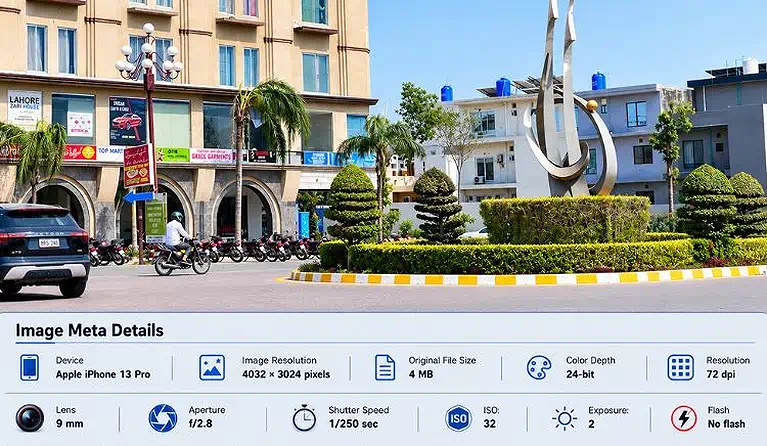
Original HEIC test image used to evaluate converter quality, metadata preservation, and JPG output accuracy
Best Free AI Tools for HEIC to JPG Conversion
HEIC images offer excellent quality with smaller file sizes, but they aren’t supported everywhere. Free HEIC-to-JPG converters make photos easier to open, share, upload, and edit across different devices and platforms. This guide compares tested tools to help you find a reliable option without paying for conversion.
iLoveIMG
iLoveIMG is an online image conversion platform that supports HEIC conversion alongside many image formats. It offers fast processing, batch conversion, metadata preservation, and convenient ZIP downloads.
How to Use iLoveIMG for HEIC to JPG Conversion
- Open iLoveIMG in your browser.
- Upload your HEIC image or multiple images.
- Select the JPG output format.
- Start the conversion.
- Wait for processing to complete.
- Download a single converted image or the complete batch as a ZIP file.
iLoveIMG Test and Results
Conversion Quality: The converted image quality was very excellent, with a slight increase in image size.
Resolution Preservation: The original image was 3,952 KB, while the converted image was 4,186 KB.
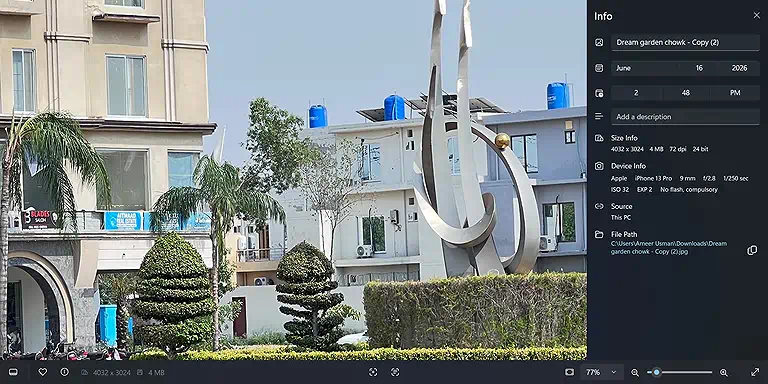
Converted image showing metadata details and file size of 4,186 KB (approx 4 MB), as original size 3,952 KB
Advanced Settings: No specific manual settings were available because the conversion was handled automatically.
Batch Conversion: I uploaded 21 images at once, and all were successfully processed. The converted files were available in a ZIP folder.
Metadata Handling: Metadata was preserved at 100% in testing.
Conversion Speed: Images processed quickly, with a progress percentage displayed during conversion.
Privacy & Security: iLoveIMG uses HTTPS/SSL and encryption for uploaded files. Processing occurs on cloud servers, and processed files are automatically deleted within two hours, with an option to delete them sooner.
Format Support: Supports HEIC and HEIF input, along with JPG, PNG, WebP, and many other image formats.
Free Usage & Limitations: I processed more than 25 images without reaching a free conversion limit.
Mobile Compatibility: The browser-based tool works on mobile phones.
Download Options: Single images can be downloaded individually, while batch conversions can be downloaded as a ZIP file.
Convertio
Convertio is an online file converter that provides straightforward HEIC-to-JPG conversion with fast processing and broad format support. Its free version also supports limited batch conversion for multiple images.
How to Use Convertio for HEIC to JPG Conversion
- Open Convertio in your browser.
- Upload your HEIC image or multiple images.
- Choose JPG from the available output formats.
- Select the same output format for all files if needed.
- Start the conversion.
- Wait for processing to finish.
- Download the converted JPG files.
Convertio Test and Results
Conversion Quality: The conversion quality was excellent, with the tested image remaining essentially the same.
Resolution Preservation: The original image was 3,952 KB, and the converted image was also 3,952 KB, showing no change in file size.
Advanced Settings: No specific image-quality controls were available. After uploading the HEIC image, iLoveIMG provided multiple output formats, allowing users to choose a different format for each image or use the “Select for all” option to apply the same output format to all uploaded images.
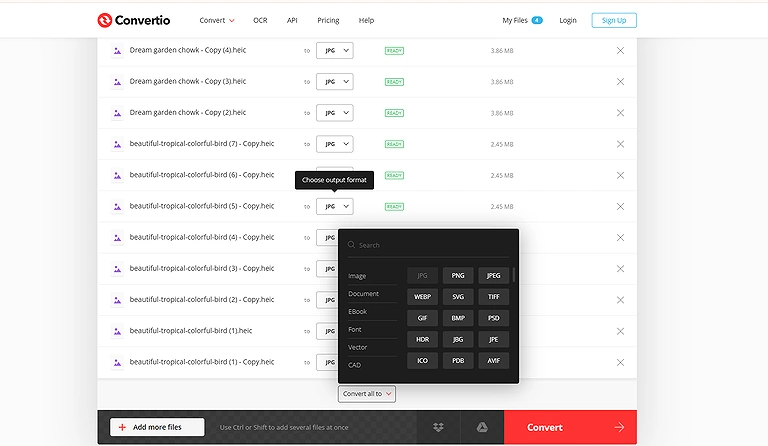
iLoveIMG’s output options, including individual selection and the “Select for all” option for batch conversions.
Batch Conversion: The free version allows 10 images per day. Multiple images can be uploaded, and different output formats can be selected for individual files. A “select for all” option is available when the same output format is required.
Metadata Handling: Metadata was preserved at 100% in the updated testing results.
Conversion Speed: Conversion was very fast.
Privacy & Security: Convertio uses SSL encryption for file transfers. Processing occurs in the cloud, uploaded files are deleted immediately after conversion, and converted files are automatically deleted within 24 hours.
Format Support: Supports HEIC and HEIF input and JPG, PNG, WebP, and other common formats.
Free Usage & Limitations: The free version allows 10 images per day.
Mobile Compatibility: Works on mobile devices through its browser-based interface.
Download Options: Converted files downloaded successfully.
PhotoFormatLab
PhotoFormatLab is a browser-based HEIC converter focused on high-quality output, batch processing, metadata control, and flexible quality settings. It also supports multiple image formats and local browser processing.
How to Use PhotoFormatLab for HEIC to JPG Conversion
- Open PhotoFormatLab in your browser.
- Upload your HEIC image or multiple HEIC files.
- Select JPG as the output format.
- Adjust the quality setting if required.
- Choose whether to preserve metadata.
- Start the conversion process.
- Download the converted JPG individually or download the batch as a ZIP file.
PhotoFormatLab Test and Results
Conversion Quality: The converted image was very excellent, with the resolution increasing substantially. The image remained sharp and clear after conversion.
Resolution Preservation: The original image was 3,952 KB, while the converted image reached 13,832 KB, increasing the file size by approximately 3.5 times.
Advanced Settings: Three settings were available: image quality, output format, and metadata preservation. Selecting 100% quality produced a higher-resolution output.
Batch Conversion: I converted 26 files at once, and all files were successfully processed and downloaded as a ZIP file.
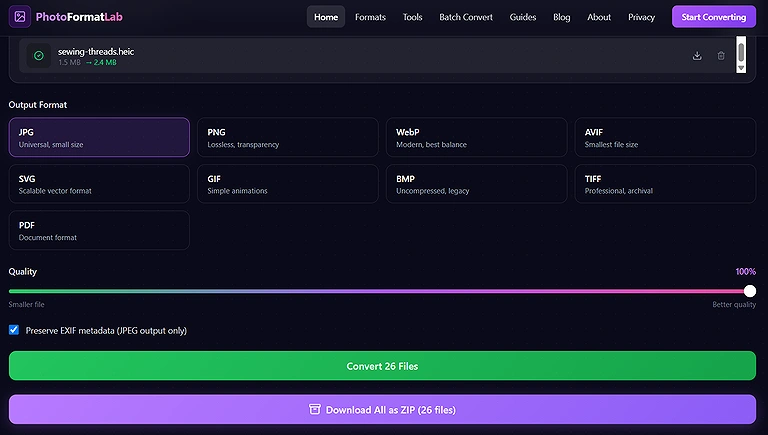
iLoveIMG successfully converted 26 HEIC files at once and provided the results as a downloadable ZIP file.
Metadata Handling: The tool provided an option to preserve metadata, and my test showed 100% metadata preservation.
Conversion Speed: Processing was slightly slower compared with some other tested converters.
Privacy & Security: PhotoFormatLab processes HEIC files directly in the browser. Images aren't uploaded or stored online, and no account or personal information is required.
Format Support: Supports HEIC and HEIF input and common output formats including JPG, PNG, and WebP, along with other image formats.
Free Usage & Limitations: No usage limit was found. I tested the tool with 26 files initially and 15 additional files, without reaching a conversion limit.
Mobile Compatibility: Works on mobile devices because it is browser-based.
Download Options: Single images can be downloaded individually, while batch conversions can be downloaded as a ZIP file.
HEIC Digital
HEIC Digital is a browser-based image converter that handles HEIC and HEIF files while supporting multiple output formats. It provides quality previews, metadata information, batch downloads, and fast conversion.
How to Use HEIC Digital for HEIC to JPG Conversion
- Open HEIC Digital in your browser.
- Upload your HEIC image.
- Select JPG as the output format.
- Review the available quality and metadata information.
- Start the conversion.
- Download the converted JPG.
- For multiple files, download the processed images as a ZIP file.
HEIC Digital Test and Results
Conversion Quality: The converted image was very excellent, with a slight increase in file size.
Resolution Preservation: The original image was 3,952 KB, while the converted JPG was 4,102 KB. The image remained sharp and clear, even when zoomed.
Advanced Settings: There were no specific conversion settings, but the tool allowed me to preview image quality before downloading and view metadata information.
Batch Conversion: Multiple images were supported, but I had to upload the images individually rather than uploading them all simultaneously. The processed images could then be downloaded together in a ZIP file.
Metadata Handling: Metadata was successfully preserved at 100% during testing. The converted JPG retained key image details, including the Apple iPhone 13 Pro device, 4032 × 3024 pixel resolution, 4 MB original file size, 24-bit color depth, 72 dpi resolution, 9 mm lens, f/2.8 aperture, 1/250 sec shutter speed, ISO 32, exposure value 2, and no flash. The screenshot below shows these preserved metadata details after conversion.
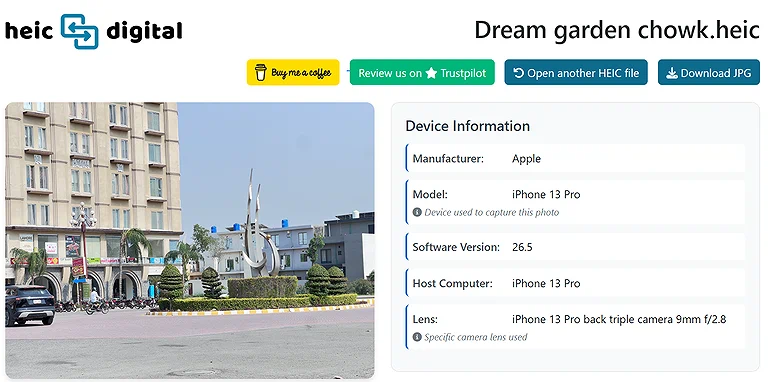
Image metadata, including device, resolution, file size, lens, aperture, ISO, exposure, and flash details
Conversion Speed: Conversion was completed in seconds.
Privacy & Security: HEIC Digital uses 256-bit SSL encryption for file transfers. Files are processed on its servers. Original files are deleted immediately after conversion, while converted JPG files are automatically deleted within one hour.
Format Support: Supports HEIC and HEIF input and JPG, PNG, WebP, and multiple other image formats.
Free Usage & Limitations: No daily conversion limit was found.
Mobile Compatibility: The browser-based converter works on mobile phones.
Download Options: Single images downloaded successfully, while multiple processed images could be downloaded as a ZIP folder.
Testing Issue: When I selected HEIC to JPG, one downloaded file appeared with an HHEIC extension. I was able to change the extension to JPG manually.
FreeConvert
FreeConvert is a versatile online converter offering HEIC-to-JPG conversion with detailed controls for resizing, compression, quality, orientation, and metadata. It also supports batch conversion and multiple image formats.
How to Use FreeConvert for HEIC to JPG Conversion
- Open FreeConvert in your browser.
- Upload your HEIC image.
- Select JPG as the output format.
- Open the advanced settings if you need customization.
- Choose resizing, compression, quality, or metadata options.
- Start the conversion.
- Download the resulting JPG file.
FreeConvert Test and Results
Conversion Quality: The conversion quality was very excellent, with no noticeable difference between the original HEIC and converted JPG.
Resolution Preservation: The original image was 3,952 KB, while the converted image was 4,070 KB. The output remained sharp and accurate.
Advanced Settings: FreeConvert provided several controls, including resize image, keep original size, custom width, custom height, width × height, percentage resizing, compression, maximum output file size, compression level, auto-orientation, and metadata removal.
Batch Conversion: Batch conversion was available for up to 10 images in the free version.
Metadata Handling: The tool provided an option to either preserve metadata or remove it to reduce file size. My testing recorded 100% metadata handling.
Conversion Speed: Conversion speed was excellent, including during batch processing.
Privacy & Security: FreeConvert uses 256-bit SSL/TLS encryption. Files are processed and stored on cloud servers, and uploaded files are automatically and permanently deleted after eight hours.
Format Support: Supports HEIC and HEIF input and JPG, PNG, WebP, and many other output formats.
Free Usage & Limitations: During testing, FreeConvert prompted that its free version allows users to process 10 files per day. It also offered an upgrade option for processing 5 additional files at a time, providing greater flexibility for larger batch conversions.
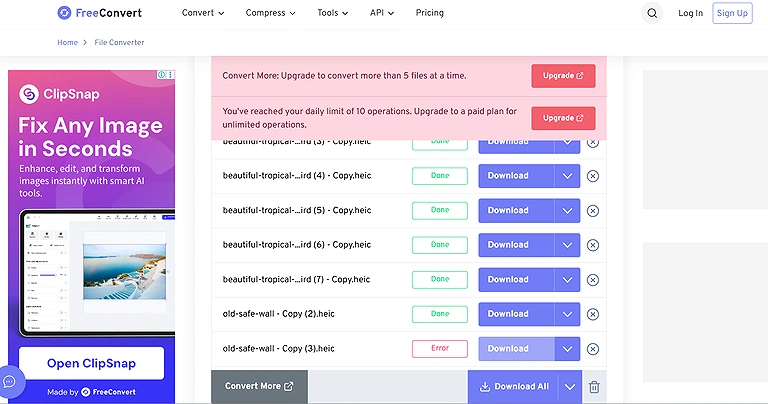
FreeConvert’s free plan allows 10 files per day, while the upgrade option supports 5 additional files per batch.
Mobile Compatibility: Works on mobile devices through the browser.
Download Options: Converted files can be downloaded successfully. With batch processing, the tested workflow required downloading the processed files individually.
Zamzar
Zamzar is a well-known online file conversion service that supports HEIC-to-JPG conversion with several image-editing options. It also provides resizing, rotation, orientation, and other controls.
How to Use Zamzar for HEIC to JPG Conversion
- Open Zamzar in your browser.
- Upload your HEIC image.
- Select JPG as the output format.
- Open the available image settings.
- Adjust resizing, rotation, or other options if needed.
- Start the conversion.
- Download the converted JPG file.
Zamzar Test and Results
Conversion Quality: The conversion quality was very good. The image remained mostly the same, but some color quality was slightly reduced.
Resolution Preservation: The original image was 3,952 KB, while the converted image was 3,902 KB. The image remained sharp, although some colors appeared slightly reduced.
Advanced Settings: Zamzar provided several options, including image resizing, resolution selection, rotation, black and white, mirror image, blur image, and auto-orientation. Resize options included no resizing, percentage-based resizing, and several resolutions ranging from 800 × 800 to 2560 × 1440.
Batch Conversion: The free version was limited to 2 images per day, either in one batch or as individual conversions.
Metadata Handling: Metadata was preserved at 100% in testing.
Conversion Speed: Conversion completed in seconds.
Privacy & Security: Zamzar uses TLS/SSL encryption, while files are processed on its servers. Uploaded originals are automatically deleted after conversion, while converted files may remain for a limited period.
Format Support: Supports HEIC and HEIF input and JPG, PNG, WebP, and other common formats.
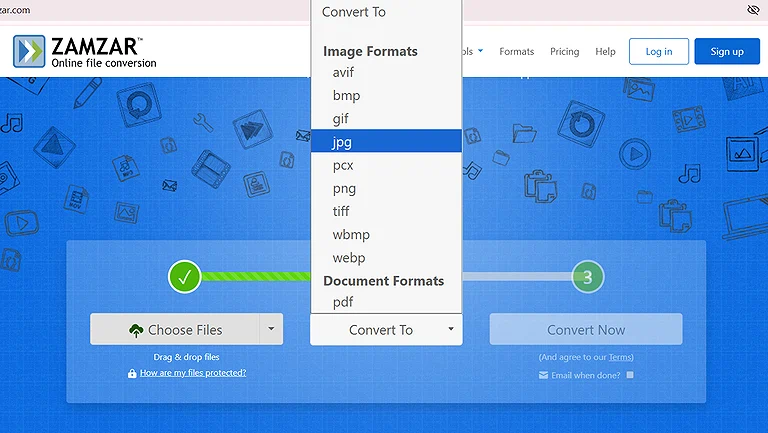
Zamzar supports HEIC and HEIF input, with JPG, PNG, WebP, and other common output formats.
Free Usage & Limitations: The free version allows only 2 images per day. Unlimited conversion requires a paid plan.
Mobile Compatibility: Works on mobile devices through the browser.
Download Options: Converted files downloaded successfully.
Vizua
Vizua is a browser-based HEIC converter that focuses on automatic processing and local conversion. It supports batch conversion, multiple image formats, metadata preservation, and ZIP downloads without requiring a server upload.
How to Use Vizua for HEIC to JPG Conversion
- Open Vizua in your browser.
- Upload your HEIC image or multiple images.
- Select JPG as the output format.
- Allow the tool to process the images automatically.
- Download the converted JPG.
- For batch conversions, download the processed images as a ZIP folder.
Vizua Test and Results
Conversion Quality: The conversion quality was good. The image remained sharp, but a difference became noticeable when zooming.
Resolution Preservation: The original image was 3,952 KB, while the converted image was 2,503 KB. The tool automatically reduced the image size and resolution, with the tested output showing a substantial reduction.
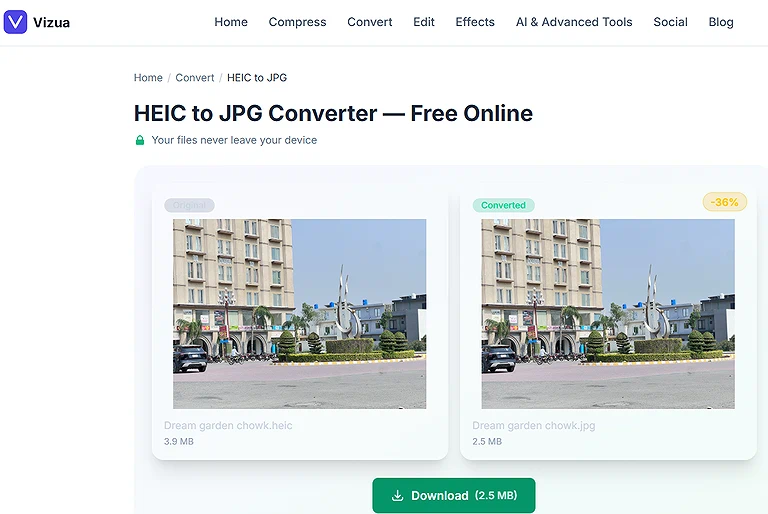
Vizua reduced the image from 3,952 KB to 2,503 KB, automatically lowering its file size and resolution.
Advanced Settings: No specific manual settings were available because the tool handled the conversion automatically.
Batch Conversion: I uploaded 21 images at once, and all images were successfully processed. The processed files were downloaded together in a ZIP folder.
Metadata Handling: Metadata was preserved at 100% in testing.
Conversion Speed: All 21 images were processed immediately.
Privacy & Security: Vizua processes files locally in the browser, so images don't leave the device or reach Vizua's image-processing servers. No server-side storage or automatic deletion period is required.
Format Support: Supports HEIC and HEIF input and JPG, PNG, and WebP output.
Free Usage & Limitations: No free usage limit was found during testing.
Mobile Compatibility: Works on mobile phones because it is browser-based.
Download Options: Single images can be downloaded individually, while batch conversions provide a ZIP folder containing the processed images.
Common Mistakes to Avoid When Converting HEIC to JPG
Converting HEIC to JPG looks simple, but the wrong settings can reduce image quality, increase file size, or remove useful information. Avoiding these common mistakes helps maintain the original image quality while producing a compatible JPG file.
Using Excessive Compression: Very high compression can create visible artifacts, blur fine details, and reduce overall image quality. Choose a quality setting that balances file size with visual clarity.
Ignoring Resolution Settings: Some converters may resize images during conversion. Always check the output dimensions if maintaining the original resolution is important.
Choosing the Wrong Quality Level: Selecting the lowest JPG quality simply to reduce file size can noticeably affect photographs. Use higher quality for printing, editing, or professional use.
Assuming Every Converter Preserves Metadata: HEIC files can contain information such as EXIF data, camera settings, orientation, and timestamps. Check whether the converter preserves metadata if this information matters.
Ignoring Batch Limits: Free online converters often restrict the number of files you can process. Check the daily or per-task limit before uploading a large collection.
Uploading Sensitive Photos Without Checking Privacy: Online converters require you to upload images to their servers. Review their file-retention and deletion policies before processing private or confidential photos.
Using the Wrong Output Settings: Some tools offer options for quality, compression, color profile, or resolution. Leaving unsuitable default settings unchanged can produce larger or lower-quality JPG files.
Deleting the Original HEIC Too Soon: Keep the original file until you've confirmed that the JPG has converted correctly and contains everything you need.
Expecting JPG to Retain Every HEIC Feature: JPG doesn't support every feature associated with modern HEIC files. Certain image information, transparency-related behavior, or computational photography data may not carry over during conversion. For better compatibility and lossless output, consider HEIC to PNG conversion.
Ignoring Color Changes: Some conversions can produce subtle differences in colors or contrast. Check the final JPG, especially when accurate color reproduction is important.
Focusing Only on File Size: The smallest JPG isn't necessarily the best JPG. A better conversion balances quality, resolution, compatibility, and file size rather than optimizing for size alone.
Not Testing the Converter First: Before converting an entire photo library, test a few representative HEIC files. This helps identify quality loss, metadata changes, resizing, or unexpected limitations early.
HEIC to JPG Converters: When Should You Use Free or Paid Plans?
| Tool | Use the Free Version When… | Consider the Paid Version When… |
| PhotoFormatLab | You need high-quality conversion, batch processing, metadata control, and no apparent usage limit. The free version handled the tested requirements well. | A paid version isn’t necessary for the HEIC-to-JPG requirements tested in this review. |
| HEIC Digital | You need excellent image quality, fast conversion, metadata preservation, and no daily limit. | You need more convenient bulk uploading or additional features beyond the tested free version. |
| iLoveIMG | You need excellent quality, batch conversion, metadata preservation, and can process more than 25 images without hitting a restriction during testing. | You need additional premium image-editing or processing features beyond basic HEIC-to-JPG conversion. |
| FreeConvert | You need excellent quality, advanced conversion controls, batch processing, and up to 10 images per day. | You regularly exceed the 10-file daily limit or need higher-volume processing. |
| Convertio | You need excellent quality, fast processing, unchanged file size, and up to 10 images per day. | You regularly convert more than 10 images per day and need a higher conversion allowance. |
| Zamzar | You only need occasional HEIC-to-JPG conversions and the 2 image daily limit is sufficient. | You need frequent conversions or a higher allowance than the free version provides. |
| Vizua | You want free, automatic, browser-based conversion with batch processing and no usage limit found during testing. | A paid option isn’t necessary for the HEIC-to-JPG requirements tested in this review. |
Who Should Use Free HEIC to JPG Tools?
- Occasional Users: Convert a few HEIC images occasionally without needing advanced features.
- Budget-Conscious Users: Need reliable conversion without paying for a subscription or premium plan.
- Personal Users: Convert smartphone photos for sharing, uploading, or opening on unsupported devices.
- Small Batches: Process a limited number of images that fit within the tool's free limits.
- Basic Conversion Needs: Only need HEIC-to-JPG conversion without advanced editing or automation.
- Privacy-Focused Users: Prefer desktop tools that can convert images without uploading them to online services.
- First-Time Users: Want to test a converter before deciding whether premium features are necessary.
Who Should Use Paid HEIC to JPG Tools?
- Frequent Users: Convert HEIC images regularly and often exceed free usage limits.
- High-Volume Users: Process hundreds of images or large batches as part of a regular workflow.
- Professional Users: Need dependable conversion for photography, publishing, marketing, or business projects.
- Advanced Users: Require detailed controls for quality, compression, resolution, metadata, output settings, or background removal.
- Bulk Processing: Need higher batch limits and faster processing for large collections.
- Teams and Businesses: Require consistent access, greater capacity, and additional workflow features.
- Automation Needs: Want API access or automated conversion as part of an existing application or workflow.
FAQs
What is the easiest way to convert HEIC to JPG?
The easiest method is an online HEIC-to-JPG converter. Upload the HEIC image, select JPG as the output format, and download the converted file. For occasional conversions, this requires no specialized software.
Does converting HEIC to JPG reduce image quality?
Conversion can cause some quality loss because JPG uses lossy compression. However, choosing a high-quality setting usually keeps the difference minimal and preserves most important details from the original HEIC image.
Why should I convert HEIC to JPG?
JPG offers much wider compatibility than HEIC. Converting is useful when a website, Windows computer, Android device, email service, or editing application doesn't properly support HEIC files.
Is HEIC smaller than JPG?
Yes. HEIC generally produces smaller files while maintaining comparable visual quality. Depending on the image and compression settings, HEIC can be significantly smaller than an equivalent JPG, making it more efficient for storage.
Can I convert HEIC to JPG without installing software?
Yes. Browser-based converters can convert HEIC files without installing dedicated software. Some process images directly in the browser, while others upload files to their servers, so privacy policies should be checked.
How do I convert HEIC to JPG on Windows 11?
You can use an online converter or a dedicated desktop HEIC converter. Converting HEIC images to JPG is useful when Windows applications, websites, or other programs don't support the original HEIC format.
Can I convert multiple HEIC images to JPG at once?
Yes. Many HEIC-to-JPG converters support batch processing, allowing multiple images to be converted together. However, free tools may restrict the number of files processed at once or impose daily conversion limits.
Does HEIC to JPG conversion change the file size?
Usually, yes. JPG files are generally larger than equivalent HEIC files because HEIC uses more efficient compression. The final size also depends on image dimensions, content, and the selected JPG quality setting.
Can I convert HEIC to JPG on an iPhone?
Yes. You can use an online converter or change the iPhone camera setting to Most Compatible for future photos. Existing HEIC images can also be converted when you need JPG copies.
What is the best HEIC to JPG converter?
The best converter depends on your requirements. Free tools are usually sufficient for occasional conversions, while frequent users may benefit from batch processing, higher limits, quality controls, metadata preservation, or advanced features.
Is there some more tools that helps in daily routine task to enhance the productivity ?
Yes there is many tools available which helps you manage your daily routine task to enhance you productivity by saving time efforts.
Conclusion
HEIC is increasingly common on smartphones, but limited compatibility can cause problems when sharing, uploading, or opening images across devices and platforms. This topic was chosen to identify reliable HEIC-to-JPG converters through practical testing rather than feature claims. The same HEIC images were tested across selected tools for quality, speed, file size, batch support, metadata preservation, usage limits, and ease of use, providing readers with a practical comparison based on real-world results.
Testing showed clear strengths across the selected tools. PhotoFormatLab delivered super-excellent quality, complete metadata preservation, and extensive batch support. HEIC Digital combined very high quality, near-original file size, metadata visibility, and extremely fast processing. iLoveIMG offered very high quality and fast automatic processing, while FreeConvert provided the widest controls for compression, resizing, orientation, and metadata. Convertio delivered very fast conversion with unchanged file size, Zamzar added useful editing options with reliable quality, and Vizua produced the smallest JPG files with immediate processing, batch conversion, and no usage limit found during testing. We also tested some tools for image creation if you need help for them you can read our guide as well.