.webp)
Best Free AI Background Removers: Quality and Accuracy Tested
I tested several AI background remover tools to see how well they perform in real world situations. I focused on background removal accuracy, fine edges, hair and fur, transparent objects, shadows, complex backgrounds, image quality, processing speed, batch processing, and download options. I also paid special attention to free usage limits, including credits, daily or monthly restrictions, watermarks, resolution limits, and whether free users can download the final images without paying.

 Updated: August 29, 2026 | 24 min read
Cover Photo: Best Free AI Background Removers in 2026: Tested for Accuracy, Quality & Free Limits
Quick Overview of Free AI Background Removal Tools
| Tool | Speed | Image Quality | Batch Processing | Free Usage | Privacy |
| Remove.bg | 3 – 5 sec | Reduced resolution | No | Unlimited low res | Deleted after 60 min |
| Photoroom | 3 – 4 sec | Same resolution | No | 50 exports/month | GDPR compliant |
| Pixelcut | 3 – 5 sec | Same resolution | Yes | No clear single image limit | Deleted within 24 hrs |
| Erase.bg | 4 – 5 sec | File size increased | No | 3 free credits | Deleted after 24 hrs |
| Removal.AI | 5 – 7 sec | Same quality | No | Unlimited low res previews | No fixed deletion period stated |
| FreeBackgroundRemover.net | 6 – 7 sec | Same resolution | No | Unlimited | Browser based processing |
| Canva | 2 – 3 sec | Same resolution | No | 15+ images tested without subscription | Privacy settings control AI data use |
Is this guide really for me?
This guide is helpful for anyone who regularly needs clean, professional images without backgrounds, especially
- Ecommerce sellers who need clean product images for online stores, listings, and catalogs.
- Graphic designers who want to quickly remove backgrounds before using images in designs or marketing materials.
- Content creators creating thumbnails, social posts, videos, and other visual content.
- Photographers who need a quick way to isolate subjects without spending time on manual editing.
- Social media managers who create clean, professional looking visuals for different social platforms.
- Bloggers and website owners preparing images for articles, landing pages, and websites.
- Marketers and advertisers creating product ads, promotional graphics, and campaign visuals.
- Students and everyday users who need a simple way to remove backgrounds for schoolwork, presentations, or personal projects.
- Anyone comparing free AI background removers and looking at factors such as quality, accuracy, free limits, downloads, and privacy.
What Matters in Background Removal
When choosing an AI background removal tool, it’s important to consider how well it handles different images and editing needs. The points below cover what can affect the final result, including cutout quality, ease of use, free usage, download options, and privacy.
Background Removal Accuracy: How precisely the AI separates the main subject from its background, avoiding leftover areas, unwanted objects, rough cuts, or missing parts around the subject.
Edge and Fine Detail Quality: How effectively the tool preserves challenging details such as hair, fur, leaves, branches, whiskers, and other thin or delicate edges.
Transparency and Shadows: How well the AI handles transparent objects, reflections, and natural shadows while removing the background without accidentally removing important parts of the subject.
Image Quality and Resolution: Whether the processed image maintains its original resolution, sharpness, details, clarity, and overall quality without unnecessary compression or noticeable quality loss.
Complex Backgrounds: How accurately the tool separates subjects from busy, colorful, patterned, or similar colored backgrounds where identifying the correct foreground can be more challenging.
Speed and Performance: How quickly the tool uploads, processes, and generates the final result, especially when working with larger images or multiple background removal tasks.
Batch Processing: Whether users can upload and process multiple images simultaneously, along with the maximum number of images supported in a single batch.
Free Limits: The amount of background removal available without payment, including free credits, image limits, watermarks, resolution restrictions, and other limitations affecting free users.
Output and Download: Which input and output formats are supported, whether transparent PNG files are available, and what preview, quality, and download options users receive.
Privacy and Controls: How uploaded images are handled, including storage and deletion policies, AI training practices, data protection, and editing controls such as erase and restore tools.
How I Tested Background Removal Tools
Honestly speaking for testing, I used a set of different images, with each image designed to present a specific background removal challenge. The collection includes multicolor and complex backgrounds, strong shadows, transparent objects, detailed cat and dog fur, loose flowing hair, and a fine textured plant. These images help evaluate accuracy, edge quality, transparency handling, shadow removal, fine details, and overall output quality.

Test Images: Images covering complex backgrounds, shadows, transparency, fur, hair, and fine details.
Best Free AI Tools for Background Removal
I tested several free AI background removal tools using different images and real world challenges. The comparison focuses on removal accuracy, edge and fine detail quality, image resolution, processing speed, batch processing, free limits, download options, privacy, and available editing controls. If you need to create complete designs after removing backgrounds, explore these AI tools for graphic creations.
1 Remove.bg
Remove.bg is a popular AI background remover known for accurate subject detection and clean edges. In testing, it performed particularly well with hair, fine details, and complex backgrounds.
How to Use Remove.bg for Background Removal
- Open Remove.bg in your browser
- Upload the image you want to edit.
- Wait a few seconds while the AI automatically removes the background.
- Review the transparent background preview.
- Use the available editing options if you need minor adjustments.
- Download the result in the available resolution.
Remove.bg Test & Results
Background Removal Accuracy: The AI removed the background smartly and accurately, keeping the main subject clean and well defined. It handled edges, fine details, and complex areas without noticeable background remnants or unwanted cuts.
Edge and Fine Detail Quality: The tool delivered impressive accuracy when removing a subject with flyaway hair strands against a blurry street backdrop. It maintained natural hair textures and individual strands cleanly without blocky artifacts.
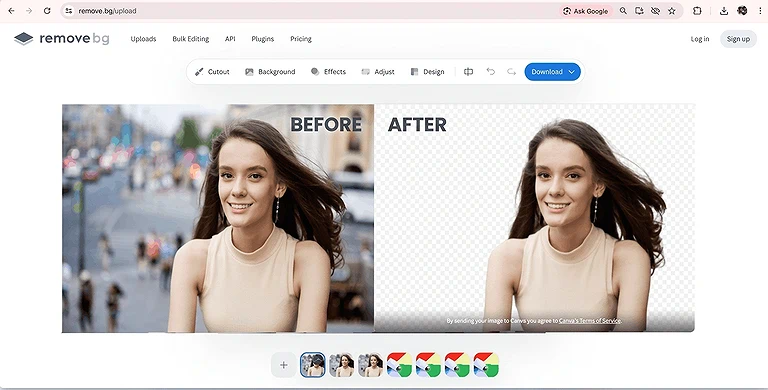
Clean and precise background removal with natural hair strands and well defined subject edges.
Transparency and Shadows: The tool handled transparency well but retained slight original background reflections. During the shoe test, it completely removed the natural shadow, leaving only the clean footwear image.
Image Quality and Resolution: The free output was limited to 612 × 408 pixels, which is about 50% of the original resolution used in testing. Users who need the image at its original resolution need a paid option.
Complex Backgrounds: Remove.bg performed extremely well with a vibrant, multicolored geometric background. It isolated the subject cleanly, removed harsh shadows, and maintained precise, sharp edges without noticeable color bleeding.
Speed and Performance: Remove.bg was very fast during testing. It processed the image in approximately 3–5 seconds, while also producing an accurate and clean background removal result.
Batch Processing: The web interface allows only one image to be processed at a time. Batch processing wasn't available during the testing of the main online background remover.
Free Limits: The website allows unlimited low resolution background removals up to 0.25 megapixels (MP). A new user also receives one free high resolution credit for downloading a higher resolution result.
Output and Download: The tool provides an instant visual preview after processing. It supports JPG, PNG, and WebP uploads and provides a transparent PNG result. Free users can download the standard low resolution result, while HD downloads require credits.
Privacy and Controls: Remove.bg states that uploaded images are handled securely and are deleted after 60 minutes. The service also states that uploaded images aren't used for AI training and follows GDPR related data protection practices.
2. Photoroom
Photoroom is an AI powered background remover that works well for product photos and detailed subjects. In testing, it produced clean cutouts, preserved image resolution, and handled fur accurately.
How to Use Photoroom for Background Removal
- Open Photoroom in your browser.
- Upload the image you want to process.
- Let Photoroom automatically detect the subject and remove its background.
- Check the Before and After preview to compare the original and processed image.
- Make any required adjustments using the available editing tools.
- Download the background removed image.
Photoroom Test & Results
Background Removal Accuracy: Photoroom removed the background smartly and accurately, keeping the main subject clean and well defined. It handled the tested subjects without noticeable background remnants or unwanted cuts.
Edge and Fine Detail Quality: The tool performed particularly well with a dog having detailed fur and a complex background. It removed the surrounding background accurately while keeping the dog's fur and fine edges natural.
Transparency and Shadows: The tool handled transparency well but retained slight original background reflections. During the shoe test, it completely removed the natural shadow, leaving only the clean footwear image.
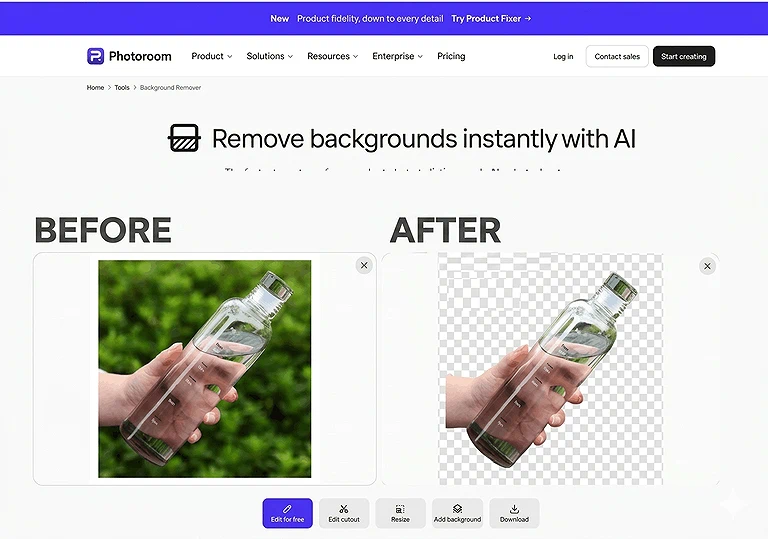
Good transparency handling with only slight traces of the original background reflections.
Image Quality and Resolution: Photoroom maintained the same resolution as the uploaded image during testing. The output did not show a noticeable reduction in resolution after background removal.
Complex Backgrounds: The tool performed well with busy and colorful backgrounds. It separated the subject cleanly while maintaining sharp edges and avoiding noticeable color bleeding.
Speed and Performance: Photoroom processed the tested image in approximately 3–4 seconds. The result appeared quickly while maintaining accurate background removal.
Batch Processing: During testing, the main background removal workflow processed one image at a time. Batch processing wasn't available in the workflow used for this test.
Free Limits: Free users get 50 image exports per month, while some AI features may have separate daily limits. The available free usage can therefore vary depending on the feature being used.
Output and Download: Photoroom provides an interactive before and after preview for checking the result before downloading. It supports JPG/JPEG, PNG, and WebP uploads, while the processed background removed image can be downloaded as a PNG with transparency.
Privacy and Controls: Photoroom states that it is GDPR compliant and protects data using encryption, including TLS 1.2 or higher for data in transit. Uploaded images may be used to improve AI models by default, but users can opt out through account settings.
3. Pixelcut
Pixelcut is a convenient AI background remover that delivers accurate results while retaining the uploaded image resolution. It also stands out for batch processing, making it useful for handling multiple images.
How to Use Pixelcut for Background Removal
- Open Pixelcut in your browser.
- Upload the image you want to remove the background from.
- Let Pixelcut automatically detect the subject and remove the background.
- Review the result and use the available erase and restore tools if needed.
- Download the background removed image in the available format.
Pixelcut Test & Results
Background Removal Accuracy: Pixelcut removed the background precisely in testing, leaving the cat cleanly separated from a complex surrounding background. It accurately detected the cat's outline without noticeable background remnants, unwanted cuts, or missing areas.
Edge and Fine Detail Quality: The tool handled the cat's fur, whiskers, and detailed edges exceptionally well. Individual strands remained natural and well defined, while the complex background was removed without rough edges, blocky artifacts, or visible clipping.
Transparency and Shadows: The tool handled transparency well but retained slight original background reflections. During the shoe test, it completely removed the natural shadow, leaving only the clean footwear image.
Image Quality adn Resolution: Pixelcut produced the output in the same resolution as the uploaded image during testing. However, the resulting files were considerably larger than the originals, increasing from 12.7 KB to 844 KB, 56 KB to 1.44 MB, and 107 KB to 2.23 MB in three tests.
Complex Backgrounds: Pixelcut performed very well with vibrant and multicolored backgrounds. It isolated the main subject cleanly while maintaining precise edges and avoiding noticeable color bleeding.
Speed and Performance: Pixelcut processed the tested images in approximately 3–5 seconds. The tool delivered the background removed results quickly without noticeable delays during individual image testing.
Batch Processing: Pixelcut supports batch processing. During testing, 7 different images were uploaded at once, and the tool removed the backgrounds successfully. The batch feature can handle up to 10,000 images, but downloading batch results requires a paid subscription.
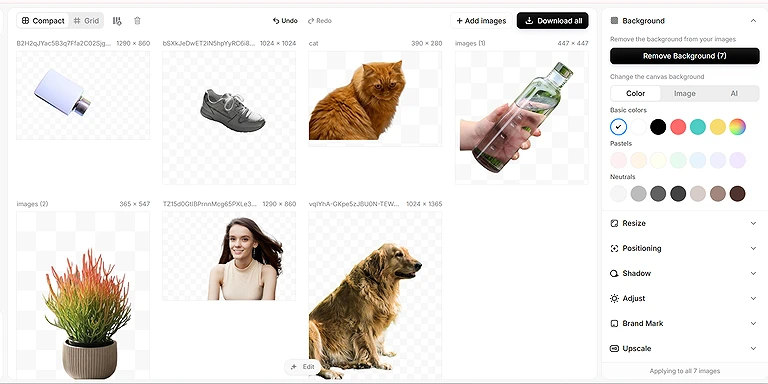
Successfully processed 7 images in one batch, with paid access required to download batch results.
Free Limits: No clear daily free limit was found during individual testing. More than 20 images were processed one by one with accurate background removal at the same resolution. However, when using batch processing, the backgrounds were removed, but downloading the results required a paid plan.
Output and Download: Pixelcut provides PNG and JPEG output for free. WebP and SVG formats are available with paid access. Free users can download images in original quality, while optimized and compressed output options are available through paid plans.
Privacy and Controls: Pixelcut states that uploaded and saved projects are transmitted using encryption and stored securely, with access limited to the user. It doesn't use user data to train its AI models without consent. Pixelcut also states that input and output images are automatically deleted within 24 hours after processing.
4. Erase.bg
Erase.bg is an AI background remover that performed well with different subjects during testing. It offers free HD downloads after signup, along with simple tools for quick background removal and basic refinements.
How to Use Erase.bg for Background Removal
- Open Erase.bg in your browser.
- Upload the image you want to process.
- Let the AI automatically detect the subject and remove the background.
- Review the result and check the edges and fine details.
- Use the available editing controls if any areas need refinement.
- Download the processed image.
Erase.bg Test and Results
Background Removal Accuracy: The AI effectively removed vibrant and complex backgrounds from the cat, dog, and person during testing. It detected the main outlines accurately and left very few noticeable background remnants or unwanted cuts.
Edge and Fine Detail Quality: The tool handled the cat's fur, dog's fur, and person's loose hair well. Fine strands remained visible and natural, although a few very small hair details may need manual refinement for a perfectly clean result.
Transparency and Shadows: The tool handled transparency well but retained slight original background reflections. During the shoe test, it completely removed the natural shadow, leaving only the clean footwear image.
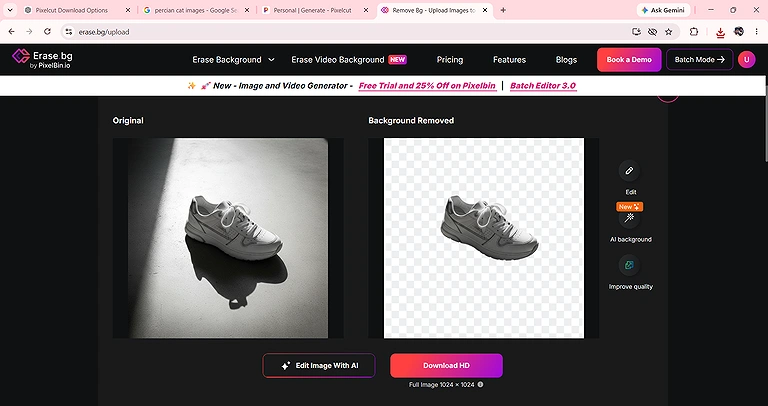
Erase.bg Completely removed the natural shoe shadow, leaving a clean and isolated footwear image.
Image Quality and Resolution: In the testing observations, the output quality showed a noticeable increase in file size. The tested files increased from 12.7 KB to 844 KB, 56 KB to 1.44 MB, and 107 KB to 2.23 MB, depending on the original image and processing.
Complex Backgrounds: Erase.bg performed well with vibrant, multicolored backgrounds. It isolated the subjects cleanly while maintaining sharp edges and avoiding noticeable color bleeding around the cutout.
Speed and Performance: The tool processed the tested image in approximately 4 – 5 seconds. It provided the background removed result quickly enough for normal individual image editing.
Batch Processing: Erase.bg doesn't support batch processing in the tested workflow. Images need to be processed individually rather than uploading multiple images together.
Free Limits: Erase.bg provides 3 free credits and 3 HD image downloads after signup. Each background removal uses one credit, giving free users three HD background removals. The official pricing information doesn't specify a separate daily, weekly, or monthly free allowance.
Output and Download: Erase.bg supports PNG, JPG, JPEG, and WebP input formats. The processed image is automatically downloaded in PNG format. Free users can receive HD downloads using the available free credits.
Privacy and Controls: Erase.bg states that uploaded images are processed securely and that images used for background removal are automatically deleted after 24 hours. It also provides controls for users to manage and delete their accounts and associated data.
5. Removal.AI
Removal.AI is an AI background remover that performed strongly with detailed subjects during testing. It produced clean cutouts, preserved fine plant details, and offered unlimited low resolution previews for free.
How to Use Removal.AI for Background Removal
- Open Removal.AI in your browser.
- Upload the image you want to process.
- Wait for the AI to automatically remove the background.
- Review the transparent background result.
- Use the Erase/Restore brushes if you need to refine specific areas.
- Download the processed image in the available resolution.
Removal.AI Test & Results
Background Removal Accuracy: Removal.AI cleanly removed the complex bathroom background, including tiles, window, cabinet, and towel, from the pencil style succulent. The plant and ribbed ceramic pot remained perfectly isolated with virtually no background remnants or unwanted cuts.
Edge and Fine Detail Quality: The tool preserved the succulent's fine branching stems and delicate green to orange red color gradient with excellent clarity. Thin, needle like tips remained natural and detailed, with only minimal softening around the finest extremities.
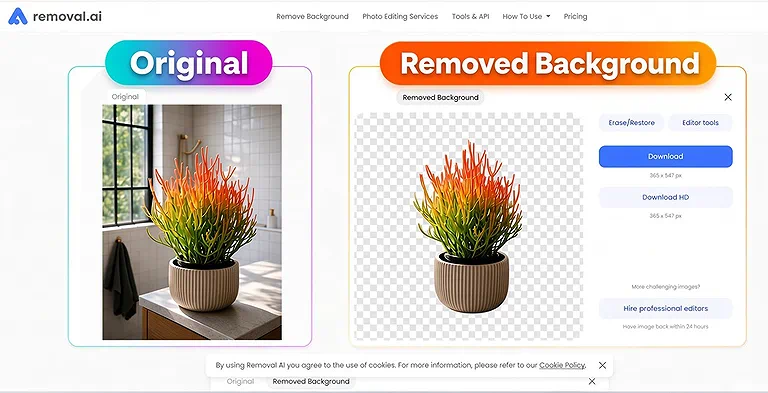
Excellent background removal with clean plant isolation and well preserved fine stems, tips, and color details.
Transparency and Shadows: The tool handled transparency well but retained slight original background reflections. During the shoe test, it completely removed the natural shadow, leaving only the clean footwear image.
Image Quality adn Resolution: Images can be downloaded for free in the same quality as the uploaded file. However, a paid plan is required when you need HD quality downloads. For improving image quality, see our guide on sharp the images for free with AI tools.
Complex Backgrounds: Removal.AI performed well when removing busy backgrounds, accurately separating the subject while maintaining sharp edges. It handled the complex bathroom scene effectively without noticeable background remnants or significant color bleeding.
Speed and Performance: Removal.AI processed the tested image in approximately 5–7 seconds. Although slightly slower than some of the other tools tested, it still delivered an accurate and clean result within seconds.
Batch Processing: Removal.AI doesn't support batch processing in the online background remover workflow used during testing. Images need to be processed individually.
Free Limits: Removal.AI provides one free high resolution download after signup. It also offers unlimited low resolution previews for images up to 0.25 megapixels, with no separate daily, weekly, or monthly preview limit stated.
Output and Download: Removal.AI supports JPG and PNG uploads up to 12 MB. Free users can process unlimited low resolution previews, while signup provides one free high resolution download.
Privacy and Controls: Removal.AI states that its file storage is 100% GDPR compliant. However, the website doesn't specify a fixed automatic deletion period for images uploaded through its online background remover. The tool also provides Erase and Restore brushes for manual refinements.
6 Free Background Remover.net
FreeBackgroundRemover.net is a simple browser based AI background remover offering unlimited free single image processing. During testing, it produced accurate cutouts while preserving the original image resolution.
How to Use FreeBackgroundRemover.net for Background Removal
- Open FreeBackgroundRemover.net in your browser.
- Upload the image you want to process.
- Wait while the AI automatically detects the subject and removes the background.
- Review the result on the transparent checkerboard background.
- Use the available erase or restore tools if further refinement is needed.
- Download the processed PNG directly.
FreeBackgroundRemover.net Test & Results
Background Removal Accuracy: The tool performed very well with the busy outdoor cat image, accurately separating the cat from trees, grass, and the dirt path. The subject's outline remained clean without noticeable background patches or awkward cut offs.
Edge and Fine Detail Quality: Fine details such as the cat's fluffy fur and soft white mane were preserved remarkably well. Individual hairs around the edges looked natural rather than blocky, although the finest wisps were slightly softened.
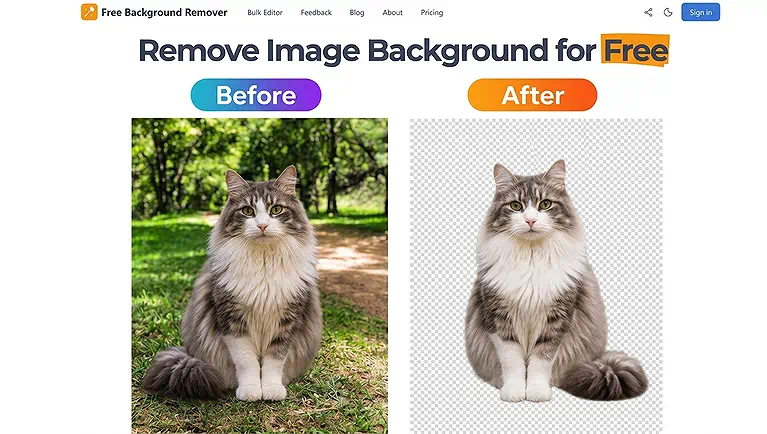
Effortlessly strip backgrounds using Free Background Remover to highlight every detail of cat’s fluffy fur.
Transparency and Shadows: The tool handled the transparent bottle effectively and removed its surrounding background. However, it also removed the arm holding the bottle, while the hand visible behind the bottle remained intact. In the shoe test, the natural shadow was completely removed.
Image Quality and Resolution: The image resolution remained the same after background removal during testing. However, the resulting file size increased slightly compared with the original image.
Complex Backgrounds: The tool handled the busy outdoor background effectively, separating the cat from trees, grass, and the dirt path without noticeable background remnants or major color bleeding.
Speed and Performance: FreeBackgroundRemover.net processed the tested images in approximately 6–7 seconds. It was slightly slower than several other tools tested but still provided a usable result within seconds.
Batch Processing: The main remover interface didn't provide batch processing during testing. Although the website mentions bulk processing of up to 12 images, this feature wasn't accessible in the main background removal workflow.
Free Limits: The tool offers unlimited free single image background removal without requiring registration. During testing, images could be processed individually without encountering a stated daily or monthly limit.
Output and Download: FreeBackgroundRemover.net supports JPG, JPEG, PNG, and WebP input formats. The processed image is provided as a PNG with a transparent background, and users can download it directly without registration or payment.
Privacy and Controls: The tool processes images directly in the browser, so uploaded images aren't sent to a remote server for background removal. Because processing occurs locally, the website doesn't need to specify a separate automatic deletion period.
7 Canva Background Remover
Canva’s Background Remover quickly detects the subject and removes the background from images. It supports common formats and lets you download the result as a high resolution PNG.
How to Remove a Background in Canva
- Open Canva and create a new design or open an existing one.
- Upload the image you want to edit and place it in your design.
- Select the image, then click Edit Photo from the editing options.
- Choose BG Remover to automatically remove the image background.
- Review the result and use Canva’s available erase or restore tools if you need to refine the edges.
- Click Download, and save the image with its transparent background.
Canva Test & Result
Background Removal Accuracy: The tool gave an excellent result across all tested objects. It cleanly separated the cats, dog, shoe, bottle, plant, person, and other objects from their original backgrounds. Even with busy outdoor scenes, colorful backgrounds, transparent surfaces, and detailed subjects, the cutouts remained clean with no noticeable background patches or major cut offs.
Edge and Fine Detail Quality: The tool also delivered excellent edge and fine detail quality across every test image. Fur on the cats and dog, hair on the person, plant branches, bottle edges, and shoe details were preserved naturally. The edges looked smooth and well defined without obvious halos, jagged areas, or excessive loss of fine details.
Transparency and Shadows: The tool handled the transparent bottle well and removed the surrounding background effectively. However, during testing, the hand visible behind the bottle remained intact. Notably, testing a shoe with shadows resulted in total shadow removal, leaving only the clean footwear image.
Image Quality and Resolution: The image resolution remained unchanged after background removal, while the file size increased slightly, from 56 KB to 183 KB, with no noticeable loss in visual quality.
Complex Backgrounds: The tool excels here, flawlessly isolating objects from vibrant, multi colored geometric patterns. It eliminates harsh shadows and maintains precise, sharp edges with zero color bleeding.
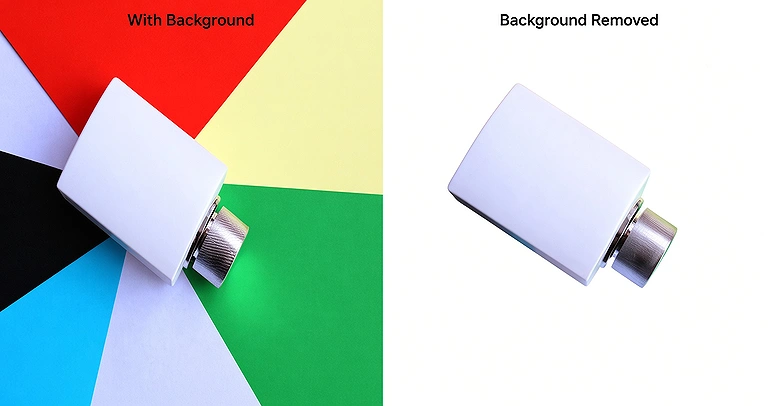
Canva clearly removed the colorful backgroun, leaving the white product perfectly isolated
Speed & Performance: THE PERFORMANCE AND SPEED OF REMOVE BG IS VERY FAST AND ACCURATE AS IT PROCESSED THE IMAGE IN 4 - 5 SECONDS
Batch Processing: it does not support batch processing.
Free Limit: During testing, Canva removed the backgrounds from 15+ images for free without requiring a paid subscription. The tool processed each image individually, while batch background removal wasn't available in the tested workflow.
Output and Download: Canva accepts JPG, PNG, HEIC, and HEIF images for background removal. After removing the background, Canva lets users download the result as a highresolution PNG with a transparent background in pro, the feature is available once for free, while Canva Pro provides unlimited use.
Privacy and Controls: Canva stores uploaded content to provide its services and keeps user content under its privacy and security policies.
Privacy Settings: control whether user content can be used to improve its AI powered features.
Avoid These Background Removal Mistakes
Even the best AI background removers can produce imperfect results when images are difficult or poorly prepared. Avoid these common mistakes for cleaner and more professional cutouts:
Using Low Quality Images: Starting with a blurry, pixelated, or heavily compressed image can make it difficult for AI to identify precise subject edges.
Choosing Similar Background and Subject Colors: Subjects that closely match their backgrounds can confuse AI and may cause parts of the subject to disappear.
Ignoring Hair and Fur Edges: Always zoom in and inspect hair, fur, whiskers, and other fine details. AI may soften or remove very thin strands.
Overlooking Transparent Objects: Glass, bottles, transparent clothing, and similar objects can be challenging. Check whether the AI accidentally removes parts of the object.
Forgetting About Shadows: Background removal may also remove natural shadows. Check the result carefully if the shadow is important to the final design.
Not Checking Reflections: Reflections around shoes, glass, products, and shiny surfaces can sometimes be mistaken for background areas.
Skipping the Final Edge Check: Don't download the image immediately after automatic removal. Inspect the edges for leftover background, halos, rough cuts, or missing areas.
Using Batch Processing Without Reviewing Results: Processing many images at once saves time, but individual images can still contain mistakes. Review important images before publishing them.
Ignoring Free Resolution Limits: Some free tools reduce output resolution. Check the final dimensions before using the image for printing, websites, or large designs.
Downloading Without Checking the Format: Make sure the output format suits your needs. PNG is usually preferable when you need a transparent background.
Overlooking Privacy Policies: Don't upload sensitive or confidential images without checking how the service stores, processes, deletes, or uses uploaded files.
Assuming Every Tool Is Completely Free: A tool may offer free background, removal but charge for HD downloads, batch processing, premium formats, or watermark free exports.
When to Use Free vs. Paid Background Removal Tools
Use the free version for occasional background removal and simple personal projects. Consider upgrading when you reach a tool's free limit, need higher resolution, batch processing, or premium output options.
| Tool | When to Use Free | When to Use Paid |
| Remove.bg | Occasional images where 0.25 MP resolution is sufficient. | When you need full resolution downloads or more high resolution credits. |
| Photoroom | When you need up to 50 exports per month and the available free features meet your needs. | When you exceed 50 monthly exports or need premium AI features and additional capabilities. |
| Pixelcut | For individual images when free PNG/JPEG downloads are sufficient. | When you need to download batch processed images or require paid formats and optimization options. |
| Erase.bg | When 3 free credits and HD downloads are enough for your projects. | When you use all 3 free credits and need additional HD background removals. |
| Removal.AI | When unlimited low resolution previews and the one free HD download are sufficient. | When you need additional high resolution downloads after using the free credit. |
| FreeBackgroundRemover.net | For unlimited individual background removal without registration or payment. | When you need batch processing or additional advanced features. |
| Canva | When you need to remove backgrounds from individual images without a subscription. | When you need unlimited background removal and other premium Canva features. |
Who Should Use Free Tools?
Free tools are best for
- Occasional users who remove backgrounds from a few images.
- Students working on assignments and personal projects.
- Bloggers and social media creators creating occasional visual content.
- Small personal projects that don't require advanced features.
- Users processing a limited number of images within the available free limits.
Who Should Use Paid Tools?
Paid plans are better for:
- Ecommerce businesses processing product images regularly.
- Professional designers who need advanced editing and high quality output.
- Photographers and agencies handling large image workloads.
- Users processing large numbers of images through batch tools.
- Users who exceed free limits such as credits, exports, or downloads.
- Users who need full resolution or sharp images: when free plans restrict quality.
- Users who need batch downloads, premium formats, or higher usage limits.
FAQs
What is an AI background remover?
An AI background remover automatically detects the main subject in an image and separates it from the background. It can save significant editing time by creating clean cutouts without requiring advanced photo editing skills.
Are AI background removers free to use?
Many AI background removers offer free processing, but their limitations vary. Some restrict resolution, credits, exports, batch processing, or downloads. Always check the specific tool's free allowance before processing large numbers of images.
Which image format is best for background removal?
PNG is generally the best format when you need a transparent background because it supports transparency. However, many AI background removers also accept JPG, JPEG, and WebP images for processing.
Does background removal reduce image quality?
It depends on the tool and its free plan. Some tools preserve the original resolution, while others reduce free output resolution. Always check the final image dimensions and quality before downloading or publishing.
Can AI background removers remove backgrounds from hair and fur?
Yes, modern AI background removers can detect hair, fur, and other fine details. However, extremely thin strands may become softened or disappear, so always zoom in and inspect difficult edges after processing.
Can AI background removers remove shadows?
Many tools automatically remove shadows along with the background. Some may preserve certain shadows or reflections, but results vary. If a natural shadow is important, carefully review the processed image before downloading it.
Can I remove backgrounds from multiple images at once?
Some AI background removers support batch processing, while others only process individual images. Batch availability can also depend on the free plan, so check the tool's limits before uploading large image collections.
Are free background remover tools safe for private images?
Privacy policies vary between tools. Before uploading private images, check whether files are stored, when they're deleted, whether they're used for AI training, and whether the service processes images locally or remotely.
When should I use a paid background remover?
A paid plan becomes useful when you exceed free credits or exports, need higher resolution downloads, batch processing, premium formats, advanced controls, or regularly process large numbers of images for professional work.
What should I check after removing an image background?
Always inspect the subject's edges, hair, fur, transparent areas, reflections, and shadows. Also check resolution, image quality, file format, and unwanted background remnants before using the final image for professional purposes.
Conclusion
Let's conclude the background removal tools as they made it much easier to create clean, professional looking images without manual editing. From the tools tested, each option has different strengths and limitations. Some preserve the original resolution, while others offer more generous free usage, batch processing, or stronger privacy features. Choosing the right tool depends on the type of images you process and the features you need most.
Among the tested options, Remove.bg stood out for edge and fine detail quality, while Photoroom performed particularly well with product images and fur. Pixelcut offered same resolution output and batch processing, whereas Erase.bg provided free HD downloads. Removal.AI delivered strong results with detailed subjects, and FreeBackgroundRemover.net offered unlimited free individual processing. If you exceed a tool's free limits or need HD output, batch downloads, or premium features, upgrading to a paid plan can be worthwhile.