.webp)
Convert HEIC to PNG Free in 2026: Best Tools, Methods, and Quality Tested
HEIC provides efficient image storage with relatively smaller file sizes, but PNG is often more suitable when lossless image quality, transparency, and compatibility are priorities. PNG preserves fine details, textures, colors, and original dimensions without introducing lossy compression, making it a practical choice for editing, graphics, and applications where consistent visual quality is essential.
For this guide, I converted HEIC images to PNG and evaluated the results based on conversion quality, processing speed, output file size, batch support, metadata preservation, privacy, and free usage limits. The testing showed that PNG conversions generally preserved the original resolution and delivered excellent visual quality, while output file sizes increased significantly. I also compared conversion controls, metadata options, batch capabilities, and processing performance to identify the most reliable options for different needs.

 Updated: August 20, 2026 | 17 min read
Cover Photo Convert HEIC Images to PNG Free in 2026: Best Tools, Methods, and Quality Tested
Quick Review of the Best HEIC to PNG Converters
| Tool | Image Quality | Resolution | Output File Size | Metadata | Batch Support | Privacy & Security | Free Limit |
| FreeConvert | Excellent | Preserved | 1.5 → 3.58 MB | Preserved | 10 images | 8 hours — SSL/TLS | 10 + 5 after signup |
| Convertio | Very Excellent | Preserved | 1.5 → 9.7 MB | Preserved | 10 images | Immediately / 24 hours — TLS + HSTS | 10 images/day |
| PhotoFormatLab | Super Excellent | Preserved | 1.5 → 18.3 MB | Save/Skip | 10 images | No server upload — Browser-based | No daily limit found |
| Zamzar | Super Excellent | Preserved | 1.5 → 18.3 MB | Preserved | 5 images/day | 24 hours — TLS/SSL | 5 images/day |
| HEICcon | Super Excellent | Preserved | 1.5 → 15.5 MB | Save/Skip | 50 images | No server upload — Browser-based | 50 images free |
Who Should Read This Guide?
- HEIC Users — Convert iPhone photos to PNG.
- iPhone Users — Need PNG compatibility.
- Designers — Need high-quality PNG images.
- Content Creators — Prepare images for publishing.
- Web Developers — Need web-ready image formats.
- Students — Convert images for assignments.
- Professionals — Handle images for documents.
- Privacy-Conscious Users — Prefer secure conversion methods.
What to Look for in AI Tools for HEIC to PNG Conversion
Image Quality — Check whether the converted PNG remains sharp, clear, and detailed compared with the original HEIC image. This is one of the main factors for judging the overall conversion quality.
Resolution — Compare the original and converted image dimensions to confirm that the tool doesn't reduce resolution. Preserving the original width and height is important for high-quality images.
Output File Size — Compare the original HEIC size with the resulting PNG size. A good converter should maintain quality without creating an unnecessarily large PNG file.
Metadata — Check whether important metadata is preserved, removed, or offered through Save/Skip options. This helps determine how well the converter handles image information during conversion.
Batch Conversion — Test how many HEIC images can be converted in one operation. Batch support is important for users who need to process multiple photos instead of converting each image individually.
Conversion Speed — Measure how quickly the tool processes the selected HEIC images. Faster conversion becomes especially useful when working with multiple high-resolution files.
AI Enhancement — Check whether the tool provides AI-based enhancement options that improve sharpness, clarity, or other image details without unnecessarily changing the original appearance.
Transparency — Check how the converter handles transparent areas when the source image contains them. The resulting PNG should retain transparency correctly where supported.
Privacy & Security — Check whether images are uploaded to a server, processed directly in the browser, and when uploaded files are deleted. Also record the stated security method, such as SSL/TLS or TLS +
HSTS.
Free Limit — Test the number of images available without payment. Also check whether signing up provides additional conversions or increases the free limit.
Download Options — Check whether converted PNG files can be downloaded individually or together. ZIP downloads are particularly useful after batch conversion.
Output Controls — Check whether the tool provides options to control the final PNG output, such as quality, compression, metadata handling, dimensions, or other conversion settings.
How I Tested AI Tools for HEIC to PNG Conversion
For consistent HEIC-to-PNG testing, the same 1.52 MB HEIC image was used with every converter. The image was taken on December 12, 2023, at 6:39 PM using a Samsung SM-A326B camera. It had dimensions of 4000 × 3000 pixels. The original camera metadata showed an f/1.8 F-stop, 1/25-second exposure time, ISO 500, 0-step exposure bias, 5 mm focal length, 1.69 maximum aperture, Center Weighted Average metering, no flash, and a 25 mm 35mm-equivalent focal length. The file was last modified on August 16, 2026, at 8:26 PM.
The original file was kept unchanged throughout testing so every converter could be evaluated under identical conditions. After conversion, the resulting PNG files were compared with the original for image quality, resolution, output file size, and metadata preservation. Metadata was specifically checked to determine whether each converter retained the available camera information or provided options to save or skip it.
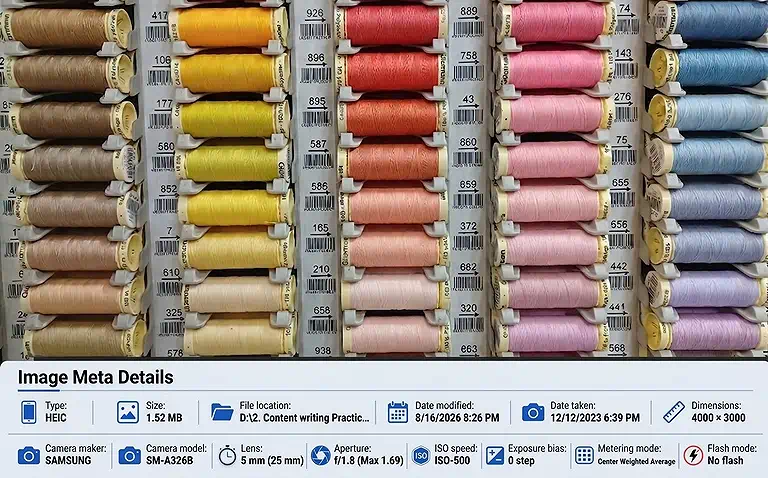
Input Image: A 1.52 MB HEIC image with 4000 × 3000 resolution and original camera metadata.
Best AI Tools for HEIC to PNG Conversion
Converting HEIC images to PNG provides wider compatibility while preserving image quality and resolution. This guide compares the top AI tools based on quality, batch processing, and metadata retention. Looking for JPG instead? Check out our guide to the best HEIC to JPG converters
FreeConvert
FreeConvert is an online HEIC-to-PNG converter designed for quick image format conversion. It supports multiple images, preserves resolution and metadata, and provides a straightforward workflow for converting HEIC files into widely compatible PNG images.
How to Use FreeConvert for HEIC to PNG
- Open the HEIC-to-PNG converter on FreeConvert.
- Upload your HEIC image or multiple images.
- Select PNG as the output format.
- Start the conversion process.
- Download the converted PNG files.
FreeConvert Test and Results
Image Quality
The converted PNG maintained excellent visual quality, with sharp details and clear image reproduction. The output showed no noticeable quality degradation compared with the original HEIC image.
Resolution
The original image resolution was preserved after conversion. The output retained the same 4000 × 3000 pixel dimensions, making it suitable for high-resolution image use.
Output File Size
The original 1.5 MB HEIC image increased to approximately 3.58 MB after conversion. Although the PNG became larger, the resulting file maintained excellent image quality.
Metadata
The original image metadata was preserved in the converted PNG. Camera-related information remained available, showing that FreeConvert retained important image information during the conversion.
Batch Support
FreeConvert successfully handled 10 images in the tested workflow. This makes it practical for users who need to convert multiple HEIC images without processing every file individually.
Output Controls
FreeConvert offered extensive output controls. You could keep the original size, enter custom width or height, resize by percentage, adjust compression, control image quality, set PNG transparency, auto-orient images, and strip metadata.
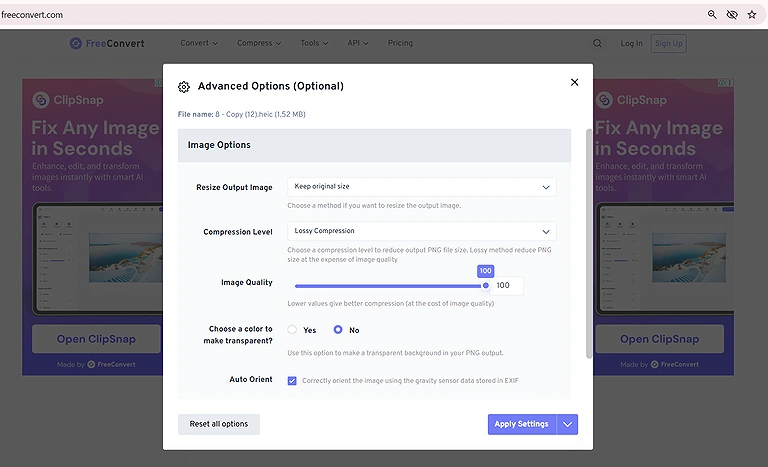
The Image shows available options for resizing, compression, quality, transparency, orientation, and metadata.
Privacy & Security
Uploaded files were stated to be deleted after 8 hours. The service uses SSL/TLS security for data transmission, providing protection while images are uploaded and processed.
Free Limit
The free version supported 10 images, with 5 additional conversions after signup. This provides a useful allowance for occasional users who need to convert several HEIC images.
Overall Result
FreeConvert delivered excellent image quality, preserved resolution and metadata, and offered useful batch support. Its main drawback was the larger PNG output compared with the original HEIC file.
Convertio
Convertio is an online HEIC-to-PNG converter that focuses on simple and fast format conversion. It supports multiple files, preserves the original resolution and metadata, and provides a convenient option for converting HEIC images into PNG format.
How to Use Convertio for HEIC to PNG
- Open Convertio's HEIC-to-PNG converter.
- Upload your HEIC image or multiple images.
- Select PNG as the output format.
- Click Convert to begin processing.
- Download the converted PNG files.
Convertio Test and Results
Image Quality
Convertio produced very excellent image quality during testing. The converted PNG remained sharp and clear, with the original image details and overall appearance preserved.
Resolution
The original resolution was preserved after conversion. The resulting PNG maintained the same 4000 × 3000 pixel dimensions, ensuring no noticeable reduction in image size or detail.
Output File Size
The original 1.5 MB HEIC image increased to approximately 9.7 MB as PNG. This was a significant increase, although the converted image maintained excellent visual quality.
Metadata
Convertio preserved the available metadata during conversion. Important information from the original image remained associated with the converted output, providing a strong result for metadata preservation.
Batch Support
Convertio handled 10 images during testing. This allows users to convert multiple HEIC files together, although the tested batch capacity was lower than some other converters.
OutPut Control
Convertio provided limited output controls in the tested workflow. After uploading multiple images, you could select PNG as the output format for each image individually or apply the same output format to all images. No specific resize, compression, or transparency controls were observed.
Privacy & Security
The original uploaded file was deleted immediately, while converted files were removed within 24 hours. Convertio uses TLS and HSTS to secure data during transmission.
Free Limit
The free version allowed 10 images per day during testing. This provides a reasonable daily allowance for users who only need occasional HEIC-to-PNG conversions.
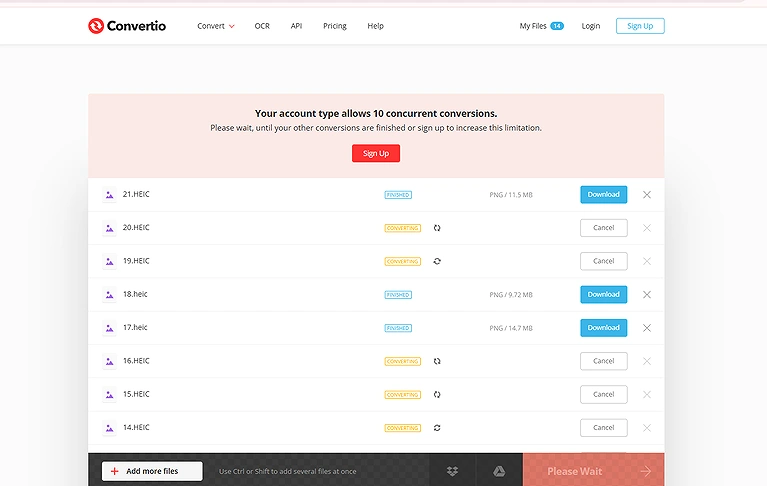
Free Limit: The image shows Convertio free conversion allowance of 10 images per day,
Overall Result
Convertio delivered very excellent quality, preserved resolution and metadata, and processed multiple images efficiently. Its main disadvantage was the substantial increase in PNG file size.
PhotoFormatLab
PhotoFormatLab is a browser-based HEIC-to-PNG converter focused on high-quality image processing without uploading files to a server. It provides strong output quality, metadata controls, batch conversion, and useful output settings.
How to Use PhotoFormatLab for HEIC to PNG
- Open PhotoFormatLab's HEIC-to-PNG converter.
- Upload or select your HEIC images.
- Choose PNG as the output format.
- Adjust the available output and metadata settings.
- Start the conversion and download the PNG files.
PhotoFormatLab Test and Results
Image Quality
PhotoFormatLab delivered super excellent image quality during testing. The converted PNG retained sharp details, clear textures, and an appearance very close to the original HEIC image.
Resolution
The original 4000 × 3000 pixel resolution was preserved after conversion. No reduction in image dimensions was observed during the tested HEIC-to-PNG conversion.
Output File Size
The original 1.5 MB HEIC image increased substantially to approximately 18.3 MB as PNG. The larger output size was the main disadvantage despite excellent quality.
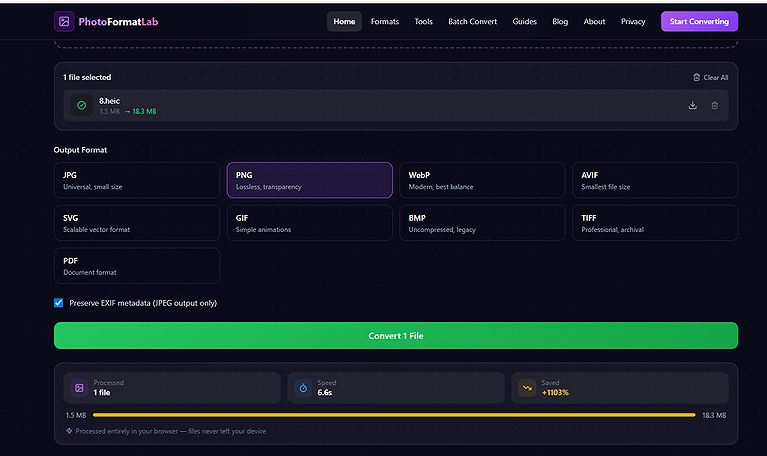
The image shows the HEIC file increasing from **1.5 MB to approximately 18.3 MB for conversion to PNG.
Metadata
PhotoFormatLab provided Save/Skip metadata options during testing. This gave users direct control over whether available image metadata should be retained in the converted PNG.
Batch Support
The converter successfully handled 10 images in the tested workflow. Its batch capability made it convenient for processing several HEIC files together.
Output Controls
PhotoFormatLab provided useful control over the output, particularly through its metadata Save/Skip option. These controls allowed the output to be adjusted according to the user's requirements.
Privacy & Security
PhotoFormatLab uses browser-based processing, so the tested images weren't uploaded to a remote server. This provides a strong privacy advantage for users handling sensitive images.
Free Limit
No specific daily conversion limit was found during testing. This makes PhotoFormatLab useful for users who need to convert multiple HEIC images without a clearly stated daily restriction.
Overall Result
PhotoFormatLab achieved super excellent quality while preserving resolution and offering metadata controls. Its browser-based processing is a major privacy advantage, although PNG files became considerably larger.
Zamzar
Zamzar is an online HEIC-to-PNG converter that combines straightforward conversion with several image adjustment options. During testing, it provided useful controls for resizing, rotation, orientation, mirroring, and image effects while preserving the original metadata.
How to Use Zamzar for HEIC to PNG
- Open Zamzar's HEIC-to-PNG converter.
- Upload your HEIC image or multiple images.
- Select PNG as the output format.
- Adjust the available image settings if required.
- Start the conversion process.
- Download the converted PNG files.
Zamzar Test and Results
Image Quality
Zamzar produced super excellent image quality during testing. The converted PNG remained sharp and detailed, while the overall image appearance was maintained with no major quality degradation.
Resolution
The original image resolution remained unchanged after conversion. The output preserved the original dimensions and visual details without noticeable resizing or cropping.
Output File Size
The tested HEIC image increased from 1.5 MB to approximately 18.3 MB after PNG conversion. The significant increase in size occurred without providing a noticeable resolution improvement.
Metadata
Zamzar preserved the original image metadata during conversion. Important embedded image information remained available in the converted file, making metadata preservation a strong part of the result.
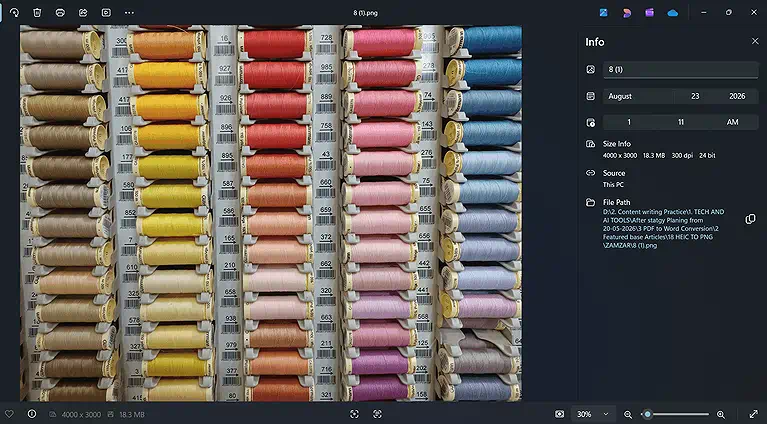
The image shows Zamzar preserving the original HEIC metadata, retained in the converted PNG file.
Batch Conversion
Zamzar supported 5 HEIC-to-PNG images per day for free during the testing. Multiple images could be processed together, with the converted files available for download afterward.
Output Controle
Zamzar provided several image controls, including resize options, custom resolutions, rotation, black-and-white mode, mirroring, blur, and auto-orientation. These options gave greater control over the final image before conversion.
Privacy & Security
Zamzar uses TLS/SSL to protect file transfers. For free conversions, the original file is deleted after conversion, while the converted file can remain stored for a maximum of 24 hours.
Free Limit
The tested free allowance was 5 HEIC-to-PNG conversions per day. This makes Zamzar suitable for occasional conversions, while users requiring higher volumes need a paid plan.
Overall Result
Zamzar delivered super excellent quality, preserved resolution and metadata, and offered the widest range of image adjustment controls among the tested tools. Its main drawback was the large PNG output size.
HEICcon
HEICcon is a browser-based HEIC-to-PNG converter focused on private, local image processing. It delivered super excellent quality during testing, preserved resolution, offered metadata controls, and supported large batch conversions without a server upload.
How to Use HEICcon for HEIC to PNG
- Open the HEICcon HEIC-to-PNG converter.
- Select or drag your HEIC images into the tool.
- Choose PNG as the output format.
- Select whether to save or skip metadata.
- Start the conversion.
- Download the converted PNG files.
HEICcon Test and Results
Image Quality
HEICcon delivered super excellent image quality during testing. The converted PNG retained sharpness, textures, and color detail, with the output appearing clear and close to the original image.
Resolution
The original image resolution was preserved after conversion. No noticeable reduction in dimensions or visual detail was observed in the resulting PNG file.
Output File Size
The original 1.5 MB HEIC image increased to approximately 15.5 MB after conversion. Although the PNG became substantially larger, there was no noticeable resolution improvement from the increased size.
Metadata
HEICcon provided Save/Skip metadata control during testing. This allowed metadata to be retained when needed or skipped to help reduce the final output file size.
Batch Conversion
HEICcon supported 50 images in the tested free workflow. This provided considerably more batch capacity than the other tested converters and made it suitable for larger image collections.
Output Controls
The main output control observed was the metadata Save/Skip option. This allowed users to decide whether available metadata should remain in the converted PNG or be excluded from the output.
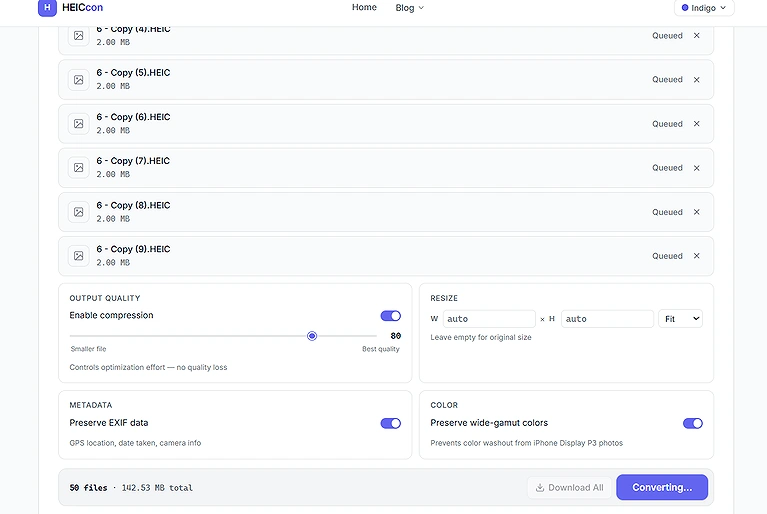
The image highlights Save/Skip metadata controls, support for up to 50 images, and available output settings.
Privacy & Security
HEICcon uses browser-based processing, meaning images aren't uploaded to a remote server during conversion. This provides a strong privacy advantage because the files remain on the user's device.
Free Limit
HEICcon allowed 50 images free during testing. No lower daily restriction was identified within the tested allowance, making it one of the most generous options for batch conversion.
Overall Result
HEICcon achieved super excellent quality, preserved resolution, provided metadata control, and supported up to 50 images. Its browser-based processing also made it a strong choice for privacy-conscious users.
Common Mistakes to Avoid During HEIC to PNG Conversion
Ignoring Image Quality — Don't judge a converter only by successful conversion. Always compare sharpness, textures, colors, and fine details with the original HEIC image.
Not Checking Resolution — Some conversion settings can resize or crop images. Check the output dimensions to ensure the original resolution and aspect ratio are preserved.
Overlooking File Size — PNG files can become significantly larger than HEIC files. Compare the original and converted sizes before choosing a converter for regular use.
Ignoring Metadata Settings — Check whether the converter preserves or removes EXIF information. If camera details are important, don't select an option that strips metadata.
Using Limited Batch Tools — Converting images individually wastes time when working with large collections. Check the free batch limit before uploading multiple HEIC files.
Choosing Poor Output Controls — Don't overlook settings for resizing, compression, transparency, quality, orientation, or metadata. These controls can significantly affect the final PNG.
Ignoring Privacy Policies — Avoid uploading sensitive images without checking how files are processed and stored. Look for browser-based processing or clearly stated deletion periods.
Skipping Security Checks — When using online converters, check whether file transfers are protected with methods such as SSL/TLS or TLS + HSTS.
Ignoring Free Limits — Check the number of free conversions, daily restrictions, and any additional allowance available after creating an account.
Converting Without Comparing Results — Don't assume every converter produces the same result. Test the output against the original image for quality, resolution, size, metadata, and color accuracy.
Forgetting Transparency — If transparency matters, check whether the converter supports transparent PNG output. Some tools may not provide transparency controls. For creating transparent images, you can also use an AI tool for transparent background.
Not Checking Download Options — For batch conversions, verify whether files can be downloaded together as a ZIP or only one by one. This can greatly affect workflow efficiency.
Free vs. Paid HEIC to PNG Converters: Which Should You Choose?
| Tool | Free Version | Paid Version Needed? |
| FreeConvert | 10 images + 5 after signup | Yes, if you need more than 10 images per day |
| Convertio | 10 images/day | Yes, if you need more than 10 images per day |
| PhotoFormatLab | No daily limit found | No, based on the tested usage |
| Zamzar | 5 images/day | Yes, if you need more than 5 images per day |
| HEICcon | 50 images free | No, if you need up to 50 images |
Who Should Use Free HEIC to PNG Tools?
Casual Users — Convert a few HEIC images occasionally without paying.
Students — Handle images for assignments, presentations, and projects.
Personal Users — Convert photos for sharing, storage, or compatibility.
Small Batches — Convert images within the tool's daily free limit.
Budget-Conscious Users — Get reliable conversion without subscription costs.
Who Should Use Paid HEIC to PNG Tools?
Heavy Users — Convert more images than the free daily limit allows.
Professionals — Process images regularly for work and client projects.
Large Batches — Convert hundreds of images efficiently in fewer sessions.
Advanced Users — Need more output controls and processing options.
Businesses — Require consistent, high-volume image conversion workflows.
FAQs
What is a HEIC to PNG converter?
A HEIC to PNG converter changes Apple's HEIC image format into PNG. PNG provides broad compatibility and lossless image storage, making converted images useful for websites, editing software, documents, presentations, and other platforms.
Does converting HEIC to PNG reduce image quality?
A good converter can preserve the original image quality and resolution. However, results vary between tools. Always compare sharpness, colors, textures, and dimensions with the original HEIC before selecting a converter.
Does HEIC to PNG conversion increase file size?
Yes, PNG files are often considerably larger than HEIC files because PNG uses lossless compression. During testing, several tools produced substantially larger PNG files while maintaining the original image resolution and visual quality.
Does HEIC to PNG conversion preserve metadata?
Metadata preservation depends on the converter and its settings. Some tools preserve available EXIF information, while others provide Save/Skip options. Check metadata after conversion if camera information or other details are important.
Can I convert multiple HEIC images to PNG?
Yes, many online converters support batch conversion. However, free limits vary significantly. Some tested tools supported 10 images, while others allowed 50 or had no daily limit found during testing.
Is it safe to upload HEIC images online?
Safety depends on how the converter processes and stores uploaded files. Check its security method, processing location, and deletion period. Browser-based tools can provide stronger privacy because images aren't uploaded to remote servers.
Which HEIC to PNG converter is best for privacy?
Browser-based converters such as PhotoFormatLab and HEICcon provide strong privacy advantages because processing occurs directly in the browser. This avoids uploading images to remote servers during the conversion process.
Can I convert HEIC to PNG without losing resolution?
Yes. A suitable converter can preserve the original dimensions during conversion. Always check the output resolution after conversion to confirm that width, height, aspect ratio, and image details remain unchanged.
Should I use a free or paid HEIC to PNG converter?
Free tools are usually enough for occasional conversions within daily limits. Paid tools become more useful when you regularly exceed those limits, process large batches, or require additional professional features and controls.
What should I check after converting HEIC to PNG?
Compare the converted PNG with the original HEIC for image quality, resolution, file size, color accuracy, metadata, and transparency. Also verify that the output downloaded correctly and matches your intended requirements.
Conclusion
For this HEIC-to-PNG comparison, the tools were tested using the same image and consistent criteria. The evaluation focused on image quality, resolution preservation, output file size, metadata, batch conversion, output controls, conversion speed, privacy and security, and free usage limits. These factors helped provide a practical comparison based on actual conversion results rather than features alone.
The testing showed clear differences between the converters. FreeConvert offered excellent quality with the strongest output controls, while Convertio provided very fast conversion and preserved metadata. PhotoFormatLab delivered super excellent quality with browser-based processing, Zamzar provided extensive image controls, and HEICcon combined excellent quality with generous batch support and browser-based privacy. Overall, the best choice depends on whether quality, controls, privacy, or conversion limits are the main priority.