.webp)
How to Add a Watermark to PDF Files for Free: Tested in 2026
Adding a watermark to a PDF is useful for identifying ownership, protecting documents from unauthorized use, and showing that a file is an original or shared copy. It can also help businesses, creators, and organizations keep their documents recognizable when they are distributed online or shared with others. While many PDF editors offer watermarking, you can also do it for free with several online tools.
To find which free options work well in practice, I tested several PDF watermark tools using the same approach. I compared their support for custom text, logos or images, position, transparency, size, rotation, page selection, multiple PDF files, output quality, free limits, and downloads. I also checked whether the watermark affected the original text, images, formatting, or overall PDF quality after processing.

 Updated: September 10, 2026 | 20 min read
Cover Photo How to Add a Watermark to PDF Files for Free: Tested in 2026
Quick Overview of PDF Watermark Tools
| Tool | Custom Watermark | Logo/Image | Position | Page Control | Free Limit |
| PDF24 Tools | Yes | Yes | Multiple options | Yes | Free |
| iLovePDF | Yes | Yes | 9 positions + Mosaic | Yes | 2 files/task |
| Smallpdf | Yes | No | Center only | No | 3 files/20 min |
| LightPDF | Yes | No | 9 positions | No | 3 files/day |
| PDF Candy | Yes | Yes | Position controls | Yes | 1 file/day |
Who Can Benefit from This Guide?
This guide is for anyone who wants to add a watermark to PDF files for free. It helps you compare tested tools and choose one based on your specific needs.
Students: Add names, labels, or ownership information to assignments and documents.
Businesses: Add company names, logos, or other identifying information to important PDF files.
Content Creators: Protect and identify guides, reports, ebooks, and other downloadable content.
Teachers and Educators: Add watermarks to study materials, worksheets, and educational documents.
Professionals: Mark documents with text such as Draft, Confidential, Sample, or Internal Use.
Users Comparing Free Tools: Find a suitable tool based on features, customization options, file limits, and output quality.
PDF Watermark Features to Consider
Text Watermark: Check whether the tool supports custom watermark text, long text, and whether font size and available page space affect how much text appears.
Position: Check how many positioning options are available and whether you can place the watermark in specific areas or repeat it across the page.
Transparency: Check whether transparency can be adjusted and how precisely you can control watermark visibility without making the original PDF content difficult to read.
Logo or Image: Check whether the tool allows you to upload and use a custom logo or image instead of only text watermarks.
Size and Rotation: Check whether you can adjust the watermark size and rotation angle to match the document layout and your specific requirements.
All Pages or Selected Pages: Check whether the watermark can be applied to all pages, selected pages, or specific page ranges within the PDF document.
Multiple PDFs: Check whether the tool supports batch processing and how many PDF files you can add and watermark simultaneously in one task.
Quality: Check whether the watermark remains sharp and whether the original text, images, formatting, layout, and overall PDF quality remain unchanged after processing.
Free Limits and Download: Check for daily or task limits, batch restrictions, subscription requirements, and whether you can download the watermarked PDF for free.
Output Controls: Check additional customization options, such as font styles, colors, bold or italic formatting, watermark layers, spacing, and other available appearance controls.
How I Tested the PDF Watermark Tools
I created a 15 pages AQSWtest PDF from a Word document containing headings, H2 and H3 subheadings, colored tables, images, plain text, and bold and italic formatting. I then used the same PDF with each tool to test watermarking features, output quality, and preservation of the original content. I also checked watermark placement, transparency, size, rotation, page controls, file limits, and available customization options.
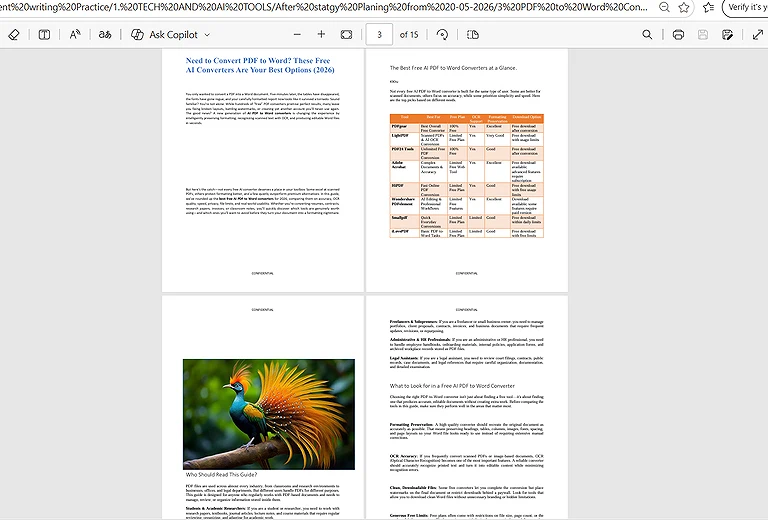
Test PDF File: A 15-page file with text, tables, images, headings, and formatting.
Best AI PDF Watermark Tools
Adding a watermark to a PDF can help protect ownership, identify documents, and make shared files easier to recognize. Modern PDF tools make this process simple, with options for text, logos, transparency, and positioning. If you use other PDF features, see our AI tools for PDF guide.
PDF24 Tools
PDF24 Tools provides a simple way to add text or image watermarks to PDF files. It offers useful controls for positioning, appearance, and watermark customization.
How to Use PDF24 Tools for Watermarking
- Open the PDF24 watermark tool and upload the PDF file you want to edit.
- Add your custom watermark text or select an image or logo if available.
- Adjust the watermark’s position, size, transparency, rotation, and other available settings.
- Preview the watermark to make sure it appears correctly on the PDF pages.
- Apply the watermark and allow PDF24 to process the file.
- Download the finished PDF after the watermark has been added.
PDF24 Tools: Testing and Results
Text Watermark: Yes, you can add custom text as a watermark. During testing, I added more than 50 words, and the tool supported the text successfully. However, the amount of text displayed on the page depends on the selected font size and the available space. If sufficient space is available, the full text can appear as a watermark.
Position: The tool provides multiple options for positioning the watermark, including Top Left, Top Center, Top Right, Middle Left, Middle Center, Middle Right, Bottom Left, Bottom Center, and Bottom Right. It also includes a Fill Page option. This option covers or repeats the watermark across the page, depending on the selected angle and watermark size.
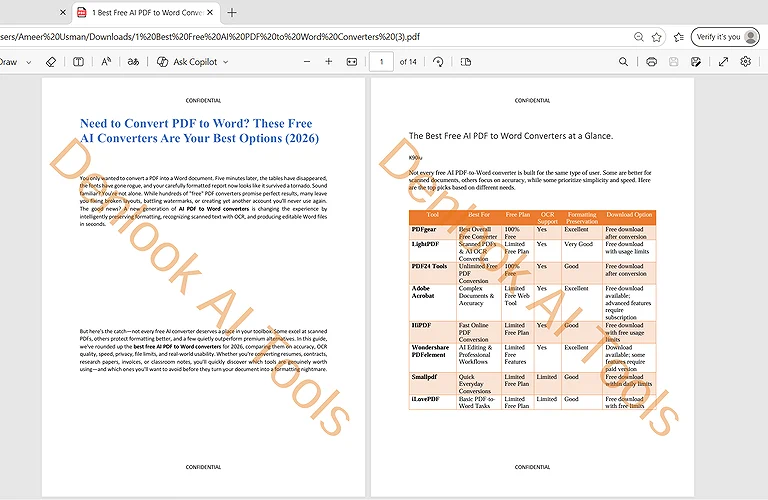
The test PDF with a custom watermark added using PDF24 Tools watermark tool.
Transparency: Yes, the tool provides transparency control from 0.00 to 1.00. Increasing the value from 0 toward 1 makes the watermark more visible and vivid. Decreasing the value makes it more transparent, allowing the original text and content to remain clearer and easier to read.
Logo or Image: it did not support the image or logo for watermark
Size and Rotation: The tool provides flexible controls for both watermark size and rotation. You can adjust the watermark size according to your requirements. For rotation, it supports values from -360° to 360°, allowing you to set the watermark text at different angles.
All Pages or Selected Pages: No, there is no custom page selection control. The watermark is automatically applied to all pages of the PDF.
Multiple PDFs: Yes, the tool supports multiple PDF files at the same time. However, the same watermark settings are applied to all uploaded files and all pages within those files.
Quality: The watermark remains sharp and clear after processing, and the overall PDF quality is preserved. The text does not appear noticeably blurry or pixelated. Its visibility mainly depends on the selected transparency, size, color, and position.
Original Content: The tool preserves the original PDF content accurately without noticeable changes or distortion. The original text, images, formatting, and page layout remain intact after adding the watermark.
Free Limits and Download: There is no daily limit for adding watermarks, whether you process a single PDF or multiple files in a batch. No subscription is required to download the processed files.
Output Controls: The tool also provides several additional customization options. You can select different font styles, including Sans, Serif, and Mono, and apply Bold or Italic formatting. It also provides flexible font size controls and multiple color options. In addition, you can adjust the horizontal and vertical spacing from the page edges using a millimeter scale, giving you greater control over the appearance and placement of the watermark.
iLovePDF
iLovePDF provides an easy way to add text or image watermarks to PDF files, with useful controls for positioning, transparency, page ranges, fonts, colors, and layering.
How to Use iLovePDF for Watermarking
- Open the iLovePDF watermark tool and upload the PDF file you want to edit.
- Choose whether you want to add a text watermark or an image or logo.
- Enter your watermark text or upload your image or logo.
- Select the desired watermark position from the available options.
- Adjust the font, size, color, transparency, rotation, and other available settings.
- Choose the pages where you want to apply the watermark.
- Preview the result to make sure the watermark appears correctly.
- Apply the watermark and download the processed PDF.
iLovePDF: Testing and Results
Text Watermark: Yes, you can add custom text as a watermark. During testing, I added more than 40 words, and the tool supported the text successfully. However, the amount of text displayed on the page depends on the selected font size and the available space. If sufficient space is available, the full text can appear as a watermark.
Position: The tool provides nine watermark positions on the page. These positions are displayed as boxes, and you can select a position by clicking inside the desired box, which is then marked with a circle. The same position options are also shown on the page preview. In addition, iLovePDF provides a Mosaic option. When selected, the watermark is applied across all nine positions on the page with a single click.
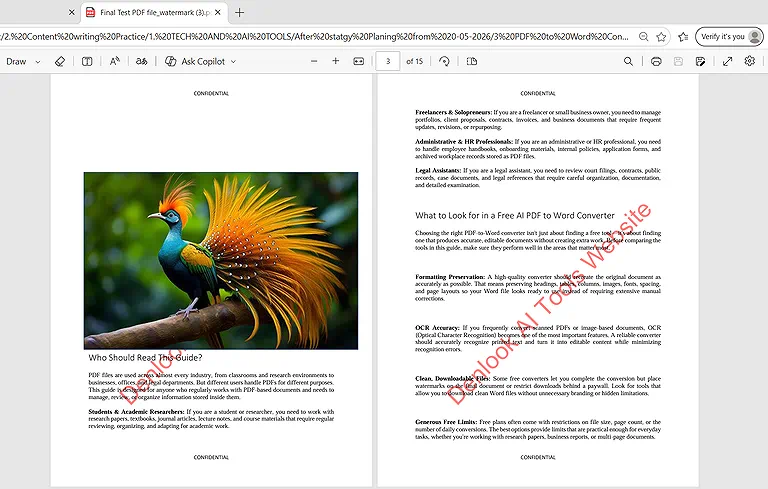
iLovePDF: Watermark controls appear below the text, with image options underneath.
Transparency: Transparency is provided through preset percentage options, including 25%, 50%, 75%, and No Transparency. These options allow you to control how visible the watermark appears over the original PDF content.
Logo or Image: Yes, you can use an image or logo as a watermark. The tool also allows you to apply the available position settings when adding an image or logo watermark.
Size and Rotation: The font size can be adjusted on a scale from 0 to 100. For rotation, the available options are No Rotation, 45°, 90°, 180°, and 270°.
All Pages or Selected Pages: You can control the page range where the watermark is applied. This option is useful for excluding a range of pages from the beginning or end of the PDF. However, it does not provide flexible individual page selection, such as choosing separate pages from different parts of the document.
Multiple PDFs: In the free version, iLovePDF supports processing up to two PDF files per task. The premium version supports up to 10 files per task.
Quality: The watermark remains sharp and clear after processing, and the overall PDF quality is preserved. The watermark text does not appear noticeably blurry or pixelated. Its visibility mainly depends on the selected transparency, size, color, and position.
Free Limits and Download: There is no daily limit for adding watermarks to PDF files. In the free version, you can process single files or up to two files per task. You can also download the processed PDF without requiring a subscription.
Output Controls: iLovePDF provides several customization options for text watermarks. The available font styles include Arial, Impact, Arial Unicode MS, Verdana, Courier, Comic, Times New Roman, Lohit Marathi, and Lohit Devanagari. You can also apply Bold, Italic, and Underline formatting and select from multiple colors. In addition, the tool allows you to control whether the watermark appears in front of the original text or behind it, giving you more control over how the watermark interacts with the existing PDF content.
Smallpdf
Smallpdf provides a simple way to add text watermarks to PDF files, with controls for transparency, font styles, colors, and watermark size.
How to Use Smallpdf for Watermarking
- Open the Smallpdf watermark tool and upload the PDF file you want to edit.
- Enter the text you want to use as a watermark.
- Adjust the watermark size, transparency, font, and color.
- Check the watermark position on the PDF preview.
- Make any necessary adjustments to the watermark appearance.
- Apply the watermark to the PDF.
- Download the processed PDF after watermarking.
Smallpdf: Testing and Results
Text Watermark: Yes, you can add custom text as a watermark. During testing, I added more than 35 words, and the tool supported the text successfully. However, the amount of text displayed on the page depends on the selected font size and the available space. If sufficient space is available, the full text can appear as a watermark.
Position: Smallpdf uses a default watermark position in the center of the page, both horizontally and vertically. The watermark is also placed at a default 45-degree angle. There are no additional position controls available.
Transparency: Smallpdf provides transparency control on a scale from 0 to 100. However, the transparency value can only be increased or decreased incrementally using the mouse controls.
Logo or Image: No, Smallpdf does not provide an option to use a logo or image as a watermark. Only text watermarks are supported.
Size and Rotation: The tool provides flexible font size control, which can be increased or decreased using the available mouse controls. However, there is no separate rotation control, and the watermark remains at its default angle.
All Pages or Selected Pages: No page selection control is available. The watermark is applied to all pages of the PDF. If you do not want certain pages in the final file, you can delete those unwanted pages before processing.
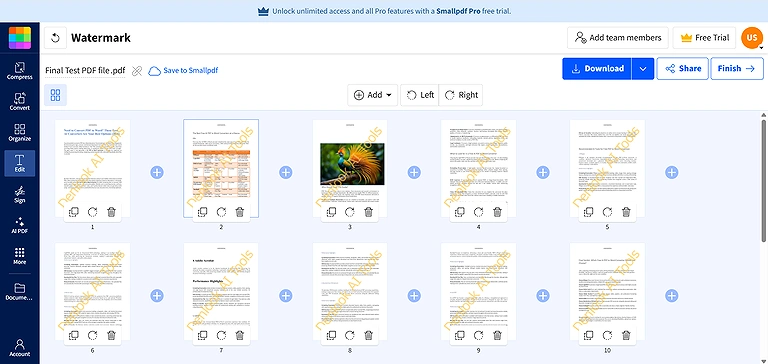
Smallpdf: Watermark preview showing no page control, with the watermark applied to all pages.
Multiple PDFs: Smallpdf has a free limit of 3 files every 20 minutes. You can process all three files at the same time or process them individually within the same 20-minute period.
Quality: The watermark remains sharp and clear after processing, and the overall PDF quality is preserved. The watermark text does not appear noticeably blurry or pixelated.
Free Limits and Download: In the free version, you can add watermarks to up to 3 PDF files every 20 minutes. After reaching this limit, you need to wait 20 minutes before processing additional files. The processed files can be downloaded after watermarking.
Output Controls: Smallpdf provides limited customization options for text watermarks. The available font styles include Arial, Times New Roman, Tahoma, Trebuchet, Courier, Verdana, Georgia, Palatino, and Comic Sans MS. It also provides multiple color options for customizing the appearance of the watermark.
LightPDF
LightPDF provides a simple way to add text watermarks to PDF files, with controls for position, transparency, font size, rotation, colors, and content layering.
How to Use LightPDF for Watermarking
- Open the LightPDF watermark tool and upload the PDF file you want to edit.
- Enter the custom text you want to use as a watermark.
- Select the desired watermark position from the available options.
- Adjust the font size, transparency, rotation, color, and layering settings.
- Preview the watermark on the PDF pages.
- Apply the watermark to the PDF.
- Download the processed PDF after watermarking.
LightPDF: Testing and Results
Text Watermark: Yes, you can add custom text as a watermark. The amount of text displayed on the page depends on the selected font size and the available space. If sufficient space is available, the full text can appear as a watermark.
Position: LightPDF provides nine watermark positions on the page. You can select the desired position by clicking on one of the position boxes, which becomes highlighted after selection.
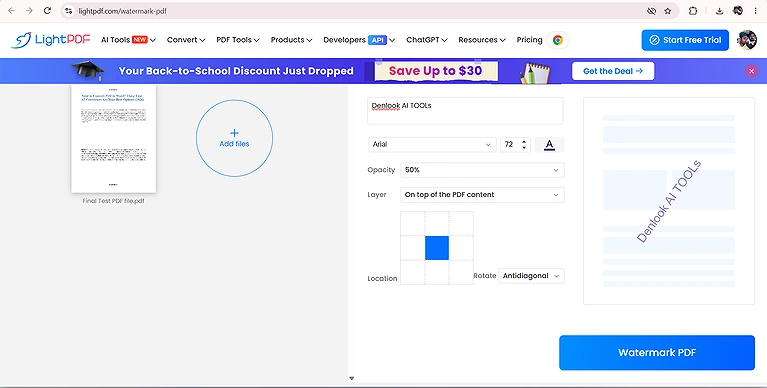
Watermark position controls with a live preview showing how the watermark appears on the page.
Transparency: LightPDF provides preset transparency options of 25%, 50%, 75%, and 100%. It also provides two additional options that allow you to place the watermark either on top of the PDF content or underneath the PDF content.
Logo or Image: No, LightPDF does not provide an option to use a logo or image as a watermark. Only text watermarks are supported.
Size and Rotation: The font size can be adjusted from 0 to 72. For rotation, LightPDF provides three options: No Rotation, Diagonal, and Anti-Diagonal.
All Pages or Selected Pages: No page selection control is available. The watermark is applied to all pages of the PDF. If you do not want certain pages in the final file, you need to remove those unwanted pages before processing.
Multiple PDFs: In the free version, LightPDF supports processing one file at a time.
Quality: The watermark remains sharp and clear after processing, and the overall PDF quality is preserved. The watermark text does not appear noticeably blurry or pixelated. Its visibility mainly depends on the selected transparency, font size, color, and position.
Free Limits and Download: In the free version, you can add watermarks to up to 3 PDF files per day. After reaching this limit, you need to wait until the next day before processing additional files. The processed files can be downloaded after watermarking.
Output Controls: LightPDF provides a wide range of font options and multiple colors for customizing text watermarks. The available fonts include Arial, Arial Black, Arial Narrow, Book Antiqua, Brush Script MT, Calibri, Cambria, Candara, Century Gothic, Consolas, Courier New, Franklin Gothic Medium.
PDF Candy
PDF Candy provides a convenient way to add text or image watermarks to PDF files, with controls for position, transparency, size, colors, and watermark appearance.
How to Use PDF Candy for Watermarking
- Open the PDF Candy watermark tool and upload the PDF file you want to edit.
- Choose whether you want to add a text watermark or an image or logo.
- Enter your watermark text or upload the image or logo.
- Adjust the watermark position, transparency, size, and other available settings.
- Choose whether to skip the first or last page if needed.
- Preview the watermark to check its appearance.
- Apply the watermark to the PDF.
- Download the processed PDF.
PDF Candy: Testing and Results
Text Watermark: Yes, you can add custom text as a watermark. The amount of text displayed on the page depends on the selected font size and the available space. If sufficient space is available, the full text can appear as a watermark.
Position: PDF Candy provides position controls for placing the watermark on the page. You can adjust the watermark position according to your requirements using the available placement controls.
Transparency: The transparency range is from 0 to 100. You can adjust the transparency by moving the control from left to right. This allows you to make the watermark more or less visible over the original PDF content.
Logo or Image: Yes, PDF Candy supports using an image or logo as a watermark. This provides an alternative to using text when you want to add a visual watermark to the document.
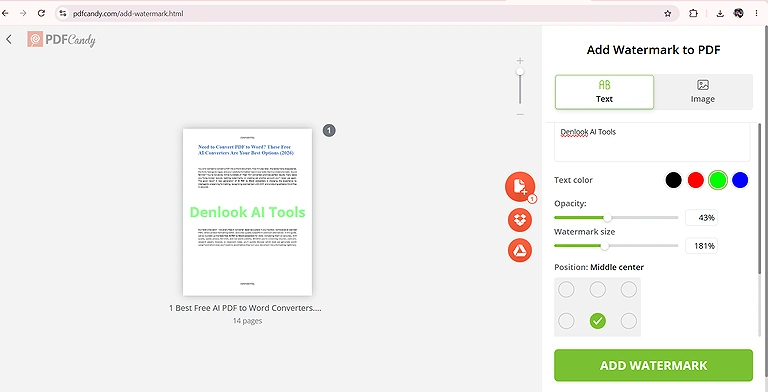
PDF Candy showing watermark control with fixed positions and also image to add as watermark
Size and Rotation: The watermark size can be adjusted from 100 to 300, allowing you to increase its size according to your requirements. No separate rotation controls were available during testing.
All Pages or Selected Pages: The tool does not provide individual page selection. You can only choose to skip the first page or the last page of the PDF when applying the watermark.
Multiple PDFs: PDF Candy supports one PDF file at a time for watermarking.
Quality: The watermark remains sharp and clear after processing, and the overall PDF quality is preserved. The watermark text does not appear noticeably blurry or pixelated.
Free Limits and Download: In the free version, PDF Candy allows you to watermark one PDF file per day. The processed file can be downloaded after adding the watermark.
Output Controls: PDF Candy provides limited customization options for text watermarks. It does not provide font style options, and only four watermark colors are available: black, red, green, and blue.
Things to Avoid When Adding a PDF Watermark
Large Watermark: Avoid covering important content with an oversized watermark.
High Opacity: Use suitable transparency so the watermark doesn't distract from content.
Poor Placement: Keep watermarks away from important text, tables, and images.
Wrong Color: Choose a subtle color that keeps the document readable.
Ignoring Page Selection: Check which pages should receive the watermark before processing.
Skipping Preview: Preview the watermark to check its position, size, and appearance.
Wrong Text: Check the watermark wording and spelling before applying it.
Quality Issues: Open the finished PDF to confirm the original quality remains intact.
Free Limits: Check file and daily limits before processing multiple PDFs.
Poor Logo Quality: Use a clear logo at a suitable size and transparency
Do You Need a Paid PDF Watermark Tool?
For occasional watermarking, the free versions are usually enough. Paid plans become useful when you regularly process more files or need higher limits.
| Tool Name | When to Use Free | When to Use Paid |
| iLovePDF | Up to 2 PDFs per task | More than 2 PDFs per task |
| Smallpdf | Up to 3 PDFs every 20 minutes | More than 3 PDFs within 20 minutes |
| LightPDF | Up to 3 PDFs per day | More than 3 PDFs per day |
| PDF Candy | 1 PDF per day | More than 1 PDF per day |
| PDF24 Tools | Free with no file limits | Not necessary for basic watermarking |
Overall: You don't need a paid tool if you only watermark a few PDFs occasionally. Free limits are generally sufficient for personal and occasional use. Paid plans make more sense for frequent or higher-volume PDF watermarking.
FAQs
Can I add a watermark to a password protected PDF?
Most PDF watermark tools require access to the document before processing it. If the PDF has password restrictions, you may need to unlock it first or remove editing restrictions before adding a watermark.
Can I watermark a PDF without changing its file format?
Yes. Online PDF watermark tools normally process the existing document and provide the finished file as a PDF. This lets you add a watermark without converting the document to another format.
Can I add different watermarks to different pages?
Some PDF watermark tools support selected pages or page ranges, allowing different processing for different sections. However, many free tools apply the same watermark settings throughout the selected pages.
Can I watermark a PDF on my phone?
Yes. Many online PDF watermark tools work through mobile browsers, allowing you to upload a PDF, customize the watermark, process the document, and download the finished file without desktop software.
Does adding a watermark increase PDF file size?
Adding a watermark can increase the file size slightly, particularly when using a logo or image. Text watermarks usually have a smaller effect because they require less additional data.
Can I remove a watermark after adding it?
If you keep the original PDF, you can simply use that version without the watermark. Removing an embedded watermark from the processed PDF may require a dedicated PDF editing or removal tool.
Can I add a watermark to multiple PDF pages at once?
Yes. Many PDF watermark tools can apply one watermark to multiple pages automatically. This is useful when you want consistent branding, ownership information, or document status across an entire PDF.
Is a text watermark better than a logo watermark?
A text watermark is usually better for simple ownership or status labels, while a logo works well for branding. Your choice depends on whether readability or visual identification is more important.
Can I add a watermark behind PDF text?
Some PDF watermark tools let you place the watermark behind the original content. This can be useful when you want branding or identification without significantly affecting the readability of text and images.
Will a watermark prevent someone from copying my PDF?
No. A watermark mainly identifies, brands, or labels a document. It doesn't completely prevent copying, screenshots, editing, or redistribution, so it shouldn't be treated as a complete document security measure.
Can I use a transparent watermark on a PDF?
Yes. Transparency makes a watermark less distracting while keeping it visible. It is particularly useful for documents containing dense text, tables, images, or other content that shouldn't be obscured.
Can I watermark a PDF with a company logo?
Yes. Tools that support image watermarks allow you to upload a company logo and place it within the PDF. Using a transparent, high-quality logo usually produces a cleaner professional result.
Can I add a watermark to a PDF for copyright purposes?
Yes. A watermark can display copyright information, ownership details, or a company name directly on the document. However, adding one doesn't replace formal copyright protection or legal registration requirements.
Conclusion
Adding a watermark to a PDF doesn't have to cost money. The tools tested in this guide provide useful options for adding text, logos, adjusting placement, and controlling transparency. For occasional use, their free limits are generally enough.
Among the tested options, iLovePDF and PDF24 Tools offer broader watermarking controls, while Smallpdf and LightPDF work well for simpler text watermarks. PDF Candy is another useful option when you need image watermarks. Your best choice depends on the features and processing limits you need.