.webp)
What Is an Interface IP Address and Why Is It Important?
Every device that connects to a network needs a way to communicate with other devices. Computers, phones, routers, servers, and other networked devices may use different connections, including Ethernet, Wi-Fi, VPNs, and virtual adapters. When a device has multiple connections, understanding how each one communicates becomes important for network configuration and troubleshooting.
Interface IP addresses play an important role in identifying and managing these network connections. They help determine which interface is being used for network communication and can be useful when diagnosing connection problems or configuring a device. In this guide, we'll explain what an interface IP address is, why it is important, how it differs from a private IP address, and how to find it.

 Updated: September 07, 2026 | 18 min read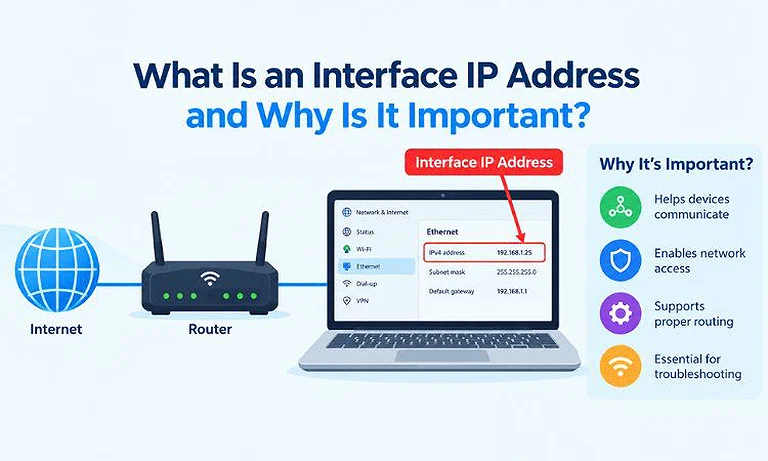
Cover Photo What Is an Interface IP Address and Why Is It Important?
What Is an Interface IP Address?
An interface IP address is an IP address assigned to a specific network connection on a device. For example, a laptop may connect to a network through Wi-Fi or an Ethernet cable. Each connection is a separate network interface and can have its own IP address.
For example, if a laptop is connected through both Wi-Fi and Ethernet, it might have these addresses:
Wi-Fi: 192.168.1.20
Ethernet: 192.168.1.35
Both IP addresses belong to the same laptop because they are assigned to its two different network interfaces. Even when both the Wi-Fi and Ethernet connections are connected to the same router, the router can assign a different IP address to each interface. In this example, 192.168.1.20 is assigned to the Wi-Fi interface, while 192.168.1.35 is assigned to the Ethernet interface. These are IPv4 addresses, which were historically organized into different IP address classes based on network size.
What Is the Difference Between Private IP and Interface IP?
A private IP address is an IP address that a device uses to communicate within a private network. An interface IP can be static or dynamic, depending on how the network assigns the address. On a typical home network, the router assigns a private IP address to the device through DHCP. For example, a router may assign your laptop the private IP address 192.168.1.20.
An interface, on the other hand, is the network adapter or card through which the device connects to a network. A laptop can have different interfaces, such as a Wi-Fi adapter/card and an Ethernet adapter/card. Each interface can have its own IP address.
For example, a laptop connected to the same router through both Wi-Fi and Ethernet could have:
Wi-Fi interface: 192.168.1.20/24
Ethernet interface: 192.168.1.35/24
Here, both 192.168.1.20/24 and 192.168.1.35/24 are private IP addresses used within the local network. The /24 is CIDR notation, which indicates the network prefix length. They are also interface IP addresses because each address is assigned to a specific interface on the laptop.
In simple terms, the private IP is the address, while the network interface is the network adapter/card that uses that address. For example, 192.168.1.20/24 can be the private IP assigned to your laptop's Wi-Fi adapter/card, while 192.168.1.35/24 can be assigned to its Ethernet adapter/card.
What Is a Network Interface? Types and Examples
A network interface is a physical or virtual part of a device that connects it to a network. Common examples include Wi-Fi and Ethernet interfaces. Each interface can have its own IP address. There are two main types of network interfaces: physical and virtual.
1 Physical Network Interfaces
A physical network interface uses hardware to connect a device to a network. Common examples are Wi-Fi and Ethernet adapters. Wi-Fi provides a wireless connection, while Ethernet uses a network cable.
For example, a laptop can have both a Wi-Fi and an Ethernet interface. When both are connected to a network, each interface can have its own IP address.
2 Virtual Network Interfaces
A virtual network interface is created by software rather than physical networking hardware. It provides a network connection for specific purposes without requiring a separate physical adapter.
Common examples include VPN, loopback, virtual machine, container, bridge, and VLAN interfaces. These interfaces can also have their own IP addresses. For example, connecting to a VPN can create a virtual interface with an IP address used for the VPN connection.
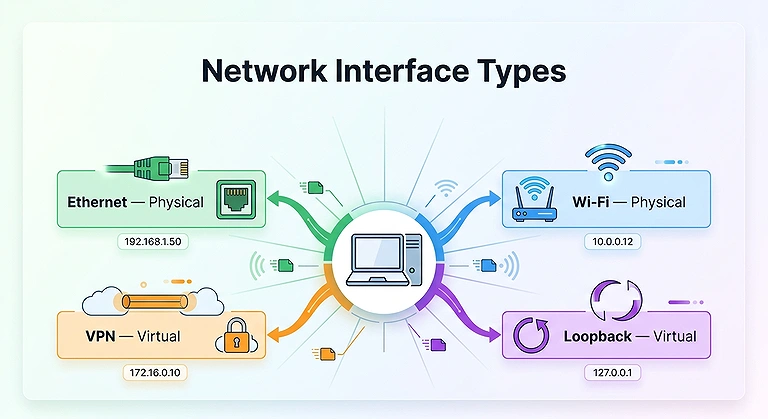
Physical and virtual network interfaces with their IP addresses connected to a central computer.
How Does a Network Interface Get an IP Address?
A network interface can get an IP address automatically from the network or have one assigned manually. The method depends on how the network and device are configured. There are three common ways an interface can get an IP address: DHCP, static configuration, and automatic private IP addressing.
1 DHCP Assigned IP Addresses
DHCP, or Dynamic Host Configuration Protocol, automatically assigns network settings to an interface. Most home and office networks use DHCP to configure connected devices.
When a device connects to a network, its interface requests an IP address from a DHCP server. On a typical home network, the router acts as the DHCP server and can provide the interface with an IP address, subnet mask, default gateway, and DNS server addresses.
For example, a router may assign 192.168.1.25 to a laptop's Wi-Fi interface. The address can change later because DHCP assigns addresses for a specific lease period.
2 Static IP Addresses
A static IP address is manually assigned to a network interface instead of being automatically assigned by DHCP. The address normally remains the same until someone changes the network settings.
Static IP addresses are commonly used for:
- Servers
- Network printers
- Security cameras
- Network devices
- Remote access systems
For example, an administrator may manually assign 192.168.1.100 to an Ethernet interface. The interface will continue using this address unless its network settings are changed.
3 Automatic Private IP Addressing
If an interface cannot get an IP address from a DHCP server, the operating system may automatically assign it a local IPv4 address. On Windows, this can be an address from the 169.254.0.0/16 range.
An address in this range can indicate that the interface could not obtain a normal IP configuration from the network.
Can One Interface Have Multiple IP Addresses?
Yes. A single network interface can have multiple IP addresses at the same time.
For example, an Ethernet interface could have multiple IPv4 addresses:
192.168.1.20
192.168.1.21
The same interface can also have multiple IPv6 addresses. An interface can even have both IPv4 and IPv6 addresses simultaneously.
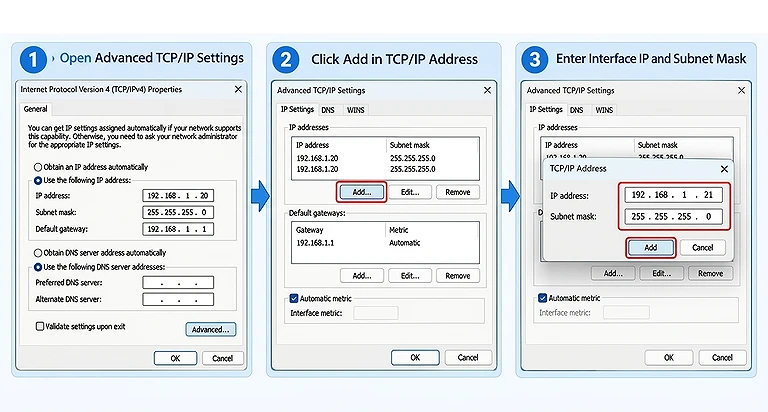
Image showing how to add multiple IP addresses to a single network interface using the same subnet mask.
Multiple IP addresses on one interface can be useful for:
- Hosting multiple services
- Running servers
- Supporting different networks
- Migrating network configurations
- Virtualized environments
For example, the same Ethernet interface might use an IPv4 address such as 192.168.1.20 and one or more IPv6 addresses at the same time. This is possible because IPv4 and IPv6 are separate network protocols, and modern operating systems can support both on the same interface.
Interface IP vs Device IP
The terms interface IP and device IP are sometimes used interchangeably, but they don't always mean exactly the same thing. An interface IP specifically refers to an IP address assigned to a particular network interface. Device IP is a broader, informal term for an IP address associated with a device.
For example, a computer could have these network interfaces:
| Network Interface | IP Address |
| Ethernet | 192.168.1.20 |
| Wi-Fi | 192.168.1.35 |
| VPN | 10.8.0.2 |
In this example, the computer has three interface IP addresses. Each address is associated with a different network interface.
Therefore, saying that a device has “one IP address” can be misleading. A device can have multiple IP addresses when it has multiple network interfaces. It can also have multiple addresses on the same interface in some configurations.
In simple terms, an interface IP identifies the address assigned to a specific network interface, while device IP is a general way of referring to an IP address associated with the device.
Interface IP vs MAC Address
An interface IP address and a MAC address are both associated with network interfaces, but they serve different purposes. A MAC address provides hardware-level identification for communication on a local network, while an IP address provides logical addressing for communication across IP networks.
A MAC address operates at the data link layer (Layer 2) and is associated with a specific network interface. An IP address operates at the network layer (Layer 3) and identifies the interface's logical network address.
For example:
MAC address:
00:1A:2B:3C:4D:5E
IPv4 address:
192.168.1.20
The MAC address is used to deliver Ethernet frames within the local network, while the IP address identifies the logical source or destination for IP communication.
In simple terms, the MAC address identifies the network interface at the local network level, while the IP address provides a logical address used to deliver data to the correct network destination.
What Is a Loopback IP Address?
A loopback IP address is an IP address that allows a device to communicate with itself. Traffic sent to a loopback address stays within the device instead of being sent through a physical network interface.
The standard loopback addresses are:
IPv4: 127.0.0.1
IPv6: ::1
For example, when you open 127.0.0.1 in a web browser, the request is sent back to the same computer. Developers and network administrators commonly use loopback addresses to test network applications and services without connecting to another device.
The loopback interface is a virtual network interface, so it doesn't require Ethernet, Wi-Fi, or another physical network adapter.
How to Find an Interface IP Address on Windows
You can find the IP address assigned to a network interface using Windows network settings, Command Prompt, or PowerShell. These methods are the same ones used to find a computer's private IP address.
The important difference is that you need to identify which network interface the address belongs to. In Command Prompt, for example, ipconfig groups the IP address under adapters such as Ethernet, Wireless LAN, and VPN.
If you need detailed steps, see our guide on how to find a private IP address on Windows, which explains these methods step by step.
How to Find an Interface IP Address on macOS and Linux
You can find interface IP addresses on macOS and Linux using their built-in network tools. If you already know how to find a device's private IP address, the main difference here is identifying which interface the address belongs to.
1 On macOS
macOS shows interface IP addresses through System Settings and Terminal. In Terminal, the ifconfig command displays network interfaces along with their IP addresses.
For example, you may see interfaces such as en0 or en1, depending on the Mac model and network configuration. The output shows the IPv4 and IPv6 addresses associated with each interface.
2 On Linux
Linux provides several commands for viewing interfaces and their IP addresses. The commonly used command is:
ip addr
The output lists network interfaces and the IPv4 and IPv6 addresses assigned to them. Interface names can vary between systems. For example, you may see names such as:
eth0
wlan0
enp0s3
wlp2s0
The interface name identifies the network adapter or virtual interface, while the addresses listed beneath it show the IP addresses assigned to that interface. For detailed macOS steps, see our guide on how to find a private IP address on Mac.
How to Find an Interface IP Address on a Router
Routers have multiple network interfaces because they connect different networks. Each interface can have its own IP address and serve a different networking purpose.
Common router interfaces include:
- WAN interface
- LAN interface
- VLAN interfaces
- Loopback interface
- Wireless interfaces
For example, a home router might have:
LAN interface: 192.168.1.1
WAN interface: An IP address provided or assigned through the ISP's network.
The LAN interface provides the router's address on the local network, while the WAN interface provides connectivity to the external network.
To view these addresses, first access your router's administration interface. Once logged in, look for sections such as Network, LAN, WAN, Interfaces, or Status. The exact names and available interfaces vary between router models. For detailed instructions, see our guide on how to access your router's administration panel.
What Is a Virtual Interface IP?
A virtual interface IP is an IP address assigned to a network interface created by software rather than physical networking hardware. These interfaces allow software-based network connections to communicate using standard IP networking.
For example, when you connect to a VPN, the VPN software may create a virtual network interface and assign it an IP address. Similarly, virtual machines, containers, tunnels, and network bridges can use virtual interfaces with their own IP configurations.
For example:
VPN interface: 10.8.0.2
Virtual machine interface: 192.168.100.10
Loopback interface: 127.0.0.1
Virtual interface IPs are useful because they allow separate network environments or services to communicate without requiring a dedicated physical network adapter.
Interface IP and Subnet Mask
An IP address alone doesn't tell the device which addresses are on its local network. The interface also needs a subnet mask or network prefix to determine the network associated with the address.
For IPv4, this information is commonly expressed using a subnet mask.
For example:
IP Address: 192.168.1.25
Subnet Mask: 255.255.255.0
The subnet mask tells the device which portion of the IP address identifies the network and which portion identifies the host. With this configuration, the interface is on the 192.168.1.0/24 network.
The same IPv4 configuration can be written using CIDR notation:
192.168.1.25/24
Here, /24 represents the network prefix length. If you need to calculate subnet masks, network ranges, or CIDR details, use our Subnet Mask Calculator.
The subnet configuration helps the device determine whether a destination is on the local network or requires routing through a gateway.
For example, two devices may have similar-looking addresses but belong to different networks if their subnet configurations differ.
Interface IP and Default Gateway
An interface IP address identifies the device on a network, while the default gateway provides a path to destinations outside that local network. The subnet mask helps the device determine whether a destination is local or remote.
For example:
Interface IP: 192.168.1.25
Subnet Mask: 255.255.255.0
Default Gateway: 192.168.1.1
With this configuration, a destination such as 192.168.1.50 is on the same 192.168.1.0/24 network, so the device can communicate with it directly through the local network.
If the destination is outside the local network, the device typically sends the traffic to 192.168.1.1, which acts as the default gateway. In many home networks, this address belongs to the router's LAN interface.
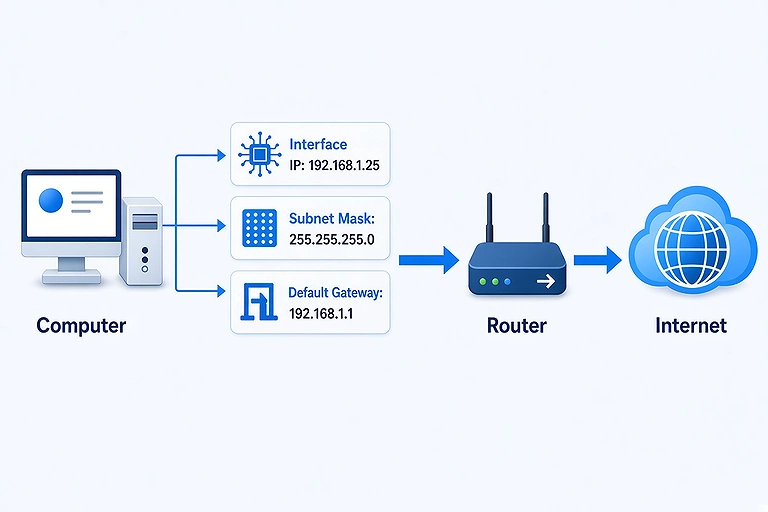
A computer’s Interface IP, Subnet Mask, Default Gateway connecting through the Router to Internet.
What Happens When a Device Has Multiple Interfaces?
A device with multiple network interfaces can communicate through different networks or connections. For example, a laptop may have Ethernet, Wi-Fi, and a VPN interface active at the same time. Each interface can have its own IP address. For example:
| Network Interface | IP Address |
| Ethernet | 192.168.1.20 |
| Wi-Fi | 192.168.1.35 |
| VPN | 10.8.0.2 |
When multiple interfaces are available, the operating system uses routing information to determine which interface should handle outgoing traffic.
For example, Ethernet may be used for normal internet traffic because it has the preferred default route. Meanwhile, the VPN interface may handle traffic destined for a private corporate network.
Multiple interface IP addresses don't necessarily cause a conflict because the operating system uses routing rules and network configuration to determine where different types of traffic should go.
Can a Network Interface Have No IP Address?
Yes. A network interface doesn't always have an IP address. An interface can operate without an IP address, depending on how it is configured and what role it performs.
An interface may have no IP address when:
- The interface is disabled.
- DHCP hasn't assigned an address.
- The interface hasn't been configured.
- The interface is used only for Layer 2 networking.
- The interface is part of a bridge or other network configuration that doesn't require its own IP address.
For example, an Ethernet adapter can be physically installed but have no IP address if it hasn't been configured or cannot obtain an address through DHCP.
A network switch also provides a useful example. Switch ports can forward Ethernet frames at Layer 2 without each port requiring an IP address. The switch itself may have a management IP address, but that address isn't required for normal frame forwarding.
Common Interface IP Address Problems and Solutions
Incorrect or missing IP configuration can prevent a network interface from communicating properly. Common problems include missing addresses, incorrect network settings, duplicate addresses, and DHCP failures.
1 Interface Has No IP Address
An interface may not have an IP address if it cannot obtain one automatically or hasn't been configured manually. Common causes include:
- Disconnected Ethernet cable
- Wi-Fi connection problems
- DHCP server failure
- Disabled network interface
- Incorrect network configuration
- Checking the interface status and IP configuration can help identify the cause.
2 Incorrect IP Address
An incorrectly configured IP address can prevent an interface from communicating with other devices. For example, a device configured with 192.168.2.20 may not communicate properly with a network using 192.168.1.0/24.
To resolve the problem, check that the interface has an IP address appropriate for the network. If the address is assigned manually, correct the static configuration. If DHCP is being used, check the DHCP server and renew the network configuration.
3 Duplicate IP Address
A duplicate IP address occurs when two devices on the same network use the same IP address. This can cause intermittent connectivity, failed connections, or unreliable communication between devices.
To resolve the conflict, identify the devices using the duplicate address and assign one of them a different IP address. Using DHCP for automatic addressing or carefully managing static addresses can help prevent duplicate IP conflicts.
4 Incorrect Subnet Mask
An incorrect subnet mask can cause an interface to incorrectly determine which IP addresses belong to its local network. This can prevent the device from communicating properly with local devices or its default gateway.
To fix the problem, check that the subnet mask matches the network's configuration. For example, a typical 192.168.1.0/24 network uses 255.255.255.0 as its subnet mask. Correcting the mask allows the device to properly identify local and remote destinations.
5 Missing Default Gateway
An interface can communicate with devices on its local network without a default gateway. However, it normally needs a valid default gateway to send traffic to destinations outside the local network.
To resolve the problem, check that the interface has the correct default gateway for the network. On a typical home network, this is usually the router's LAN IP address. Correcting the gateway can restore access to the internet and other networks.
6 DHCP Failure
A DHCP failure prevents an interface from receiving automatic network settings. Depending on the operating system, the interface may receive an automatically assigned link-local address instead.
Possible solutions include reconnecting to the network, restarting the router or DHCP service, and renewing the DHCP lease. If the problem continues, checking the DHCP server and network configuration can help identify the cause.
FAQ
Can an interface have both private and public IP addresses?
Yes. An interface can have multiple addresses with different scopes. For example, a router's WAN interface may use a public IPv4 address while its LAN interface uses a private address.
Can an interface have more than one subnet?
Yes. An interface can be configured with addresses from different subnets. This setup is sometimes used on servers, routers, and specialized network configurations where one interface needs to communicate with multiple networks.
Can two interfaces use the same IP address?
Normally, two active interfaces on the same device shouldn't use the same IP address. Duplicate addresses can create routing and connectivity problems, although specialized configurations may intentionally use shared addresses.
Does every network interface need an IP address?
No. Some interfaces can operate without an IP address. For example, an Ethernet interface may function at the data-link layer, while certain bridge or monitoring configurations don't require an IP address.
Can an interface IP address change?
Yes. An interface's IP address can change when network configuration changes, a DHCP lease is renewed, the device connects to another network, or an administrator manually assigns a different address.
What happens if an interface loses its IP address?
The interface may remain physically connected but lose normal IP connectivity. Applications using that interface may become unreachable until the operating system obtains or receives another valid IP configuration.
Can an interface have multiple default gateways?
An interface can be configured with gateway information, but having multiple default routes requires routing rules and metrics to determine which route should be preferred. Poor configuration can cause unexpected traffic paths.
Are interface IP addresses visible to other devices?
It depends on the address and network. A private interface IP is generally visible to devices on the same network, while addresses on isolated or virtual interfaces may only be reachable within specific network environments.
Does disabling an interface remove its IP address?
Disabling an interface stops it from actively communicating through that interface. Its configured IP information may remain stored, but the address isn't usable for normal network communication until the interface becomes active again.
Can a virtual interface work without physical network hardware?
Yes. Virtual interfaces are created and managed by software, so they don't require their own physical adapter. They can provide networking for VPNs, virtual machines, containers, bridges, and other software-defined environments.
Conclusion
An interface IP address identifies the IP address assigned to a specific network interface. A device can have multiple interfaces, such as Ethernet, Wi-Fi, VPN, or loopback, and each interface can have one or more IP addresses. These addresses allow the device to communicate across different networks and network configurations.
Understanding how interface IP addresses work makes network configuration and troubleshooting easier. It helps you identify which interface is using an address, understand how traffic is routed, and diagnose problems involving incorrect IP addresses, subnet settings, gateways, or DHCP. This knowledge is particularly useful when managing routers, servers, virtual networks, and devices with multiple interfaces. If you need to identify devices and their IP addresses across a local network, you can also use Advanced IP Scanner.