.webp)
How to Find a Printer's IP Address: 6 Easy Methods
Finding your printer's IP address can help when your computer cannot find the printer, you need to connect it manually, or you want to open its network settings. You may also need the IP address to troubleshoot connection problems or check whether the printer is connected to the correct network. The steps can vary by printer model and connection type.
To make the process easier, this guide brings together six reliable ways to locate the address without requiring model-specific instructions for every printer. You can check the printer, use a network report, look through Windows or Mac, check your router, or use Command Prompt. These options cover most common home and office network setups.

 Updated: September 03, 2026 | 15 min read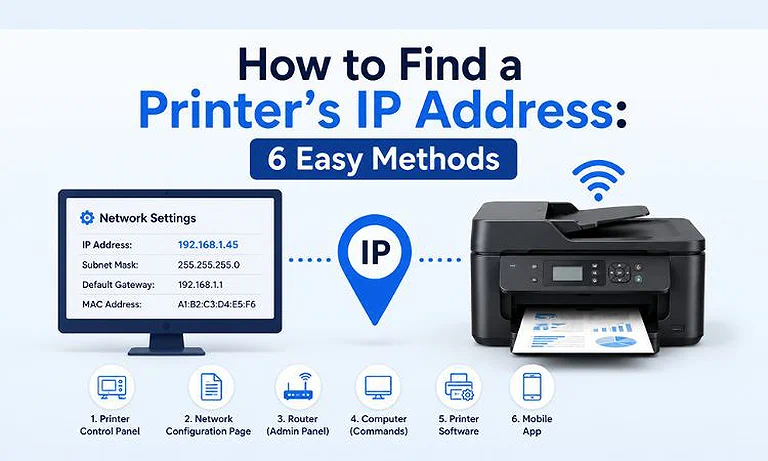
Cover Photo How to Find a Printer's IP Address: 6 Easy Methods
What Is a Printer's IP Address?
A printer's IP address identifies it on your local network. A network-connected printer usually receives this address automatically from your router through DHCP when connected by Wi-Fi or Ethernet.
For example, a printer might have an IPv4 address such as 192.168.1.26. This address is different from your computer's IP address, even though both devices can connect to the same router.
If your network doesn't use DHCP, you can usually assign an IP address manually through the printer's network settings. The printer and computer must use compatible IP addresses and the same subnet to communicate.
If your printer connects directly to your computer through a USB cable, it normally doesn't need a network IP address because the devices communicate directly. If you need a detailed explanation of private and public IP addresses, see our guide to private IP addresses.
Check Before Finding Your Printer's IP Address
First, make sure your printer is connected to your home or office network through Wi-Fi or Ethernet interface. A printer connected only through USB usually doesn't need a network IP address.
If you're using Windows, Mac, or your router to find the printer, make sure your computer and printer are connected to the same local network. Otherwise, the printer may not appear or its IP address may be difficult to identify.
1. Check the Printer's Control Panel or Display
If your printer has a touchscreen or LCD display, you can often find its IP address directly from the printer. This is usually one of the quickest methods because you don't need to use your computer or router.
The menu names vary by printer model. Look for options such as Network, Network Settings, LAN Settings, Wireless, Network Information, or TCP/IP.
General Steps
- Turn on the printer and make sure it is connected to Wi-Fi or Ethernet.
- Open Settings, Network Settings, or a similar menu.
- Select Network, Wireless, LAN, or TCP/IP settings.
- Look for IPv4 Address or IP Address.
- Write down the displayed IP address.
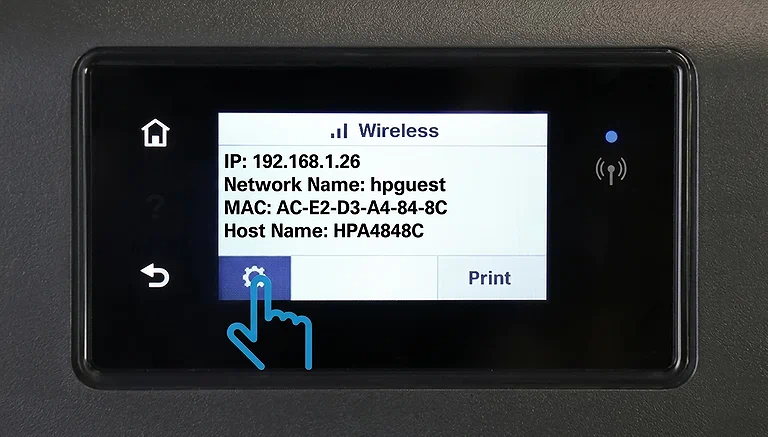
Printer control panel displaying the wireless network status and IP address 192.168.1.26.
For example, Canon places network information under LAN settings on several network-capable printers. Supported Canon models can display the IP address on the operation panel or provide it through a printed network settings report.
HP also provides network information directly on the control panel of supported printers. For example, the HP OfficeJet Pro MFP X476/X576 can show the IP address by selecting the Network icon. Some HP touchscreen models also provide the address under Wireless Summary or Network Settings.
If You Can't Find the IP Address
Don't assume your printer doesn't have an IP address. Your model may use a different menu name, or it may not display the address directly on the screen.
If you can't find it, use the next method to print a network configuration or status page. These reports typically show the printer's IPv4 address along with other network details.
2. Print a Network Configuration or Status Page
If your printer doesn't display its IP address on the screen, printing a network report is another reliable way to find it. These reports are especially useful because they usually show the printer's current network information in one place.
Depending on the printer manufacturer and model, the page may be called:
- Network Configuration Page
- Network Configuration Report
- Network Status Sheet
- Network Information
- Configuration Report
- Wireless Network Report
The report usually shows the printer's IPv4 address. It may also include the subnet mask, default gateway, MAC address, network name (SSID), and connection status.
HP Printers
HP provides network report options on many network-connected printers. For example, the HP Officejet Pro MFP X476/X576 can print a Network Configuration Page from Setup → Print Reports → Network Configuration Page.
Some older HP models uses similar options. HP documents this method for models such as the Desk Jet 3520, Desk Jet 4640, and Officejet 4630.
The exact menu can vary by model, so look for Reports, Print Reports, Network Configuration, or a similar option.
Brother Printers
Many Brother network printers can print a Network Configuration Report. The report typically includes the printer's IP address along with information such as the subnet mask, node name, and MAC address.
Brother documents this option for models including the HL-L2390DW, DCP-L2550DW, MFC-L2690DW, MFC-L2710DW, HL-L2395DW, MFC-L2730DW, and MFC-L2750DW. It is also available on many business-oriented models.
Canon Printers
Canon provides network-information printouts on many supported printers. For example, the MAXIFY MB2700 series can print its current network settings, including the IPv4 address, subnet mask, default gateway, SSID, and MAC address.
Several Canon series, including the G7000, GM2000, and TS8300, also provide options to display or print network settings.
Epson Printers
Many Epson network printers can print a Network Status Sheet containing their network information. After printing the sheet, look for IP Address, IPv4 Address, or similar network information.
The exact procedure varies by model, so check the printer's network or settings menu if you don't see an obvious print option.
What If the Report Shows 0.0.0.0?
If the printer's network report shows 0.0.0.0 as its IP address, the printer has not obtained a usable network address.
First, check that the printer is connected to Wi-Fi or Ethernet and connected to the correct network. Wait briefly, then print the network report again.
If it still shows 0.0.0.0, restart the printer's network connection and check its network settings. You can also use the next methods to look for the printer from Windows, Mac, or your router.
3. Find the Printer's IP Address in Windows
If your printer is already connected to your network and installed in Windows, you may be able to find its IP address through the printer's port settings. This method is useful when you don't want to access the printer's control panel or print a network report.
Windows 11
- Open Settings.
- Select Bluetooth & devices.
- Select Printers & scanners.
- Select your printer.
- Select Printer properties.
- Open the Ports tab.
- Find the port currently selected for your printer.
- If it is a Standard TCP/IP Port, select Configure Port.
- Check the Printer Name or IP Address field for the printer's IP address.
For example, if the port shows 192.168.1.26, that is the IP address Windows is using for the printer.
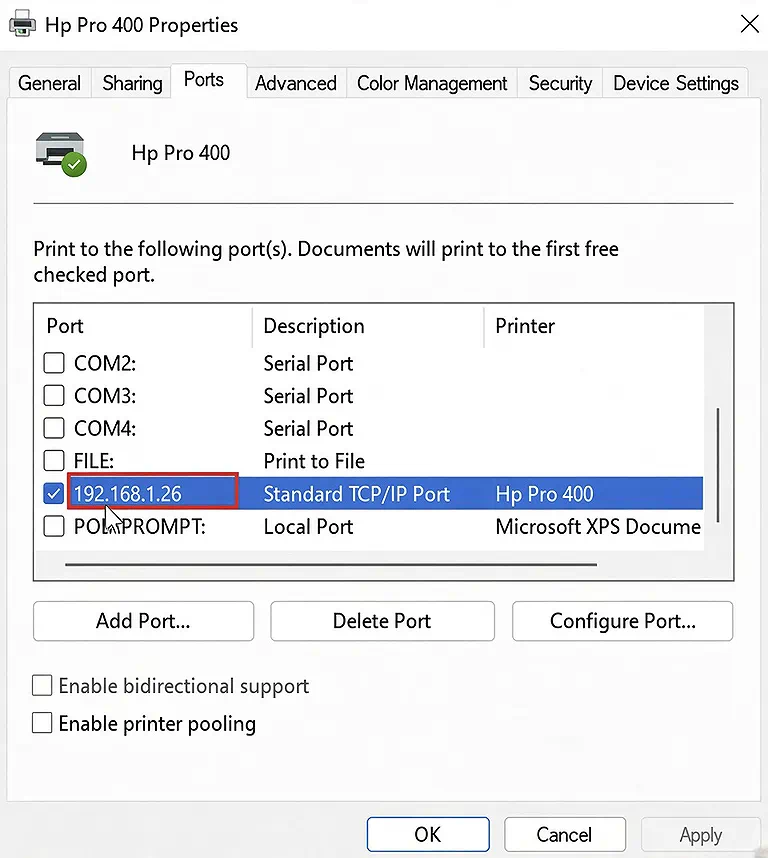
Windows printer properties showing Hp Pro 400 configured on TCP/IP port 192.168.1.26.
Windows 10
- Open Settings.
- Select Devices.
- Select Printers & scanners.
- Select your printer.
- Select Manage.
- Choose Printer properties.
- Open the Ports tab.
- Find the selected printer port.
If it is a Standard TCP/IP Port, select Configure Port to view the IP address.
Important Limitation
This method doesn't work the same way for every printer. A network printer using a Standard TCP/IP Port will usually show its IP address in the port settings.
However, printers installed through USB don't use a network IP address for that USB connection. Some printers installed through WSD or other automatic discovery methods may also not show a simple IP address in the port settings.
If Windows doesn't show a useful IP address, use the printer's network configuration report or check your router's connected-device list instead.
4. Find the Printer's IP Address on a Mac
If your printer is connected to the same network as your Mac, you may be able to find its network details through Printers & Scanners. However, macOS doesn't always display the printer's current IP address in the printer list.
Try These Steps First
- Open the Apple menu.
- Select System Settings.
- Select Printers & Scanners.
- Select your network printer.
- Check the available printer information and connection details.
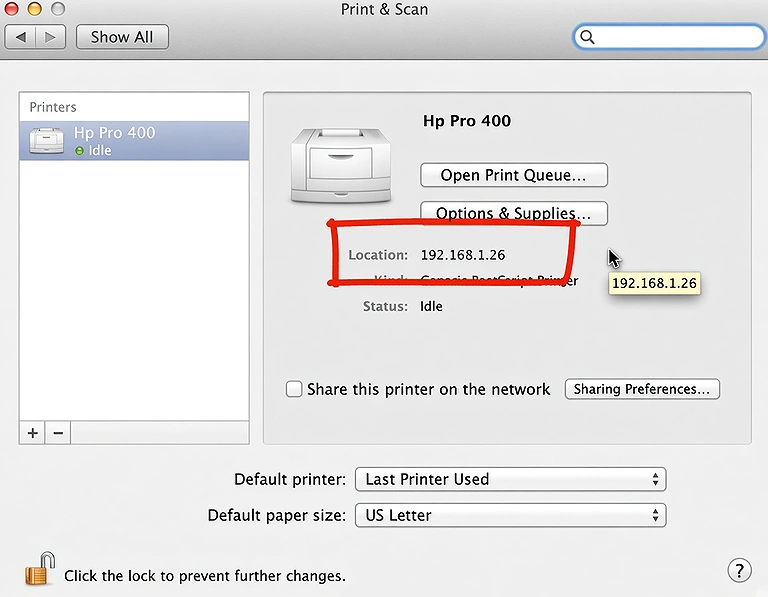
Hp Pro 400 printer configured with IP address 192.168.1.26 in macOS Print & Scan settings.
If the IP address isn't shown, don't assume the printer doesn't have one. Use the printer's control panel, print a network configuration or status page, or check your router's connected-device list.
macOS also lets you add a network printer by selecting the IP option under Printers & Scanners. This requires the printer's IP address or hostname, along with the appropriate printing protocol and printer software or model information.
5. Find the Printer's IP Address from Your Router
Your router keeps a list of devices connected to your local network. If your printer's display doesn't show its IP address, you can often find it in this list. This method works with most network-connected printers, regardless of the manufacturer. For step-by-step help, check out our guide on how to find and access router ip.
General Steps
- Sign in to your router's administration page or mobile app.
- Open the list of devices connected to your network.
- Look for your printer in the list.
- Find the IP address assigned to the printer.
- If several devices appear, compare their names or MAC addresses to identify the correct printer.
Depending on your router, the device list may be called:
- Connected Devices
- Device List
- DHCP Clients
- Attached Devices
- Network Map
- LAN Clients
The exact location and name of this section vary between router brands and models.
How to Identify the Correct Printer
Your router may show the printer's model name, hostname, manufacturer, or device name. However, some routers may display an unfamiliar name or generic device label.
If you're unsure which device is your printer, check its MAC address. You can find the printer's MAC address on its network configuration report or, on some models, in its network settings. Compare that address with the MAC address shown in your router's device list.
Once they match, use the corresponding IPv4 address shown by the router as your printer's IP address.
6. Use Command Prompt to Find the Printer's IP Address
If you're using Windows, the ARP command can help identify your printer's IP address when the computer has recently communicated with it. This method is useful when the printer's display, network report, or router doesn't provide an easy way to find the address.
Use the ARP Command
- Press Windows + R to open the Run dialog.
- Type cmd and press Enter.
- Enter the following command:
arp -a- Press Enter.
- Windows will display a list of IP addresses and their corresponding physical (MAC) addresses.
How to Identify Your Printer
The arp -a command doesn't label devices by name, so you need to identify which entry belongs to your printer.
If you have the printer's MAC address, compare it with the physical address shown in the ARP results. When the MAC addresses match, the IP address on the same line is the printer's IP address.
For example, if your printer's MAC address matches an entry like this:
192.168.1.26 xx-xx-xx-xx-xx-xx
then 192.168.1.26 is the printer's IP address.
Important Limitation
The printer may not appear in the ARP table if your computer hasn't communicated with it recently. The command can also return several devices, making it difficult to identify the printer without its MAC address.
For most users, checking the printer's network configuration report or your router's connected-device list is easier. Use arp -a as an additional option when those methods aren't convenient.
How to Find a Printer's IP Address by Brand
You don't need a separate guide for every printer model. The methods above cover the main ways to find a printer's IP address. However, menu names and network options can vary by manufacturer and model. Use the following table as a quick reference:
| Brand | Common Way to Find the IP Address |
| HP | Check the printer's control panel, HP app, or print an Information or Network Configuration page. |
| Canon | Open the LAN or network settings on the operation panel, or print the network settings. |
| Epson | Check the network status screen or print a network status sheet. |
| Brother | Print a Network Configuration Report or check the printer's network settings. |
| Lexmark | Check the network settings or print a configuration page on supported network models. |
| Xerox | Open the device or network settings, or print a configuration report on supported models. |
What Can You Do with a Printer's IP Address?
Once you know your printer's IP address, you can use it for several network tasks. It can help you add the printer manually, access its settings, or troubleshoot network communication.
1 Add the Printer Manually
Windows and macOS can use a printer's IP address when automatic discovery doesn't find the device. You can enter the network address manually when adding a network printer.
2 Open the Printer's Web Interface
Many network printers provide a browser-based management page. Enter the printer's IP address into your browser's address bar, such as:
http://192.168.1.26
Replace the example address with your printer's actual IP address. The available options depend on the manufacturer and model.
For example, HP calls this the Embedded Web Server (EWS) on supported printers. Epson provides a similar Web Config interface on supported models.
3 Troubleshoot the Network Connection
A printer's IP address can also help you check whether your computer can communicate with it over the network. On Windows, open Command Prompt and run:
ping 192.168.1.26
If you receive replies, your computer can reach the printer at that address. However, a failed ping doesn't always mean the printer is offline. Some printers or network configurations may block ping requests.
Why Does a Printer's IP Address Change?
Most home and small-office networks use DHCP to assign IP addresses automatically. Your router may therefore assign a different IP address to the printer after a restart, lease renewal, or network change.
For example:
Today:192.168.1.26
Later: 192.168.1.42
If your computer or another device is configured to use the old address, it may no longer communicate with the printer correctly.
A DHCP reservation can help the router assign the same IP address to the printer consistently. Another option is a manually configured static IP address, but it should be set carefully to avoid conflicts with the router's DHCP range.
Printer IP Address vs. Computer IP Address
Your printer and computer can have different IP addresses while connected to the same local network. Each address identifies a different device or network interface. For more information about the historical IPv4 addressing system, see our guide to IP address classes.
| Address | Purpose | Example |
| Printer IP | Identifies the printer on the local network | 192.168.1.26 |
| Computer IP | Identifies the computer on the local network | 192.168.1.25 |
| Router IP | Identifies the router on the local network | 192.168.1.1 |
| Public IP | Identifies the network's internet connection | Assigned by your ISP |
For example, your computer might use 192.168.1.25, while your printer uses 192.168.1.26. Both can communicate through the same router even though they have different private IP addresses. For more information, see our guides on finding your private IP address on Windows and Mac.
Can a Printer Have an IPv6 Address?
Yes. A network printer can have an IPv6 address if the printer and network support IPv6. Some printers may have both an IPv4 and IPv6 address at the same time. An IPv4 address looks like 192.168.1.26
while an IPv6 address uses hexadecimal characters and colons, such as 2001:db8:85a3::8a2e:370:7334.
Most printer setup instructions focus on IPv4 because it's easier to recognize and commonly used for manual printer setup. However, you may see an IPv6 address in the printer's network settings or configuration report.
If your printer shows both addresses, make sure you use the address type required by your computer, printer software, or network configuration.
Common Problems When Finding a Printer IP Address
| Problem | Likely Cause | What to Do |
| No IP appears on the printer | The printer isn't connected to the network | Check the Wi-Fi or Ethernet connection, then check the network settings again. |
| Report shows 0.0.0.0 | The printer hasn't received an IP address from the network | Reconnect the printer to Wi-Fi or Ethernet, then print the network report again. |
| Printer doesn't appear in Windows | Network discovery, driver, or printer port issue | Check the printer's TCP/IP port or reinstall the printer if necessary. |
| Router shows several unknown devices | Device names may not clearly identify the printer | Match the printer's MAC address with the devices listed by the router. |
| Printer's IP address changed | The router assigned a new address through DHCP | Consider setting a DHCP reservation for the printer. |
| Mac doesn't show the printer's IP address | macOS may not display the printer's network address where expected | Check the printer's network settings or print a network status page. |
| arp -a doesn't identify the printer | The computer may not have recently communicated with the printer | Access the printer's network information or check the router's device list. |
| Browser won't open the printer's IP address | Web management may be disabled, or the printer may not support a web interface | Check the manufacturer's documentation and confirm that the printer is reachable on the network. |
FAQs
Can two printers have the same IP address?
Two printers on the same network shouldn't use the same IP address. Duplicate addresses can create an IP conflict, causing communication problems between printers, computers, and other connected network devices.
Does a printer IP address stay the same?
A printer's IP address may change when DHCP assigns it a new address. Restarting the printer or router can sometimes result in a different address being assigned.
What happens if two devices have the same printer IP address?
An IP conflict can prevent devices from communicating properly. The affected printer may become unreachable, disconnect from the network, or experience intermittent printing problems until the duplicate address is resolved.
Can I use a printer's IP address to access its settings?
Many network printers provide a web-based management page. Entering the printer's IP address into a browser can open settings for network configuration, security, maintenance, and other supported options.
Is a printer IP address the same as its MAC address?
No. An IP address identifies the printer on a network, while a MAC address identifies its network hardware. Both can help identify a printer when managing connected devices.
Can I print to a printer using its IP address?
Yes. Network printers can often be added to Windows or macOS using their IP address. This allows the computer to communicate directly with the printer over the local network.
Why does my printer have an IP address but still not print?
An IP address only confirms network addressing. Printing can still fail because of incorrect drivers, TCP/IP ports, firewall settings, printer services, connection problems, or configuration issues.
Should I give my printer a static IP address?
A static IP or DHCP reservation can help keep the printer's address consistent. This is useful when multiple computers or network devices regularly need to connect to the same printer.
Can I find a printer's IP address from its MAC address?
Yes. If you know the printer's MAC address, you can usually match it with a device listed in your router's connected-device or DHCP client list.
Can a printer work without an IP address?
Yes. A printer connected directly to a computer through USB doesn't require an IP address. Network-connected printers generally use IP addressing to communicate with computers and other devices.
Conclusion
Finding a printer's IP address is usually straightforward when the printer is connected to your local network. The quickest option is often to check the printer's network settings or print a network configuration or status page.
If the printer doesn't display its IP address, you can check the Windows or Mac network settings, router device list, or network configuration tools. The exact steps vary by printer model, but these methods work across many HP, Canon, Epson, Brother, Lexmark, and Xerox network printers.
If you're still unable to locate the address, check the manufacturer's support documentation using your exact printer model number. Once you find the IP address, you can use it to identify the printer on your network, configure a network connection, or access its web-based settings when supported.