.webp)
How to Find a Private IP Address on a Computer or Laptop (Windows)
There are several types of IP addresses, but at a broad level, public and private IP addresses are the two most important to understand for everyday networking. A public IP address identifies your network on the internet, while a private IP address identifies your computer or laptop within your local network. Finding a public IP is straightforward with our IP lookup tool, but finding the private IP assigned to your device requires checking the network settings in Windows. Knowing your private IP is important for troubleshooting network problems, connecting devices, setting up network printers, sharing files, and managing other local network connections.
This guide explains how to find a private IP address on Windows 11, Windows 10, Windows 8.1, Windows 8, Windows 7, Windows Vista, and Windows XP. The steps are organized by method, so you can use the approach available on your version of Windows without going through repeated instructions. You'll learn how to find your private IP through Windows Settings, Control Panel, Command Prompt, and PowerShell, where supported.

 Updated: September 01, 2026 | 15 min read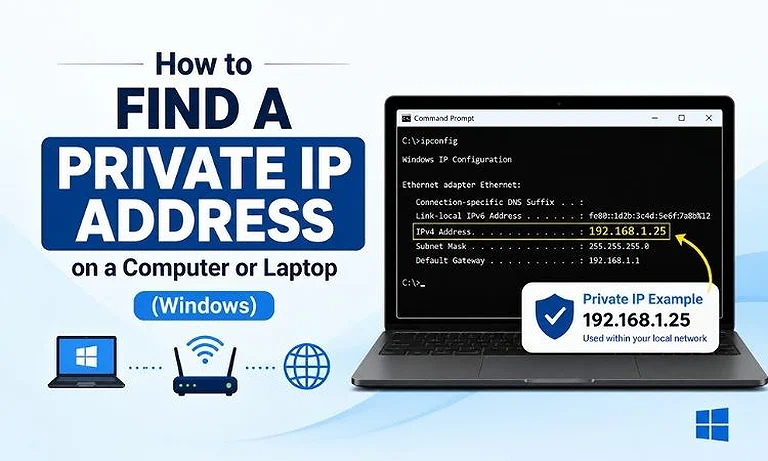
Cover Photo How to Find a Private IP Address on a Computer or Laptop (Windows)
What Is a Private IP Address?
A private IP address identifies a device within a local network like your home, office, or school. If you're new to networking, understanding how IP addresses work makes it much easier to manage your devices. On your local network, your computer uses this address to connect with routers, printers, and shared storage.
Private IPv4 addresses follow specific address blocks reserved for use within local networks. These blocks are written using CIDR notation, where the number after the slash indicates how much of the address belongs to the network portion. The three private IPv4 blocks are 10.0.0.0/8 (10.0.0.0–10.255.255.255), 172.16.0.0/12 (172.16.0.0–172.31.255.255), and 192.168.0.0/16 (192.168.0.0–192.168.255.255). These private ranges originated under the traditional IPv4 address classes. To learn how the classful system worked, explore our IPv4 address classes guide.
These three blocks are reserved specifically for private networks, giving local networks address space that can be reused across different locations without requiring globally unique addresses. In simpler terms, private addresses can start with 10, fall between 172.16 and 172.31, or start with 192.168. The exact private IP assigned to your computer depends on how your local network is configured.
Why Do You Need to Find Your Private IP Address?
Your private IP address is useful for local networking tasks, troubleshooting, and device configuration.
Network Troubleshooting: It can help confirm that your computer has received an IP address from the local network.
Connecting to Another Device: Some local applications and services use private IP addresses to communicate between devices.
Setting Up a Network Printer: A network printer may use a private IP address for communication with computers on the same network.
Accessing Local Services: Network storage, media servers, cameras, and other devices may use private IP addresses for local access.
Router Configuration: Some advanced router settings require the private IP address of a specific computer or device.
Which Windows Versions Does This Guide Cover?
The methods below cover the major Windows versions and show which methods are available for each one
| Windows Version | Settings | Control Panel | Command Prompt | PowerShell |
| Windows 11 | Yes | Yes | Yes | Yes |
| Windows 10 | Yes | Yes | Yes | Yes |
| Windows 8.1 | No | Yes | Yes | Yes |
| Windows 8 | No | Yes | Yes | Yes |
| Windows 7 | No | Yes | Yes | No |
| Windows Vista | No | Yes | Yes | No |
| Windows XP | No | Yes* | Yes | No |
* Windows XP uses the older Network Connections interface rather than the Network and Sharing Center found in later Windows versions.
Tip: If you're unsure which Windows version you're using, check Settings → System → About on newer Windows versions. Microsoft provides the Windows version and edition under Windows specifications.
Method 1: Find Your Private IP Using Windows Settings
Works on: Windows 11 and Windows 10
Windows 11 and Windows 10 let you find your private IP address directly through the Network & internet settings. The steps are slightly different depending on whether your computer or laptop is connected through Wi-Fi or Ethernet.
Steps to Find Your Private IP
- Open Settings.
- Select Network & internet.
- Select Wi-Fi or Ethernet, depending on your connection.
- Open your connected network.
- Scroll to the network properties.
- Find IPv4 address.
- The number shown next to IPv4 address is your private IP address.
For example:
IPv4 address: 192.168.1.25
In this example, 192.168.1.25 is the computer's private IPv4 address.
The exact appearance of the network settings can vary slightly between Windows 10 and Windows 11, but both versions provide the private IP address through the network properties.
Method 2: Find Your Private IP Using Control Panel
Works on: Windows 11, Windows 10, Windows 8.1, Windows 8, Windows 7, and Windows Vista.
Control Panel provides another way to view your network information. It's especially useful on older Windows versions that don't have the same Network & internet settings found in Windows 10 and Windows 11.
Steps to Find Your Private IP
- Open the Start menu and search for Control Panel.
- Open Control Panel.
- Select Network and Internet.
- Open Network and Sharing Center.
- Find your active network connection.
- Select the connected Wi-Fi or Ethernet connection.
- Open Details or select Status and then Details, depending on your Windows version.
- Find IPv4 Address in the connection details.
- The address shown next to IPv4 Address is your private IPv4 address.
For example:
IPv4 Address: 192.168.1.25
In this example, 192.168.1.25 is the private IPv4 address assigned to the computer on that local network.
Note: The names and appearance of these options can vary between Windows versions. On older versions, the active connection may be listed as Wireless Network Connection or Local Area Connection instead of Wi-Fi or Ethernet.
Method 3: Find Your Private IP Using Command Prompt
Works on: Windows 11, Windows 10, Windows 8.1, Windows 8, Windows 7, Windows Vista, and Windows XP.
Command Prompt is the most consistent method for finding a private IP address across Windows versions. The ipconfig command displays the current TCP/IP configuration for your network adapters, including IPv4 and IPv6 addresses, subnet masks, and default gateways.
Steps to Find Your Private IP
- Open the Start menu and search for Command Prompt.
- Open Command Prompt.
- On older Windows versions, you can also select Start → Run, type
cmd, and press Enter. - Type
ipconfigand press Enter. - Find the network adapter you're currently using.
- Look for IPv4 Address under that adapter.
- The address shown next to IPv4 Address is your private IPv4 address.
For a Wi-Fi connection, the adapter may appear as:
Wireless LAN adapter Wi-Fi
For an Ethernet connection, it may appear as:
Ethernet adapter:
Older Windows versions may use names such as Wireless Network Connection or Local Area Connection.
For example:
Wireless LAN adapter Wi-Fi:

IPv4 Address. . . .. . . : 192.168.1.25

Subnet Mask . . . . .  . : 255.255.255.0

Default Gateway .  . . . : 192.168.1.1
In this example, 192.168.1.25 is the computer's private IPv4 address. The 192.168.1.1 address is the default gateway, which is typically the router on the local network.
You don't need to use ipconfig /all when you only want to find your basic private IP address. The standard ipconfig command already displays the IPv4 and IPv6 addresses, subnet mask, and default gateway for the network adapters.
Method 4: Find Your Private IP Using PowerShell
Works on: Windows 8, Windows 8.1, Windows 10, and Windows 11.
PowerShell provides another way to view the IP addresses assigned to your computer. It's useful for users who prefer working with Windows command-line tools.
Steps to Find Your Private IP
Open the Start menu and search for PowerShell.
Open PowerShell.
Type the following command:
Get-NetIPAddress
Press Enter.
Find the network adapter you're currently using.
Look for the IP address associated with that adapter.
To display IPv4 addresses only, use:
Get-NetIPAddress -AddressFamily IPv4
Press Enter.
Find the IPv4 address associated with your active Wi-Fi or Ethernet connection.
For most users, Command Prompt with ipconfig is simpler and works across more Windows versions, including Windows XP through Windows 11.
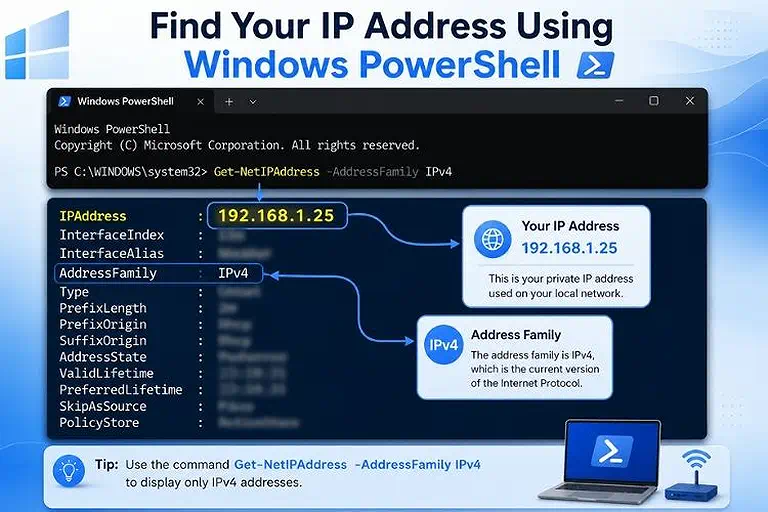
PowerShell displaying the IPv4 address using the Get-NetIPAddress -AddressFamily IPv4 command.
Method 5: Find Your Private IP on Windows XP
Works on: Windows XP
Windows XP uses an older network interface, but you can still find your private IP address through Network Connections or Command Prompt. The Command Prompt method is usually quicker and follows the same ipconfig approach used in newer Windows versions.
Option 1: Using Network Connections
- Open Control Panel.
- Select Network Connections.
- Find your active network connection.
- Right-click the connection.
- Select Status.
- Open the Support tab.
- Find IP Address.
- The address shown there is your private IP address.
Your connection may appear as Local Area Connection for Ethernet or as a wireless network connection for Wi-Fi.
Option 2: Using Command Prompt
- Open Start.
- Select Run.
- Type
cmd. - Press Enter.
- Type
ipconfig. - Press Enter.
- Find the IP address listed under your active network connection.
For Windows XP, Command Prompt is the simpler option, especially when you only need to find the computer's private IP address.
How to Identify the Correct Private IP Address
The ipconfig command can display several pieces of network information. It's important to know which value you actually need.
Consider this example:
IPv4 Address. . . . . . . . . . . : 192.168.1.25
Subnet Mask . . . . . . . . . . . : 255.255.255.0
Default Gateway . . . . . . . . . : 192.168.1.1
Here is what each value means:
| Network Detail | What It Identifies |
| IPv4 Address | Your computer on the local network |
| Subnet Mask | Define the Local network range |
| Default Gateway | Usually your router |
| IPv6 Address | Your device's IPv6 address |
Note: If someone asks for your private IPv4 address, you normally want the value next to IPv4 Address.
How to Identify Your Private IPv6 Address
Windows can assign both IPv4 and IPv6 addresses to your computer or laptop. When you view your network information through Settings, Control Panel, Command Prompt, or PowerShell, you may see an IPv6 address listed alongside the IPv4 address.
IPv6 addresses use hexadecimal characters separated by colons, making them look different from IPv4 addresses. For example:
IPv6 Address: fd12:3456:789a::25
The exact IPv6 address shown on your computer depends on your network configuration. You may also see multiple IPv6 addresses because Windows can assign different addresses for different network purposes. When you need your computer's IPv6 address, look for the value listed under IPv6 Address in the network information.
What If Windows Shows Multiple IP Addresses?
Seeing multiple IP addresses in Windows is normal, especially when your computer has more than one network connection or virtual adapter. Your device can have multiple interface IP addresses, with each network interface potentially using its own IP address. Windows can also display separate IPv4 and IPv6 addresses for the same network adapter.
Your computer may show multiple network adapters/interfaces because of:
- Wi-Fi
- Ethernet
- VPN software
- Virtual machines
- Hyper-V
- Other virtual network adapters
The important thing is to identify the active network adapter you're currently using. If you're connected through Wi-Fi, check the Wi-Fi adapter and its listed IP address. If you're connected through Ethernet, check the Ethernet adapter instead.
You may also see IPv4 and IPv6 addresses under the same adapter. These are different address formats, not separate network connections. Use the address type required for the network task you're performing.
When Does a Private IP Address Start With 169.254.x.x?
If Windows displays an address beginning with 169.254, the computer may have automatically assigned itself an Automatic Private IP Addressing (APIPA) address. This usually happens when the computer can't obtain an IP address from the network's DHCP server.
For example:
169.254.42.18
A 169.254.x.x address isn't the typical private IP address assigned by a functioning home or office router. It generally indicates that the computer couldn't communicate properly with the DHCP server.
Possible causes include:
- Router problems
- DHCP problems
- Wi-Fi connection issues
- Ethernet cable problems
- Network adapter problems
- Incorrect network configuration
Start by reconnecting the computer to the network. If the problem continues, restart the router and check the network adapter and its connection.
Can a Private IP Address Change?
Yes. A private IP address can change, especially when it's assigned automatically by DHCP (Dynamic Host Configuration Protocol). DHCP allows the router or DHCP server to assign an available IP address to a device on the local network.
A private IP address may change when:
- You reconnect your computer to the network
- The DHCP lease is renewed or expires
- The router restarts
- Network settings are changed
- You connect to a different network
- The network assigns a different available address to your computer
This means your computer may have one private IP address today and a different one later. The change doesn't necessarily indicate a problem; it's often a normal part of automatic network management.
When a device needs to keep the same private IP address, the network can use a static IP address or a DHCP reservation. These options allow the device to consistently receive the same local address.
Private IP Address vs. Windows Private Network
The terms private IP address and Private network in Windows can be confusing, but they refer to different things.
A private IP address is an IP address used to identify your computer within a local network. It allows your computer to communicate with other devices on that network.
A Private network in Windows is a network profile that controls how your computer interacts with other devices on the same network. It affects settings such as network discovery and file or printer sharing.
These two concepts aren't the same. Your IP address can be a private IP address whether Windows classifies the network as Public or Private. The Windows network profile only controls how your computer behaves on that network; it doesn't determine whether the IP address is private.
Can You Find Your Private IP Without Internet Access?
Yes. Your private IP address is part of your local network configuration, so you don't need an active internet connection to view it.
You can check it using:
- Windows Settings
- Control Panel
- Command Prompt
- PowerShell
The ipconfig command is particularly useful when the internet isn't working because it displays your computer's current network configuration, including its IP address.
Can Two Devices Have the Same Private IP Address?
Two devices on the same local network shouldn't normally have the same private IP address. Each device needs a unique address to communicate properly with other devices on the network.
When two devices receive the same address, an IP address conflict can occur. This can cause connectivity problems for one or both devices.
Common causes include:
- Incorrect manual IP configuration
- DHCP problems
- Network configuration changes
- Duplicate static IP assignments
Does a Private IP Address Reveal Your Location?
A private IP address identifies a device within a local network, not its physical location.
For example, an address such as 192.168.1.25 doesn't reveal your home address or exact location. Private IP addresses are reserved for local network communication and aren't directly routable across the public internet.
Your public IP address is different and may provide an approximate location, such as a country, region, or city, depending on the available geolocation data.
FAQs
Can a private IP address be used to access a computer remotely?
A private IP address normally works only within its local network. Remote access from outside the network generally requires additional configuration, such as port forwarding, a VPN, or another remote-access service.
Does a private IP address identify the computer itself?
A private IP address identifies a network interface on a local network rather than permanently identifying the physical computer. The address can change, and different network adapters can have separate addresses.
Is 192.168.0.1 always the private IP address of a computer?
No. 192.168.0.1 is a private IPv4 address commonly used by routers as a default gateway. Your computer normally receives a different private IP address from the local network.
Can a private IP address be accessed from another network?
A private IP address isn't directly reachable from another separate network through the public internet. Devices on different networks generally need routing, VPN access, or another configured connection method.
Does changing the private IP address affect internet access?
Changing a private IP address can affect connectivity when the new address conflicts with another device or doesn't match the network configuration. Proper DHCP or static configuration helps maintain normal access.
Can a private IP address be reserved for one computer?
Yes. A router can use a DHCP reservation to consistently assign the same private IP address to a particular device. This is useful for devices requiring a predictable local address.
Does every device on a Wi-Fi network have a private IP address?
Most devices connected to a typical Wi-Fi network receive a private IP address from the network's DHCP server. Phones, computers, printers, smart TVs, and other connected devices can each have one.
Can a private IP address work without a router?
Yes. Devices can communicate using private IP addresses without a traditional router, such as through direct connections or other local networking arrangements. The exact configuration depends on how devices are connected.
Why can a private IP address be different on another Wi-Fi network?
Private IP addresses are assigned according to each network's configuration. When you connect to another Wi-Fi network, its DHCP server may assign your computer a completely different private address.
Can VPN software create another private IP address?
Yes. VPN software can create a virtual network adapter with its own IP address. Windows may display this address alongside the addresses assigned to your physical Wi-Fi or Ethernet adapters.
Conclusion
Finding a private IP address on a Windows computer or laptop is straightforward once you know where to look. Windows 11 and 10 provide the address through Settings, while Control Panel works across older versions. Command Prompt with ipconfig offers the most consistent method from Windows XP through Windows 11, and PowerShell provides another option on supported versions. The guide also covered IPv4 and IPv6 addresses, active network adapters, subnet masks, and default gateways to help you identify the correct network information.
A private IP address is used for communication within a local network and can support tasks such as troubleshooting, connecting devices, setting up network printers, accessing local services, and configuring routers. It can change through DHCP, while a 169.254.x.x address may indicate a problem obtaining an address from the network. Understanding these details makes it easier to identify, use, and troubleshoot your computer's private IP address.