.webp)
How to Find Your Router’s IP Address on Any Device (Easy Methods)
A router is the central device in most home and office networks, connecting your devices to each other and providing access to the internet. Finding your router's IP address is therefore an important skill for managing your network. This local address identifies the router on your network and lets you access its administration interface, where you can configure Wi-Fi settings, manage network options, troubleshoot connectivity issues, and control other router features. For background on how IPv4 addresses were historically organized, see our guide to IP address classes.
Because you can connect to a network through different devices, the method for finding the router's IP address varies by platform. Whether you're using a Windows PC, Mac, Android phone, iPhone, iPad, or Linux computer, you can find the address through network settings or command-line tools. The following methods explain how to locate it on each platform, along with alternative ways to identify the address when needed.

 Updated: September 06, 2026 | 15 min read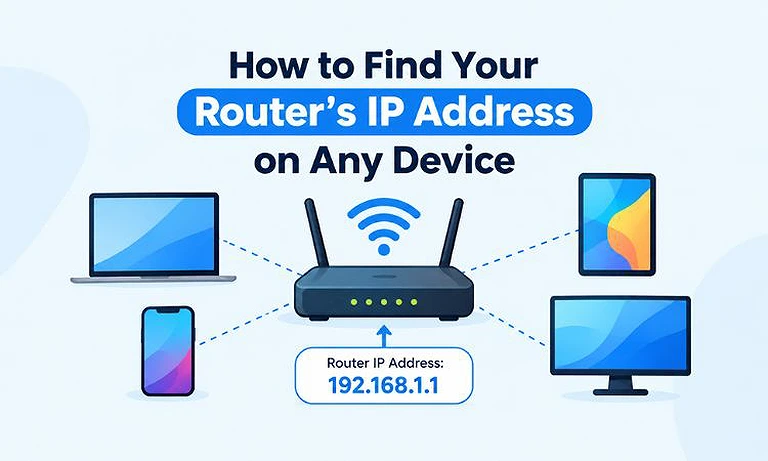
Cover Photo How to Find Your Router’s IP Address on Any Device (Easy Methods)
What Is a Router's IP Address?
A router's IP address is the local network address used to communicate with the router. In a typical home or small office network, the router uses a private IP address that devices on the same network can use to reach it. This address is also commonly used to open the router's administration interface.
Common router IP addresses include:
192.168.1.1
192.168.0.1
10.0.0.1
192.168.100.1
These are examples of private IP addresses, but your router may use a different address depending on its configuration. You can learn more about what an IP address is, if you're unfamiliar with how IP addresses identify devices on a network.
On most home networks, the router's local IP address appears on connected devices as the Default Gateway. When a device needs to communicate with a destination outside its local network, it typically sends the traffic to this gateway. The router then forwards the traffic toward the destination using the network's public IP address, which identifies the internet connection to external networks.
Quick Ways to Find Your Router's IP Address
The steps for finding your router's IP address vary depending on the device and operating system you use.
| Device | Where to Find the Router IP Address |
| Windows | Default Gateway in Network Settings or Command Prompt |
| Mac | Router field in Network Settings or Terminal |
| Android | Gateway in connected Wi-Fi details |
| iPhone/iPad | Router field in Wi-Fi settings |
| Linux | Default route in Terminal |
| Router | Label, manual, or administration information |
The address may appear under different names depending on the platform. Default Gateway, Gateway, and Router generally refer to the address your device uses to communicate with the router on a typical home network.
How to Find Your Router's IP Address on Windows
Windows provides several ways to find your router's IP address. The quickest method is to use Command Prompt, which displays the router's address as the Default Gateway for your active network connection.
Method 1: Use Command Prompt
- Press Windows + R to open the Run dialog.
- Type
cmdand press Enter. - Enter the following command:
ipconfig- Press Enter.
- Find the network adapter you are currently using, such as Wireless LAN adapter Wi-Fi or Ethernet adapter.
- Look for Default Gateway under that adapter.
You may see an entry similar to:
Default Gateway . . . . . : 192.168.1.1
The address shown next to Default Gateway is typically your router's local IP address. In this example, the router's IP address is 192.168.1.1.
The same ipconfig output also shows your computer's own local address under IPv4 Address. If you want to identify that address specifically, see how to find your private IP address in Windows.
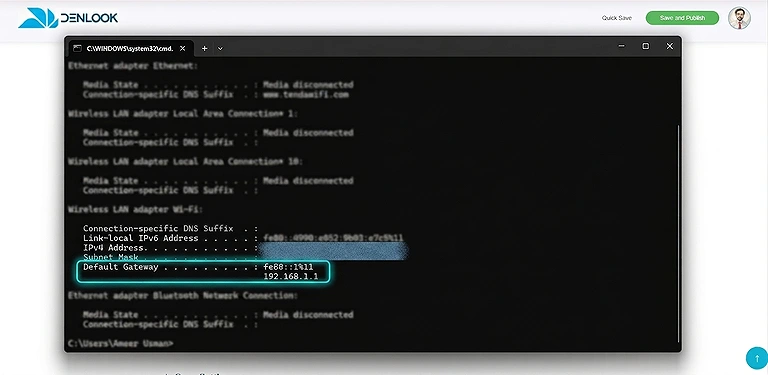
Windows Command Prompt displaying default gateway IP address used to identify the router on the network.
Check the Active Network Adapter
Windows may display information for several network adapters, including Wi-Fi, Ethernet, VPN connections, and virtual adapters. To find the correct router address, check the adapter that is currently providing your network connection.
If you're connected through Wi-Fi, look under the Wi-Fi adapter. If you're using a network cable, check the Ethernet adapter. The active adapter should show an IPv4 address and a Default Gateway.
Method 2: Find the Router IP Through Windows Settings
You can also find the router's IP address through Windows network settings. This method is useful if you prefer a graphical interface instead of Command Prompt.
- Open Settings.
- Select Network & internet.
- Select Wi-Fi or Ethernet, depending on your connection.
- Open the properties or details of your connected network.
- Find the Default Gateway listed in the network information.
The address shown as the Default Gateway is typically your router's local IP address. The exact location of this information can vary slightly between Windows versions and network configurations.
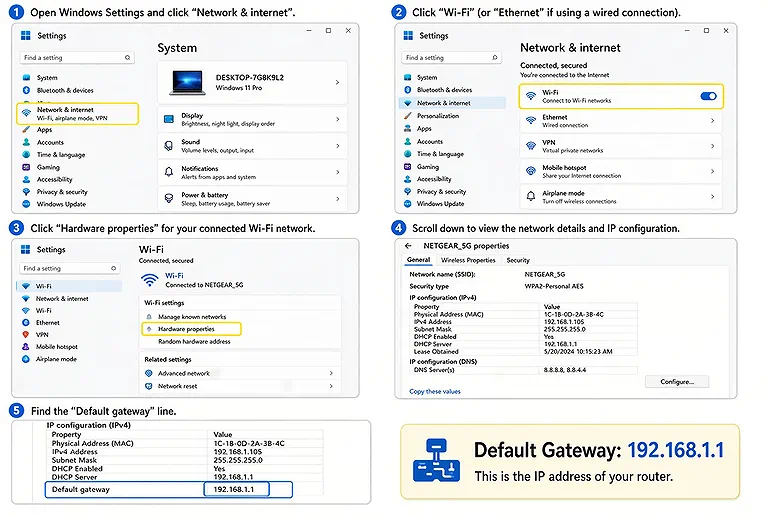
Find your router’s local IP address by checking the Default Gateway in Windows network settings.
How to Find Your Router's IP Address on a Mac
macOS provides a simple way to find your router's IP address through System Settings. The address appears as Router in the TCP/IP details of your active network connection. You can also find it quickly using the Terminal.
Method 1: Use System Settings
- Open System Settings.
- Select Network.
- Choose your active Wi-Fi or Ethernet connection.
- Click Details next to the connected network.
- Select TCP/IP.
- Find the Router field.
For example:
Router: 192.168.1.1
The address shown next to Router is your router's local IP address. The same section also displays your Mac's own IPv4 address. If you need to identify that address, see how to find your private IP address on a Mac.
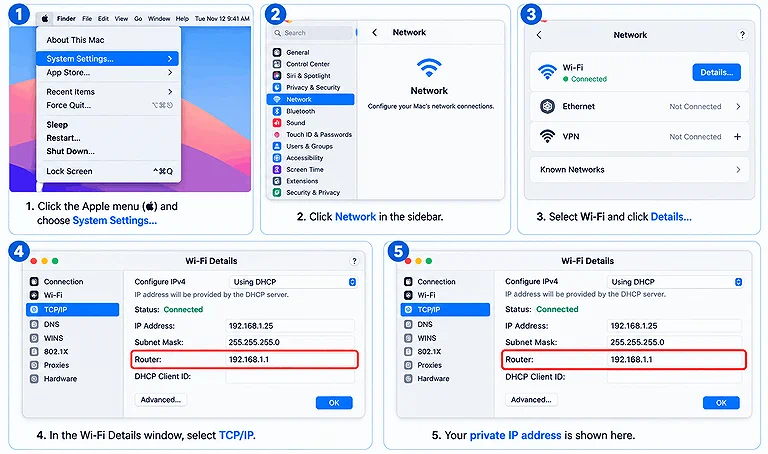
Step-by-step guide to finding your router’s IP address on a Mac using System Settings.
Method 2: Use Terminal
You can also find the router's IP address using the Terminal app. This method is useful if you prefer working with commands or need a quick way to check the gateway address.
- Open Terminal.
- Enter the following command:
route -n get default- Press Enter.
- Find the gateway entry in the output.
For example:
gateway: 192.168.1.1
The address shown next to gateway is the router's IP address for your current network connection.
How to Find Your Router's IP Address on Android
You can usually find your router's IP address in the details of the Wi-Fi network you're currently connected to. Android displays this address as Gateway, although the exact menu names and location can vary between Android versions and manufacturers.
Method 1: Use Wi-Fi Network Details
- Open Settings.
- Tap Network & internet, Connections, or Wi-Fi, depending on your device.
- Select the Wi-Fi network you're currently connected to.
- Open its network details or advanced settings.
- Look for Gateway or Router.
For example:
Gateway: 192.168.1.1
The address shown next to Gateway is typically your router's local IP address. Your device's own IP address may also appear in the same network details.
Method 2: Find the Router IP on Samsung Galaxy Phones
Samsung Galaxy phones use the One UI interface, so the steps can differ from those on other Android devices.
- Open Settings.
- Tap Connections.
- Select Wi-Fi.
- Tap the gear icon next to the connected Wi-Fi network.
- View the network information.
- Look for Gateway.
For example:
Gateway: 192.168.1.1
The address shown as the Gateway is typically the router's IP address for that Wi-Fi network. If you also need to identify your phone's local address, you can check the IP address shown in the same network details.
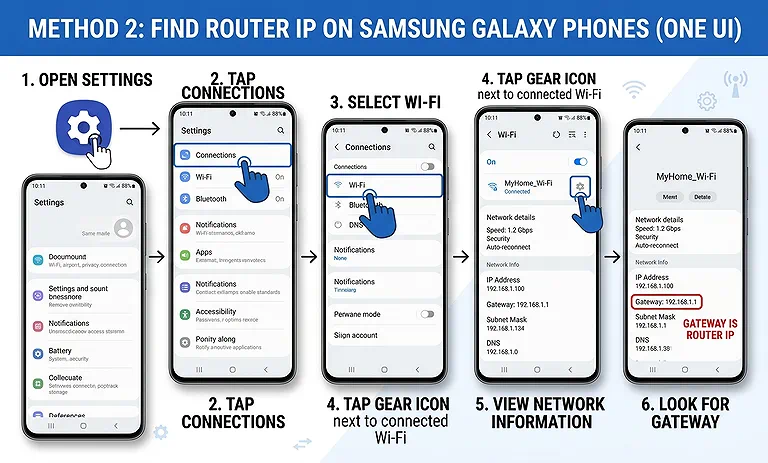
Step-by-step guide showing router's IP address (Gateway) on a Samsung Galaxy phone
How to Find Your Router's IP Address on an iPhone or iPad
iPhone and iPad devices display the router's IP address directly in the details of the connected Wi-Fi network. You can find it under the IPv4 Address section in just a few steps.
Open Settings.
Tap Wi-Fi.
Find the Wi-Fi network you're currently connected to.
Tap the ⓘ button next to the network.
Scroll down to the IPv4 Address section.
Look for the Router field.
For example:
Router: 192.168.1.1
The address shown next to Router is your router's local IP address. The same section also displays your iPhone or iPad's own IP address, allowing you to distinguish between the two.
How to Find Your Router's IP Address on Linux
Linux users can quickly find the router's IP address using the Terminal.
Open a terminal and enter:
- ip route
- You may see an output similar to:
- default via 192.168.1.1 dev wlan0
- The address after via is the router's IP address.
- In this example:
- 192.168.1.1
- is the router's local address.
Alternative Linux Command
On some systems, you can also use:
route -n
Look for the default route and identify the gateway address.
What Is the Default Gateway?
The Default Gateway is the network address that a device uses to send traffic to destinations outside its local network. In most home networks, the router serves as the default gateway, allowing connected devices to communicate with other networks and access the internet.
For example:
Computer IP Address: 192.168.1.25
Default Gateway:     192.168.1.1
Here, 192.168.1.1 is the gateway used by the computer to reach destinations beyond its local network. This is why checking the Default Gateway is one of the easiest ways to find your router's address on a typical home network.
Important Note: The default gateway doesn't have to be a router in every network. In some networks, a server or another network device can act as the default gateway and route traffic between the local network and other networks. This is more common in managed, enterprise, or specialized network environments.
For typical home networks, however, the router usually provides the default gateway, and its local IP address through interface connection is normally shown as the Default Gateway on connected devices.
How to Find Your Router's IP Address Without a Computer
You don't need a computer to find your router's IP address. If you have physical access to the router, its label may provide the information you need. You can also check the connected Wi-Fi details on a smartphone or tablet, as explained in the device-specific methods above.
Check the Router Label
Many routers have a label on the bottom, back, or side of the device. Depending on the manufacturer, this label may include the router's default IP address along with other network information.
The label may show details such as:
- Default IP address
- Wi-Fi network name (SSID)
- Default username
- Default password
- Model number
For example:
Router Address: 192.168.1.1
This address is usually the router's factory-default address, not necessarily its current address. However, it can be especially useful after a factory reset, because the router typically returns to its original default network settings. You can then use the address shown on the label to access the router's setup or administration page.
If the router's LAN settings were changed after setup, the address shown on the label may no longer be the current address. In that case, check the router's address from a device currently connected to the network.
How to Access Your Router Using Its IP Address
Once you find your router's IP address, you can enter it in a web browser to open the router's administration page.
- Connect your computer or mobile device to the router's network.
- Open a web browser.
- Enter the router's IP address in the address bar.
- Press Enter.
- Enter the router's administrator username and password when prompted.
For example, if your router's IP address is 192.168.1.1, enter:
http://192.168.1.1
The router's login or administration page should then appear. After entering the correct administrator credentials, you can access the router's settings.
What Can You Do After Accessing Your Router?
After accessing your router's administration page, you can manage many settings that control your local network and Wi-Fi connection. The available options vary by router model, but most routers provide several common management features.
Depending on the router, you can typically:
- Change the Wi-Fi name (SSID) to identify your wireless network.
- Change the Wi-Fi password to protect your wireless connection.
- Manage connected devices and view which devices are using your network.
- Set up a guest network to provide internet access without giving guests access to your main network.
- Change Wi-Fi security settings and select supported encryption options.
- Configure parental controls to restrict or schedule internet access for specific devices.
- Change the router's operating mode, such as using supported repeater, access point, or bridge modes. For example, some Tenda routers can be configured as Wi-Fi repeaters to extend an existing wireless network.
- Set up port forwarding for services or applications that need incoming connections.
- Manage local network settings, including DHCP and the router's local IP address.
- Update the router's firmware when a newer version is available.
- Restart or reset the router when troubleshooting network problems.
The exact features depend on the router model and firmware. Some advanced options may therefore be unavailable on certain devices.
Most routers require administrator credentials before allowing you to change these settings. These credentials are separate from the Wi-Fi password on many routers, although some newer routers use a unified login system.
What If You Can't Access Your Router Through a Web Browser?
If you enter your router's IP address in a web browser but cannot access the router's administration page, try the following solutions.
Make Sure You're Connected to the Correct Router
Your device must be connected to the same router you want to access. You can connect through:
- Wi-Fi
- Ethernet
If you're connected to another network, mobile data, or a different router, the administration page may not open.
Check the Router's IP Address
Make sure you entered the correct IP address.
For example:
192.168.1.1
is different from:
192.168.1.11
Even a small typing mistake can prevent the router's administration page from opening. Also, enter the IP address directly into your browser's address bar, not the search box.
Temporarily Disable Your VPN
A VPN can change how your network traffic is routed and may prevent access to local network addresses. Temporarily disconnect the VPN and try accessing the router again.
Check Whether Your Router Uses a Different IP Address
The router may use a different IP address than the one you entered. Check the Default Gateway on your connected device to find the correct router IP address.
Restart the Router and Your Device
Temporary network problems can prevent access to the router's administration page. Restart your router and device, reconnect to the network, and try again.
Your Router May Use a Different Management Method
Some modern routers use a mobile app or a local web address instead of a numerical IP address. Check your router manufacturer's documentation to find the recommended method for accessing and managing your router.
Can You Change Your Router's IP Address?
Yes, many routers allow administrators to change the router's local IP address, also known as its LAN IP address.
For example, a router using:
192.168.1.1
can be changed to:
192.168.50.1
Changing the router's LAN IP address also changes the network's address range and may affect connected devices. Devices can temporarily lose their connection and may need to reconnect or receive updated network settings.
For this reason, you should understand your network configuration before changing the router's IP address. After changing it, you must use the new IP address to access the router's administration page.
FAQs
Is a router's IP address the same as a public IP address?
No. A router has a private IP address for communication within your local network and a public IP address assigned by your internet provider. These addresses serve different purposes.
Can two routers have the same IP address?
Yes, routers can use the same default private IP address when they're on separate networks. Problems can occur when two routers using the same address operate on the same local network.
Does restarting a router change its IP address?
Restarting usually doesn't change the router's local IP address. However, its public IP address may change after reconnecting, depending on how your internet provider assigns addresses.
What happens if two devices have the same IP address?
This creates an IP address conflict. The affected devices may experience connection problems because the network cannot reliably determine which device should receive traffic intended for that address.
Can a router have more than one IP address?
Yes. A router commonly has different IP addresses for different network interfaces. For example, it can have a private LAN address and a separate WAN address for internet communication.
Does every router use 192.168.1.1?
No. Routers can use different private addresses depending on their manufacturer and configuration. Common examples include 192.168.0.1, 192.168.1.1, 10.0.0.1, and other private addresses.
Is a router's IP address sensitive information?
A private router IP address generally isn't sensitive because it's only used within your local network. However, don't publicly share router login credentials or other administrative information.
Can I access my router without an internet connection?
Yes. Router administration pages are usually hosted locally, so internet access isn't required. Your device generally only needs an active connection to the router through Wi-Fi or Ethernet.
Does changing the router's IP affect connected devices?
It can. Changing the LAN address may require connected devices to renew their network settings. Devices could temporarily disconnect until they receive updated network configuration from the router.
What is the difference between a router IP and a gateway?
A router's local IP address is commonly used as the default gateway for devices on that network. The gateway tells devices where to send traffic destined for other networks.
Conclusion
Finding your router's IP address is usually straightforward. You can check the Default Gateway on Windows, macOS, Android, or other connected devices to identify the address used by your router. Common addresses include 192.168.1.1 and 192.168.0.1, but the exact address depends on your router and network configuration.
Once you find the IP address, enter it in a web browser to open your router's administration page. From there, you can manage Wi-Fi settings, change the network name and password, configure security options, update firmware, manage connected devices, and adjust other network settings. Some routers also support modes such as Wi-Fi repeater or extender, allowing the router to extend an existing wireless network.