.webp)
How to Find a Private IP Address on Mac: 2 Easy Methods
If you're using a Mac on a local network, you'll need to know its private IP address at some point. When your Mac connects to a network, it receives a private IP address that identifies it within that network. Whether you're connected through Wi-Fi, Ethernet, or another network interface, you can check this address directly from your Mac without installing additional software.
This guide explains how to find your private IP address on Mac using two straightforward methods. If you want to understand how IP addresses work before checking yours, see our guide on What Is an IP Address? You'll then learn how to check your IP through System Settings and Terminal, with clear step-by-step instructions for identifying the private IP assigned to your Mac.

 Updated: September 02, 2026 | 13 min read
Cover Photo: How to Find a Private IP Address on Mac: 2 Easy Methods
Why Do You Need to Find Your Private IP on Mac?
Your private IP address identifies your Mac within the local network. You may need to check it when troubleshooting network connections, connecting to another device, sharing files, configuring network services, or accessing your Mac from another device on the same network.
Network Troubleshooting: Your private IP can help you or technical support verify that your Mac has received a valid address from the local network.
Connecting to Other Devices: When another device needs to communicate with your Mac over the same network, its private IP may be required to establish the connection.
File Sharing: Some local file-sharing setups use your Mac's private IP to allow other devices on the network to connect to shared files or folders.
Remote Access: Certain remote-access tools and configurations may require your Mac's private IP when the connecting device is on the same local network.
Network Services: If you're running a local server, development environment, or other network service on your Mac, its private IP can allow other devices on the network to connect to that service.
2 Simple Ways to Find Your Private IP Address on Mac
You can find your private IP address on Mac using four built-in methods. The following steps cover different ways to locate the address without installing additional software. If you're using Windows, see our guide on how to find a private IP address on a computer or laptop.
Method 1: Find Your Private IP Through System Settings
You can find your Mac's private IP address directly through System Settings. This is the simplest method if you prefer using the graphical interface.
Step 1: Open the Apple Menu: Click the Apple menu in the upper-left corner of your screen, then select System Settings.
Step 2: Open Network Settings: Select Network from the sidebar. You'll see available network services, including Wi-Fi, Ethernet, and other connections.
Step 3: Select Your Active Connection: Choose the connection currently in use. Select Wi-Fi for a wireless connection or Ethernet for a wired connection. The active service should show as connected.
Step 4: Open the Connection Details: Click Details next to the active connection. This opens additional network settings and connection information.
Step 5: Open TCP/IP: Select TCP/IP from the available settings and find the field labeled IP Address.
For example: 192.168.1.25
This is the private IPv4 address assigned to your Mac on the current local network.
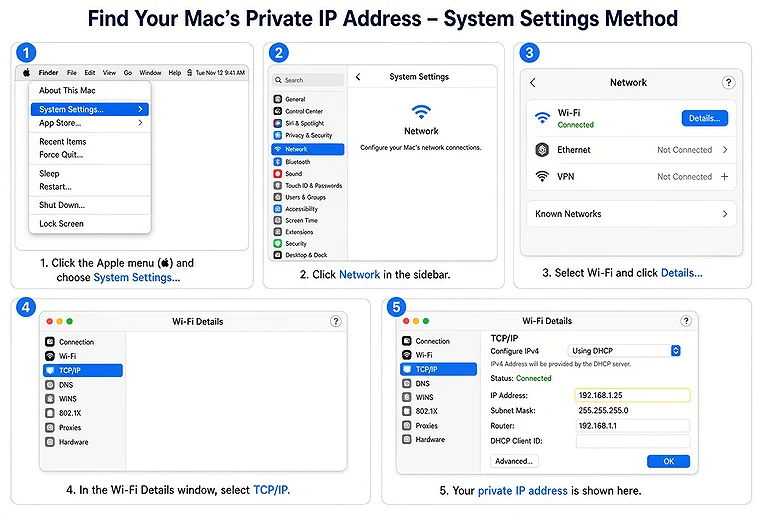
5 simple steps to find private IP address (Wi-Fi or Ethernet) on Mac in System Settings
Method 2: Find Your Private IP Using Terminal
Terminal provides a quick way to find your Mac's private IP address using a built-in command.
Open Terminal and run:
ipconfig getifaddr en0
Press Return.
If en0 is the active network interface, Terminal will display an address such as:
192.168.1.25
This is your Mac's private IPv4 address on the current network.
What Does en0 Mean? en0 is the name of a network interface on macOS. On many Macs, it commonly represents the primary network connection, but the interface name can vary based on your Mac's configuration.
What If en0 Doesn't Return an Address? If the command doesn't display an IP address, your active connection may use a different interface. You can check the available interfaces with:
ifconfig
Look for an active interface containing an entry similar to:
inet 192.168.1.25
The address following inet is the IPv4 address assigned to that interface.
You may see multiple interfaces because macOS can have Wi-Fi, Ethernet, VPNs, virtual networks, and other network services. Make sure you identify the interface associated with your active connection.
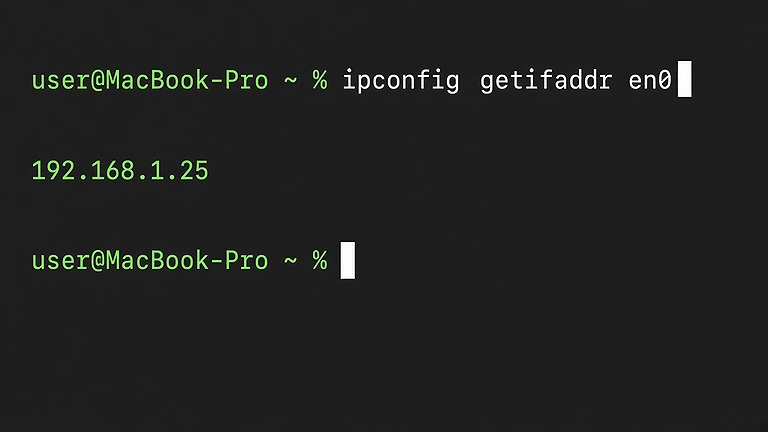
Run ipconfig getifaddr en0 in Terminal to quickly find your Mac's private IPv4 address.
How to Find Your IPv6 Address on Mac
Modern networks can use IPv6 alongside IPv4. macOS can assign multiple IPv6 addresses to the same network interface, depending on the network configuration.
To view your IPv6 address through the graphical interface, open:
System Settings → Network → Active Connection → Details → TCP/IP
Look for the IPv6 Address field. The exact options and labels can vary slightly between macOS versions.
You can also check IPv6 addresses using Terminal. Open Terminal and run:
ifconfig
Find the active network interface, such as en0, and look for entries beginning with inet6. For example:
inet6 fd12:3456:789a::25
The value after inet6 is an IPv6 address assigned to that network interface.
Keep in mind that not every IPv6 address is a private or local address. IPv6 uses different address categories from IPv4. For example, addresses beginning with fc or fd are typically Unique Local Addresses (ULAs), which are used for private networks. Addresses beginning with fe80:: are link-local addresses and are used for communication within the local network segment.
Private IPv4 Address Ranges
Private IPv4 addresses are reserved for use within local networks. There are three standards private IPv4 ranges defined by RFC 1918.
| CIDR Range | Private IPv4 Address Space |
| 10.0.0.0/8 | 10.0.0.0 – 10.255.255.255 |
| 172.16.0.0/12 | 172.16.0.0 – 172.31.255.255 |
| 192.168.0.0/16 | 192.168.0.0 – 192.168.255.255 |
These private IPv4 ranges were historically associated with different address classes under the older class-based IPv4 system. For more background, see our guide to IP address classes.
Common examples of private IPv4 addresses include:
- 10.0.0.10
- 10.20.5.15
- 172.16.1.50
- 172.25.10.8
- 192.168.0.20
- 192.168.1.25
If your Mac has an IPv4 address that falls within any of these three ranges, that address is a private IPv4 address. These addresses are intended for communication within local networks and aren't directly routable across the public internet.
Is 192.168.1.25 a Private IP Address?
Yes. 192.168.1.25 is a private IPv4 address because it falls within the private range:
192.168.0.0 – 192.168.255.255
This type of address is commonly assigned to computers, phones, printers, smart TVs, and other devices connected to a local network.
For example, a home network might use:
Router: 192.168.1.1
Mac: 192.168.1.25
iPhone: 192.168.1.26
Printer: 192.168.1.27
These devices can communicate with each other over the local network using their private IPv4 addresses.
Does My Mac Have a Private and Public IP Address?
When your Mac connects to a local network, it is typically assigned a private IP address by the router. The public IP address, however, is normally assigned to the router or internet connection by the ISP rather than directly to the Mac.
In a typical home network, the connection works like this:
Mac → Router → Internet
Your Mac uses its private IP to communicate with the router and other devices on the local network. The router then manages communication between your local network and the internet, typically using NAT (Network Address Translation).
As a result, your Mac's private IP and your network's public IP are usually different. Checking Network settings on your Mac shows its local IP address, while an internet-based IP lookup service generally shows the public IP address used by your network to access the internet.
Private IP vs Public IP on Mac
Your Mac's private IP address and your network's public IP address serve different purposes. The private IP identifies your Mac within the local network, while the public IP identifies the network when communicating with the internet.
| Feature | Private IP | Public IP |
| Main purpose | Local network communication | Internet communication |
| Used by | Devices on the local network | Internet-facing services and networks |
| Usually assigned by | Router or DHCP server | ISP or network provider |
| Globally routable | No | Yes |
| Example | 192.168.1.25 | Publicly assigned address |
| Visible to websites | Generally no | Generally yes |
For example, your Mac could have the private IP address:
192.168.1.25
Your router or network connection may have a separate public IP address assigned by your internet provider.
When your Mac accesses a website, the website generally sees the public-facing IP address rather than your Mac's private 192.168.1.25 address. Your router typically handles the communication between your local network and the public internet.
Can Your Mac's Private IP Address Change?
It can. If your Mac gets its private IP address through DHCP, your router assigns an address from its available local network range. That address may change when the DHCP lease is renewed or when your Mac reconnects to the network.
For example, your Mac might initially receive:
192.168.1.25
Later, it could receive:
192.168.1.31
This is normal for a dynamically assigned private IP address. However, the address may also remain the same for a long period, depending on the router and network configuration.
The exact behavior depends on factors such as the DHCP lease, router settings, network availability, and whether a static or reserved IP address is configured.
How to Keep the Same Private IP on Mac
If you want your Mac to consistently use the same private IP address on your local network, you have two common options: DHCP reservation or a manually configured static IP.
A DHCP reservation is usually the simpler option. You configure the reservation on your router, which associates your Mac with a specific IP address using its network identifier. When your Mac requests an address through DHCP, the router assigns the reserved IP.
Another option is to configure a static IP address directly on your Mac. This requires more care because the address must match your local network configuration and shouldn't conflict with another device.
For most home users, a DHCP reservation is easier to manage because the router handles the address assignment while keeping the same private IP for your Mac.
What If My Mac Shows a 169.254.x.x Address?
An IPv4 address beginning with 169.254 usually means your Mac couldn't obtain a normal IPv4 address from the network's DHCP server. macOS can automatically assign a link-local address in this range when DHCP configuration fails.
For example, you might expect an address such as:
192.168.1.25
but instead see:
169.254.20.15
This can happen because of problems with the network connection, DHCP service, or network configuration.
Possible causes include:
- Router or DHCP problems
- Wi-Fi connection issues
- Ethernet connection problems
- Incorrect network configuration
- Temporary network or router failures
Try disconnecting and reconnecting your Mac to the network. You can also restart the router if other devices are experiencing the same problem. Then check your Mac's IP address again.
If your Mac continues to receive a 169.254.x.x address, the problem may require further network troubleshooting.
Can My Mac Have Multiple IP Addresses?
Your Mac can have multiple IP addresses when it has more than one active network interface or network service.
For example, your Mac may have following Interface Connections:
- Wi-Fi
- Ethernet
- VPN
- Virtual machine networking
- Other virtual or physical network interfaces
Each interface can have its own network configuration and may have a separate IPv4 or IPv6 address.
This is why commands such as ifconfig can display multiple interfaces and several IP addresses.
If you're trying to find the private IP address your Mac is currently using, focus on the interface connected to your active local network. For example, if you're connected through Wi-Fi, look for the IP address associated with the active Wi-Fi interface rather than an address belonging to a VPN or virtual network.
Can a VPN Change Mac's Private IP?
A VPN can create an additional virtual network interface on your Mac and assign it its own IP address. As a result, commands such as ifconfig may display additional addresses when a VPN is connected.
However, a VPN doesn't necessarily replace your Mac's local private IP address. Your Mac can still have a private IP assigned by your router while the VPN uses a separate virtual interface.
If you're troubleshooting a local network connection, temporarily disconnecting the VPN can make it easier to identify which IP address belongs to your normal Wi-Fi or Ethernet connection.
Is a Private IP Address Safe to Share?
A private IP address is generally less exposed than a public IP address because it isn't directly routable across the public internet.
However, you should still avoid sharing network information unnecessarily. If you're posting a screenshot of your Mac's network settings online, consider hiding unrelated details such as:
- Computer name
- MAC address
- Router information
- DNS information
- Network name
- Other network details
When asking for technical help, share only the information needed to troubleshoot the problem.
FAQs
Why Does My Mac Show an IP Address With a Slash?
A slash followed by a number, such as 192.168.1.25/24, represents CIDR notation. The /24 indicates the network prefix length and helps define which addresses belong to the local subnet.
What Is the Default Gateway on a Mac?
The default gateway is usually your local router's IP address. Your Mac sends traffic destined for other networks, including the internet, to the gateway for further routing.
How Does NAT Work With My Mac's Private IP?
NAT allows devices using private IP addresses to communicate with the internet through a public IP address. Your router translates between internal private addresses and the external network.
Why Can't I Access My Mac Using Its Private IP From the Internet?
Private IP addresses aren't globally routable, so devices outside your local network generally can't reach your Mac directly using that address. Remote access requires appropriate routing, VPN, or another remote-access solution.
Does a Private IP Address Identify My Mac Specifically?
A private IP identifies your Mac within a particular local network, but it isn't a permanent global identifier. The address can be reassigned to another device when network conditions or DHCP assignments change.
Why Does My Mac's Private IP Differ From Other Devices?
Each device on the same local network normally receives its own IP address. Your Mac's address may differ because the router assigns available addresses through its DHCP configuration.
Can a Mac Have Both IPv4 and IPv6 Addresses at the Same Time?
Yes. macOS can use IPv4 and IPv6 simultaneously through dual-stack networking. A network interface may therefore have both IPv4 and IPv6 addresses while communicating with different networks and services.
What Happens to My Private IP When I Change Wi-Fi Networks?
When your Mac joins a different Wi-Fi network, it normally receives a new private IP address from that network's DHCP server. The address depends on the new router's network configuration.
Can a Private IP Be Accessed From Another Device?
Yes. Devices connected to the same local network can generally communicate using private IP addresses, provided the relevant service is running and firewall settings, permissions, and network isolation don't block the connection.
What Happens If My Mac's Private IP Conflicts With Another Device?
An IP conflict occurs when two devices use the same address on one network. This can cause connection problems, intermittent access, or complete loss of network communication until the conflict is resolved.
Conclusion
Finding your private IP address on a Mac takes only a few seconds. System Settings is the easiest option, while Terminal provides a quick alternative for users who prefer commands. Your private IP helps your Mac communicate with other devices on the same local network and can be useful when troubleshooting connection problems, setting up devices, or checking network settings. With these two methods, you can quickly find your Mac's private IP address without installing additional software or using an online IP lookup tool.