.webp)
precise this title
Advanced IP Scanner: What It Is, How It Works, and How to Use It
Advanced IP Scanner is a free Windows network scanning tool designed to discover devices connected to a local network. It scans a selected range of IP addresses and displays information such as device names, IP addresses, and MAC addresses. If you want to understand how these addresses identify devices on a network, see our guide on what is an IP address.
The tool can also detect accessible shared folders and other network resources, depending on the devices and network configuration. It’s useful for checking active devices on home, office, and small business networks, troubleshooting connectivity issues, and getting a quick overview of the local network. Advanced IP Scanner is also available as a portable application, so it can run without a traditional installation.

 Updated: September 21, 2026 | 13 min read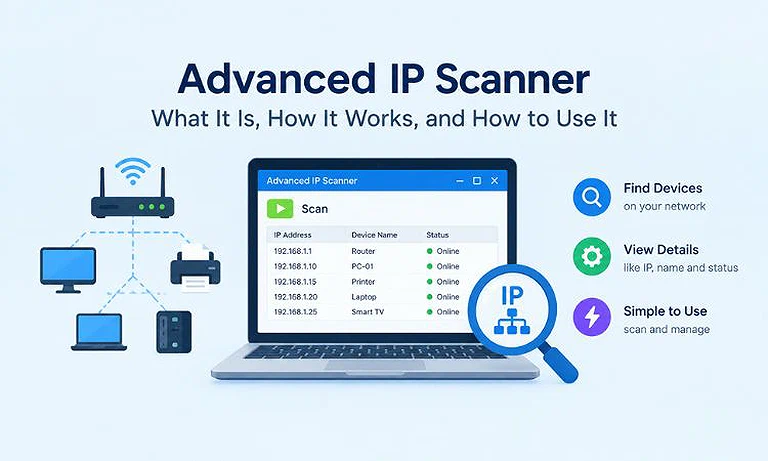
Cover Photo Advanced IP Scanner: What It Is, How It Works, and How to Use It
Uses of Advanced IP Scanner
Advanced IP Scanner is useful for discovering devices and accessible network resources on a local network. By scanning a selected IP address range, you can quickly see which devices respond and review their available network information from one place.
Common uses of Advanced IP Scanner include:
- Finding network devices: Discover computers and other devices connected to a local network.
- Identifying IP and MAC addresses: View the addresses associated with detected network devices.
- Viewing device information: Check available details such as device names and network status.
- Finding shared folders: Locate shared folders and other resources that are accessible over the network.
- Checking network resources: Identify available services and resources associated with detected devices.
- Accessing remote services: Connect to supported remote-access services when they’re available on a device.
- Saving scan results: Save information about detected devices for later reference.
- Managing Favorites: Add frequently accessed computers to a Favorites list for easier access.
- Using Wake-on-LAN: Wake supported computers remotely when the network and hardware are configured for this feature.
These features can help with everyday network tasks such as identifying connected devices, troubleshooting connectivity issues, checking shared resources, and keeping track of computers on a small home or office network.
How Does Advanced IP Scanner Work?
Advanced IP Scanner works by scanning a selected range of IP addresses to find devices that respond on the local network. You can enter the IP range manually, or the program can detect the network range associated with the computer’s current connection.
For example, a typical home network may use a private IPv4 range such as:
192.168.1.1 – 192.168.1.254
When you start a scan, Advanced IP Scanner checks the addresses within the selected range and displays the devices it can detect. The results can include information such as IP addresses, MAC addresses, and device names.
The information available for each device depends on the network configuration, device settings, and accessible network resources. Advanced IP Scanner can also detect certain shared folders and supported network services when they’re available.
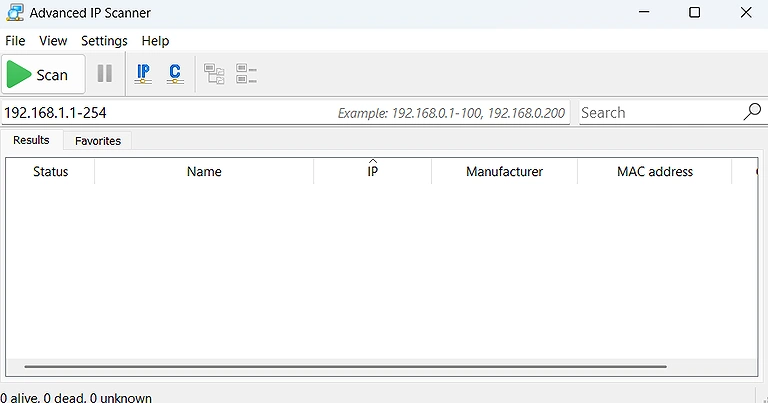
Image showing Advanced IP Scanner with an IP range and Scan button ready to start a network scan.
How to Use Advanced IP Scanner
Using Advanced IP Scanner is straightforward. You select an IP address range, start the scan, and review the devices detected on the network. Follow these steps to perform your first scan.
1. Download Advanced IP Scanner
Download Advanced IP Scanner from the official Advanced IP Scanner website. Using the official source helps you avoid potentially unsafe third-party download sites.
The software is available as a free Windows application and also offers a portable version that can run without a traditional installation.
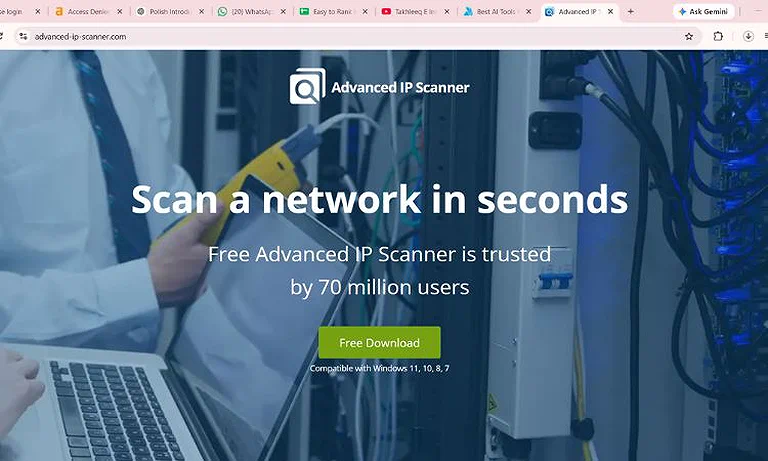
Image showing the official Advanced IP Scanner website with the free download option.
2. Open Advanced IP Scanner
Launch Advanced IP Scanner on a Windows computer connected to the network you want to scan. The main window includes the controls needed to specify an IP address range and start a network scan.
3. Enter the IP Address Range
Enter the starting and ending IP addresses for the network you want to examine.
For example:
192.168.1.1 – 192.168.1.254
If you’re unsure which range to use, click the IP button in the toolbar. Advanced IP Scanner can help identify the appropriate range for the computer’s current network connection. If you need to find the address assigned to your Windows computer first, see our guide on how to find your IP address on Windows.
4. Start the Scan
Click Scan to scan the selected IP address range.
Advanced IP Scanner checks the addresses in the specified range and displays the devices it can detect. Depending on the network and device configuration, the results may include IP addresses, MAC addresses, computer names, and other available information.
5. Review the Scan Results
Examine the results to identify computers and other devices detected on the network.
Select a device to view the actions and network resources available for it. The options shown can vary depending on the device, network configuration, and accessible services.
6. Save the Scan Results
You can save scan results in formats such as XML, HTML, and CSV. Saving the results can be useful when you want to keep a record of detected devices or review the information later.
Understanding Advanced IP Scanner Scan Results
After a scan finishes, Advanced IP Scanner displays the devices it detected within the selected IP range. The results are organized into a list, allowing you to review information about each device and determine which computers or network resources are currently accessible.
The information shown can vary depending on the device and network configuration. Common details include:
- Status: Indicates whether the device responded to the scan.
- Computer Name: Shows the device or computer name when it can be detected.
- IP Address: Displays the IP address associated with the detected device.
- MAC Address: Shows the MAC address of the detected network interface when available.
- Manufacturer: May identify the manufacturer associated with the detected network interface.
- Shared Folders: Displays accessible shared folders when they can be detected.
- Remote Access: Shows supported remote-access options available for the selected computer.
You can select a device from the results list to view the actions and resources available for it. Keep in mind that not every device will provide the same information. Firewalls, permissions, network settings, and device configuration can affect what Advanced IP Scanner is able to detect.
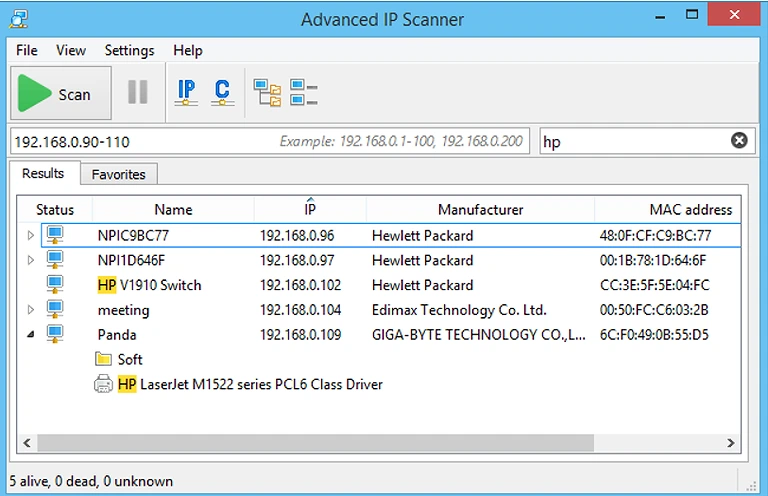
Image showing Advanced IP Scanner detecting network devices and shared resources.
Advanced IP Scanner Scan Settings
Advanced IP Scanner provides several settings that can affect scan speed, accuracy, and resource usage.
The Performance settings include a high-accuracy scanning mode that checks computers multiple times. This can provide more reliable detection but takes longer than a faster scan. You can also adjust the scanning rate to control how quickly the scan runs and how much network or processor capacity it uses.
The Resources settings let you choose which network resources Advanced IP Scanner should check. Selecting only the resources you need can help reduce the time required to complete a scan.
These options let you adjust the scan based on your needs. A quick device-discovery scan may require different settings from a more detailed network check.
Is Advanced IP Scanner Safe?
Advanced IP Scanner is a legitimate network scanning application. However, its safety depends partly on how and where you use it.
The software can discover devices and access certain network resources, including supported remote-access and shutdown functions. These capabilities should only be used on computers and networks that you own or are authorized to administer.
For downloading the program, use the official Advanced IP Scanner website rather than unfamiliar third-party download sites. The official website provides the Windows version and describes Advanced IP Scanner as a free network scanner.
Can Advanced IP Scanner Find Every Device?
No. A network scan doesn't guarantee that every device will appear in the results.
Detection can depend on the IP range being scanned, network configuration, device settings, firewalls, and selected scan resources. Devices that don't respond to the relevant checks may not appear in the results.
Therefore, an empty scan result doesn't necessarily mean that no devices are connected to the network. It may simply mean that the scanner couldn't detect them under the current scan conditions.
Can Advanced IP Scanner Detect Devices That Are Turned Off?
Advanced IP Scanner generally detects devices that are powered on and responding to network requests. A computer or other network device that is completely powered off normally won't appear in the scan results because it cannot respond to the scanner.
Devices in sleep mode can behave differently. Depending on the device's network settings, they may still respond to certain network requests and appear in the results. Therefore, a device missing from the scan doesn't always mean it's disconnected from the network.
Can Advanced IP Scanner Find IP Addresses?
Yes. Finding IP addresses is one of the main purposes of Advanced IP Scanner. After scanning a selected IP range, the program displays detected devices along with their assigned IP addresses. It can also show MAC addresses when that information is available.
This can be useful when you need to identify a specific computer, troubleshoot a network connection, or determine which device is using a particular IP address. For example, you can use this information to find your
router's IP address or printer's IP address on your local network.
Does Advanced IP Scanner Work on macOS?
Advanced IP Scanner is designed for Windows, not macOS. The official website lists support for Windows 11, 10, 8, and 7.
If you're using a Mac, you'll need a different network-scanning tool that supports macOS. You can still scan your local network and find device IP addresses using other networking utilities. If you need to find the IP address assigned to your Mac, see our guide on how to find your IP address on Mac.
Advanced IP Scanner vs. a Basic IP Address Lookup
An IP address lookup and a network scanner serves different purposes.
A typical IP lookup service provides information about a single public IP address. Advanced IP Scanner, on the other hand, scans a range of addresses on a local network to identify devices that respond.
For example, if you want to check the public IP address assigned to your internet connection, an IP lookup service is more appropriate. If you want to identify computers and other devices using addresses on your local network, Advanced IP Scanner is designed for that task.
The key difference is that IP lookup tools provide information about an IP address, while network scanners help identify devices within a local network.
Advanced IP Scanner Alternatives
Advanced IP Scanner isn't the only way to scan a network. The right alternative depends on your operating system, network size, and the information you need.
Some popular alternatives include:
Nmap: A powerful network discovery and security auditing tool with extensive command-line options. It supports Windows, macOS, and Linux.
Angry IP Scanner: A free, open-source IP and port scanner available for Windows, macOS, and Linux. It can quickly scan IP ranges to discover active devices.
Fing: A network discovery and device-identification tool available across several platforms. It focuses on identifying devices and providing network information.
Zenmap: A graphical interface for Nmap that makes some Nmap scanning tasks easier to perform. It can be used on macOS and other supported platforms.
For Mac users, these tools provide ways to scan local networks without Advanced IP Scanner. Advanced IP Scanner, in contrast, focuses on straightforward network discovery through a Windows-based interface and provides access to supported resources on detected computers.
The best option depends on whether you need simple device discovery, cross-platform support, or more advanced network scanning capabilities.
Can Advanced IP Scanner Help with Network Troubleshooting?
Advanced IP Scanner can help troubleshoot network problems by showing which devices are visible on a local network.
For example, if a computer, printer, or other network device isn't behaving as expected, you can scan the network to check whether the device is detected and identify its IP address.
You can then use this information with other troubleshooting methods, such as checking the router's connected-device list or verifying the device's network settings.
For larger or more complex networks, additional network management and monitoring tools may be needed for more detailed troubleshooting.
FAQs
Is Advanced IP Scanner free to use?
Yes. Advanced IP Scanner is available as a free Windows network scanning application. You can use it to scan local IP ranges and view detected devices without purchasing a paid license for the basic scanner.
Does Advanced IP Scanner need administrator privileges?
Advanced IP Scanner can perform basic network scans without requiring administrative access in many situations. However, some actions or network resources may require appropriate Windows permissions before they can be accessed.
How long does an Advanced IP Scanner scan take?
Scan time depends on the IP range, scanning rate, network conditions, and selected resources. A small local network usually scans quickly, while larger ranges or detailed scans can take considerably longer.
Can Advanced IP Scanner scan Wi-Fi networks?
Yes. Advanced IP Scanner can scan devices connected to the same local network over Wi-Fi. The computer running the scanner needs network access to the Wi-Fi network and the devices being scanned.
Can Advanced IP Scanner detect a router?
Yes. A router can appear in the scan results when it responds to the scanner's network checks. The displayed information depends on the router's configuration and the network resources it makes available.
Can Advanced IP Scanner detect phones?
It may detect smartphones connected to the same local network if they respond to the scanner's checks. However, mobile devices may limit network responses, so their displayed information can vary.
Can Advanced IP Scanner detect printers?
Yes. Network printers can appear in scan results when they respond to the scanner. The results may show information such as the printer's IP address, MAC address, or device name when available.
Can Advanced IP Scanner check open ports?
Advanced IP Scanner can display certain network services associated with detected computers, but it isn't primarily designed as a comprehensive port-scanning tool. Dedicated scanners such as Nmap provide broader port-scanning capabilities.
Can Advanced IP Scanner scan devices outside my local network?
Advanced IP Scanner is primarily designed for scanning local networks and specified IP ranges. Scanning devices outside your network depends on routing, firewall rules, permissions, and whether those addresses are reachable from your computer.
Does Advanced IP Scanner work on Windows 11?
Yes. Advanced IP Scanner supports Windows 11, along with several earlier Windows versions. The software is designed specifically for Windows rather than macOS or other desktop operating systems.
Conclusion
Advanced IP Scanner is a practical Windows tool for discovering devices on a local network and viewing available network information. It can help identify IP addresses, check accessible resources, review scan results, and troubleshoot basic network issues. Its straightforward interface also makes it suitable for users who don't need complex network-scanning features.
However, its capabilities depend on network configuration, device settings, and available permissions. It isn't available for macOS, and more advanced networks may require specialized tools such as Nmap. When used on networks you own or are authorized to manage, Advanced IP Scanner can provide a convenient way to see the IP addresses of connected devices. If you want to understand the IP address assigned to a specific network interface, see our guide to Interface IP Address.