.webp)
Static vs Dynamic IP Address: Uses and How to Assign Them
Choosing the right IP address setup can make network management easier and prevent problems with device communication. The choice becomes especially important when configuring servers, printers, routers, remote access, business networks, or devices that need a consistent network address.
This article explains the key differences between static and dynamic IP addresses, including their common uses, advantages, and limitations. It also covers how to assign a static IP, how DHCP assigns dynamic addresses, when to use each option, and how to identify your device's IP configuration.

 Updated: September 23, 2026 | 18 min read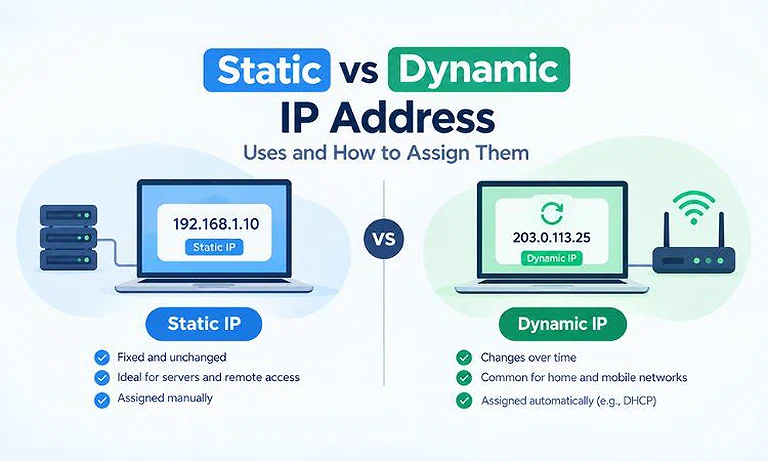
Cover Photo Static vs Dynamic IP Address: Uses and How to Assign Them
Quick Comparison of Static and Dynamic IP Addresses
| Feature | Static IP | Dynamic IP |
| Assignment | Manually configured or DHCP reserved | Automatically assigned through DHCP |
| Address changes | Usually stays the same | Can change |
| Configuration | Requires manual setup or reservation | Usually automatic |
| Predictability | High | Lower |
| Management | More manual | Easier |
| Remote access | Easier to configure | May require additional setup |
| Common uses | Servers, printers, network devices | Phones, laptops, home devices |
| DHCP | Not required for manual configuration | Normally used |
| Cost | Public static IP may cost extra | Usually included with standard service |
One important point: “Manual or reserved” under Static IP can be misleading because a DHCP reservation isn't technically the same as a manually configured static IP. The wording “Manually configured or DHCP reserved” makes that distinction clearer while matching the explanations later in your article.
What Is a Static IP Address?
A static IP address is an IP address that remains assigned to a device until an administrator changes the configuration. It doesn't normally change after the device disconnects, restarts, or reconnects to the network. See our guide for a broader explanation of IP addresses.
Static IP addresses are useful for devices that need a consistent network address. Servers, printers, network storage devices, and other network resources may use static addresses so other devices can connect to them reliably without needing to locate a new IP address.
A static IP address can be configured manually on the device or assigned through a DHCP reservation on the router. Manual configuration requires entering network details such as the IP address, subnet mask, default gateway, and DNS server. A DHCP reservation instead associates a specific IP address with the device's MAC address.
For example, a computer could be assigned the private IP address 192.168.1.25 on a local network. As long as that address remains reserved or manually configured for the computer, other devices on the same network can use 192.168.1.25 to communicate with it.
What Is a Dynamic IP Address?
A dynamic IP address is assigned automatically by a network's DHCP (Dynamic Host Configuration Protocol) service. The DHCP server assigns an available address from a configured range and provides the network settings required for communication.
Dynamic IP addressing is common on home and business networks because it reduces manual configuration. When a device joins the network, DHCP can automatically provide its IP address, subnet mask, default gateway, and DNS server information.
For example, a router might assign 192.168.1.20 to a laptop. When the DHCP lease expires or the device reconnects, the router may renew the same address or assign a different available address.
Dynamic addressing also simplifies network administration when many devices connect to the same network. Administrators don't need to manually configure each computer, phone, printer, or other network device.
Unlike a static IP, a dynamic address isn't intended to remain permanently assigned to a device. This makes dynamic addressing suitable for devices that need reliable network access without requiring a fixed IP address.
How to Assign a Static IP Address
A static IP address can be configured directly on a device or assigned through a router. Before setting an address manually, verify that it belongs to the network's subnet and isn't already assigned to another device.
For example, if your local network uses the range 192.168.1.0 to 192.168.1.255, you could assign 192.168.1.25 to a device if that address isn't already in use. You also need the correct subnet mask, default gateway, and DNS server settings for the network.
Assign a Static IP on Windows
The steps for assigning a static IP vary slightly between Windows versions. Windows 7 and Windows 10 use the traditional network adapter properties, while Windows 11 provides IPv4 settings directly through the Settings app. These settings apply to the network interface used by the device. See our guide on
to understand how IP addresses are assigned to network interfaces.
Method 1: Open IPv4 Settings with Run
Press Windows + R to open the Run dialog. Type ncpa.cpl and press Enter. This opens the Network Connections window.
Right-click the active network adapter and select Properties. Select Internet Protocol Version 4 (TCP/IPv4) and click Properties. Choose Use the following IP address, then enter the IP address, subnet mask, default gateway, and DNS server.
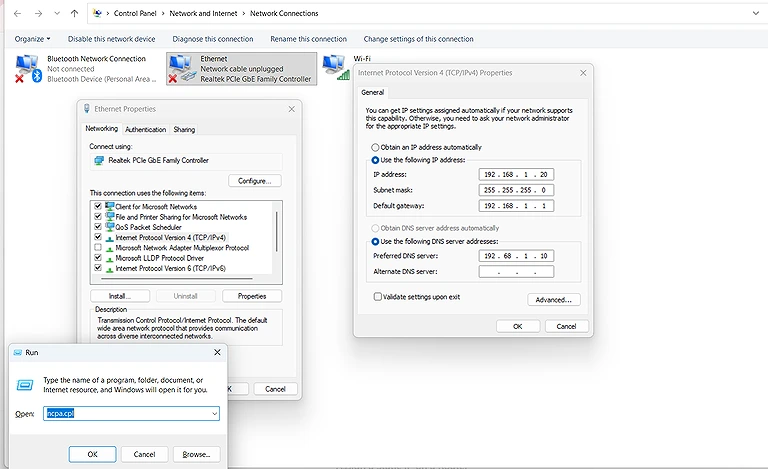
Windows Network Connections opened using the ncpa.cpl command to configure IPv4 settings.
Method 2: Use Network Settings
Windows 7: Open Control Panel > Network and Sharing Center. Select the active connection under View your active networks, then open its Properties. Select Internet Protocol Version 4 (TCP/IPv4) and click Properties. Choose Use the following IP address and enter the required network details.
Windows 10: Open Settings > Network & Internet > Status and select Network and Sharing Center. Under View your active networks, select the active connection and open its Properties. Select Internet Protocol Version 4 (TCP/IPv4), click Properties, and choose Use the following IP address. Enter the required IP address, subnet mask, default gateway, and DNS server.
Windows 11: Open Settings > Network & internet > Ethernet. Under IP assignment, click Edit, select Manual, and turn on IPv4. Enter the IP address, subnet mask, gateway, and DNS server in their respective fields, then save the settings.
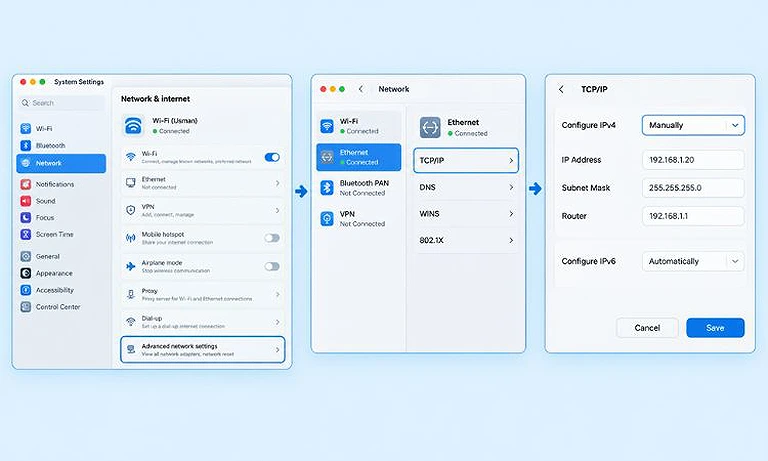
Image showing Windows 11 Network & Internet settings and available network configuration options.
The ncpa.cpl method provides a quick way to access the traditional network adapter settings across Windows versions. See our guide on Windows IP Address for more ways to find and manage an IP address.
Assign a Static IP on Mac
On macOS, open System Settings > Network and select the network connection you want to configure. Open its TCP/IP settings and change IPv4 configuration from automatic to manual.
Enter the required IP address, subnet mask, and router address. The IP address should belong to the same local network as the router and other devices. For more information see our guide on How to Find IP Address in Mac.
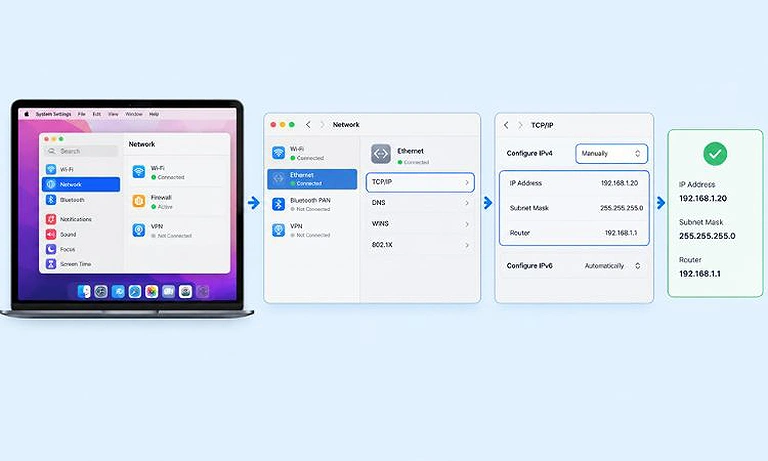
Image showing macOS Network settings with the IPv4 configuration set to manual.
Assign a Static IP on a Router
You can also assign a consistent IP address through a router by creating a DHCP reservation. This tells the router to provide the same IP address to a specific device whenever it connects to the network.
The router identifies the device using its MAC address and reserves the selected IP address for it. This approach is often easier to manage than manually configuring each device while allowing the router to continue providing network settings through DHCP.
The exact steps vary by router manufacturer and model. Look for settings such as DHCP Reservation, Address Reservation, or Static Lease in the router's administration interface. For more information see our guide about your router's IP address.
How to Assign a Static IP Address to a Printer
A printer can use a static IP address when you want computers and other devices to reach it at a consistent network address. This can help prevent connection problems that may occur when the printer receives a different IP address.
Before assigning an address, check the printer's current IP and confirm that the new address isn't already in use. See our guide on How to Find Your Printer's IP Address for different ways to locate the printer's current address.
Assign a Static IP Directly on the Printer
Many network printers allow you to configure an IPv4 address through their built-in display or web-based settings. Open the printer's network settings, change IP assignment from Automatic or DHCP to Manual or Static, and enter the required IP address, subnet mask, gateway, and DNS server.
The exact options vary by printer manufacturer and model. After saving the settings, the printer should remain available at the assigned IP address unless its network configuration is changed.
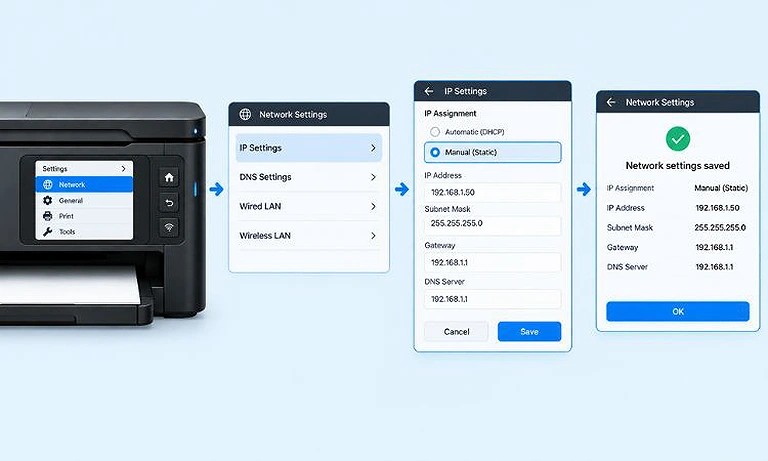
Image showing a printer’s Network Settings with a static IP configuration saved.
Assign a Static IP Through the Router
A simpler option is to create a DHCP reservation for the printer on your router. The router associates a specific IP address with the printer's MAC address and assigns that same address whenever the printer connects to the network.
This approach keeps IP management centralized on the router and avoids manually configuring network details on the printer. The exact steps depend on the router's manufacturer and model.
How to Assign Dynamic IP Address?
Dynamic IP addresses are normally assigned automatically through DHCP (Dynamic Host Configuration Protocol). DHCP eliminates the need to manually configure an IP address on every device that connects to the network.
When a device joins a network, it requests network configuration from a DHCP server. The server assigns an available IP address and can also provide the subnet mask, default gateway, and DNS server information required for network communication.
To assign a dynamic IP to a computer or printer, set its network configuration to Automatic (DHCP) or Obtain an IP address automatically. The device will then request an available IP address from the network's DHCP server instead of requiring manual IP settings.
The assigned address is usually provided for a limited period called a lease. When the lease approaches expiration, the device can request a renewal. The DHCP server may renew the same IP address or assign a different available address.
On a typical home network, the router acts as the DHCP server. It manages a pool of private IP addresses and automatically assigns them to connected devices.
For example, a router might use a DHCP pool ranging from 192.168.1.20 to 192.168.1.200. Phones, computers, smart TVs, printers, and other devices can receive available addresses from this range without manual configuration.
Advantages and Disadvantages of Static IP Addresses
Static IP addresses make devices easier to locate on a network because their addresses remain consistent. However, they require more careful configuration and management than dynamic addresses.
Advantages of a Static IP
Predictable addressing: A device remains available at the same IP address, making it easier to connect to consistently.
Useful for servers: Servers can use a known IP address for applications, websites, file sharing, and other network services.
Convenient for remote access: A consistent address can simplify remote-access and port-forwarding configurations.
Useful for network devices: Printers, security cameras, NAS devices, and similar equipment can benefit from a consistent local address.
Suitable for IP-based rules: Firewalls, routers, and other network systems can use fixed IP addresses for access rules and allowlists.
Disadvantages of a Static IP
More configuration: The IP address and other network settings must be configured correctly when assigning it manually.
Potential IP conflicts: Assigning an address already used by another device can cause connectivity problems.
More administration: Managing many manually assigned IP addresses can become difficult as a network grows.
Less flexible: Changing network settings or moving a device to another network may require additional configuration.
Public static IPs may cost more: Internet service providers may charge extra for a dedicated or static public IP address.
Advantages and Disadvantages of Dynamic IP Addresses
Dynamic IP addressing reduces the amount of manual configuration required on a network. It works especially well when devices connect and disconnect frequently or don't need a fixed IP address.
Advantages of a Dynamic IP
Easy to configure: Devices can receive an IP address and other network settings automatically through DHCP.
Less administration: Administrators don't need to manually configure each computer, phone, printer, or other network device.
Efficient address management: DHCP can assign available addresses to devices and reuse them when devices leave the network.
Convenient for changing devices: Laptops, phones, tablets, and guest devices can connect without requiring manual IP configuration.
Suitable for most home networks: Most home devices only need reliable network access and don't require a permanent local IP address.
Disadvantages of a Dynamic IP
The address can change: A device may receive a different IP address after reconnecting or when its DHCP lease changes.
Less predictable: Services that depend on a consistent IP address can require additional configuration.
Can complicate remote access: A changing public IP address can make direct remote connections more difficult to maintain.
Depends on DHCP: If the DHCP server or its configuration has a problem, devices may fail to receive the network settings they need.
Static vs Dynamic IP for Different Uses
The right IP addressing method depends on how a device is used and whether it needs a consistent address.
1 For Home Networks
Dynamic IP addressing is normally suitable for most home devices. Phones, laptops, tablets, smart TVs, and other devices can receive their IP settings automatically from the router.
A static IP or DHCP reservation can be useful for devices that need a consistent local address. Common examples include network printers, NAS devices, security cameras, and home servers.
2 For Business Networks
Businesses commonly use both static and dynamic IP addressing. Servers, network equipment, printers, security systems, and other important devices may use predictable addresses.
Employee computers, phones, and guest devices can usually use DHCP. This combination reduces manual configuration while keeping important network resources easier to locate.
3 For Servers and Remote Access
Servers often need a consistent IP address because other devices and applications need a reliable destination for network connections. A local server can use a static private IP or a DHCP reservation.
Public-facing services may require a static public IP depending on the hosting setup and service requirements. However, a static public IP isn't required for every remote-access configuration.
4 For Gaming and Online Services
Most gaming consoles and PCs can use dynamic IP addressing without any issue. A static private IP can be useful when configuring port forwarding, because the router needs a consistent local address for the device receiving incoming connections.
However, assigning a static IP doesn't automatically increase internet speed or reduce latency. Gaming performance depends on factors such as the internet connection, network congestion, server distance, and connection quality.
Which Is More Secure: Static or Dynamic IP?
Neither a static nor a dynamic IP address is inherently more secure. An IP address mainly determines how a device is identified and reached on a network. Security comes from the controls protecting that device and its network connections.
A static IP provides a consistent address, which can make security rules easier to manage. For example, a firewall can allow or block traffic based on a specific IP address. Network administrators can also use fixed addresses when creating access rules for trusted devices.
A dynamic IP can change when the DHCP lease is renewed or the device reconnects to the network. However, this change shouldn't be considered a security feature. A new IP address doesn't protect a device from unauthorized access, malware, or other network threats.
For better network security, focus on firewalls, strong passwords, authentication, software updates, encryption, and proper access controls. These measures are important whether a device uses a static or dynamic IP address.
How to Check If Your IP Address Is Static or Dynamic
The easiest way to check a private IP address is to look at how the device receives its network settings. If the device is set to obtain an IP address automatically, DHCP is handling the assignment. If an IP address has been entered manually, the device is using a static configuration.
Check on Windows
Press Windows + R, type ncpa.cpl, and press Enter. Right-click the active network adapter, select Properties, and open Internet Protocol Version 4 (TCP/IPv4).
If Obtain an IP address automatically is selected, the device normally receives its IP through DHCP. If Use the following IP address is selected and an address has been entered, the device is using a manually configured static IP.
Check on a Router
You can also check the router's DHCP client list or DHCP reservation list. A device listed as a DHCP client normally receives its address automatically. If the router has a reservation for the device, it can receive the same IP address each time while still using DHCP.
Check a Public IP Address
Public IP addresses are different because the ISP controls their assignment. Your device's network settings may show whether its private IP uses DHCP, but they can't reliably tell you whether your public IP is static or dynamic.
To confirm the type of public IP address, check your internet service plan or contact your ISP. Some providers offer static public IP addresses as an additional service.
Can You Change a Dynamic IP to a Static IP?
Yes, but the process depends on whether you're changing a private IP address inside your network or a public IP address assigned by your ISP.
For a private IP address, you can usually change the device from automatic addressing to a manually configured IP. Another option is to create a DHCP reservation on the router, which allows the device to receive the same IP address each time it connects.
For a public IP address, you generally can't choose or permanently assign an address yourself. Your internet service provider controls the public IP assigned to your connection. If you need a static public IP, you'll usually need to request a static IP service from your ISP.
Keep in mind that a static private IP and a static public IP serve different purposes. A private static IP keeps a device's address consistent inside your local network, while a public static IP provides a consistent address for your internet connection.
Can a Static IP Address Change?
A static IP address normally remains the same until someone changes the network configuration. Restarting the device or disconnecting it from the network doesn't normally change a manually configured static IP.
However, a static IP isn't permanently fixed under every circumstance. An administrator may change the address, the network configuration may be redesigned, or an ISP may change the public IP arrangement for a customer.
In simple terms, static means the address is intended to remain consistent under the current configuration. It doesn't mean the address can never change.
Static vs Dynamic IP Address Examples
Consider a home network with a router, laptop, printer, and smart TV.
The router might assign the laptop 192.168.1.30 dynamically through DHCP. The smart TV could receive 192.168.1.31, while the printer might use a DHCP reservation for 192.168.1.50.
In this example, the laptop and TV can receive different IP addresses over time. The printer, however, continues to receive 192.168.1.50 because the router reserves that address for it.
A business server could also use a manually configured static private IP, such as 192.168.1.10. This gives other systems a consistent address for connecting to the server.
These examples use private IP addresses within a local network. Public IP addresses work differently and are generally assigned and managed by the ISP or network provider. For additional background on traditional IPv4 ranges, see our guide to IP Address Classes.
FAQs
Can two devices have the same IP address?
Two devices shouldn't use the same IP address on the same network. Duplicate addresses can cause IP conflicts, leading to connection failures, intermittent access, or difficulty communicating with other devices and network services.
What happens when a DHCP server runs out of addresses?
When a DHCP pool has no available addresses, new devices may fail to obtain an IP address. Existing devices can usually continue communicating until their current DHCP leases expire or require renewal.
Can a device use both static and dynamic IP addresses?
A device can have multiple network interfaces, and each interface can use different addressing methods. For example, Ethernet could use a static address while Wi-Fi receives its address automatically through DHCP.
Does changing an IP address disconnect the device?
Changing an IP address can temporarily interrupt network communication. Existing connections may stop working because applications and devices are still using the previous address until the network configuration updates.
What is a DHCP lease time?
A DHCP lease time determines how long a device can use an assigned IP address. Before the lease expires, the device normally attempts to renew it so network connectivity can continue.
Can a static IP work on any network?
A static IP configuration must match the network where it's being used. An address, subnet mask, gateway, and DNS settings configured for one network may not work correctly after moving the device elsewhere.
Why do some devices need a fixed IP address?
Devices providing network services often benefit from fixed addresses because other systems need a predictable destination. Examples include servers, network storage, surveillance systems, printers, and devices hosting applications or shared resources.
Can a router assign different IP ranges to different devices?
Yes. Many routers can create separate networks or VLANs with different address ranges. Each network can have its own DHCP pool, allowing administrators to organize devices and control network access more effectively.
Does IPv6 use static and dynamic addressing?
Yes. IPv6 supports both manually configured addresses and automatically assigned addresses. It also provides mechanisms such as SLAAC and DHCPv6, allowing devices to obtain addressing information without relying exclusively on traditional IPv4 DHCP.
What should you check before assigning a static IP?
Check the network's address range, subnet mask, gateway, and DNS settings first. Also confirm that the chosen address isn't already assigned to another device to avoid duplicate-address conflicts and connectivity problems.
Conclusion
A static IP address remains consistent until its network configuration is changed, making it useful when a device needs a predictable address. A dynamic IP address is assigned automatically through DHCP and can change as leases are renewed or devices reconnect.
Static IP addresses are commonly useful for servers, printers, network storage, security devices, and services that need consistent addressing. Dynamic IP addresses are generally suitable for laptops, phones, smart TVs, guest devices, and most everyday network connections. Understanding CIDR can also help when planning IP ranges and subnet configurations.