.webp)
Why Your AI Videos Still Look Fake Fix Character Morphing, Bad Physics & Frame Flicker
Your AI video may start with a perfect frame, but a few seconds later the character changes, objects merge, and motion starts breaking. These issues character morphing, bad physics, and frame flicker remain some of the biggest challenges in AI video generation. The problem isn’t always the prompt; it’s the difficulty AI models face in maintaining consistency across every frame.
Professional creators solve this by using controlled workflows instead of relying on one-click generation. This guide reveals practical methods to lock character identity, stabilize motion, preserve object relationships, and create more realistic AI videos using advanced tools like Runway Gen-3, Google Veo, Kling AI, and Luma Dream Machine.
 Updated: July 15, 2026 | 12 min read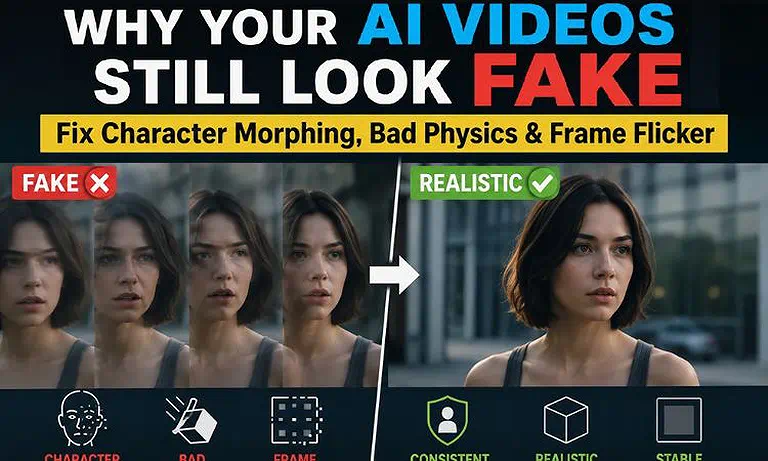
Cover Photo Why Your AI Videos Still Look Fake Fix Character Morphing, Bad Physics & Frame Flicker
AI Video Consistency Workflow at a Glance
| Section | Details |
| AI Consistency Stack | Four specialized AI video platforms, each responsible for improving character consistency, realistic motion, camera stability, and overall visual continuity. |
| Recommended Workflow | Generate a stable visual foundation → Enhance realistic physics and scene coherence → Preserve character identity during motion → Refine cinematic movement and frame-to-frame continuity. |
| Primary Objective | Maintain consistent characters, believable object interactions, stable camera movement, coherent lighting, and temporal consistency across every shot. |
| Problems Solved | Reduces character morphing, identity drift, broken physics, frame flicker, motion artifacts, and inconsistent scene composition. |
| Production Outcome | Produces AI videos with stable characters, natural motion, cinematic realism, and production-ready visual consistency suitable for professional content creation. |
Who Should Read This Guide?
Ever wondered why two creators can use the same AI video tool, yet one produces a cinematic masterpiece while the other ends up with flickering characters, broken physics, and scenes that feel obviously AI-generated? The difference usually isn't the prompt it's the workflow. If you're tired of watching your AI videos fall apart after a few seconds, this guide will show you how professionals achieve far more consistent results.
This guide is ideal for:
- AI Filmmakers & Indie Directors who want to keep characters, camera movements, and visual storytelling consistent from the opening shot to the final frame.
- Content Creators & YouTubers looking to eliminate character morphing, frame flicker, and distracting AI artifacts that reduce viewer retention.
- VFX Artists & Video Editors who need stable AI-generated footage for compositing, motion tracking, color grading, and professional post-production.
- Creative Agencies & Marketing Teams creating commercials, product videos, and branded campaigns that demand believable AI visuals and cinematic quality.
- Advanced AI Creators & Prompt Engineers who want to master multi-tool workflows using Runway Gen-3, Google Veo, Kling AI, and Luma Dream Machine to produce videos that look far more realistic than a single prompt ever could.
By the end of this guide, you'll understand why AI videos still look fake and more importantly, how to create videos with stable characters, believable physics, and seamless frame-to-frame consistency.
Why Your AI Videos Still Look Fake
If you’ve been blaming your prompt for fake-looking AI videos, the real problem may be deeper. Unlike traditional 3D animation tools, AI video models like Runway Gen-3, Google Veo, Kling AI, and Luma Dream Machine don’t create scenes with fixed 3D objects or true physics systems. Instead, they predict each frame from patterns learned across millions of videos. This creates impressive visuals but also makes it difficult to maintain character identity, object relationships, and realistic motion.
These small prediction errors quickly become visible as character morphing, identity drift, frame flicker, and broken physics. A face changes, objects shift, and realistic interactions start to fail. These limitations are not random glitches they are predictable challenges of current AI video generation. However, they can be reduced with reference images, consistent conditioning, controlled camera movement, and structured workflows instead of relying on a single prompt.
AI Workflow for Fixing Fake-Looking AI Videos
| Workflow Stage | What Happens |
| Scene Planning | Define the character, environment, camera angles, lighting, and shot sequence before generating any video to establish a clear creative direction. |
| Visual Anchoring | Lock character identity, scene composition, and object placement so every shot starts from a consistent visual foundation. |
| Controlled Motion Generation | Introduce movement gradually using short, manageable sequences instead of generating long scenes in a single attempt. |
| Quality Review & Refinement | Review each clip for character morphing, frame flicker, broken physics, and continuity issues before assembling the fina |
The Best Workflow to Fix Fake-Looking AI Videos
The secret to realistic AI videos isn't writing a longer prompt it's giving the AI fewer opportunities to make mistakes. Every new frame is another prediction, and every prediction introduces the possibility of character morphing, frame flicker, or broken physics. Professional creators don't expect AI to generate a flawless video in a single attempt. Instead, they follow a structured workflow that gradually reduces the model's uncertainty by locking visual consistency before introducing motion. The less the AI has to guess, the more realistic and stable the final video becomes.
Workflow Overview
Visual Blueprint → Identity Locking → Controlled Motion Generation → Quality Review & Refinement
Step 1: Build a Clear Visual Blueprint
Define your character, environment, lighting, camera angle, and shot sequence before generating any video. A consistent visual blueprint ensures every scene starts from the same creative direction, reducing unnecessary variation and helping maintain continuity throughout the project.
Step 2: Lock Identity Before Adding Motion
Establish stable visual anchors by keeping your character's appearance, scene composition, object placement, and lighting consistent. When these elements remain fixed, the AI can focus on animating the scene instead of repeatedly recreating it, dramatically reducing identity drift and character morphing.
Step 3: Introduce Motion Gradually
Generate movement in controlled, manageable sequences instead of asking the AI to create long, complex scenes all at once. Keep camera movements intentional, limit simultaneous changes within a scene, and preserve the overall composition to improve temporal consistency and prevent frame flicker or unrealistic object behavior.
Step 4: Validate and Refine Every Sequence
Review each generated clip before combining it with the next. Look for subtle changes in facial features, body proportions, object interactions, lighting, and motion continuity. Correcting small inconsistencies early prevents them from compounding across the final edit, resulting in AI videos that feel stable, believable, and genuinely cinematic rather than obviously machine-generated.
By following this workflow, you're no longer relying on AI to guess every frame independently. Instead, you're guiding the generation process with consistency at every stage producing videos with stable characters, natural motion, realistic physics, and seamless frame-to-frame continuity that are far more convincing to viewers.
Best AI Tools for Creating More Realistic AI Videos
No AI video generator can completely eliminate character morphing, broken physics, and frame flicker on its own. Every model has unique strengths and limitations, which is why experienced creators rarely depend on a single platform from start to finish. Instead, they combine specialized AI tools for video creation that excel at different parts of the production process, allowing them to maintain stronger character consistency, more natural motion, and better visual continuity. Choosing the right tool for the right task significantly reduces AI artifacts and produces videos that feel far more cinematic and believable.
Runway Gen-3 Best for Visual Anchoring and Camera Consistency
If unstable camera movement or inconsistent framing makes your AI videos look artificial, Runway Gen-3 is one of the strongest platforms available. It excels at creating a stable visual foundation through advanced image-to-video generation and precise camera controls, helping maintain consistent composition across pans, zooms, and tracking shots. By reducing unnecessary changes in framing and perspective, Runway Gen-3 improves temporal consistency and minimizes frame flicker throughout a sequence. For a complete breakdown of its features, performance, and pricing, read our Runway Gen-3 Review.
Google Veo Best for Realistic Physics and Scene Coherence
Broken physics is one of the fastest ways to expose an AI-generated video. Google Veo addresses this challenge by generating scenes with more believable environmental behavior, natural object interactions, and smoother motion. Whether characters interact with props or the camera moves through a complex environment, Veo maintains stronger scene coherence than many AI video generators. If realism is your priority, it's one of the best platforms for creating videos that feel grounded in the physical world. Learn more in our comprehensive Google Veo Review.
Kling AI Best for Character Consistency and Natural Motion
If your AI characters keep changing facial features, clothing, or body proportions between frames, Kling AI is one of the most effective solutions available. It specializes in preserving character identity during movement while generating realistic facial expressions, gestures, and body motion. This makes Kling AI particularly valuable for dialogue scenes, walking sequences, and other character-driven videos where maintaining visual consistency is essential. Explore its capabilities in our detailed Kling AI Review.
Luma Dream Machine Best for Motion Fluidity and Cinematic Continuity
Even when characters remain consistent, abrupt movement and choppy transitions can still make an AI video feel unnatural. Luma Dream Machine helps solve this problem by producing fluid camera movement, seamless scene transitions, and smoother frame-to-frame motion. Its ability to maintain visual continuity across dynamic sequences makes it an excellent choice for creators who want AI videos with a polished, cinematic finish. Discover how it performs in real-world projects in our complete Luma Dream Machine Review.
Why This Combination Works
Each platform addresses a specific challenge in AI video generation. Runway Gen-3 improves visual consistency, Google Veo enhances realistic physics, Kling AI preserves character identity, and Luma Dream Machine refines motion continuity. Together, they reduce character morphing, broken physics, and frame flicker, producing more stable, realistic, and production-ready AI videos.
Critical Mistakes That Make AI Videos Look Fake
Even the most advanced AI video generators can produce unrealistic results if the generation process isn't carefully controlled. Avoid these common mistakes to reduce character morphing, broken physics, and frame flicker while improving overall visual consistency.
1. Generating Long, Complex Actions in One Prompt
Trying to generate multiple actions such as walking, turning, picking up an object, and opening a door in a single sequence forces the AI to predict too many changes at once. Generate complex scenes as shorter clips to maintain character consistency and realistic motion.
2. Introducing Too Much Motion at Once
Rapid camera movement, excessive subject motion, or multiple moving objects increase prediction errors between frames. Keep movement controlled and intentional to improve temporal consistency and reduce flicker, distortion, and unrealistic physics.
3. Changing Visual References Between Scenes
Switching character appearance, camera angles, lighting, or scene composition too frequently makes it difficult for the AI to maintain continuity. Reuse consistent visual references across related shots to preserve character identity and create smoother scene transitions.
Best Practices for More Realistic AI Videos
The difference between an average AI-generated video and a production-ready result often comes down to workflow discipline rather than the AI model itself. Following these best practices helps maintain character consistency, realistic motion, and visual continuity from the first frame to the final export.
1. Keep Every Generation Simple and Focused
Avoid asking the AI to perform multiple complex actions in a single generation. Instead, create shorter, purpose-driven sequences that focus on one primary movement at a time. This reduces prediction errors and significantly improves character consistency, motion quality, and temporal stability.
2. Maintain Consistent Visual References
Treat your character, environment, lighting, and camera composition as fixed visual anchors throughout the project. The fewer visual elements that change between shots, the easier it is for the AI to preserve identity, reduce frame flicker, and maintain believable scene continuity.
3. Build a Reusable Production Library
Save your best reference images, prompts, key frames, and successful generations in a dedicated project library. Reusing proven assets not only speeds up future production but also helps maintain consistent characters, environments, and visual style across every scene.
FAQs
What causes character morphing in AI videos?
Character morphing occurs because AI video models predict each frame independently instead of tracking a permanent 3D character. Small prediction errors accumulate over time, causing facial features, clothing, or body proportions to change unexpectedly.
Why do AI-generated videos still look fake?
AI videos often look fake because they struggle with temporal consistency. Character morphing, broken physics, frame flicker, and unrealistic object interactions make scenes appear artificial and reduce the overall realism of the generated video.
How can I stop characters from changing between frames?
Use consistent visual references, maintain the same character appearance and scene composition, and generate shorter video clips. This approach helps preserve character identity while reducing morphing, identity drift, and continuity issues.
Why do AI videos flicker between frames?
Frame flicker happens when the AI generates slight variations in lighting, textures, colors, or object placement between consecutive frames. Consistent visual references and controlled motion significantly improve frame-to-frame stability.
Why do AI videos struggle with realistic physics?
AI video generators predict visual patterns instead of simulating real-world physics. As a result, objects may move unnaturally, collide incorrectly, or ignore gravity, making scenes appear less believable and visually inconsistent.
Does using reference images improve AI video consistency?
Yes. Reference images provide a stable visual foundation that helps preserve character identity, scene composition, and object placement. They are one of the most effective ways to improve consistency across multiple shots.
Can one AI video generator solve every consistency problem?
No. Every AI video generator has different strengths and limitations. Combining specialized tools within a structured workflow usually produces better character consistency, realistic motion, and overall video quality than relying on one platform.
How long should an AI-generated video clip be?
Shorter clips generally produce better results than long generations. Creating scenes in small, manageable segments reduces prediction errors, improves consistency, and makes it easier to refine and assemble the final video.
Does increasing video resolution fix character morphing or bad physics?
No. Upscaling only improves video resolution and image clarity. It cannot correct character morphing, broken physics, or frame flicker, and may even make these visual artifacts more noticeable.
What's the best workflow for creating realistic AI videos?
Plan each scene, establish consistent visual references, generate motion in short sequences, and review every clip before editing. This structured workflow minimizes AI artifacts and produces more realistic, stable, and cinematic videos.
Conclusion
If your AI videos still look fake, the problem usually isn't the AI model it's the workflow behind it. Character morphing, broken physics, and frame flicker occur when the model is forced to make too many predictions without enough visual guidance. By planning each scene, maintaining consistent visual references, generating motion in controlled sequences, and refining every clip before export, you can dramatically improve visual realism and overall video quality.
The future of AI video creation belongs to creators who combine the right techniques with the right tools rather than relying on a single prompt or platform. As models continue to advance, a disciplined production workflow will remain the key to producing stable characters, believable motion, and cinematic videos that are ready for professional use.