.webp)
PDF to Word Converters (Free) in 2026: Tested
I found that most PDF-to-Word tools handle documents with regular text quite well. However, the results can vary when a file contains tables, images, handwritten text, or multiple languages. During my tests, several tools struggled with scanned PDFs that required OCR and documents with complex layouts, even when they handled standard files without any problems.
To find out which PDF converters actually deliver good results, I tested popular tools using different types of PDF files. I checked how well they handled scanned documents, OCR, tables, images, complex formatting, multiple languages, and handwritten text. I also tested batch conversion and examined the resulting Word files to see whether the text remained editable and the original layout stayed intact.
For this guide, I included only tools that let me convert PDFs to Word and download the finished files completely free. I also checked their free limits, including restrictions on page counts, file uploads, batch processing, OCR, and daily use. Rather than picking one tool as the winner, I focused on finding out which free converter works best for different PDF types based on my own test results.

 Updated: April 23, 2026 | 16 min read
undefined
Standard PDFs Conversion
A standard PDF contains digitally created text rather than scanned images. It usually converts well when the document has normal text, headings, tables, images, fonts, spacing, and page breaks.
Tools I Selected
- PDFgear
- PDF24 Tools
- iLovePDF
- FreeFileConverter
Why I Selected These Tools
I selected these four tools because they let users convert standard PDFs to Word for free without a daily conversion limit. This makes them useful for anyone who regularly converts digital PDF files and wants to avoid paying for a subscription.
How I Tested These Tools
For my standard PDF test, I created a sample document with headings, paragraphs, a table, form fields, text boxes, numerical data, special characters, and an embedded image. I used this file to see how well each converter preserved the original formatting, table structure, alignment, and image placement. I also checked whether the text inside form fields and text boxes remained editable in Word or turned into static text or images.
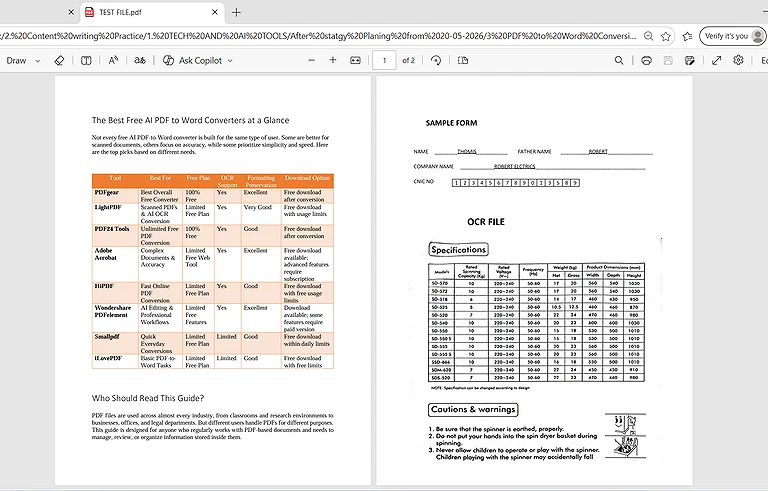
Standard PDF test file used to evaluate text, table, form field, formatting, and image conversion.
Standard PDF Conversion Results
All four tools produced very similar results in my standard PDF test. The text and headings transferred correctly, and the original heading styles remained intact. The table also kept its structure and remained fully editable in Word.
I found that the text boxes and form fields were editable after conversion instead of turning into images. The numerical data and special characters appeared correctly, and the embedded image stayed in its original position. Spacing, alignment, and the overall page layout also closely matched the original PDF.
Based on these results, all four converters handled standard PDFs reliably. If you regularly convert ordinary digital PDFs, any of these tools can produce a usable, editable Word document with minimal formatting changes. The screenshot below shows a representative result from my testing. It reflects the similar output I observed across all four tools.
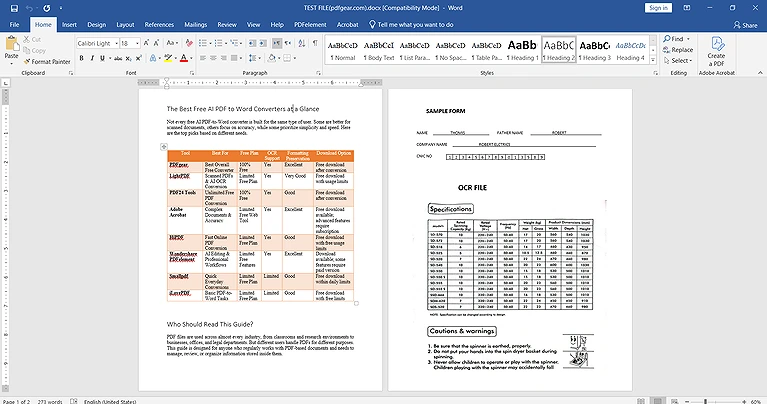
Editable Word output showing accurate text, table, form fields, formatting, and image placement.
Scanned (OCR) PDFs Conversion
Scanned PDFs contain page images rather than selectable text, so converting them into editable Word documents requires OCR to recognize the text and recreate it as editable content. The quality of this process can vary when documents contain tables, images, blurred areas, or complex formatting.
Tools I Selected
- PDFgear
- LightPDF
- CloudConvert
- PDF Candy
Why I Selected These Tools
I selected these four tools because they support OCR-based conversion of scanned PDFs and provide an editable Word document rather than simply inserting the scanned PDF pages as images. This distinction is important because the purpose of PDF to Word conversion is to create content that can be edited after conversion.
How I Tested These Tools
For my OCR test, I created a scanned PDF with headings, paragraphs, tables, multi-column layouts, numbered instructions, diagrams, warning symbols, and technical formatting. I used this file to check how accurately each tool recognized the text and how well it preserved the original layout. I also examined the tables, diagrams, symbols, spacing, alignment, and overall document structure after conversion to Word.........
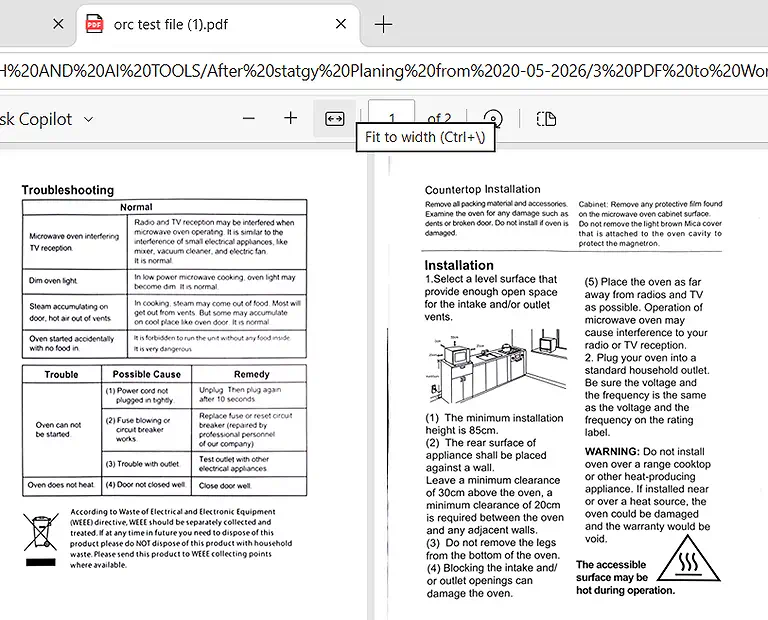
Scanned PDF test file used to evaluate OCR accuracy, tables, layouts, diagrams, and symbols.
Limitations of Free Plans
PDFgear: No daily limit.
LightPDF: 3 files per day.
CloudConvert: 10 pages per day.
PDF Candy: 1 file per hour.
Scanned PDF Conversion Results
PDFgear produced highly accurate text recognition and preserved the document structure well. Most of the scanned content became editable Word text, including the main paragraphs and table content. The deliberately blurred table cell remained as an image, so that specific part could not be edited as normal text.
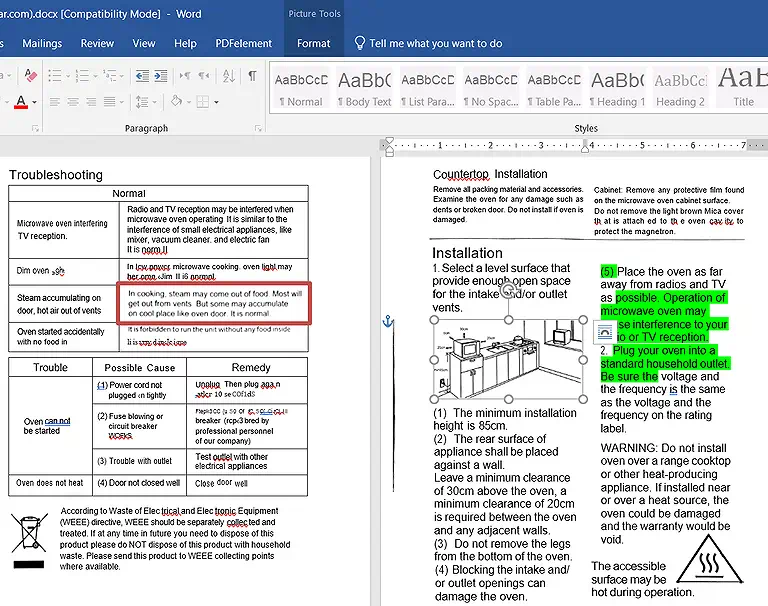
Image is showing PDFgear OCR output showing editable text, preserved tables, but blur text as image.
LightPDF converted most of the scanned content into editable Word text with strong recognition. It introduced a few formatting changes, including some lines becoming bold. These issues were minor, but they may require manual cleanup when the converted document needs to closely match the original.
CloudConvert successfully converted the main scanned content into editable Word text, but some table values changed during the conversion. The deliberately blurred cell also remained as an image. The converted file is usable, but important numbers and table data should be checked against the original PDF.
PDF Candy produced an editable Word document and preserved the main headings, images, and merged cells. Some table values changed during conversion, and minor formatting adjustments were needed afterward. The output was still usable for editing, but data-heavy documents should be reviewed before reuse.
Batch Processing
Batch conversion is useful when you need to convert multiple PDF files into Word documents. Instead of uploading each file separately, batch-enabled tools allow several PDFs to be processed together, saving time when handling many documents.
Tools I Selected
- PDF24 Tools
- CloudConvert
- FreeFileConverter
Why I Selected These Tools
I selected these three tools because they let me convert multiple PDF files to Word in one go. Instead of uploading and converting each document separately, I could process several files in a single workflow, saving time when handling multiple PDFs.
How I Tested These Tools
To test batch processing, I made 20 copies of the same test PDF and uploaded them to each converter at once. I then started the conversion using each tool’s free batch processing option. This helped me check how many files each tool could handle in one go, whether all 20 converted successfully, and whether the resulting Word documents were consistent and ready to use.
Limitations of Free Plans
- PDF24 Tools: No daily limit observed during our testing.
- CloudConvert: 10 files per day.
- FreeFileConverter: Up to 5 files per batch.
Batch Conversion Results
PDF24 Tools successfully processed 20 PDF files in one batch. Each PDF was converted into its own Word file, and all converted Word files were placed together in a single folder. This makes it convenient when converting a large collection of PDFs.
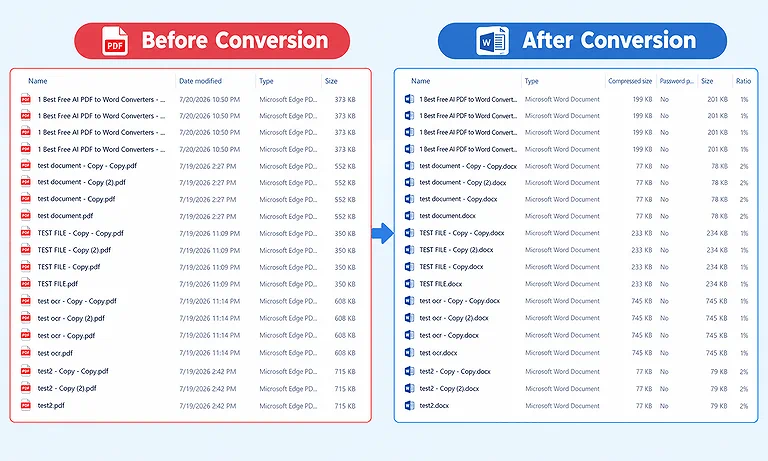
Image showing the 20 PDF files converted into 20 Word files at once in batch using PDF24 Tools.
CloudConvert allowed 10 PDF files to be uploaded and converted together in one workflow. However, the converted Word files had to be downloaded individually rather than being provided together in a single folder. This makes batch conversion convenient, but downloading multiple results requires additional steps.
FreeFileConverter supports batch conversion of up to 5 PDF files at a time. The converted Word documents are provided as separate files rather than being automatically organized into a single folder. This makes it more suitable for smaller batches.
Multilingual PDFs Conversion
Multilingual PDFs can be more difficult to convert because they may contain different scripts, character sets, fonts, and writing directions. A converter must recognize each language correctly while keeping the text editable.
This is especially important for right to left languages such as Arabic and Urdu. Incorrect character recognition, text direction, font rendering, or alignment can affect how easily the converted Word document can be edited and reused.
Tools I Selected
- PDFgear
- iLovePDF
- Wondershare PDFelement
- LightPDF
Why I Selected These Tools
I selected these four tools because they support multilingual OCR and can convert PDFs containing different languages into editable Word documents. I also tested right-to-left text to see how accurately each tool recognized the content and preserved the original text direction, formatting, and layout after conversion.
How I Tested These Tools
For my multilingual PDF test, I created a document containing eight languages: English, Urdu, Chinese, Russian, Turkish, Spanish, French, and German. I included regular paragraphs, right to left text, a table with column headers, and bulleted lists. This helped me check how well each converter preserved the original languages, text direction, table formatting, and overall layout after converting the PDF to Word.
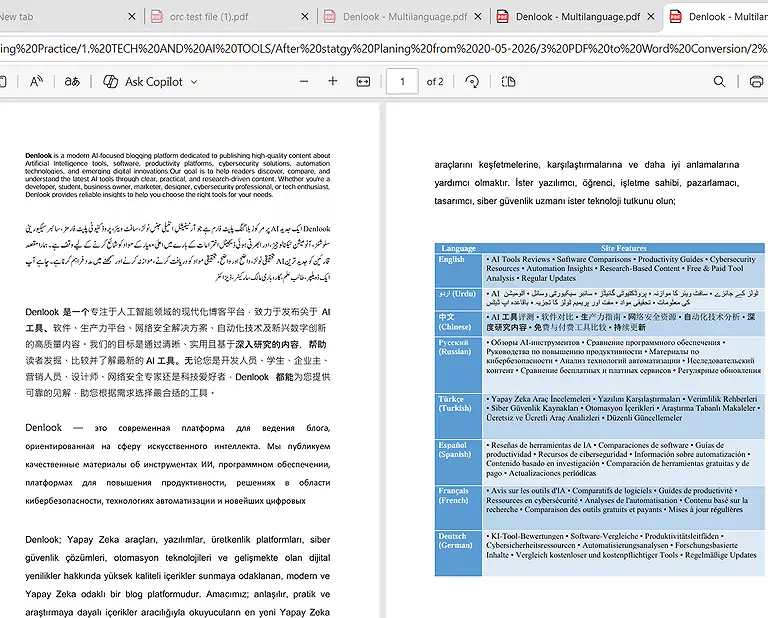
Multilingual PDF file containing eight languages, structured text, a table, and bulleted lists for conversion test.
Limitations of Free Plans
- PDFgear: No daily limit.
- iLovePDF: Generous free tier.
- Wondershare PDFelement: 10 pages per day.
- LightPDF: 3 files per day.
What to Check in Multilingual Documents
After conversion, check:
- Character recognition
- Font readability
- Right to left direction
- Text alignment
- Numbers and symbols
- Mixed-language text
- Multilingual tables
Multilingual PDF Conversion Results
PDFgear produced highly accurate multilingual text recognition and preserved the document formatting well. The converted Word document maintained the text, tables, and overall structure effectively, making the output easy to edit.
iLovePDF also produced strong multilingual OCR results. The converted Word document preserved the text and formatting well, including the structure of the multilingual content. The output remained editable and suitable for further use.
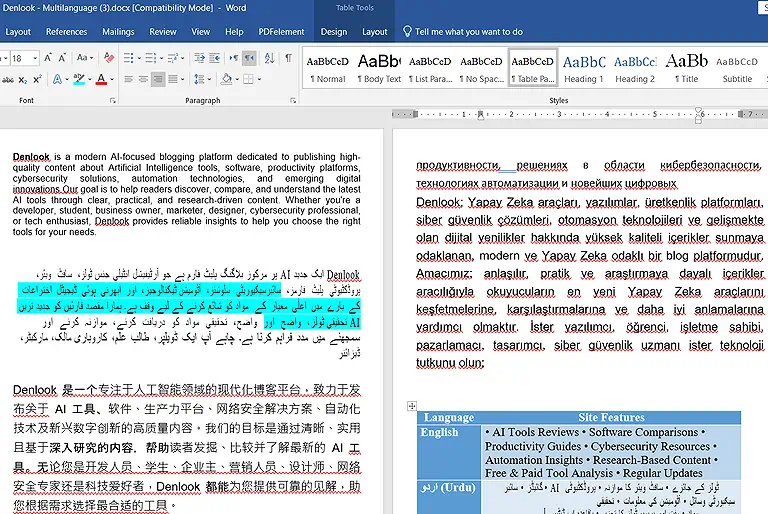
iLovePDF output showing preserved multilingual text, formatting, and editable Word content.
Wondershare PDFelement produced readable multilingual text and handled Urdu content well. However, some minor right to left alignment shifts were noticeable in the converted Word document. These changes did not prevent editing but may require small adjustments.
LightPDF preserved the document structure very well, including the overall layout. However, the Urdu font became difficult to read in the converted Word document. The structural preservation was strong, but the font issue can affect the usability of Urdu content.
Handwritten Conversion
Handwritten and difficult PDFs are more challenging to convert because their content may not contain clear, machine-readable characters. Handwriting, blurred text, low resolution scans, rotated pages, shadows, and unusual symbols can all affect recognition accuracy.
Tools I Selected
- Grok AI
- ChatGPT
- UPDF AI
- Transkribus
Why I Selected These Tools
I selected these tools because they can recognize handwritten content in PDFs and turn it into usable Word documents. Each tool handles handwriting and difficult PDF content differently, which allowed me to compare their results and see which ones worked best for this type of conversion.
How I Tested These Tools
For my handwriting test, I created a PDF from a handwritten page containing a heading, several paragraphs, and special characters at the bottom. I used this file to check how accurately each tool recognized the handwriting and whether it preserved the special characters in the converted Word document. I also checked whether the extracted content remained editable rather than being saved as an image.
Limitations of Free Plans
- Grok AI: 3 pages (image format), up to 516 MB total; unlimited handwritten PDFs.
- ChatGPT: 3 pages (image format), up to 516 MB total; unlimited handwritten PDFs.
- UPDF AI: Unlimited handwritten images and PDFs.
- Transkribus: 9 free conversions per day.
Handwritten PDF Conversion Results
Grok AI accurately recognized the handwritten heading, paragraphs, numbers, punctuation, and special characters. It handled unclear handwriting well by using sentence context to interpret difficult words. The main heading remained centered, and the paragraph structure was also maintained. However, the handwritten PDF content was retained as an image in the Word output, so the handwriting itself was not directly editable as Word text.
ChatGPT accurately recognized the handwritten content, including numbers, punctuation, and special characters. It handled unclear words effectively through contextual recognition. The converted content was provided as an editable Word document, allowing the recognized text to be modified normally. However, it split one long paragraph into three shorter paragraphs and omitted a few isolated numeric values from the original page.
UPDF AI correctly extracted the handwritten heading, paragraphs, numbers, punctuation, and special characters as editable text. Unlike Grok AI, the handwritten content was not retained as an image. However, the output was mainly plain text and did not preserve the original heading alignment, spacing, or page layout, requiring manual formatting afterward.
Transkribus converted most of the handwritten content into editable Word text, with only a few words requiring manual correction. Its formatting preservation was fair because the heading and body content were merged into a single paragraph, requiring additional formatting to match the original page.
Overall, Grok AI and ChatGPT provided the strongest handwriting recognition, while UPDF AI also produced accurate editable text but with limited formatting preservation. Transkribus provided editable Word output with some recognition and formatting corrections required. These results are based on the specific handwritten PDF used in our testing, and performance may vary with handwriting style, image quality, and document condition.
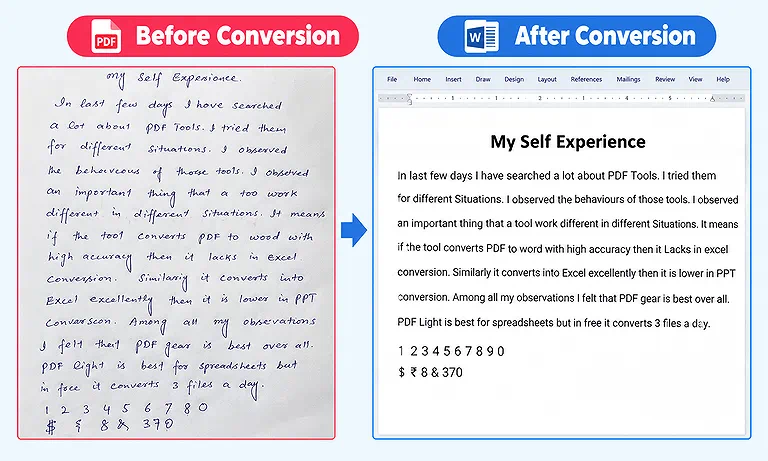
Handwritten PDF conversion showing editable text and accurately recognized special characters.
Common Mistakes To Avoid
Choosing the Wrong Converter: Different PDF types require different conversion methods. Choose a tool based on whether the file is digital, scanned, multilingual, or handwritten.
Expecting Identical Formatting: The Word file may not look exactly like the original PDF. Fonts, spacing, tables, images, and page breaks can change during conversion.
Ignoring OCR Errors: OCR can misread letters, numbers, symbols, or words in scanned PDFs. Always check important information against the original document.
Assuming Everything Is Editable: Some scanned or handwritten content may remain as images in the Word file. Check whether important sections have actually become editable text.
Skipping Table Checks: Tables can lose alignment, merged cells, or correct values during conversion. Review important tables carefully before using the converted information.
Ignoring RTL Languages: Arabic and Urdu text can have direction, font, or alignment problems after conversion. Check right-to-left content carefully.
Not Checking Images: Images and graphics may move, resize, or appear differently in Word. Check important visual elements before finalizing the document.
Ignoring Free-Plan Limits: Free converters may restrict pages, files, batch size, OCR, or downloads. Check these limits before starting a large conversion.
Batch Converting Without Testing: A large batch can create extra work if the conversion quality is poor. Test a few files first and continue when the results are acceptable.
Skipping the Final Comparison: A converted Word file isn't always an exact copy of the PDF. Compare important text, numbers, tables, and images before using it.
FAQs
What happens to images when converting PDF to Word?
Images are usually transferred into the Word document as separate elements. Their position and quality can change depending on the PDF structure and converter. Some tools may also retain difficult scanned content as images.
Can PDF to Word conversion preserve tables?
Yes, many converters can recreate tables as editable Word tables. However, merged cells, complex borders, multiple columns, and scanned tables can cause structural changes that may require manual correction after conversion.
Why does my converted Word document look different from the PDF?
PDF and Word use different methods to arrange content. During conversion, text boxes, fonts, spacing, images, tables, and page breaks may be recreated differently, causing the Word document to look slightly different.
Can I convert a PDF with images and text into editable Word content?
Yes, text can usually become editable Word text while images remain separate image elements. Scanned or handwritten content may instead remain as images unless the converter successfully recognizes it through OCR.
Why is my PDF converted to Word but the text isn't editable?
The converter may have placed each PDF page or scanned section into Word as an image. This creates a Word file visually similar to the PDF, but the text inside those images cannot be edited normally.
Does OCR convert every part of a scanned PDF into editable text?
No. OCR can struggle with blurred areas, handwriting, unusual fonts, symbols, and poor-quality scans. Some sections may become editable text while difficult areas remain images or contain recognition errors.
Can PDF to Word conversion handle complex document formatting?
It can handle many common formatting elements, but complex layouts may change during conversion. Columns, positioned elements, tables, unusual fonts, and overlapping content are more likely to require manual adjustments.
Why are some words or numbers missing after PDF conversion?
Missing content can result from poor scan quality, unusual characters, disconnected text, OCR limitations, or complicated document structures. Important numbers and other critical information should always be checked against the original PDF.
Can PDF to Word conversion preserve the same fonts?
A converter can attempt to preserve the original fonts, but the result depends on whether those fonts are supported or available. Unsupported fonts may be replaced, which can change spacing and document appearance.
Is the converted Word document fully editable?
No. Text-based PDFs generally produce editable text, while scanned or handwritten PDFs can produce a mixture of editable text and images. The final editability depends on the converter and PDF content.
Conclusion
After testing these tools, I found that no single PDF-to-Word converter works best for every type of file. Standard PDFs are usually easier to convert, but scanned documents, multiple languages, batch processing, and handwritten content can make the job more challenging.
The right tool depends on the type of PDF you're working with and what you expect from the Word file. I recommend checking OCR accuracy, text editability, formatting, language support, batch conversion, and free-plan limits before making a choice. Always compare the converted Word document with the original PDF, especially when accuracy matters.